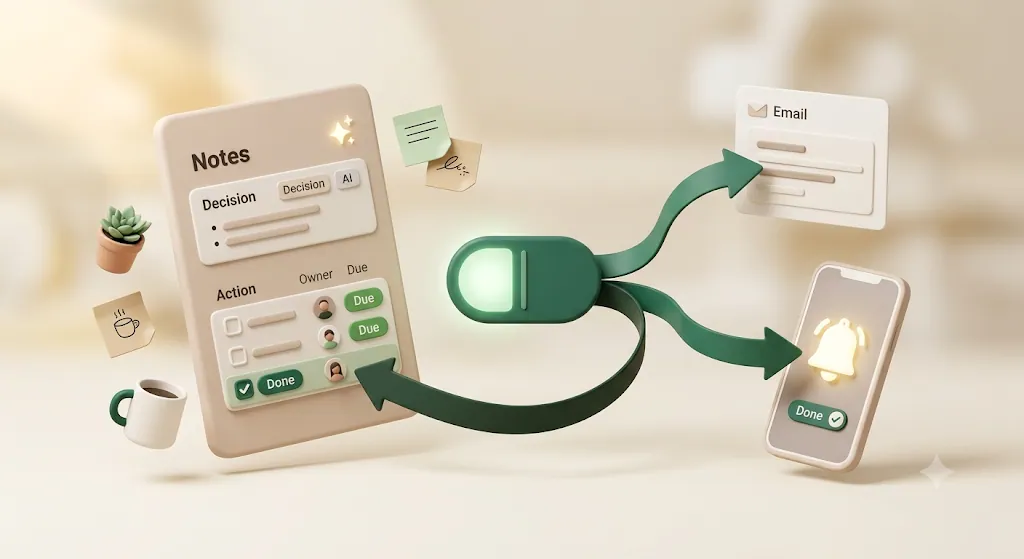
Free Notion Templates for Small Business and Freelance Work (and How to Actually Use Them)

Duplicating a Notion template is the easy part — the columns show up, a few sample rows are already there, and it feels like progress. This guide is for freelancers and small teams who want the second half too: a small, purpose-built set covering billing, client work, bookings, tasks, renewals, and dues, set up so a Due date and Status column can email reminders that reach people who don't use Notion — and stop automatically the moment something's paid or done. If you're new to Notion, the complete guide to using Notion covers the basics first.
TL;DR
- A Notion template is a pre-built page or database you copy into your own workspace with the Duplicate button, then edit freely — faster than starting from a blank page.
- Pick a template by what you actually track (money, people, or time), and look for three columns that make automation possible later: a date, a status, and an email.
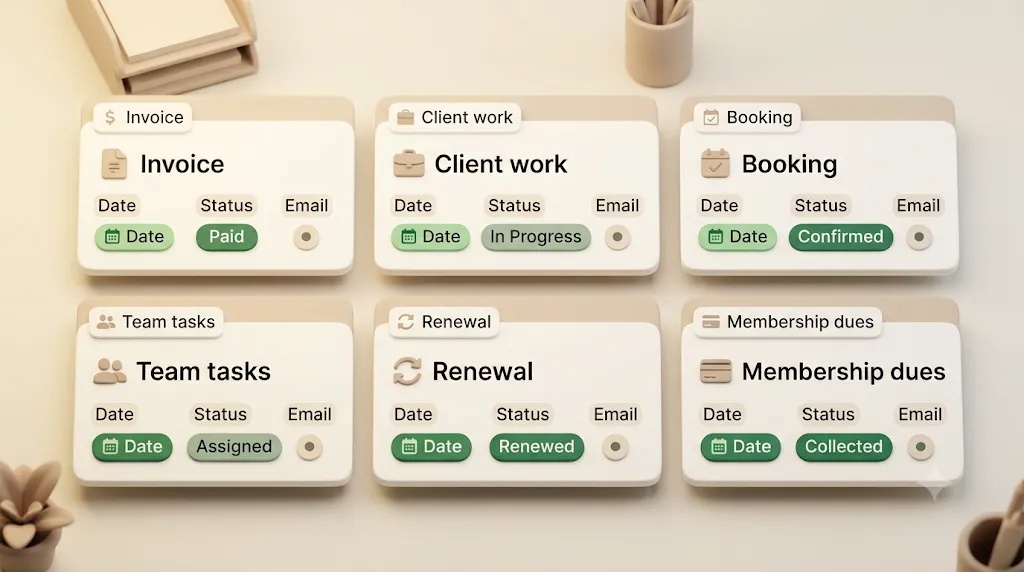
- This guide covers six free, duplicate-and-go templates: Invoice & Payment, Client Work, Appointment, Team Task, Contract Renewal, and Membership Dues.
- Once a template has a date, a status, and an email column, a tool like Kapsel can email reminders about approaching or overdue dates — even to people who don't use Notion — and stop automatically once an item is marked done or paid.
Notion is a flexible workspace, but a flexible workspace is also an empty one. Templates solve the "blank page" problem by giving you a working structure — the right columns, views, and a few sample rows — that you can adapt in minutes instead of designing from scratch. For a freelancer or a small team, that's the difference between "I'll set up my invoicing system someday" and "it's running today."
What is a Notion template?
A Notion template is a pre-built page or database that someone has already set up and shared so you can copy it into your own workspace and use it as a starting point. Instead of deciding which columns, views, and layout you need, you inherit a working structure and change only what's specific to you.
Templates come in two broad flavors:
- Page templates — a formatted document (a meeting note, a project brief, a wiki page) you reuse repeatedly.
- Database templates — a structured table with properties (columns) like Date, Status, and Owner, plus one or more views (table, board, calendar). These are the ones that run a business: invoices, clients, bookings, tasks.
This guide focuses on database templates, because those are what you connect deadlines and reminders to later.
A template vs. a regular Notion page
A regular Notion page is a one-off — you build it, you use it, and if you want another like it you rebuild it. A template is designed to be reused: it's either shared publicly for anyone to duplicate, or set as a "database template" so every new row starts pre-filled.
| Regular page | Template | |
|---|---|---|
| Purpose | A single document or database | A reusable starting point |
| How you get it | You build it yourself | You duplicate it (or apply it as a new-row default) |
| Structure | Whatever you made | A designed set of properties and views |
| Best for | One-off notes | Repeating workflows (invoices, clients, bookings) |
💡 Inside a database, you can also save a row template — click the dropdown next to the blue New button and "+ New template." Every new row then starts with your chosen properties and checklist already filled in. That's different from duplicating a whole database, which is what the rest of this section covers.
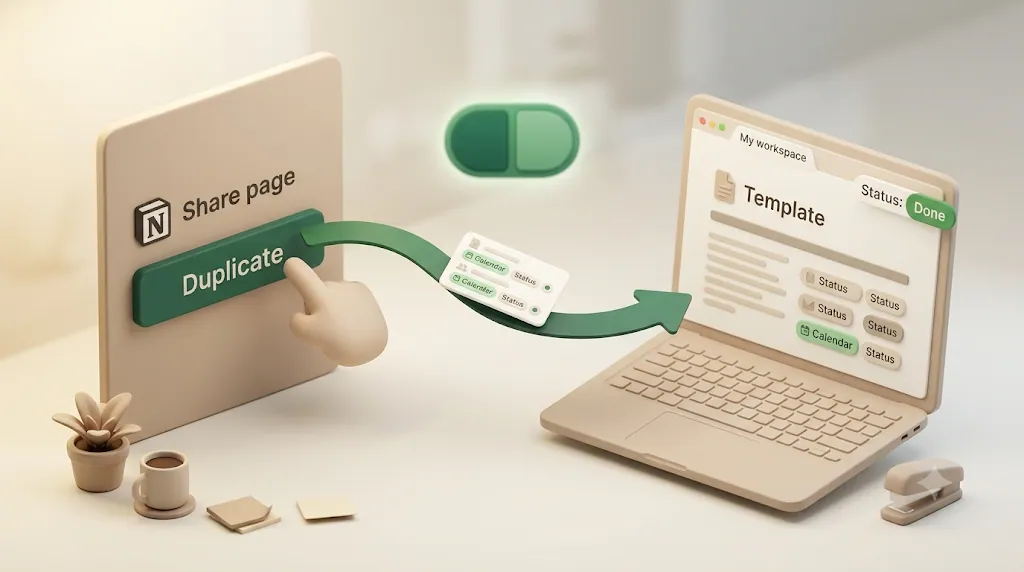
How duplicating works (Duplicate button → pick a workspace → it's yours to edit)
Duplicating a shared template is the fastest way to get a working system. Here's the flow:
- Open the template's public share link in your browser (creators post these on their site, in the Notion Marketplace, or on Gumroad/Etsy).
- Click "Duplicate" in the top-right corner of the page.
- Choose the workspace to copy it into (if you belong to more than one, Notion asks which).
- Wait a moment — larger templates with linked databases can take a few seconds to copy.
- Rename it and start editing. It's now a fully independent copy in your workspace; changes you make never touch the original.
Do that once and you get a working structure — properties, views, and sample rows already in place — instead of building a database column by column from a blank page.
⚠️ The Duplicate button only appears if the template's owner enabled duplication for that page. If you don't see it, the creator hasn't shared it as duplicatable — ask for a copy or find another template.
How to pick the right template for your business
The best template is the one that matches your actual work — not the one with the prettiest cover image. Three quick filters keep you from over-collecting.
Match the template to what you're actually tracking (money, people, or time)
Most small-business templates fall into one of three buckets. Start by naming which problem is costing you the most right now.
| You're tracking… | Template type | Typical columns |
|---|---|---|
| Money | Invoice & payment, membership dues | Amount, Due date, Paid status |
| People | Client work, CRM, team tasks | Owner/assignee, Status, Contact email |
| Time | Appointments, bookings, contract renewals | Date/time, Status, Reminder date |
Segment by role: freelancer, small business, startup, or agency
Who's using the template matters as much as what it tracks:
- Freelancers — usually start with an Invoice & Payment Tracker to get paid on time, then add a Client Work Tracker once they're juggling more than one project.
- Small businesses (shops, studios, clinics) — lean on Appointment/Booking and Membership Dues trackers to manage recurring customer touchpoints.
- Startups and small teams — a Team Task Tracker keeps everyone aligned without the overhead of full project-management software.
- Agencies and consultants — combine a Client Work Tracker with a Contract Renewal Tracker to manage delivery and retainers side by side.
There's no wrong entry point — pick the one that matches the role you're in today.
Look for the columns that make automation possible: a date, a status, an email
Here's the part generic roundups skip. Advice like "adjust views" or "add a formula" is fine, but it doesn't tie a template to anything useful downstream. If you ever want deadlines to do something — trigger a reminder, flag an overdue item, notify a client — the template needs three specific properties:
- A date field (Due date, appointment time, renewal date) — the thing a reminder counts down to.
- A status field (Draft / Sent / Paid, or To do / In progress / Done) — so a reminder knows when to stop.
- An email field — the address of the person who should be reminded, especially if they don't use Notion.
A template with those three columns is "automation-ready." Without them, you can still track work, but you'll be chasing deadlines manually.
💡 The email column matters more than people expect. Notion's own notifications only reach people inside your workspace. If your reminders need to reach a client, a contractor, or a vendor, you need their email stored on the row.
Start with one template, not ten — avoid template-collector paralysis
Duplicating templates feels productive, but ten half-used databases is just clutter. Pick the single workflow that's leaking the most money or time — usually invoicing or client follow-up — get it running, then add the next one. A small, consistent set beats a sprawling gallery you never open.
6 free, duplicate-and-go templates for running a small business or freelance operation
These six cover a complete small-business loop: bill clients, deliver work, book time, run the team, renew contracts, and collect dues. Each is free to duplicate and built with the same Kapsel-recommended columns — a date, a status, and an email — so they're consistent to use and ready to connect to reminders when you want them.
Browse the full set at /en/templates, or jump straight to any one below.
Invoice & Payment Tracker — /en/templates/invoice-payment
- What it tracks: every invoice you've sent — amount, client, due date, and whether it's been paid.
- Who it's for: freelancers and small businesses tired of scrolling their inbox to figure out who still owes them.
- Kapsel-recommended columns: a Due date, a Payment status (Draft / Sent / Paid), and the client's email. With those in place, reminders can nudge unpaid invoices as the due date nears — and stop the moment a row is marked Paid.
Client Work Tracker — /en/templates/client-work
- What it tracks: active projects and deliverables per client — deadline, current stage, and owner.
- Who it's for: agencies, consultants, and solo freelancers juggling several clients at once.
- Kapsel-recommended columns: a Deadline date, a Status (Brief / In progress / Review / Delivered), and a client-facing email for approval and progress nudges.
Appointment / Booking Tracker — /en/templates/appointment
- What it tracks: upcoming appointments and bookings — date and time, attendee, and confirmation status.
- Who it's for: coaches, tutors, salons, and anyone who books time slots and wants fewer no-shows.
- Kapsel-recommended columns: an Appointment date/time, a Status (Requested / Confirmed / Completed), and the client's email for a confirmation or day-before reminder. See also Notion appointment reminders.
Team Task Tracker — /en/templates/team-tasks
- What it tracks: who's doing what by when — task, assignee, due date, and status.
- Who it's for: small teams that outgrew a shared to-do list but don't want heavyweight project software.
- Kapsel-recommended columns: a Due date, an Assignee, and a Status (To do / Doing / Done). Pair it with Notion team task reminders so each person gets nudged about their own overdue items. Many team tasks start as meeting action items — see the Notion meeting notes template guide for capturing them with an owner and due date.
Contract Renewal Tracker — /en/templates/contract-renewal
- What it tracks: contracts, subscriptions, and licenses with a renewal or expiry date — so none lapse silently.
- Who it's for: small businesses managing vendor contracts, retainers, and recurring services.
- Kapsel-recommended columns: a Renewal date, a Status (Active / Renewing / Cancelled), and a contact email for the person who needs to act before it expires.
Membership Dues Tracker — /en/templates/membership-dues
- What it tracks: members and their dues — amount, cycle, due date, and payment status.
- Who it's for: clubs, associations, gyms, and communities collecting recurring fees.
- Kapsel-recommended columns: a Due date, a Paid status, and each member's email, so gentle reminders go only to those who haven't paid yet.
💡 Because all six share the same date / status / email structure, once you learn to connect reminders to one, the rest work the same way.
Looking beyond these six: the wider template landscape
These six cover the small-business workflows this guide focuses on, but they're a small slice of what's out there. Notion's official template gallery and independent creators together offer templates across dozens of categories — CRM and sales pipelines, full invoicing systems, project and task management, client portals, proposals and contracts, and appointment booking, among others. If none of the six here fit your exact workflow, Notion's gallery and the Notion Marketplace are good places to keep browsing; most let you filter by category and price (free vs. paid) and sort by popularity or most recently added.
It's worth knowing where a template comes from before you build on it. Official Notion templates (built by Notion or featured in its own gallery/Marketplace) tend to follow Notion's own conventions and get updated as Notion's features change. Third-party creator templates — sold or given away on personal sites, Gumroad, Etsy, or elsewhere — vary in quality and upkeep since they depend on one creator. Neither is inherently better, but for a template you'll rely on daily, check that it's been updated recently and that the Duplicate button actually works before you commit to it.
How to customize a template (or build your own from scratch)
Duplicated a template? Good. Now make it yours. And if you'd rather build from a blank database, the same steps apply — the properties are what matter.
Properties to set up first (date, status, assignee/owner, email)
Rename the page first, then check the properties. At minimum, set up:
- A Date property — the deadline, appointment time, or renewal date.
- A Status property — use Notion's Status type (it groups values into To-do / In progress / Complete), or a Select with your own labels like Draft / Sent / Paid.
- An Assignee/Owner property — a Person property for internal owners.
- An Email property — an actual Email-type property for the external contact who should hear from you. This is the one most templates leave out.
- A formula property (optional but handy) — for example, a "Days until due" or "Overdue?" formula that calculates automatically from your date field, so status stands out at a glance without manual updates.
Set these up once and the same database handles data entry, status tracking, and — once you connect reminders — notifications, instead of needing a separate tool bolted on for each job.
⚠️ Store the recipient's email in a real Email property, not buried in a text note. Automations and reminder tools read the structured field, not free text.
Views worth adding (table for data entry, board for status, calendar for dates)
The same data reads differently depending on the view. Add the ones that match how you work:
| View | Best for | Group / sort by |
|---|---|---|
| Table | Fast data entry and editing | — |
| Board | Seeing what's stuck at each stage | Status |
| Calendar | Spotting what's due this week | Date |
| Filtered table | "Unpaid only" or "My tasks" | Status / Assignee |
Add these once and the same database reads differently depending on what you need to check right now — a fast list for entering rows, a board for spotting what's stuck, a calendar for what's due this week — without duplicating anything. The board view rewards a proper setup; how to build a Kanban board in Notion walks through grouping by status, adding columns, and what boards can't do.
Seed it with a few sample rows before you rely on it
Add three or four realistic rows before you go live — a real client name, a real amount, a due date next week. Sample data lets you confirm the views filter correctly and that your status labels make sense, so you catch layout problems before real work depends on the database.
Connecting a template to reminders (so nothing slips through)
A template tells you what's due. It doesn't notify you when that date arrives — that part is on you unless you connect it to something. This is the gap most roundups never mention.
There are several ways to bridge it, and it's worth knowing the range before reaching for any one tool:
| Approach | Good for | Trade-offs |
|---|---|---|
Notion's native reminders (@remind, Date property Remind toggle, database automations) |
Personal nudges inside your workspace | Land in Notion's inbox/push; email is only a fallback; can't reach people without a Notion account; no built-in overdue escalation |
| Zapier / Make / n8n | Custom multi-app workflows | You build and maintain the logic; can get costly as volume grows |
| Google Apps Script (GAS) | Free, code-it-yourself email jobs | Requires scripting and upkeep |
| Slack / Google Calendar | Team channels or your own calendar | Reaches your team or you — not external clients or vendors |
| Kapsel | Emailing reminders to anyone about Notion dates | Purpose-built for Notion due-date/status reminders, including to non-Notion recipients |
Pick whichever fits your stack. The section below explains where Kapsel fits, since it targets the exact gaps — reaching non-Notion people and stopping when work is done — that the others leave open. For a broader comparison, see Notion email reminders.
What Kapsel watches (due date / assignee / status) and who it can reach (email, no Notion account needed)
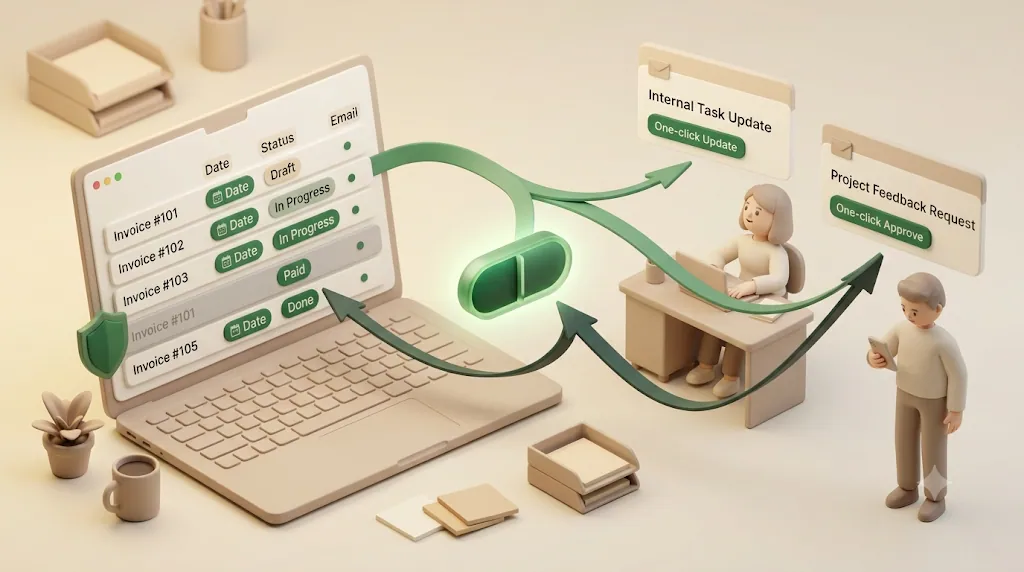
Kapsel is a Notion notification tool that watches your due date, assignee, and status properties and sends email reminders — including to people who don't have a Notion account — with a one-click confirm that writes the status back into Notion.
In practice, that means:
- It reads the date, assignee, and status columns you set up in your template — building on the date and status fields this guide recommends as automation-ready, plus the assignee field when you want to notify an internal owner.
- It emails reminders to the address in your email column, so a client, contractor, or vendor gets nudged without needing a Notion login.
- The recipient can confirm in one click, and that confirmation writes the status back to Notion — a two-way loop, not just a one-way blast.
- It also handles overdue follow-ups, target filtering, recurring digests, a send log, and merge fields so each message reads personally.
- On the Pro plan, you can connect multiple Notion workspaces and brand the sender with your company name, signature, and logo.
Why reminders stop automatically once something is marked done or paid
Here's the failure mode nobody talks about: you automate reminders, a client pays, and then your system emails them a "you still owe us" nudge anyway. Embarrassing, and it undermines trust.
Kapsel is built around the rule that it never sends reminders to completed or paid items. When a row's status flips to Paid or Done, the reminders for that row stop — automatically. That's why the status column matters as much as the date column: the status is what tells the system when to be quiet.
💡 This is the whole point of pairing a well-structured template with reminders: the date decides when to remind, the email decides who, and the status decides when to stop.
Kapsel's Free plan is $0/month and stays free. Paid tiers are Standard at $12/month and Pro at $29/month. See the full breakdown on pricing, and the setup guide if you want to connect a template step by step. New to Notion reminders in general? Start with Notion email reminders.
FAQ
What is a Notion template? A Notion template is a pre-built page or database that someone has set up and shared so you can copy it into your own workspace as a starting point. Instead of designing columns and layout yourself, you inherit a working structure and edit only what's specific to you. Templates can be simple page layouts or full databases with properties and views.
How do I duplicate a Notion template into my own workspace? Open the template's public share link, click Duplicate in the top-right corner, and choose which workspace to copy it into. Notion creates an independent copy in your account that you can rename and edit freely. The Duplicate button only appears if the creator enabled duplication for that page.
Are Notion templates really free? Many are — Notion's own template gallery and plenty of independent creators offer free, duplicatable templates. Others are paid, sold on the Notion Marketplace or platforms like Gumroad and Etsy. Look for a free/paid filter on the site you're browsing, and confirm the page has a working Duplicate button before you rely on it.
How do I tell an official Notion template from a third-party one? Official templates come from Notion's own gallery or its Marketplace listings built or vetted by Notion. Third-party templates are made by independent creators and sold or shared on their own sites, Gumroad, Etsy, or elsewhere — quality and updates depend on that one creator. Most galleries let you filter by category and price, and sort by popularity or most recently added, which helps you compare options either way.
Can I edit or customize a Notion template after duplicating it? Yes. Once duplicated, the copy is entirely yours — rename the page, add or remove properties, change views, and edit rows without affecting the original. Customizing is expected, not optional: most templates are starting points meant to be adapted to your workflow.
What's the difference between a Notion template and a regular Notion page? A regular page is a one-off you build for a single use. A template is designed to be reused — either shared publicly for others to duplicate, or saved as a database row template so every new entry starts pre-filled. Templates give you a repeatable structure; regular pages don't.
Is Notion good for running a small business? For tracking work — invoices, clients, bookings, tasks, contracts — yes: it's flexible enough to model most small-business workflows, and templates remove most of the setup work. It's not accounting software or a payment processor, so for things like tax filing or payment collection you'll still need a dedicated tool alongside it.
Notion vs. spreadsheets — which is better for tracking clients or invoices? A spreadsheet is faster to start with pure numbers, but Notion adds structured properties (status, dates, people, files), multiple views of the same data (table, board, calendar), and the ability to attach documents or notes to each row. If you're just doing quick math, a spreadsheet still works fine; if you want a system with statuses, views, and eventually reminders, a Notion database template is the better starting point.
Can I customize the workflow, not just the look, of a Notion template? Yes — properties, views, and statuses are all editable, not just cosmetic settings. You can rename or add Status options to match your actual process, add a formula property to flag overdue items, create a new filtered view for "my tasks only," or remove properties you don't need. The template is a starting structure, not a fixed workflow.
How do I make my own Notion template from scratch? Create a new database, add the properties you need (a date, a status, an owner, and an email if external people are involved), and set up table, board, and calendar views. To make new rows start pre-filled, open the dropdown next to the blue New button and choose "+ New template." Seed a few sample rows to confirm everything works before relying on it.
Can Notion templates be used for invoicing and getting paid? Yes. An invoice tracker template stores each invoice with an amount, a due date, and a paid/unpaid status. Notion itself doesn't process payments, but it gives you a clear record of who owes what and when it's due — and with a due date, status, and client email in place, you can layer on reminders for unpaid invoices.
How do I track client work in Notion? Use a client work database with a deadline date, a status (brief, in progress, review, delivered), an owner, and a client email. A board view grouped by status shows what's stuck, while a calendar view shows what's due this week. Adding the client's email lets you send progress or approval nudges to people who aren't in your workspace.
How do I manage appointments or bookings in Notion? Create a booking database with an appointment date/time, an attendee, and a confirmation status. A calendar view shows your schedule at a glance, and a filtered table can show only unconfirmed bookings. With the attendee's email stored, you can send confirmation and day-before reminders to reduce no-shows.
Can Notion send me email reminders about due dates? Notion's native reminders land mainly in its in-app inbox and as push notifications; email is only a fallback, and they don't reach people without a Notion account. To get reliable email reminders — including to external recipients — most people use a connected tool. Kapsel, for example, watches your due date and status columns and emails reminders based on them.
Do clients or vendors need a Notion account to get a reminder? Not with an email-based tool. Notion's own notifications only reach people inside your workspace, but Kapsel emails reminders to the address stored on the row, so a client, contractor, or vendor is reached without any Notion login. They can even confirm in one click, which writes the status back to Notion.
How do I stop reminders once an invoice is paid or a task is done? Use a status column and make sure your reminder tool respects it. Kapsel never sends reminders to items marked completed or paid — when a row's status flips to Paid or Done, its reminders stop automatically. That's why keeping the status column current matters as much as the due date.
What properties should a Notion database have to track deadlines? At minimum, a date property for the deadline and a status property so you can tell what's still open. If reminders should reach a specific person, add an email property; if work is assigned internally, add a Person (assignee) property. Those three or four fields make a database automation-ready.
What's the best free Notion template for freelancers? It depends on your biggest pain point. For getting paid on time, start with an invoice and payment tracker; for juggling multiple clients, a client work tracker. Pick the one workflow leaking the most time or money, get it running, then add others rather than duplicating a dozen at once.
How do I track contract renewals in Notion so I don't miss one? Build a contract renewal database with a renewal/expiry date, a status (active, renewing, cancelled), and a contact email for whoever needs to act. A calendar view surfaces what's coming up, and a filtered "renewing soon" view keeps upcoming dates front and center. Connect it to reminders so someone is notified before the renewal date, not after it lapses.
Duplicate a template and get started
You don't need a hundred templates — you need one that matches your work and actually reminds you when something's due. Pick the workflow costing you the most time right now, duplicate the matching template from /en/templates, and set up its date, status, and email columns. When you're ready to make deadlines fire on their own, connect reminders and let the status column keep them quiet once the work is done or paid.
Notes
Published 2026-08-06. Features and pricing described here (Free $0, Standard $12, and Pro $29 per month) are current as of the publish date and may change over time; check the pricing page for the latest details.