Notion Meeting Notes Template: How to Build One (and Make Sure the Action Items Actually Get Done)

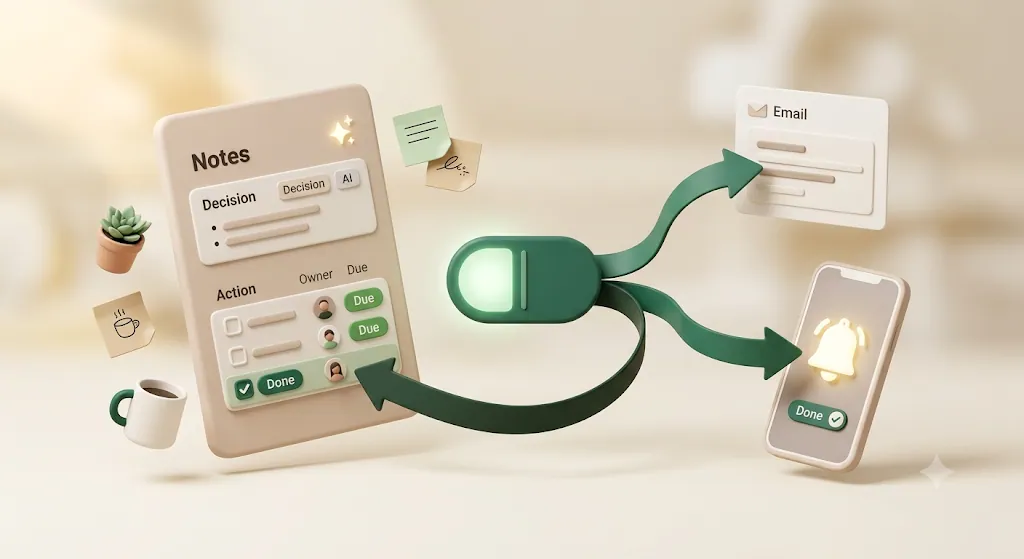
A meeting notes template is only half the job — especially if you run recurring meetings and need the notes to hold up over months, not just one call. The easy half is capturing what was said; the hard half is making sure the decisions and action items don't quietly die in a page nobody reopens. This guide walks through building a reusable Notion meeting notes template from scratch (or duplicating one in a minute), structuring it so people actually use it, and closing the gap most templates leave wide open: getting the action items done after everyone closes their laptop.
TL;DR
- A Notion meeting notes template can be a page template (a repeatable page layout) or a database template (structure that auto-applies to every new entry). For recurring meetings, the database route wins.
- The must-have fields: meeting name, date/time, attendees, agenda, decisions, and action items — each written as task + one named owner + a specific due date.
- Notion AI can summarize notes or a pasted transcript and draft a first-pass action-item list; views (table, calendar, gallery, board) let you browse and filter past notes.
- Every template stops at "write the action item." The follow-through gap — overdue items, external attendees with no Notion account, notes that go silent — is where tools like Kapsel add an email-reminder layer on top of an owner + due date.
What Is a Notion Meeting Notes Template?
A Notion meeting notes template is a pre-built, reusable structure for recording what happened in a meeting — the agenda, discussion, decisions, and action items — so you don't rebuild the same page format every time. Instead of starting from a blank page, you click once and get a consistent layout your whole team recognizes.
The value is consistency. When every meeting is captured the same way, notes become searchable, comparable, and reusable. You can find "the pricing decision from three weeks ago" because it always lives under a Decisions heading, and you can list every open action item across meetings because "owner" and "due date" are always the same properties.
💡 A template is a format, not a filing cabinet. The template defines how each meeting is recorded; a database is where all those meetings live together so you can browse and filter them.
Page template vs. database template — which one you need
Notion gives you two ways to make meeting notes reusable, and they solve different problems.
| Page template | Database template | |
|---|---|---|
| What it is | A saved page layout you insert into any page | A template that auto-applies to every new row in a database |
| Best for | One-off or loosely tracked notes | Recurring meetings you want to track over time |
| Where it lives | Anywhere (a page, a workspace section) | Inside a specific database |
| Reuse | You pick it manually each time | Structure applies automatically on "New" |
| Filtering past notes | Hard (scattered pages) | Easy (views, filters, sorts) |
If you take notes occasionally, a page template is enough. If you run the same weekly standup, client check-in, or 1:1 over and over — and you want to find those notes later — build a database and save the format as a database template. The rest of this guide assumes the database route, because that's what makes action items trackable.
The Fastest Start: Duplicate an Existing Template
Before building anything, know that you may not have to. Duplicating a well-made template and trimming it is often faster than starting from scratch, and it's a good way to see which properties are worth keeping.
From the Notion template gallery
Notion maintains a public template gallery with meeting-notes templates from Notion and the community.
- Open the Notion template gallery (from the sidebar's Templates button, or notion.so/templates).
- Search "meeting notes" and preview a few options.
- Click Get template (or Duplicate) to copy it into your own workspace.
- Delete the properties and sections you don't need, and rename the rest to match your team's language.
Starting from a duplicated template gets you a working format in minutes instead of designing property-by-property from a blank page.
⚠️ Gallery templates are often over-built for a general audience. Strip them down to the fields your team will actually fill in — an unused property is worse than no property, because it trains people to skip fields.
From a shared page, using the Duplicate button
If a teammate or a blog shares a Notion page publicly, you can copy it directly.
- Open the shared page.
- Click Duplicate in the top-right corner.
- Choose the workspace to copy it into.
The whole structure — properties, views, and any database templates — comes with it. This is the fastest way to adopt a format someone has already refined.
Or Build One From Scratch in 4 Steps
Building your own takes about ten minutes and gives you a template that fits your meetings exactly. Here's the concrete sequence.
Step 1 — Create a new database
Create a new page, type /database, and choose Table view (full page). Name it something like Meeting Notes. Each row will be one meeting; each column will be a property you can filter and sort on. Starting with a database — not a plain page — is the decision that makes everything downstream (recurring templates, views, filtering) possible.
Step 2 — Add the must-have properties
Add the columns below (covered in detail in the next section). At minimum: Date, Attendees, Meeting type, and a Status. The rich content — agenda, decisions, action items — lives in the body of each meeting's page, not as columns.
Step 3 — Set up views
Add a couple of views so the same data is useful in different ways:
- Table — the default scannable log of all meetings.
- Calendar — meetings plotted by date.
- Board grouped by meeting type or status — for a quick project-by-project read.
That's the same meeting log read three different ways — a scannable list, a dated calendar, and a project board — without maintaining three separate places. Views are non-destructive: they're just different lenses on the same rows, so add as many as are useful and hide the rest.
Step 4 — Test it on a real meeting, then adjust
Use the template in your next actual meeting before you finalize it. You'll immediately notice fields nobody fills in and sections that are missing. Cut the dead weight and add what you reached for. Once it holds up, save it as a database template (see the recurring-meetings section below) so that structure applies automatically to every new entry instead of you rebuilding it by hand. A template earns its structure by surviving a real meeting, not by looking complete on day one.
The Must-Have Properties Checklist
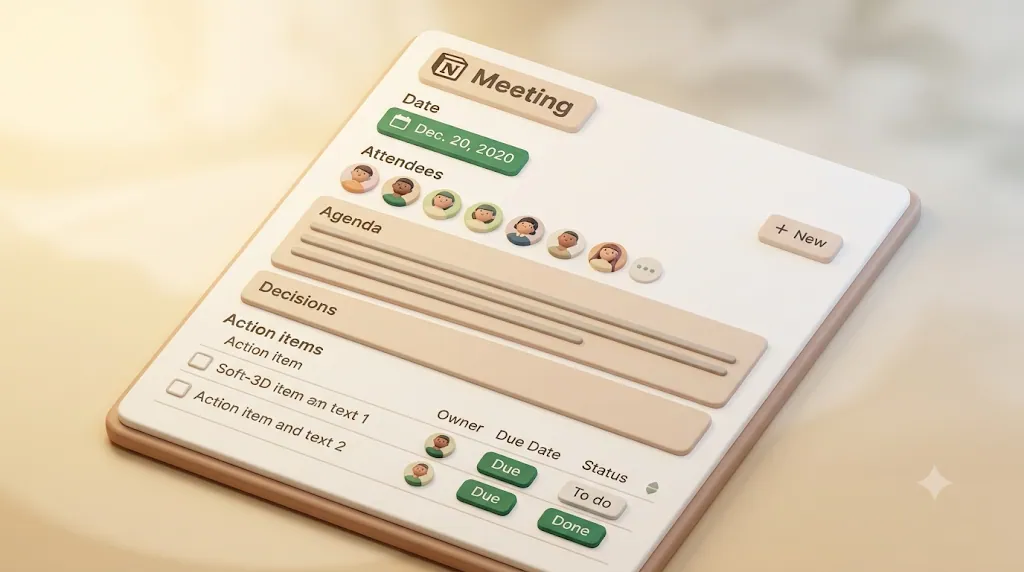
These are the fields that make meeting notes searchable and, more importantly, actionable.
Meeting name, date/time, attendees
| Property | Type | Why it matters |
|---|---|---|
| Meeting name / title | Title | The one required field; make it descriptive ("Q3 Client Kickoff — Acme") |
| Date / time | Date | Powers the calendar view and chronological sorting |
| Attendees | Person or Text | Who was there; use Text or Email if some attendees are external and have no Notion account |
| Meeting type | Select | Standup, 1:1, client call — enables filtering and per-type templates |
| Status | Status | Scheduled → Notes taken → Follow-up done |
💡 Use a Person property for internal attendees and a plain Text or Email property for external ones (clients, contractors, partners). Person properties only work for people in your Notion workspace — external attendees can't be tagged that way.
Agenda, decisions, action items, owner, due date
Agenda, decisions, and discussion notes usually live as headings in the body of each meeting page. Action items are the exception — they deserve their own structure, because they need an owner and a due date attached to each one:
- Action item — the task itself
- Owner — one named person responsible
- Due date — a specific calendar date
- Status — not started / in progress / done
You can keep action items as a checklist inside the page for quick capture, but if you want to actually track them and send reminders, they belong in a linked task database — more on that in the final section.
How to Structure Agenda, Decisions, and Action Items So People Actually Use Them
A template's headings are prompts. Good headings pull good content out of people; vague ones get skipped.
Agenda: specific topics, not vague headers
"Updates" invites rambling. "Decide on launch date; review two vendor quotes; assign QA owner" tells everyone what the meeting is for. Write the agenda as concrete decisions and topics, ideally before the meeting, and the notes almost write themselves.
Decisions: log what was decided, not just what was discussed
Discussion notes capture the conversation; a Decisions section captures the outcome. Weeks later, nobody wants to re-read a transcript to learn what was agreed. One line per decision — "Chose Vendor B; approved by Priya" — is worth more than a page of back-and-forth.
Action items: write each one as task + owner + due date
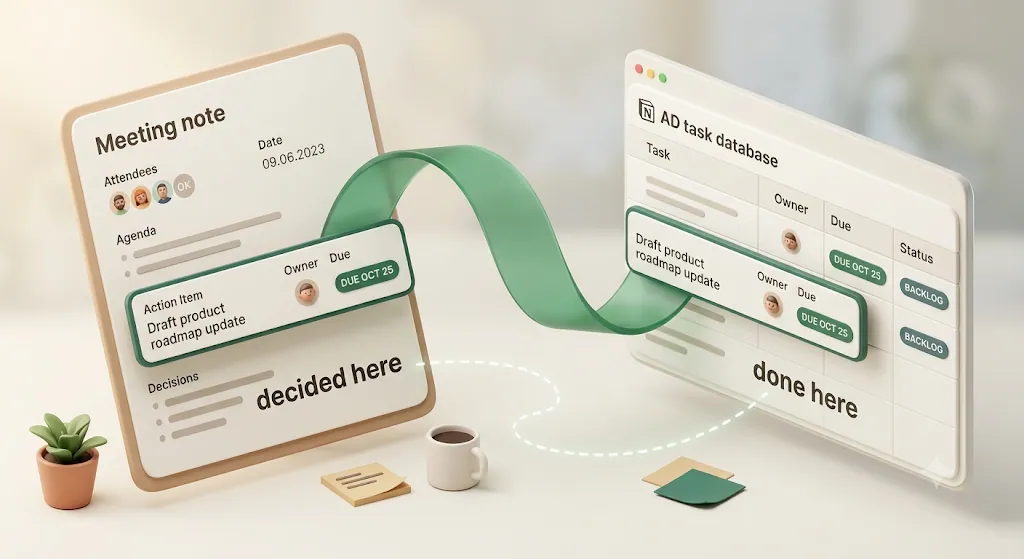
This is one of the most important habits in the whole template. Every action item should be a set of three things:
| Weak action item | Strong action item |
|---|---|
| "Follow up on the contract" | "Send the revised contract to Acme — Owner: Dan — Due: Aug 12" |
| "Look into hosting options" | "Compare three hosting quotes and post to this page — Owner: Mia — Due: Aug 9" |
The rules:
- Start with a strong verb — send, compare, draft, confirm — so the task is unambiguous.
- Name one owner, not a team. "Marketing will handle it" means nobody will.
- Set a specific calendar date, not "next week."
- Read the list aloud before ending the meeting. Confirming each item and owner out loud catches the ones people quietly assumed weren't theirs.
Follow these four rules and every action item is unambiguous enough that someone other than the person who wrote it can pick it up cold.
💡 The task + owner + due date pattern isn't just good hygiene — it's the exact data a reminder system can act on later. An action item without an owner and a date can't be automatically chased; one with both can.
For the live-capture side — running the actual meeting and getting these written down in the moment — see how to take meeting notes in Notion.
Reusing the Template for Recurring Meetings (Database Templates)
If you run the same meeting every week, don't rebuild the format each time. Inside your Meeting Notes database, open the blue New button's dropdown and choose + New template. Build your ideal page once — agenda heading, decisions heading, action-items structure, pre-filled meeting type — and save it.
Now, every time you click New, that structure appears automatically. You can even set a database template as the default so new entries always start correctly formatted. Create one template per recurring meeting: "Weekly Standup," "Client Check-in," "1:1."
💡 Notion's database templates also support dynamic dates (e.g., "today"), so a recurring template can auto-fill the meeting date. Combine this with a recurring cadence and your notes structure is ready before the meeting starts.
Most guides treat this as the finish line for automation. It isn't — a template that applies structure automatically still doesn't do anything with the action items it captures. We'll come back to that.
Speeding Up Capture with Notion AI
If your workspace has Notion AI, it can take a lot of the manual note-taking off your plate — treat it as a capture accelerator, not a replacement for structure.
Summarizing notes and transcripts
Notion AI can generate a summary from raw notes or a transcript you already have (from a call-recording tool, for example) and paste in, condensing a long discussion into a few lines. Drop your messy real-time notes at the top of the page and ask it to summarize into decisions and open questions.
Drafting and assigning action items
Notion AI can also scan notes and pull out action items as a list. It's a strong first draft — but always review it. AI reliably extracts "what needs to happen"; it's far weaker at knowing who owns each item and when it's due. You still have to assign a single owner and a real date to each one by hand, because that's the part that makes the item trackable.
⚠️ Don't let AI-generated action items sit unassigned. An extracted list with no owners and no dates looks productive but chases no one — it's the same "written and forgotten" trap, just faster.
Using Views to Manage Past Meeting Notes
Because your notes live in a database, you can slice them many ways without ever duplicating data.
Table view for a scannable log
The default table is your chronological record — sort by date descending and every meeting is one clean row. Add a filter like "Meeting type = Client call" to instantly get every client meeting in one list.
Gallery and calendar views for browsing by date or project
- Calendar view plots meetings on their date — good for "what did we discuss the week of the launch?"
- Gallery view shows notes as cards (add a cover or icon per meeting type) — good for visual browsing.
- Board view grouped by project or client — good for scanning all meetings tied to one account.
- List view strips away extra formatting for a lightweight, no-frills feed — handy when you just want to skim titles and dates without a full table.
| View | Best for |
|---|---|
| Table | A scannable, filterable master log |
| List | A lightweight feed of titles and dates |
| Calendar | Browsing by date |
| Gallery | Visual, card-based browsing |
| Board | Grouping by project, client, or status |
The Part Every Template Skips: Getting Action Items Actually Done
Here's the honest gap. Almost every meeting-notes guide — including Notion's own — stops at "write the action item with an owner and a due date." Notion's own resources are strong on capturing and assigning action items but light on what happens next — nothing built in re-checks whether an item actually got done. A perfectly structured note is still just a note. The action items only get done if someone notices them, on time, and keeps noticing until they're finished.
What native Notion @mentions and reminders cover
Notion has real, useful reminder features — worth using first:
- @mentions — type
@plus a person's name to notify them in a comment or on the page. - Date reminders — add a reminder to a date property or inline date (
@remind) and Notion notifies the person at that time. - Database automations — on paid plans, you can trigger a notification when a property changes.
For an internal team that lives in Notion, this often covers the basics.
Where they fall short: external attendees, overdue items, notes that go quiet after the meeting
Native reminders have three real limits:
| Limitation | What it means in practice |
|---|---|
| In-app only | The notification appears inside Notion — the person has to open Notion to see it. |
| Notion account required | A client, contractor, or partner with no workspace access can't be @mentioned or reminded at all. |
| No automatic overdue nudge | When an item slips past its due date, nothing re-pings the owner unless someone manually re-checks the list. |
So the three most common failure modes are exactly the ones native features don't cover: external attendees never see their action items, overdue items get no follow-up, and notes simply go quiet once the meeting ends.
Beyond Notion's own features, you can bridge some of this with general automation — Zapier, Make, n8n, or a Google Apps Script can watch a Notion database and send an email or a Slack message; Google Calendar can hold a deadline. These are flexible and worth it if you already run them, but they take setup and maintenance, and most don't handle the "stop chasing once it's done" or "one-click confirm back into Notion" cases without extra work.
Move action items into a task database — an owner + due date is what lets a reminder layer act on them
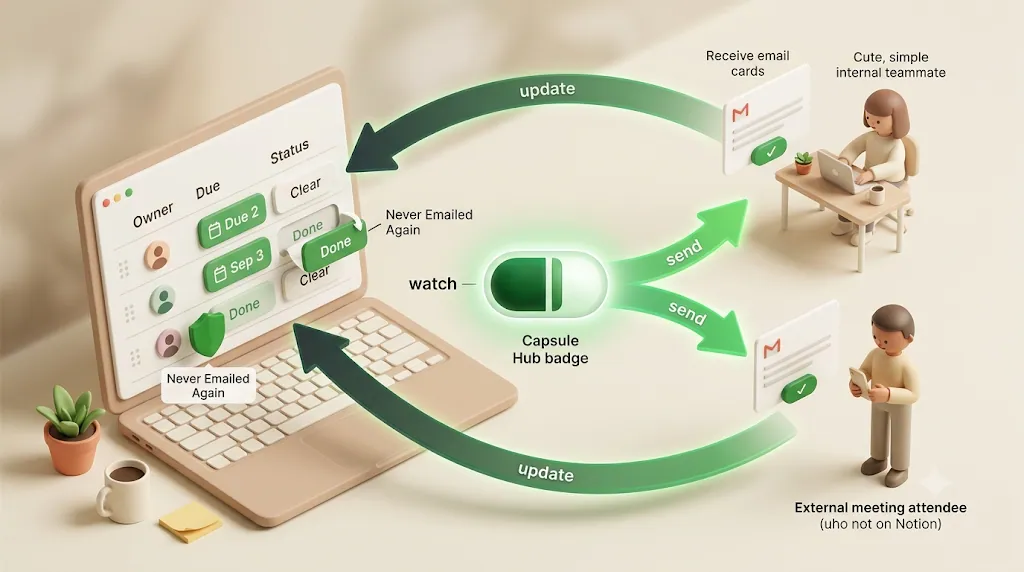
The structural fix is the same one good task management already recommends: don't leave action items buried in prose. Move them into a linked task database where each item has an owner, a due date, and a status. Once they live there, that owner + due date + status is data a reminder tool can act on.
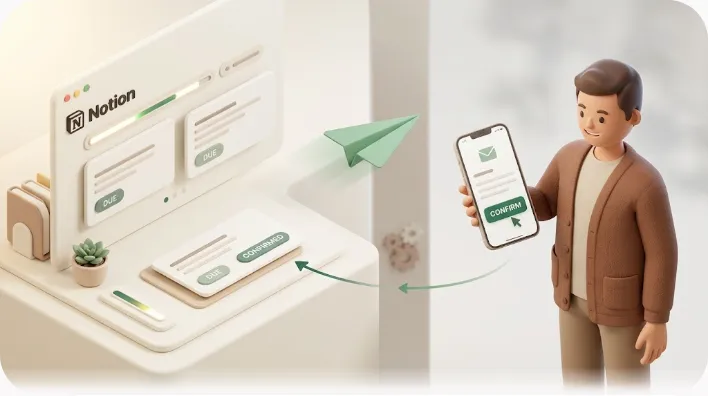
This is the niche Kapsel fills. Kapsel is a notification tool that watches the due date, assignee, and status on your Notion items and sends email reminders to the owner — including people who don't use Notion. Because it reaches people by email with no account needed, an external attendee (a client or contractor who was in the meeting) gets reminded about their action item the same way a teammate does. When the owner marks the item done — or clicks the one-click confirmation in the email, which writes the status back into Notion — Kapsel stops. It doesn't send reminders for completed items, so you avoid the awkward "still chasing something that was already finished" problem.
To keep it useful, it also supports overdue follow-ups, target filtering, recurring digests, a send log, and merge fields; the free plan is $0/month, with Standard at $12 and Pro (multiple workspaces + sender branding) at $29. See pricing for details. The point isn't the tool — it's that "action item + owner + due date," the habit this template already teaches, is exactly what any reminder layer needs to keep those items from going quiet.
If your action items feed real task management, the natural next step is a proper task setup — our team-tasks template and the guide to Notion team task reminders cover how owner + due date + status turns notes into work that gets done.
FAQ
What should a Notion meeting notes template include? At minimum: meeting name, date/time, attendees, agenda, discussion notes, decisions, and action items. The most important part is that each action item has one named owner and a specific due date — that's what makes it trackable rather than just recorded.
How do I duplicate a Notion template from the gallery or a shared page? From the gallery, search "meeting notes," preview a template, and click Get template or Duplicate to copy it into your workspace. From any publicly shared page, click Duplicate in the top-right corner and choose which workspace to copy it into — properties, views, and templates all come along.
How do I turn a Notion page into a reusable template? Inside a database, open the New button's dropdown and choose + New template, then build your ideal page layout once and save it. For a standalone page, you can duplicate it whenever needed, but a database template is better because it applies the structure automatically to every new entry.
What's the difference between a page template and a database template in Notion? A page template is a saved layout you insert manually into any page. A database template applies automatically to every new row in a specific database, which makes it the right choice for recurring meetings you want to track and filter over time.
How do I write action items with clear owners and due dates? Write each item as a set of three: a strong verb (send, draft, compare), one named owner (never a whole team), and a specific calendar date (not "next week"). Read the full list aloud before the meeting ends so every owner confirms their item out loud.
Can Notion AI write my meeting notes or extract action items automatically? Yes — if your workspace has Notion AI, it can summarize notes and pull out a draft list of action items. Always review the output, though, because AI is good at extracting what needs to happen but unreliable at assigning who owns it and when it's due, which you still need to set by hand.
How do I keep track of past meeting notes in Notion? Store all meetings in one database and use views to browse them: a table sorted by date for a master log, a calendar view to browse by date, and a board grouped by project or client. Filters (for example, "Meeting type = Client call") let you pull up a subset instantly.
Why do action items from meetings get forgotten even when they're written down? Writing an item down doesn't make anyone notice it later. Unless something actively reminds the owner — on time, and again if it goes overdue — the note just sits in a page nobody reopens. Native Notion reminders help internal users, but they don't nudge overdue items automatically or reach people without a Notion account.
Does Notion send reminders automatically, and who do they reach? Notion can send date reminders and @mention notifications, but they appear inside Notion, so the person has to open the app to see them, and they only reach people who have access to your workspace. There's no automatic follow-up when an item goes overdue unless you set up a database automation or an external tool.
Can I remind a client or external partner who doesn't use Notion about their action item? Not with native Notion features — @mentions and reminders only work for people in your workspace. To reach an external attendee, you need an email-based layer: a tool like Kapsel can email the reminder to anyone with no Notion account required, and stop once the item is marked done. Setup approaches like Zapier or Make can also send external emails if you'd rather build it yourself.
How do I set up a recurring meeting template in Notion? In your meeting-notes database, open the New dropdown and choose + New template, build the layout for that recurring meeting, and optionally set it as the default. Every new entry then starts with the right structure automatically; you can create a separate template per recurring meeting type. See our guide to recurring reminders in Notion for keeping the follow-up on a cadence too.
Related reading (internal links)
- Pillar: The complete guide to Notion templates — where this meeting-notes template fits in the wider template system.
- How to take meeting notes in Notion — the live-capture flow that uses this template during a real call.
- Team tasks template — move meeting action items into a real task database.
- Notion team task reminders — making owner + due date + status actually notify the right person.
- Recurring reminders in Notion — keeping repeated meetings and their follow-ups on schedule.
- Notion email reminders — reaching people (including external attendees) by email.
- Kapsel guide and pricing — how the email-reminder layer works.
Notes
Published 2026-08-06. Feature descriptions and pricing (Free $0 / Standard $12 / Pro $29 per month, USD) are current as of the publish date and may change; check the pricing page for the latest. Notion's interface and AI features are updated regularly, so button labels and menu paths may differ slightly from what's described here.