How to Take Meeting Notes in Notion (Live Capture, AI Transcription, and Making Action Items Stick)
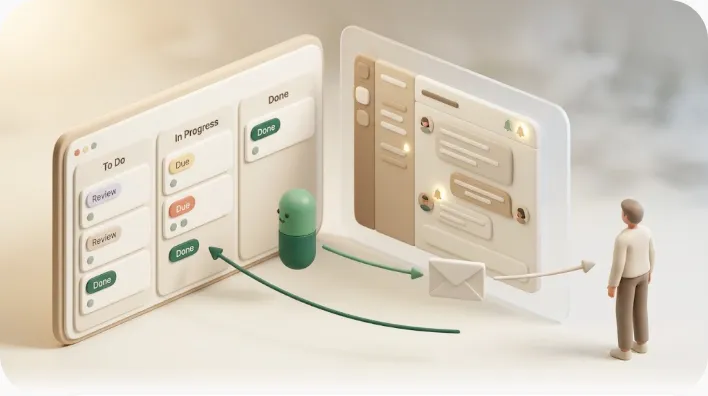
If your meetings end with a page of notes nobody reopens, the problem usually isn't your typing speed — it's capturing the right things (decisions and owned tasks) in a place your whole team can find later, and then making sure those tasks actually get done. This guide walks through the full flow: setting an agenda before the call, capturing live without one person doing all the typing, using Notion AI to transcribe and summarize, and closing the gap most guides skip — following up on the action items after everyone closes their laptop.
TL;DR
- Take notes as a before → during → after → follow-up flow. The structure that matters: date/time, attendees, agenda, decisions, and action items written as task + one named owner + a specific due date.
- Capture live with collaborative editing (everyone types into the same page) and slash-command checkboxes, or let Notion AI (the
/meetcommand in the desktop app) transcribe the call and draft a summary and action-item list — then confirm it as a human.- Use a page for one-off meetings and a database template for recurring ones (1:1s, standups, client calls) so the structure repeats automatically.
- The part most workflows skip is follow-up: native @mentions and reminders only reach people inside Notion, external attendees have no account, and overdue items get no nudge. That's the gap an email-reminder layer like Kapsel is built for.
This article focuses on the act of taking and writing meeting notes. If you want to build or duplicate a reusable structure first, the companion guide on the Notion meeting notes template covers property design and database setup in detail, and the complete guide to Notion templates is the pillar this fits under.
Why take meeting notes in Notion
Notion works well for meeting notes because everything lives in one searchable workspace, multiple people can edit the same page at once, and notes can link straight to the tasks and projects they create. Compared with a Word file emailed around or a paper pad, the difference is that notes stop being isolated documents and become connected, reusable records.
One place instead of scattered docs and paper
When notes live in Notion, they sit next to the projects, tasks, and databases they relate to instead of in separate files. A decision made in a meeting can link directly to the project it affects, so nothing has to be re-typed into another tool. Scattered Word docs and paper pads, by contrast, drift out of sync the moment the meeting ends.
Searchable history across every past meeting
Every meeting note you keep in one workspace becomes part of a searchable history. Full-text search and database filters let you answer "what did we decide about pricing three weeks ago?" in seconds, which is nearly impossible when each meeting is a standalone file on someone's laptop.
Real-time collaborative editing (everyone writes, not just one scribe)
Notion pages support real-time collaborative editing, so several attendees can type into the same note simultaneously. That removes the bottleneck of a single scribe trying to capture everything — the person who owns an item can write it down themselves while the discussion is still fresh.
| Notion | Word / Google Doc emailed around | Paper | |
|---|---|---|---|
| One searchable home | Yes | Partial (per file) | No |
| Real-time co-editing | Yes | Google Docs yes; Word varies | No |
| Links to tasks/projects | Yes | No | No |
| Survives after the meeting | Yes | Often lost in inboxes | Rarely |
The practical payoff is that a decision made in one meeting is one click away from the project it affects, instead of a fact you have to remember lives in some other file.
The meeting notes flow: before, during, after, and follow-up
Good notes follow a four-stage flow: prepare an agenda before, capture live during, structure into decisions and owned tasks after, and follow up until each item is done. Most people do the first three and skip the fourth, which is where action items quietly die.
Before: set the agenda and context
Write the agenda and any background into the note before the meeting starts. A prepared agenda keeps the discussion on track and — if you use Notion AI later — gives the summary far more context to work with, so it groups the transcript around real topics instead of guessing.
During: capture live
During the call, capture decisions and action items as they happen rather than trying to reconstruct them afterward. Whether a human scribe types or Notion AI transcribes, the goal is the same: get the raw material down while it's accurate.
After: turn the summary into decisions and owned tasks
After the meeting, convert your rough notes (or the AI draft) into two clean lists: decisions and action items. Each action item needs a single owner and a specific due date — this is the step that turns a wall of discussion into work someone is accountable for.
Follow-up: the step most workflows skip
Follow-up means making sure each owned action item gets done by its due date, not just written down. This is the stage almost every meeting-notes guide glosses over with vague phrases like "set up accountability," and it's covered concretely later in this article.
💡 If you only change one habit, make it this: end every meeting by reading the action items out loud with their owner and due date. Ambiguity that survives the meeting becomes a missed task.
The basic structure: what every set of meeting notes needs
Every useful meeting note contains the same core fields: date/time, attendees, agenda, decisions, and action items with an owner and a due date. Keeping decisions and action items as two clearly separate things is what makes notes worth rereading.
Date, attendees, agenda
Start with the facts that make a note findable later: the meeting's date and time, who attended, and the agenda you're working through. These three fields are what future-you searches and filters on, so fill them in even for quick calls.
Decisions vs. action items — write them as two different things
A decision is a conclusion the group reached; an action item is a task someone will do because of it. Mixing them is the most common note-taking mistake — keep two separate sections so each is easy to scan.
| Decision | Action item | |
|---|---|---|
| What it is | A choice the group made | A task to be performed |
| Has an owner? | No (it's collective) | Yes — exactly one person |
| Has a due date? | No | Yes — a specific calendar date |
| Example | "We're launching the beta in October." | "Priya sends the beta invite list to Marketing by Oct 3." |
Writing them distinctly means that six weeks later, "what did we decide?" and "what am I on the hook for?" are two different, answerable questions.
Action items need three parts: task, owner, due date
Every action item should be written verb-first, assigned to one named person, and given a specific calendar date. "Follow up with the vendor" is not an action item; "Sam emails the vendor the revised scope by Thursday, Aug 14" is.
⚠️ Avoid "ASAP," "next week," and team-level owners like "Marketing will handle it." Vague timing and shared ownership are the two reasons action items stall — nobody feels personally responsible, and there's no date to hold them to.
For turning these into a tracked system with owner, due date, and status properties, see the Notion task management guide. The meeting notes template guide has the fuller weak-vs-strong checklist if you want this to become a habit the whole team follows without thinking about it.
A copy-paste meeting notes template you can use today
Here's a bare-bones skeleton you can paste into a Notion page (or a database template) right now and start filling in. It deliberately keeps decisions and action items apart, and writes every action item as a checkbox with an owner and a due date built in:
# [Meeting name] — [Date]

## Attendees
-

## Agenda
1.
2.
3.

## Decisions
-
-

## Action items
- [ ] Task — @Owner — due [date]
- [ ] Task — @Owner — due [date]
- [ ] Task — @Owner — due [date]

## Discussion notes
-

## Next meeting
- Date:
- Topics to carry over:
Paste it in, replace the brackets, and you have a usable note in under a minute. Two things make this skeleton work rather than just look tidy:
- Action items are checkboxes with owner and due date baked into the line. Writing each one as
- [ ] task — @Owner — due dateforces the three parts that turn a note into work someone is accountable for. When you later move these into a database, that same line maps cleanly onto owner, due date, and status properties — and you can attach a real nudge to each one, which the guide on how to set reminders in Notion walks through. - Decisions and action items live in separate sections. Keeping "what we agreed" apart from "what someone will do" means that weeks later, what did we decide? and what am I on the hook for? stay two different, scannable questions instead of one tangled list.
Adjusting the template per meeting type
The skeleton is a starting point, not a straitjacket — trim or expand it to match the meeting:
- 1:1s: Drop the formal Attendees and Agenda blocks (it's just the two of you) and add a short Talking points and Feedback section above Action items. Because 1:1s repeat weekly, a database template beats a loose page — each week's entry keeps the same structure and you can scroll the whole history. For that cadence, pairing it with recurring reminders keeps carried-over action items from quietly resetting to zero each week.
- Standups: Compress everything into three lines per person — yesterday / today / blockers — and keep only the Action items and Blockers sections. Standups rarely produce formal decisions, so that section often stays empty, and that's fine.
- Client calls: Keep the full structure and make Attendees explicit about who's internal vs. external, because some action items will belong to the client. Client calls are also where a plain page is usually enough unless the account is ongoing — in which case a database (one entry per call) keeps the relationship's whole trail in one filterable place.
The rule of thumb: use a page when the meeting is a one-off and a database template when the same meeting repeats, so the structure you just pasted comes back automatically instead of being rebuilt each time.
Capturing notes in real time during the meeting
Real-time capture works best when the whole group writes into one shared page and uses Notion's structure blocks to organize as they go, rather than leaving one person to transcribe everything. The tools for this are already built into any Notion page.
Collaborative editing so one person isn't typing for everyone
Because Notion pages update live for everyone, you can split the load: one person captures decisions, another logs action items, and owners type their own tasks. A single overloaded scribe usually misses nuance and slows the meeting down — distributing the writing keeps notes accurate and the discussion moving.
Slash commands and checkboxes to structure while you type
As you type, use slash commands to drop in headings, toggles, and to-do checkboxes so the note is structured live instead of reformatted later. A quick pattern: an Agenda heading, a Decisions bulleted list, and an Action items to-do list where each checkbox is a task you can later assign and date.
💡 Create the empty Agenda / Decisions / Action items headings before the meeting. During the call you're just filling buckets, which is far easier than organizing a wall of text afterward.
Using Notion AI meeting notes: transcription and summaries
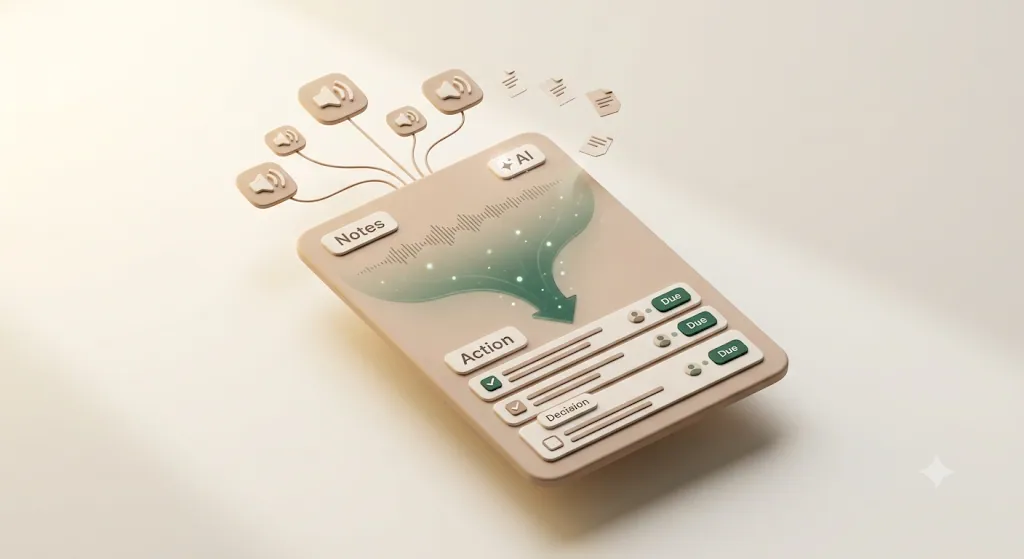
Notion AI can record and transcribe a meeting's audio and then generate a structured summary and a first-pass action-item list automatically. It removes most of the manual typing — but its output is a draft that a person still needs to confirm.
Starting AI Meeting Notes with /meet and desktop audio transcription
To start AI Meeting Notes, open a page in the Notion desktop app, type /meet, and start the recording; audio transcription runs while the meeting happens, and you stop it when the meeting ends. A few practical points:
- Desktop app required. The audio-transcription feature runs in the desktop app, not the browser.
- Ask for consent first. Before you start recording, tell participants and get their agreement — recording people without consent is both bad practice and, in many places, a legal issue.
- Minimum length. Very short recordings may not produce a full summary; the AI needs enough audio to work with.
- Feed it your agenda. Pre-meeting notes and an agenda on the same page give the summary real structure to organize around.
Get these right and the AI does the tedious first pass of transcription for you, leaving you to edit rather than type from scratch.
What the AI summary and action-item extraction actually produce
After the call, Notion AI produces a transcript, a structured summary of what was discussed, and an extracted list of action items — automatically. That's a strong starting point: it captures far more than a distracted human scribe and gives you a draft to edit rather than a blank page.
Why the AI output is a draft, not the finish line — a human still confirms owner and due date
AI extraction is a draft, not a system of record. It can suggest "someone will send the deck," but it doesn't reliably know who or by when — a person still has to confirm each item, assign a single owner, and set a specific due date as real properties. Treat the AI summary as raw material you refine, not the final list.
⚠️ Don't let an AI summary sit untouched as your "action items." Until each item has one owner and a real due date, it's a note — not a task anyone is accountable for.
Page or database: choosing the right setup
Use a plain page for a one-off meeting and a database (with a template) for meetings that recur, so recurring meetings keep the same structure and stay browsable over time. The choice comes down to whether you'll ever want to look across multiple instances of the meeting.
A page for a one-off meeting
For a single, standalone meeting — a one-time kickoff, an ad-hoc call — a plain page is enough. You get all the structure and AI features without the overhead of setting up a database you'll never reuse.
A database for recurring meetings (1:1s, standups, client calls)
For anything that repeats — weekly 1:1s, standups, client syncs — use a database with a saved template. Each new entry starts with the same agenda/decisions/action-items structure automatically, and properties like date, attendees, and status let you filter and browse the whole series. The meeting notes template guide walks through building that database template step by step.
| Page | Database | |
|---|---|---|
| Best for | One-off meetings | Recurring meetings (1:1s, standups, client calls) |
| Structure repeats automatically | No | Yes (via a database template) |
| Filter/browse past meetings | No | Yes (by date, attendee, status) |
| Setup effort | Minimal | A little upfront, pays off over time |
Sharing your meeting notes and setting permissions
Meeting notes in Notion inherit the permissions of the page or database they live in and are private by default — you decide who can see them. You can share a note with just the attendees, a wider team, or (with a public link) people outside your workspace.
- Private by default. A new note is visible only to you until you share it.
- Share with participants. Add the specific attendees so everyone who was in the room can read and edit.
- Share wider. Move notes into a team space or share the parent database so the whole group has access.
- External viewers. A share link can expose a note to people outside your workspace as read-only — useful, but note that a viewer without a Notion account still won't get notified about their tasks, which the next section addresses.
Between the three, you can match access to who actually needs it instead of defaulting every note to fully private or fully public.
💡 Store recurring meeting notes inside a shared team space rather than your private area, so access follows the team, not one person's account.
Why action items still fall through even with a good template
Even a well-structured note with clear owners and due dates doesn't move on its own — items fall through because Notion's built-in reminders only reach people already inside Notion, external attendees have no account at all, and overdue tasks get no automatic nudge. Understanding exactly where the built-in tools stop is the first step to fixing it.
What Notion's own @mentions and reminders cover — and where they stop
Notion's @mentions and inline reminders notify a person — but generally only while they're active in Notion, and a date reminder fires once, on the day you set. They're fine for a nudge inside the app, but they don't chase an item that goes quiet, and they don't reach anyone who isn't a Notion user.
| Native Notion reminder | Reaches external (no-account) people? | Repeats if ignored? | Fires after the due date passes? |
|---|---|---|---|
| @mention | No | No | No |
| Inline date reminder | No | No | No |
The external-attendee problem: clients and partners without a Notion account never see their action items
If a client, contractor, or partner was in the meeting, they almost certainly don't have access to your Notion workspace — so any action item assigned to them lives in a page they'll never open. This is the single biggest blind spot in most meeting-notes workflows: the person responsible for a task can't see it.
Overdue items get no nudge on their own
When a due date passes, nothing happens in Notion by itself — no follow-up, no escalation. The item just sits there marked with a red date until a human notices, which means "following up" quietly becomes someone's manual chore.
Turning tracked action items into reminders that actually reach people
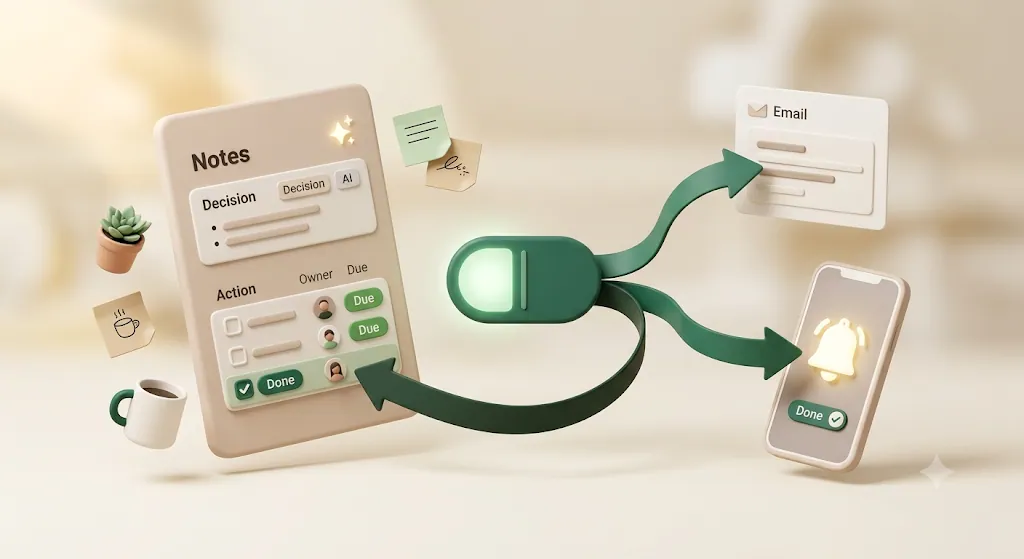
To close the gap, move action items into a list that carries an owner, a due date, and a status, then add a layer that emails the owner — including external attendees — and stops once the item is done. Several approaches can do this; pick the one that matches how much you want to build yourself.

Moving action items into a list with owner, due date, and status
The foundation is the same regardless of tool: each action item becomes a row with an owner, a due date, and a status property. Once those three fields exist, any reminder system has something concrete to watch. The Notion team task reminders guide covers wiring this up in a task database.
From there, your options range from build-it-yourself automations to purpose-built tools:
| Approach | Reaches non-Notion people by email? | Setup effort | Notes |
|---|---|---|---|
| Native @mentions / reminders | No | None | In-app only, one-time |
| Zapier / Make / n8n | Yes, if you build it | Medium–high | Flexible; you maintain the workflow |
| Google Apps Script | Yes, if you code it | High | Full control, needs upkeep |
| Slack reminder bots | Only Slack members | Low | Doesn't help external clients |
| Kapsel | Yes | Low | Purpose-built email reminders tied to due date/owner/status |
How Kapsel reminds the owner by email, including non-Notion external attendees
Kapsel is a notification tool that watches your Notion due date, assignee, and status and sends email reminders — reaching internal teammates and external attendees who don't use Notion, with no account or login needed on their end. Because the reminder arrives by email, a client or contractor who was in the meeting gets the same nudge about their action item as anyone on your team.
One-click confirm writes the status back to Notion — no login needed
The reminder email includes a one-click confirm button. When the recipient clicks it, the status is written back to your Notion database automatically — so an external attendee can mark their task done without ever opening Notion, and your workspace stays up to date. This two-way loop is what keeps the tracked list honest.
Reminders stop the moment an item is marked done
Kapsel doesn't send reminders for items that are already complete — once a task's status is done (or an invoice is paid), the nudges stop. That matters for trust: nobody wants a client chased about something they already finished, and this is exactly the failure mode a naïve reminder script tends to hit. To keep repeated meetings and their follow-ups on a cadence, recurring digests can summarize what's still open instead of pinging every item separately.
Kapsel's free plan is $0/month, with Standard at $12 and Pro at $29 (Pro adds multiple workspaces and sender branding). See the pricing page or the setup guide for details, and Notion external share notifications for reaching people outside your workspace.
FAQ
How do I take good meeting notes in Notion?
Prepare an agenda before the meeting, capture decisions and action items live (splitting the writing across attendees rather than one scribe), and after the call turn your notes into two clean lists — decisions and action items with a single owner and a specific due date each. Keep everything in one searchable workspace, and make sure someone follows up on the action items until they're done.
Does Notion have an AI meeting notes feature?
Yes. Notion AI can record and transcribe a meeting's audio and then automatically generate a structured summary and a first-pass list of action items. The audio-transcription feature runs in the Notion desktop app, and the output is a draft you should confirm and turn into owned, dated tasks.
How do I use /meet in Notion?
Open a page in the Notion desktop app, type /meet, and start the recording; transcription runs during the meeting and you stop it when the meeting ends. Ask participants for consent before recording, and add your agenda to the page beforehand so the AI summary has more context to organize around.
Is Notion AI Meeting Notes free?
Notion AI features are part of Notion's paid AI capabilities rather than something covered fully by a free plan, and availability can change. Check Notion's current plans and AI pricing directly, since the specifics are updated regularly.
Should meeting notes be a Notion page or a database?
Use a page for a one-off meeting and a database (with a saved template) for recurring meetings like 1:1s, standups, and client calls. A database makes the structure repeat automatically and lets you filter and browse the whole series over time.
How do you write action items so they actually get done?
Write each action item verb-first, assign it to exactly one named person, and give it a specific calendar due date instead of "ASAP" or "next week." Then move it into a tracked list with owner, due date, and status so someone — or an automated reminder — can follow up until it's complete.
What's the difference between a decision and an action item in meeting notes?
A decision is a conclusion the group reached (for example, "we're launching the beta in October"); an action item is a task one person will do because of it (for example, "Priya sends the invite list by Oct 3"). Decisions are collective and have no owner or due date; action items always have a single owner and a specific date. Keeping them in separate sections makes notes far easier to act on later.
Can I share Notion meeting notes with someone who doesn't have Notion?
You can share a read-only link with someone who has no Notion account, but a link viewer still won't be notified about action items assigned to them. To actually reach an external attendee, use an email-based layer — a tool like Kapsel emails the reminder to anyone with no account required, or you can build the same thing with Zapier or Make.
Does Notion send reminders for action items automatically?
Not in a way that chases items over time. Native @mentions and date reminders notify a person mostly while they're in Notion and typically fire once, and nothing happens automatically after a due date passes. For recurring nudges and overdue follow-ups, you need an added layer such as an automation platform or a dedicated reminder tool.
How do you follow up on overdue action items from a meeting?
Track each item with an owner, due date, and status, then use a reminder layer that emails the owner when something is overdue and stops once it's marked done. Options include building a workflow in Zapier, Make, or Google Apps Script, or using a purpose-built tool like Kapsel that watches the due date, assignee, and status and can email non-Notion attendees with a one-click confirm.
Notes
Published 2026-08-08. Feature descriptions and pricing (Free $0 / Standard $12 / Pro $29 per month, USD) are current as of the publish date and may change; check the pricing page for the latest. Notion's interface and AI features — including the /meet command and AI Meeting Notes — are updated regularly, so button labels, menu paths, and plan availability may differ slightly from what's described here.