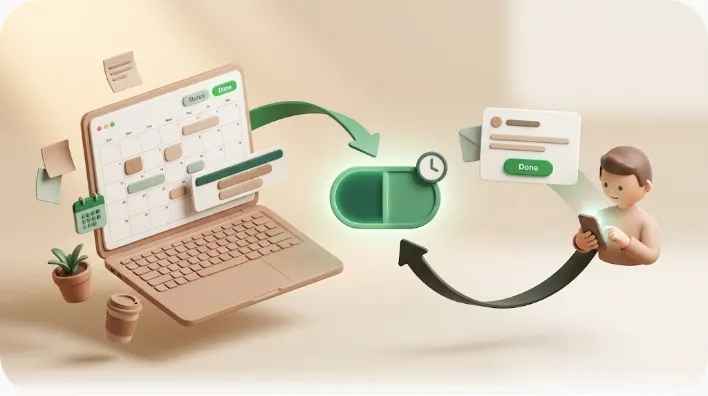
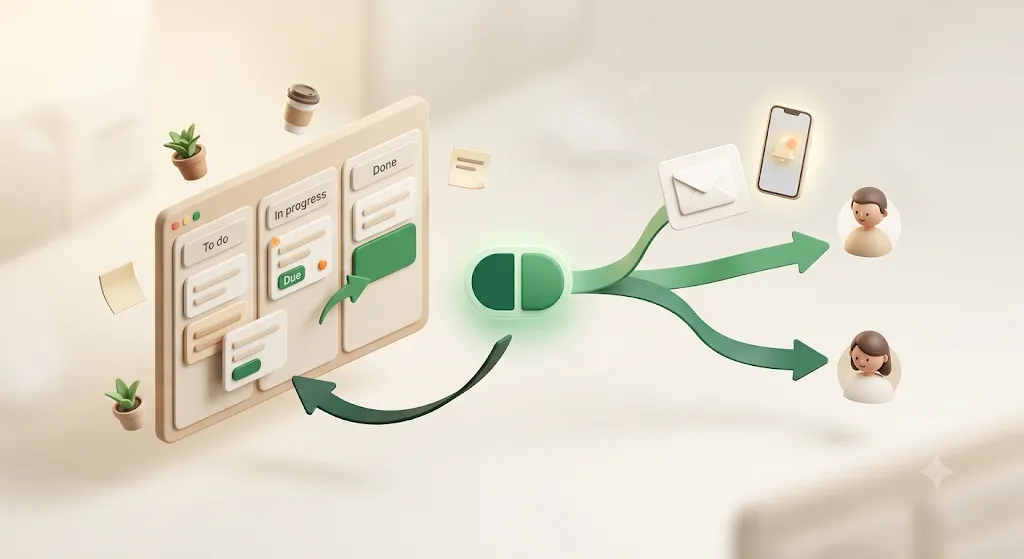
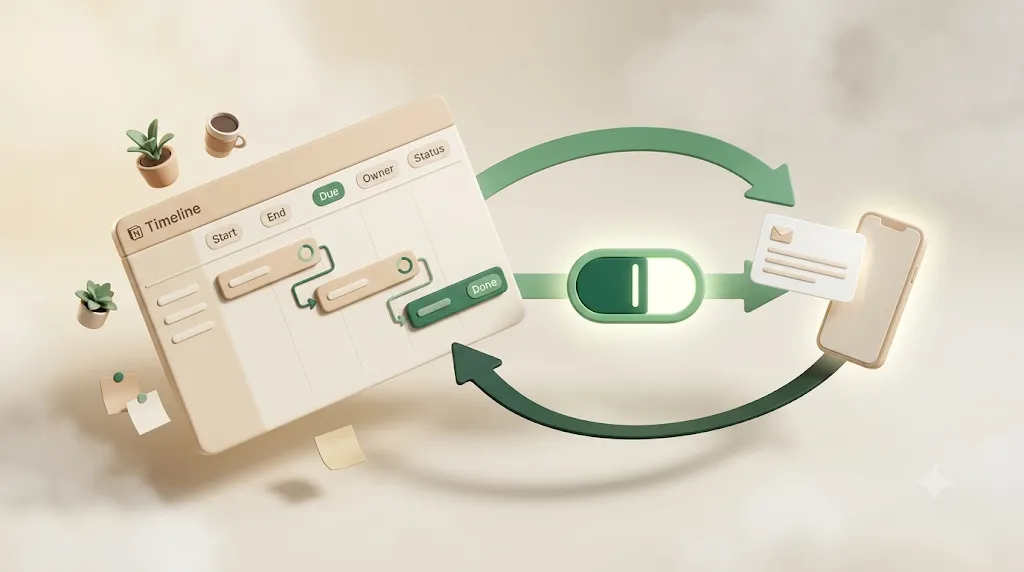
Notion Task Management: How to Build a Task Database, Choose Views, and Level Up
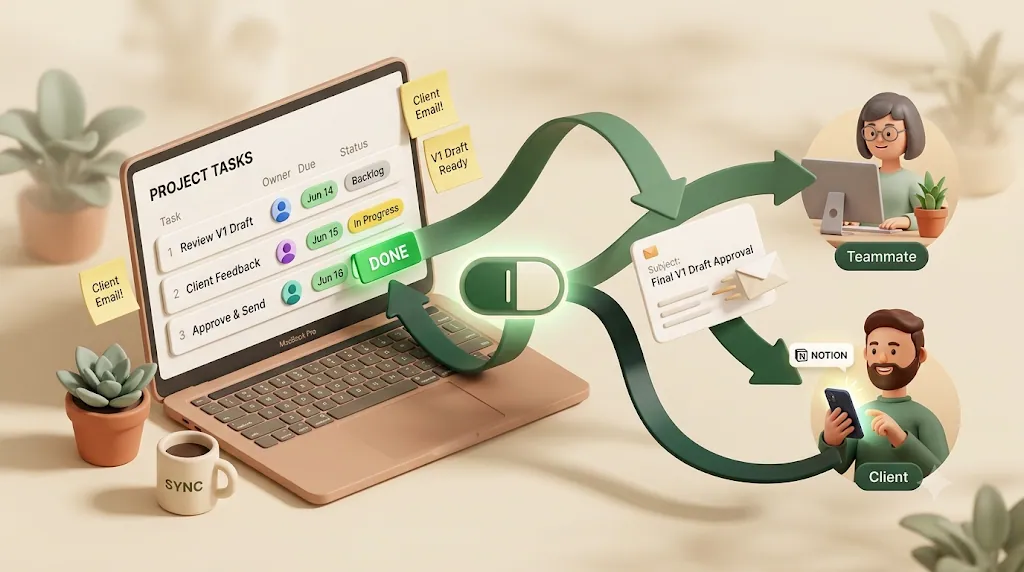
If you run task management in Notion with a team — or with clients who don't even have a Notion login — you've probably already felt the catch: a due date can sit right there in the database, in plain sight, and still notify absolutely nobody when it arrives. This guide fixes the structural half of that problem first — how to build a real task database with the right properties, pick the right view for each job, and level up to relations, rollups, and automations as your workspace grows — then walks through the pitfalls that show up once a team or clients enter the picture, including that silent-due-date gap. If you're still new to Notion itself, the complete guide to using Notion covers the basics first.
TL;DR
- A Notion task database is a database where every row is a task with, at minimum, four properties: Task name, Owner (Assignee), Due date, and Status. Notion's own "Turn into Tasks" flow adds exactly Assignee, Due date, and Status.
- Use views to reshape one database for different jobs: Table for planning, Board for daily execution, Calendar for spotting crowded weeks, Timeline for multi-week projects.
- Level up gradually: a flat to-do list → a proper database with views → Relations + Rollups linking tasks to projects → database automations for hands-off property updates.
- The one thing a Notion database can't do on its own: actively notify anyone when a due date arrives. Native
@remindonly reaches people who open Notion, and never reaches clients without an account.
Notion task management is the practice of tracking work as rows in a database — each task carrying an owner, a due date, and a status — and using filtered views to give individuals and teams the right slice of that work. This article is a tutorial: follow the numbered steps in order, or jump to the section you need.
What is a Notion task database (and why it beats a checklist)
A Notion task database is a structured table where each row is one task and each column is a property you can sort, filter, and group by — which is what makes it far more durable than a plain checklist. A checklist can only be read top to bottom; a database can become a calendar, a kanban board, or a "just my overdue items" list on demand.
The difference matters most at scale. Ten checkboxes on a page are fine. Two hundred tasks across five people need filtering, grouping, and multiple views — and only a database gives you that.
| Checklist (to-do block) | Task database | |
|---|---|---|
| Structure | Flat list of text + checkboxes | Rows with typed properties |
| Owner / due date | Manual text, if at all | Dedicated People and Date properties |
| Views | One (the list) | Table, Board, Calendar, Timeline |
| Filter to "my tasks" | No | Yes |
| Links to projects | No | Yes (Relations) |
The three properties that make a task actionable: Owner (Assignee), Due date, Status (plus the Task name title)
Every workable task database rests on four properties — a title plus three that make a task actionable. Skip any of the three and you lose a whole category of views and filters later.
- Task name (Title): what needs doing, in a few words. Every Notion database has this by default.
- Owner / Assignee (Person property): who is responsible. A Person property links to real Notion members, which is what lets you filter "assigned to me."
- Due date (Date property): when it's due. Use a Date property, not text, so Calendar and Timeline views work and dates can be sorted.
- Status (Status or Select property): where the task stands — for example Not started → In progress → Done. The dedicated Status property groups options into To-do / In progress / Complete buckets.
Get these four in place and every view, filter, and automation covered later in this guide just works — skip one now and you'll likely be retrofitting it later under deadline pressure.
💡 Use the Status property rather than a plain Select when you can. It comes pre-grouped into To-do, In progress, and Complete, which Board view and automations both understand out of the box.
Notion's built-in 'Turn into Tasks' shortcut for adding these properties to an existing database
If you already have a database and want to convert it, Notion ships a one-click shortcut that adds the exact task properties for you. Open the database's ••• menu (or the database settings) and choose Turn into Tasks; Notion adds an Assignee, a Due date, and a Status property in one step.
This is the fastest way to standardize an ad-hoc list. It also signals Notion's own opinion on what a task needs: those three properties, plus the title, are the baseline.
Optional properties worth adding: Priority, sub-tasks, and an inbox
The four core properties run a task database on their own, but three optional additions come up often enough to be worth knowing. Add them when a real need appears — not by default.
Priority — a Select property for triaging what matters first
A Priority property (a Select or Status property with values like Low / Medium / High, or Urgent / Important / Later) lets you sort and group by importance, not just by due date. It's most useful once a "My Tasks" view returns more items than anyone can do in a day: sort by Priority, then by Due date, and the top of the list is the honest answer to "what first?"
Keep the scale short. Three levels are usually enough; five priorities tend to collapse back into "urgent and everything else" in practice.
Sub-tasks — breaking a big task into checkable child items
Notion has a built-in sub-items option you can turn on from a database's settings (it's a self-relation, so a task can have parent and child tasks). Enabling it lets you break a large task into smaller child tasks that still live in the same database and roll up to their parent. This keeps a multi-step deliverable as one row you can expand, rather than a scatter of loosely related tasks.
Use sub-items when a task genuinely has parts worth tracking separately; for a quick two- or three-step task, a checklist inside the page is lighter.
An inbox view — capture first, organize later
A common habit borrowed from GTD is an inbox: a place to drop a task the instant it occurs to you, before deciding its owner, date, or project. In Notion this is just a filtered view — for example, everything with an empty Status or a dedicated Inbox status — that you clear during a regular triage. Capturing without stopping to categorize is what stops tasks from being lost between the thought and the database.
The point of an inbox is speed at capture. Triage — assigning owner, due date, and project — happens later, in a separate pass, so nothing blocks you from writing the task down in the first place.
Choosing the right view for the job
A view is a saved way of displaying the same underlying data — same rows, different lens. The skill of Notion task management is less about building databases and more about matching the view to the job in front of you.
You don't pick one view forever. Most teams keep several views on a single database and switch between them.
| View | Shows tasks by | Best for |
|---|---|---|
| Table | Every property as columns | Planning, bulk edits, audits |
| Board | Status (kanban columns) | Daily "what's next" execution |
| Calendar | Due date on a month grid | Spotting crowded or empty weeks |
| Timeline | Date range across weeks | Multi-week projects, dependencies |
Table view — see every property at once, best for planning and audits
Table view is the spreadsheet-style default that puts every property in a column, so it's the best place to plan, bulk-edit, and audit. When you need to see owner, due date, and status side by side for a hundred rows, this is the view.
Use it to set up new tasks quickly and to catch gaps — for example, sorting by Due date to find anything with no owner assigned.
Board view — kanban by Status, best for daily 'what's next' work
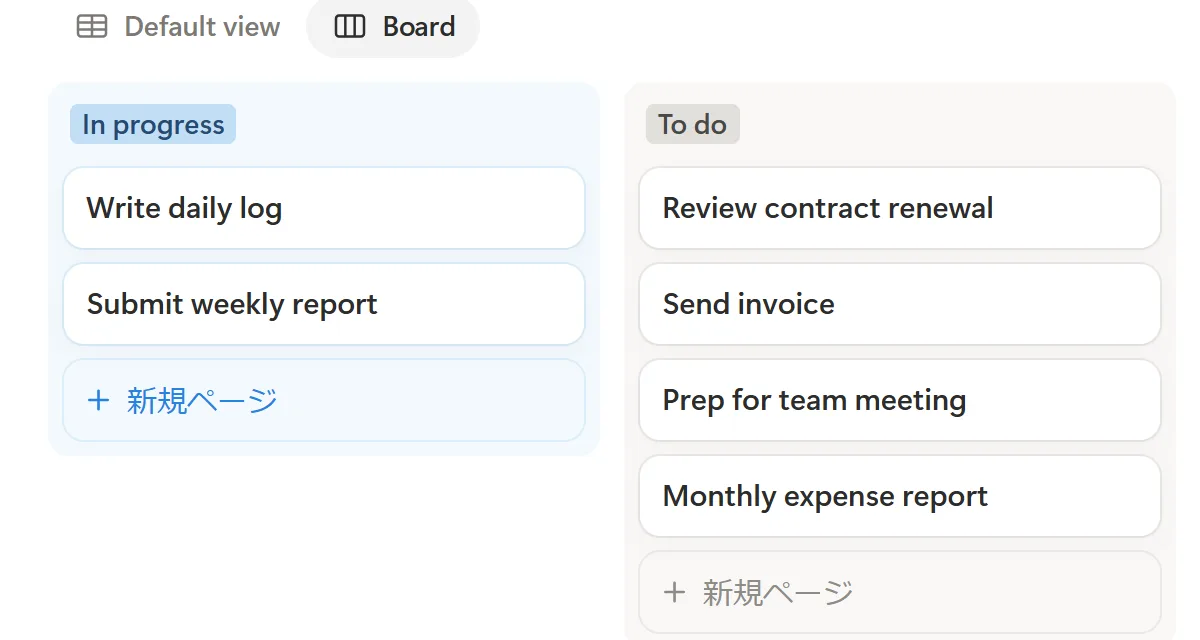
Board view groups tasks into kanban columns by Status, which makes it the natural home for day-to-day execution. Drag a card from In progress to Done and the Status property updates automatically. For a full walkthrough — columns, sub-groups, WIP-limit habits, and card setup — see how to build a Kanban board in Notion. To compute percent-complete from rollups and read it as a bar or ring, see how to track progress in Notion.
This is the view a team lives in during the week. It answers "what is everyone working on, and what's stuck?" at a glance.
Calendar view — by Due date, best for spotting a crowded week
Calendar view plots each task on the day it's due, so it's the fastest way to see whether a given week is overloaded. Five deadlines stacked on the same Friday are obvious here in a way they never are in a list. For a deeper look at both the database calendar view and the standalone Notion Calendar app, see how to use the Notion calendar.
Use it for capacity checks and for dragging tasks to rebalance dates before a crunch.
Timeline view — best for multi-week projects and dependencies
Timeline view (Notion's Gantt-style layout) shows tasks as bars across a date range, which suits multi-week projects and work with dependencies. If a task spans several days and needs to finish before another starts, Timeline makes the sequence visible.
For a single week of small tasks it's overkill; for a two-month project plan it's the right tool. For a full walkthrough — dependencies, sub-items and rollups for progress — see how to build a Gantt chart in Notion.
Switching views on the same database vs. building separate databases
As a rule, add views to one database rather than creating separate databases for the same kind of work. Every view reads from the same rows, so a task edited in Board view is instantly correct in Calendar and Table view too.
⚠️ Splitting the same tasks across multiple databases is a common early mistake. You end up copying rows by hand and the two copies drift. Keep one source of truth and add as many views as you need.
Duplicating a template vs. building from scratch
Starting from a Notion template gets you a working structure in seconds, while building from scratch gives you exactly the properties you want and nothing extra. For most people the right first move is a template, then trim what you don't use.
Notion's gallery includes ready-made task setups — To-do list, Projects & tasks, and Projects, tasks & sprints — that come pre-wired with the core properties and several views.
When a template (To-do list, Projects & tasks) gets you moving faster
Reach for a template when you want to see a working example before you commit to a structure. The To-do list template is enough for personal work; Projects & tasks adds a linked Projects database and is a good starting point for a small team.
Templates also teach by example — you can open one, see how its Relations and views are wired, and adapt from there rather than starting from a blank page.
When to build your own properties instead
Build from scratch when your workflow has specifics a generic template doesn't model — a client field, a billing status, a custom priority scale. Starting empty avoids inheriting properties you'll never use and then feeling obligated to fill them.
A practical hybrid: duplicate a template, keep the four core properties and the views, and delete everything else. You get a clean base without designing the plumbing yourself.
Leveling up gradually as your workspace grows
The most sustainable Notion task setups grow in stages rather than launching fully-featured on day one. Start simple, and add structure only when a real need appears — an over-engineered system nobody maintains is worse than a plain list.
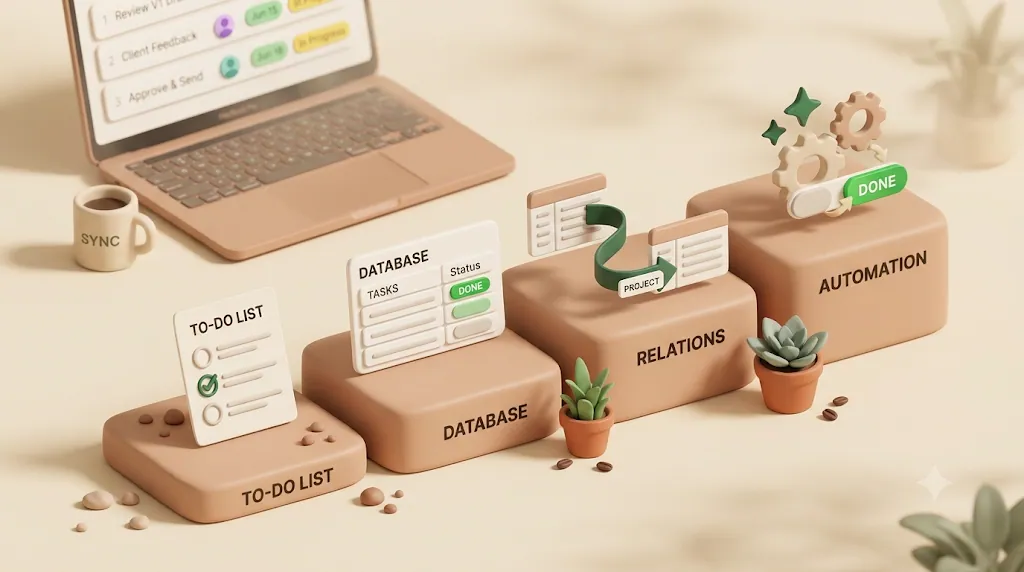
| Stage | What you have | Add this when… |
|---|---|---|
| 1 | Flat to-do list | You just need to capture tasks |
| 2 | Task database + views | You have owners, due dates, and more than one job |
| 3 | Relations + Rollups | Tasks belong to larger projects you want to measure |
| 4 | Database automations | You're updating the same properties by hand repeatedly |
Matching your stage to your actual needs — instead of jumping straight to automations — keeps the system something you'll actually maintain, rather than one more tool you eventually abandon.
Stage 1 — a simple to-do list (single database, no relations)
Stage 1 is a single database with a title, a Status checkbox or Select, and maybe a due date — no relations, no rollups. This is enough for personal task capture and there's no shame in staying here if it works.
The goal at this stage is simply to stop losing tasks. Structure comes later, when the list stops being enough.
Stage 2 — a proper task database with Status/Owner/Due date and multiple views
Stage 2 adds the full core property set — Status, Owner, Due date — plus two or three views for different jobs. This is the sweet spot for most individuals and small teams, and it's where the "choose the right view" section above pays off.
Add a Board view for execution and a Calendar view for deadlines, and you can run real teamwork without touching relations or automations yet.
Stage 3 — Relations + Rollups linking Tasks to a Projects database (roll up progress, counts)
Stage 3 introduces a second Projects database and connects it to Tasks with a Relation, then uses a Rollup to summarize task data on each project. This is how you answer "how far along is this project?" without counting by hand.
- A Relation links each task to its parent project (and shows a project's tasks on the project page).
- A Rollup pulls numbers back up: count of tasks, count marked Done, or a "percent complete" bar on the project.
💡 Rollup + Relation is one of the bigger steps up in Notion task management. It turns a flat task list into a project tracker that reports its own progress.
Stage 4 — database automations for hands-off property updates
Stage 4 uses database automations to update properties automatically when something changes — no manual edits. This is the feature many guides flag as the "next level," and it removes the small, repetitive housekeeping that otherwise erodes a system.
Typical automations: set a "Completed on" date when Status flips to Done, or change a project's status when its first task starts. Database automations run inside Notion and act on properties; they're about keeping data tidy, not about notifying people (more on that gap below).
Efficiency tips for day-to-day use
A few habits make a Notion task database faster to live in every day. The theme is giving each view a clear job and letting filters do the sorting so nobody scrolls through everyone else's work.
Give each view a clear role (planning view vs. execution view vs. 'my tasks' view)
Assign each view a single purpose instead of making one view do everything. A "Planning" Table view, an "Execution" Board view, and a personal "My Tasks" view each answer a different question, and switching between them is faster than reconfiguring filters on the fly.
Name views by their job, not their type — "This Week," "My Tasks," "Backlog" — so the whole team knows which to open.
Filter by 'Person is me' so each teammate sees only their own work
In a shared team database, add a view filtered to Assignee → Person is me so every member sees only their own tasks. The filter is dynamic: the same view shows each person a different, personalized list, so you build it once and everyone benefits.
You can also group a Table or Board view by Assignee, or by Project once you've added a Projects relation, to see the whole team's load broken out person by person or project by project.
A simple GTD-style status flow (Not started → In progress → Blocked → Done)
Keep your status options few and linear so the board stays readable — a GTD-style flow of Not started → In progress → Blocked → Done covers most work. Adding a Blocked state is worth it: it makes stuck work visible instead of hiding it inside "In progress."
Resist the urge to add ten statuses. More columns means more ambiguity about where a task belongs.
The real pitfalls once a team or clients get involved
Notion task management works smoothly solo, but four predictable problems appear once other people — especially external clients — are in the mix. Knowing them in advance lets you design around them.
Worth saying directly: Notion is a flexible database, not a dedicated project-management platform, and pretending otherwise is where most of these problems start. For everyday task tracking it holds up well; for jobs like portfolio-level reporting, resource-capacity planning, or reaching people who live outside Notion, the practical move is pairing it with a tool built for that one job rather than forcing everything through Notion alone.
| Pitfall | What goes wrong |
|---|---|
| Siloing | Info stays locked in a database only some people open |
| Learning curve | New teammates and clients don't intuitively "get" views |
| Performance | Big databases with many relations get sluggish |
| No active notification | A due date just sits there; nothing tells anyone |
Work gets siloed — info stays locked in a database only certain people open
Knowledge that lives only in a Notion database is invisible to anyone who doesn't open that database. Permissions and page structure can lock information away from the people who need it, and a client who never logs in effectively can't see their own project.
The fix is partly discipline (share the right pages) and partly recognizing that some updates need to leave Notion and reach people where they already are.
The learning curve — new teammates and clients don't intuitively know how to use views/properties
Notion's flexibility means new users rarely guess how your views and properties work without a walkthrough. What's obvious to the person who built the database is opaque to a new hire or a client seeing it for the first time.
Budget time to onboard people, and keep the client-facing surface as simple as possible — ideally, don't require clients to learn Notion at all.
Large databases get slow as items and relations pile up
As a database accumulates thousands of rows and many relations and rollups, views can take noticeably longer to load. There's no single hard limit, but heavy relation and rollup use is the usual cause of slowdown well before you reach any theoretical ceiling.
Mitigate it by filtering views to recent or active items and archiving completed work, so no single view tries to render everything at once.
The big one — a due date sitting in a database does not actively notify anyone
The most consequential limitation is that a due date in Notion is passive: it does nothing on its own when the day arrives. Unless someone opens the right view at the right time, a deadline can pass in silence — the database knows the task is overdue, but no one is told.
This is a category of problem, not a one-off bug, and it's the reason the rest of this guide exists. Everything above helps you organize work; none of it notifies anyone.
What Notion's own reminders (@remind) actually cover, and where they stop
Notion does have native reminders, and it's worth knowing exactly what they do before reaching for anything else. In short: @remind and date-property reminders fire inside Notion, to people who open Notion — and stop there.
Before adding any third-party tool, it's fair to weigh the native options and common DIY routes:
| Approach | Reaches people without Notion? | Overdue follow-up? | Writes status back? |
|---|---|---|---|
Notion @remind / date reminder |
No (in-app + push only) | No | No |
| Database automation | No | No | It updates properties, not people |
| Zapier / Make / n8n | Yes, if you build it | Only if you build it | Only if you build it |
| Google Calendar sync | Calendar alerts only | No | No |
| Slack integration | Slack users only | No | No |
Seeing the gaps laid out like this is the fastest way to tell whether your current setup is actually reaching everyone who needs a nudge, or just quietly assuming it does.
Zapier, Make, n8n, and Google Apps Script can all bridge Notion to email or Slack if you're willing to build and maintain the automation. They're capable and flexible; the trade-off is setup time and ongoing upkeep.
@remind and database date-notifications fire inside Notion, to people who open Notion
Native reminders deliver to Notion's in-app inbox and as push notifications, with email only as a fallback. That's genuinely useful for people who live in Notion all day — the reminder is right there when they open the app.
The dependency is the catch: the notification assumes the recipient opens Notion. If they don't, it waits unseen.
Why teammates who rarely check Notion still miss due dates
A reminder in the Notion inbox only helps someone who checks the Notion inbox. On real teams, some members open Notion daily and others barely at all — and for the latter group, in-app reminders pile up unseen next to everything else.
This is a human, adoption-level gap, not a technical one. The reminder fired correctly; the person just wasn't looking.
Why external clients with no Notion account never see them at all
A client without a Notion account cannot receive a Notion notification at all — there's no inbox to deliver to. Native reminders also don't push out to external Google or Outlook calendars, so even that indirect path is closed.
For client work, this is decisive: the people you most need to nudge about a due date are often the ones Notion literally cannot reach.
What happens after a date passes — no built-in nudge for overdue items
Notion's reminders fire once, on the date you set, and nothing happens afterward if the task is missed. There is no built-in escalation for overdue items — the task simply sits there marked late, waiting for someone to notice.
For work with real deadlines, the second nudge (the one after the date slips) is often the one that actually matters, and native Notion doesn't send it.
Closing that gap: how Kapsel watches your task database
Once you outgrow @remind, you can either build an automation yourself or add a purpose-built notification layer. Kapsel is a Notion notification tool that watches your due date, assignee, and status properties and emails reminders — including to people who don't have a Notion account — with a one-click confirm that writes the status back to Notion. It's an independent, indie-built product, not a Notion feature.
Kapsel watches Due date, Owner, and Status on your existing database — no rebuild needed
Kapsel reads the same Due date, Owner, and Status properties you already set up in the steps above — you don't restructure anything. If your database follows the core-property pattern, it's already compatible.
It filters to tasks that still need action, and never sends to anything marked Done
Kapsel applies target filtering so reminders only go out for tasks that still need action, and it never sends a reminder for an item marked Done (or Paid). That "never nag finished work" rule is what makes it safe to point at a client-facing database.
It emails the owner directly, including people with no Notion account
Because Kapsel delivers by email, it reaches the task's owner directly — including external clients and teammates who don't have a Notion account and never open the app. This is the gap native reminders can't cross.
One click in the email writes the status back to Notion — two-way, no login
The reminder email includes a one-click confirm button; clicking it writes the status back to Notion, no login required. That's a two-way mechanic — the update flows back into Notion — rather than a one-way alert that leaves the recipient to update the database themselves.
Overdue follow-ups, recurring digests, and a send log for visibility
Kapsel also sends overdue follow-ups after a date slips, supports recurring digests, and keeps a send log so you can see who was reminded and when. Merge fields personalize each message. The Free plan is $0/month; Standard is $12/month; Pro ($29/month) adds multiple workspaces and sender branding. See pricing for details.
Getting started
The order of operations is simple: get your task database right first, then add a notification layer only if and when native reminders stop reaching everyone. Don't reach for tooling before the underlying structure is sound.
Set up your task database first (the steps above)
Start with the four core properties, pick a template or build from scratch, and add the two or three views you'll actually use. If you want a deeper walkthrough of reminders specifically, see how to set reminders in Notion, and for recurring work, Notion recurring reminders.
Add Kapsel as the notification layer once you outgrow @remind
If your setup involves teammates who rarely open Notion or clients with no account, that's the signal that in-app reminders aren't enough. For the team angle in depth, see Notion team tasks and Notion task reminders for teams; to start from a ready-made structure, browse Notion templates.
Try Kapsel free. Kapsel watches your Notion due dates, assignees, and status, then sends automatic email reminders — including to people without a Notion account — and lets recipients confirm in one click, writing the status back to Notion. Free plan, no credit card required. → Start with Kapsel
FAQ
What properties does a Notion task database need? At minimum four: a Task name (title), an Owner/Assignee (Person property), a Due date (Date property), and a Status. The three beyond the title are what make a task actionable — they enable filtering by owner, sorting by date, and grouping by status. Notion's own "Turn into Tasks" flow adds exactly Assignee, Due date, and Status.
How do I turn a regular Notion database into a task database?
Open the database's ••• or settings menu and choose "Turn into Tasks." Notion adds an Assignee, a Due date, and a Status property in one step. From there you can add Board, Calendar, or Timeline views to work with the new structure.
What's the difference between Table, Board, Calendar, and Timeline view in Notion? Table shows every property as columns and is best for planning and audits. Board groups tasks into kanban columns by Status for daily execution. Calendar plots tasks by Due date so you can spot crowded weeks, and Timeline shows tasks as bars across a date range for multi-week projects. They all read from the same database, so you switch views rather than duplicating data.
Should I duplicate a Notion template or build a task database from scratch? Duplicate a template (To-do list or Projects & tasks) when you want a working structure fast and don't have unusual requirements. Build from scratch when your workflow needs specific properties a generic template doesn't model. A common hybrid is to duplicate a template, keep the core properties and views, and delete the rest.
What's the difference between a relation and a rollup in Notion? A Relation links rows in one database to rows in another — for example, connecting each task to its parent project. A Rollup then summarizes data across those linked rows, such as counting a project's tasks or showing percent complete. You use them together: the Relation makes the connection, the Rollup measures it.
Can Notion send task reminders automatically?
Notion can fire native reminders via @remind, a Date property's reminder toggle, or database automations, but these deliver inside Notion's own notification system — the in-app inbox and push, with email as a fallback. They don't do recurring reminders, overdue escalation, or delivery to people without a Notion account. For those, you'd build an automation (Zapier, Make, n8n) or add a dedicated tool like Kapsel.
Why didn't I get a Notion reminder for a task due today? Native Notion reminders land in the in-app inbox and as push notifications, so if you didn't open Notion or notifications are muted on your device, the reminder waits unseen. They aren't sent as a guaranteed email, and they don't push to external calendars. This is the main reason teammates who rarely open Notion miss due dates.
Can Notion notify someone who doesn't have a Notion account? No — Notion's native notifications can only be received by someone with a Notion account, since they deliver to that person's in-app inbox. There's no built-in way to email a due-date reminder to an external client with no account. Reaching those people requires email-based delivery, which is what Kapsel provides.
Does Notion send a reminder for overdue tasks? No. Native Notion reminders fire once on the date you set and do nothing afterward if the task is missed — there's no built-in escalation for overdue items. Getting a second nudge after a deadline slips requires a custom automation or a tool that offers overdue follow-ups, such as Kapsel.
How do I stop Notion from notifying people about completed tasks? With native reminders there's no automatic suppression — a reminder set on a task fires regardless of whether it's Done, so you'd remove or clear the reminder manually. If you use a notification tool, look for one that filters by status; Kapsel, for instance, never sends a reminder for an item marked Done or Paid.
How many tasks can a Notion database hold before it gets slow? There's no fixed hard limit, but views can slow down as a database grows into the thousands of rows, especially with many relations and rollups. Performance depends more on how heavily you use relations, rollups, and complex filters than on row count alone. Filtering views to active items and archiving completed tasks keeps things responsive.
What's a good status workflow for a Notion task database (GTD-style)? Keep it short and linear: Not started → In progress → Blocked → Done. Adding a "Blocked" state makes stuck work visible instead of hiding it inside "In progress." Using Notion's dedicated Status property groups these into To-do / In progress / Complete automatically, which Board view and automations both understand.
Notes
This article was published on 2026-08-07 (updated 2026-09-06). Product features and pricing described here (Kapsel Free $0, Standard $12, Pro $29 per month) are current as of writing and may change; check the pricing page or the guide for the latest details. Notion's own features and menus may also change over time.