How to Use the Notion Calendar: Database View vs. the Notion Calendar App (and What Happens After You See a Due Date)

TL;DR
- "Notion calendar" refers to two different things: the calendar view inside a database (a display format that needs a Date property), and the standalone Notion Calendar app (a separate download that signs in with Google and shows your databases next to your Google Calendar).
- You can add a calendar view in seconds with the
/calendarcommand or + Add view, then reschedule by dragging cards. The app adds keyboard shortcuts, one-click meeting links, and two-way reflection: drag an event and the Date property updates in Notion.- External-calendar sync in the app is centered on Google accounts; support for other providers is limited, so confirm the current list in Notion's help center before you rely on it.
- A calendar shows a due date; it does not chase anyone. Notion's
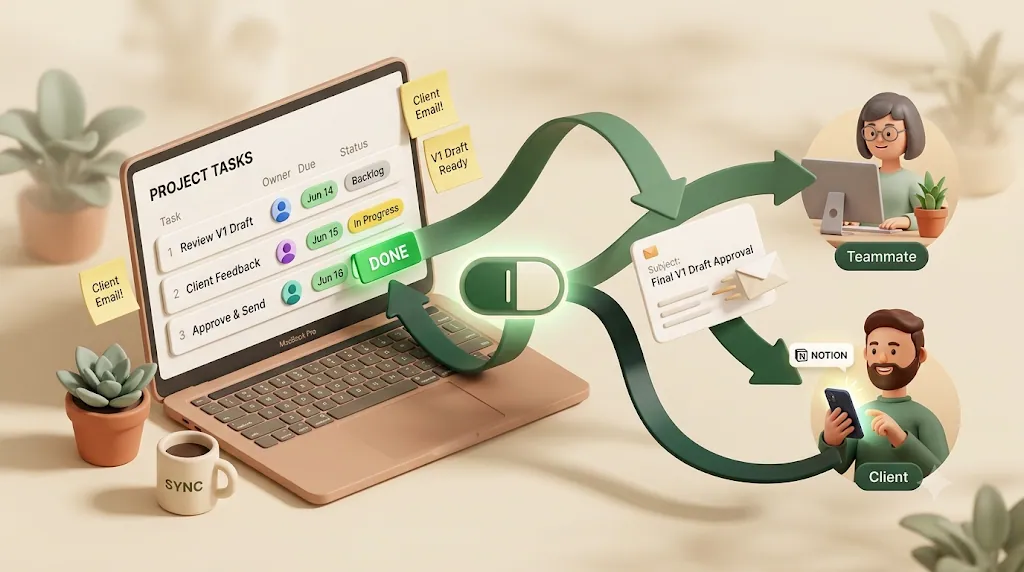
@remindonly reaches people who open Notion, and clients without an account never see it. That gap is where a reminder-delivery layer like Kapsel fits.
If you've set up a Notion calendar and deadlines are still slipping past clients or teammates, you're not alone — a calendar shows a due date, but it doesn't chase anyone to act on it. "Calendar" in Notion is also genuinely two different products with the same name, and mixing them up is where most setup guides go wrong. This article separates the calendar view from the standalone Notion Calendar app, walks through setting up each one step by step, and then covers what almost every tutorial skips: what to actually do once a deadline is visible but the person responsible hasn't looked at it. For the bigger picture, see the complete guide to using Notion.
Two Different Things Are Both Called "Notion Calendar"
Before any setup, it helps to know which "calendar" you mean, because they live in different places and solve different problems. One is a way to display a database you already have; the other is a separate app that pulls those databases together with your Google Calendar.
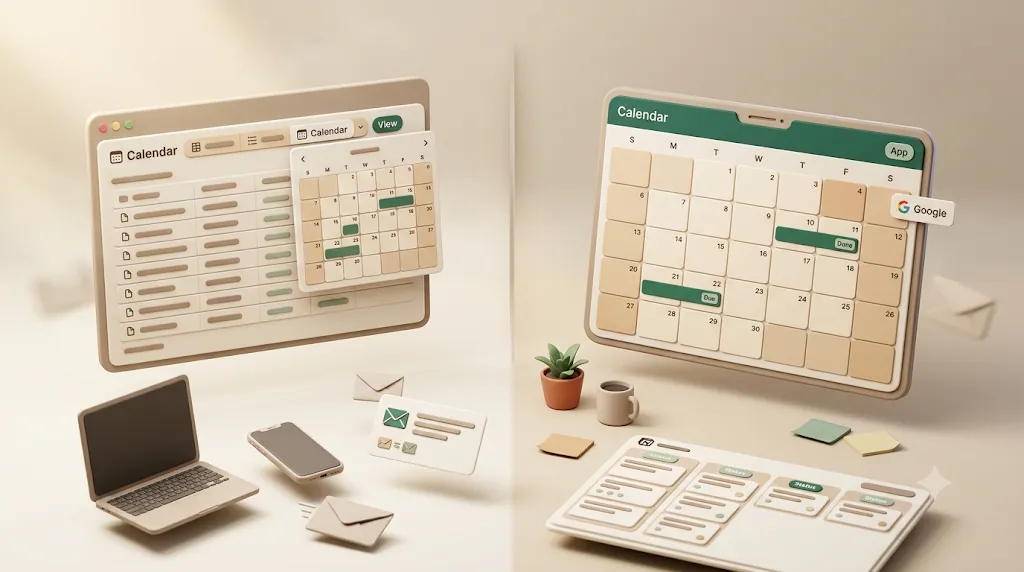
| Calendar view (in a database) | Notion Calendar app | |
|---|---|---|
| What it is | A display format of a database | A standalone app (desktop, web, mobile) |
| Where it lives | Inside any Notion page/database | Separate download, signed in with Google |
| Requirement | A Date property | A Notion account + a Google account |
| Syncs Google Calendar? | No | Yes |
| Best for | Seeing one database's dates | One screen for meetings + Notion tasks |
The calendar view — a display format inside a database
The calendar view is one of several ways to look at the same underlying database, alongside table, board, list, timeline, and gallery. It plots each row on a monthly or weekly grid using a Date property, and switching to it changes nothing about your data — it's purely how that data is drawn. If a database has no Date property, it can't be shown as a calendar until you add one.
The Notion Calendar app — a separate app that syncs Google Calendar
Notion Calendar is a dedicated calendar application you download separately (desktop and mobile, plus a web version) and sign in to with a Google account. It shows your Google Calendar events and, once connected, your Notion databases in the same view, so meetings and task deadlines sit side by side. It's built for managing your day rather than for organizing a single database.
💡 Quick rule of thumb: if you want to see one project's dates, use a calendar view. If you want your meetings and your Notion tasks on one screen, use the Notion Calendar app.
How to Create a Calendar View on a Notion Database
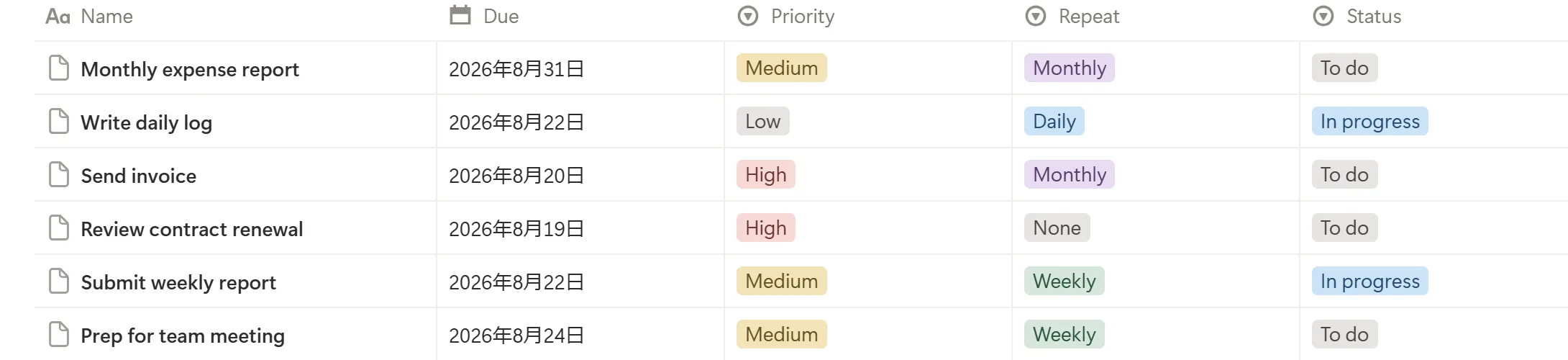
Goal: display any database's dated rows on a monthly or weekly grid. Prerequisite: the database must have at least one Date property (a due date, a start date, an event date — anything of type Date). Here's how to add a calendar view to both new and existing databases.
Add a calendar view to a new database
- On any page, type
/calendarand choose Calendar view (inline) to create a fresh database that opens directly in calendar format. - Notion creates a default Date property for you, so new entries can be placed on the grid right away.
- Click any day and select + New to add an entry on that date.
Add a calendar view to an existing database
- Open the database and find the view switcher (the tabs near the top-left, next to the current view's name).
- Click + (or + Add view).
- Choose Calendar as the view type and give it a name (for example, "By due date").
- Notion adds the view without touching your table or board — you can switch between them at any time.
💡 A calendar view is just another lens on the same rows. Adding one never deletes or duplicates your data.
If you're still designing the underlying database, how to set up Notion task management covers the task name, owner, due date, and status properties a calendar view reads from.
Choosing which date property drives the calendar
If your database has more than one Date property — say Due date and Created time — you decide which one positions the cards.
- Open the calendar view's ••• (Settings) menu, or the Layout options.
- Find Calendar by (the property that drives placement).
- Select the Date property you want (for example, Due date rather than Created time).
⚠️ If entries land on the wrong days, the calendar is almost always plotting by the wrong Date property. Check Calendar by first.
Switching between month view and week view
In the top-right of a calendar view, use the toggle to switch between Month and Week. Month view is best for a broad overview of deadlines; week view gives each day more room and works well when several things are due close together.
Rescheduling with drag-and-drop (and stretching multi-day cards)
- Move a date: drag a card from one day to another. The underlying Date property updates automatically — no need to open the entry.
- Make it span multiple days: if the entry uses a date range (an end date enabled on the Date property), drag the edge of the card to stretch it across several days.
- Single-date vs. range: a plain date shows as a one-day card; enabling End date on the Date property lets a card cover a span.
Because dragging a card updates the Date property instantly, you can replan a week of deadlines without opening a single entry.
Changing the week start day (Sunday vs. Monday)
Whether the week starts on Sunday or Monday follows your Notion language & region setting rather than a per-calendar toggle. To change it, open Settings → Language & region (sometimes labeled Notion Calendar preferences in newer builds) and adjust the Start week on setting for your region. The calendar grid updates to match.
💡 If your calendar starts on the "wrong" day, it's a workspace/region setting, not something you fix on the individual view.
How to Set Up the Notion Calendar App
Goal: get your Google Calendar and your Notion databases into one app. Prerequisites: a Google account (for sign-in and calendar sync) and a Notion account. These steps cover install, sign-in, and connecting your workspace.
Download the app and sign in with Google
- Get Notion Calendar from Notion's website (desktop app for macOS/Windows, mobile apps, or the web version).
- Open it and sign in with Google. This is the account whose Google Calendar events will appear.
- Grant the calendar permissions it requests so events can sync both ways.
Connect your Notion workspace
- In Notion Calendar's settings, choose Connect Notion (or Add Notion account).
- Authorize the workspace you want to pull databases from.
- You can connect more than one account, which is useful if you keep work and personal databases separate.
Add Notion databases so due dates show up
A Notion database only appears in the app if it has a compatible date-based view.
- In the app, open the menu to add a Notion database.
- Pick the database you want to surface.
- Make sure that database has a calendar or timeline view — without one, it won't be selectable in Notion Calendar.
- Its dated entries now appear alongside your Google events.
Once a database is connected this way, every deadline you already track in Notion shows up next to your meetings automatically, so you stop cross-checking two separate tools to see what's actually due today.
⚠️ The most common setup snag: a database won't show up because it has no calendar or timeline view. Add that view in Notion first, then connect it.
Two-way reflection: drag an event, Notion updates automatically
Notion Calendar reflects changes back to the source. When you drag a Notion-backed event to a new day or time inside the app, the Date property on that row in the Notion database updates to match. Move it in Notion, and it shifts in the calendar too. The app and the database stay in sync rather than holding separate copies.
What syncs from outside Notion (and what doesn't)
The app's external sync is built around Google. As of this writing, Notion Calendar connects Google accounts for viewing and two-way event editing; for a step-by-step look at how that connection behaves, see Notion and Google Calendar sync. Support for other providers — such as Apple iCloud or Microsoft Outlook — is limited or handled differently, and third-party write-ups disagree on the exact list.
⚠️ Because provider support changes, confirm the current, exact list of supported external calendars in Notion's own help center before you commit a workflow to it. Don't assume Outlook or iCloud sync works the way a blog post claims.
Notion Calendar App: Pros and Cons
The app is a capable, free daily-planning tool, but it's positioned as a lightweight calendar rather than a power-user replacement for dedicated apps. Here's an honest read on where it shines and where it doesn't.
| Strengths | Limitations |
|---|---|
| Meetings + Notion tasks on one screen | External sync centered on Google |
| Multiple calendars/databases at once | Recurring-event handling is basic |
| Fast keyboard shortcuts | Mobile app is more limited than desktop |
| Drag-to-schedule and time-blocking | Not as advanced as apps like Fantastical |
| One-click scheduling links + auto meeting links | It shows dates; it doesn't chase people |
Pros — one screen for calendar + tasks, drag-to-schedule, meeting-link auto-attach
- One unified view: your Google Calendar events and your Notion database deadlines appear together, so you're not tabbing between apps. For how the app fits into a full scheduling workflow — database, views, recurrence, and team sharing — see schedule management in Notion.
- Multiple calendars and databases: layer several calendars and Notion databases at once and toggle them on and off.
- Keyboard-first and drag-to-schedule: shortcuts make it quick to create, move, and block out focus time by dragging on the grid.
- Meeting links: create scheduling links and have video-call links (for example, Zoom or Google Meet) attach to events automatically.
Cons — limited external sync, basic recurring events, a lighter mobile app
- External sync is provider-limited. It's built around Google; don't assume every calendar service connects.
- Recurring events are basic. Complex repeat rules and how recurring items reflect between the app and Notion are limited — verify behavior before depending on it.
- Mobile is lighter than desktop. The mobile app doesn't expose everything the desktop app does.
- Not a Fantastical replacement. For heavy calendar power users, dedicated apps still do more.
The Gap a Calendar Can't Close: Seeing a Due Date Isn't the Same as Being Reminded
Every calendar setup above ends at the same place: the due date is now visible. But visibility only helps the people who actually open the calendar. A deadline on a grid doesn't reach out to anyone — so the real question is who gets notified, and when.
What Notion's @remind actually covers
Notion does have native reminders, and they work well for the person who lives inside Notion:
@remindon a line or a Date property fires a notification at the time you set.- Notifications arrive through the Notion Inbox and desktop/mobile push, with email only as a fallback when the app is closed.
- It's genuinely useful for your own tasks and for teammates who check Notion daily.
For a full walkthrough, see how to set reminders in Notion and Notion email reminders.
Where it stops: people who don't open Notion, and clients who don't have an account
Native reminders share one hard limit: they only reach people who are actively in Notion.
- A teammate who rarely opens Notion sees the reminder buried in an Inbox they don't check.
- An external client or occasional collaborator has no Notion account at all, so there is no inbox to notify.
- Notion also has no recurring reminders, so anything that repeats has to be re-created by hand — more on that in Notion recurring reminders.
⚠️ This is the seam almost no calendar tutorial addresses: a calendar makes a deadline visible, but visibility isn't delivery. If the responsible person never opens Notion, the reminder never lands.
Turning Due Dates Into Reminders That Actually Reach People
Once a due date is on a calendar, the next job is making sure the right person acts on it — including people outside Notion. Native reminders, and general automation tools, each cover part of this — here's a fair look at both before we get into how Kapsel fits in.

How the common approaches compare:
| Approach | Reaches non-Notion users? | Recurring? | Writes status back? | Setup effort |
|---|---|---|---|---|
Notion @remind |
No | No | n/a | Low |
| Zapier / Make / n8n | Yes (email/Slack) | Yes | Only if you build it | Medium–high |
| Google Apps Script | Yes | Yes | If you code it | High (code) |
| Slack/Google Calendar alerts | Team only | Some | No | Low–medium |
| Kapsel | Yes (email, no account) | Yes | Yes, one click | Low |
General automation platforms — Zapier, Make, n8n, or Google Apps Script — can absolutely send an email or Slack message when a due date arrives, and they're the right choice when you need custom, multi-step logic. The trade-off is that you assemble and maintain the delivery, the recipient targeting, the write-back, and the "don't send if it's done" guard yourself.
If you'd rather not build that, a purpose-built reminder layer handles it directly:
Kapsel is a Notion reminder tool that watches a database's due date, assignee, and status and emails reminders — including to people who don't use Notion — with a one-click button that writes the result back to Notion.
What Kapsel watches: due date, assignee, status
Kapsel monitors the same three fields your calendar already uses — the due date, the assignee, and the status — and sends an email reminder when something is coming due or overdue. Nothing new to maintain in the database; it reads the properties you already set.
Who it reaches: your team and external recipients, no Notion login needed
Reminders go out by email, so they reach teammates who rarely open Notion and external clients who have no Notion account — no login required on the recipient's side. That's the exact audience native reminders miss.
One-click confirm writes the status back to Notion
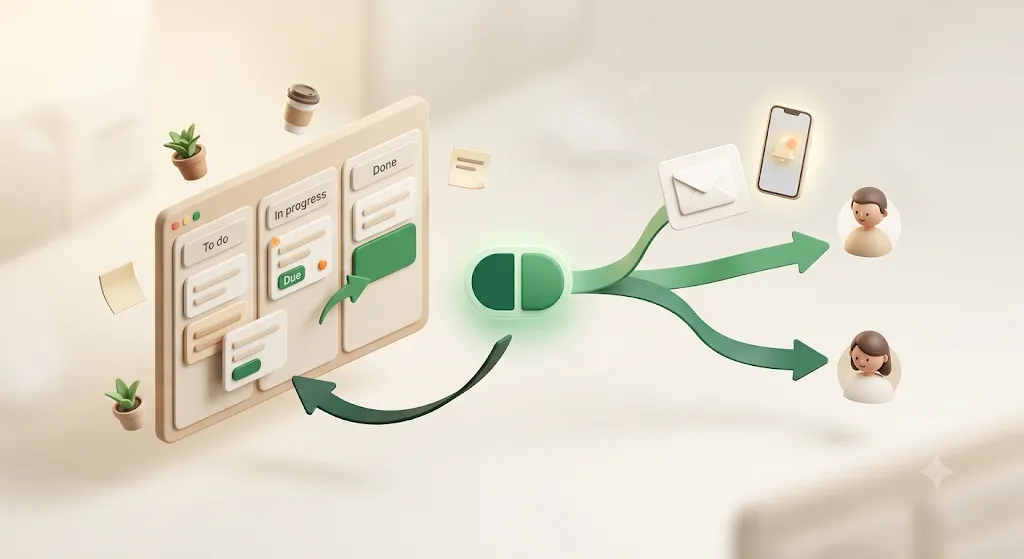
Each reminder includes a one-click confirmation button. When the recipient clicks it, the status updates back in the Notion database — a two-way loop — so your calendar and board reflect reality without anyone re-opening Notion to check a box.
Never sends to items marked done or paid
Kapsel does not send reminders for items already marked done or paid, which avoids the worst-case email — chasing someone for something they've already finished or settled.
The rest of the toolkit: overdue follow-ups, target filters, recurring digests, send log, merge fields
- Overdue follow-ups for anything that slips past its due date.
- Target filtering so only the right rows trigger reminders.
- Recurring digests for regular weekly or monthly summaries.
- A send log of what went out and when.
- Merge fields to personalize each message.
Together, these close the loop the calendar itself can't: instead of manually tracking who still needs a nudge, you get automatic follow-ups and a record of what was sent, for teammates and outside clients alike.
The Free plan is $0/month; Standard is $12/month; Pro is $29/month and adds multiple workspaces plus sender branding (company name, signature, logo). Full details are on the pricing page and the guide. Kapsel is an independently built product, so the scope is deliberately focused on this one job: getting Notion due dates in front of the people who need them.
💡 Think of it as the layer after the calendar: the grid shows the deadline; the reminder delivers it and records the reply. For deadline-heavy setups, pair this with Notion deadline tracking and, for anyone outside your workspace, external share notifications.
Try Kapsel free. Kapsel watches your Notion due dates, assignees, and status, then sends automatic email reminders — including to people without a Notion account — and lets recipients confirm in one click, writing the status back to Notion. Free plan, no credit card required. → Start with Kapsel
FAQ
Does Notion have a calendar?
Yes — in fact it has two. Notion has a built-in calendar view you can add to any database that has a Date property, and a separate, free Notion Calendar app that signs in with Google and shows your Google Calendar events next to your Notion databases. The section above walks through setting up each one. What Notion doesn't have is a way to chase a due date once it's on the calendar — that still depends on someone opening Notion.
How do I add a calendar to Notion?
To add a calendar view, open the database, click + (or + Add view) in the view switcher, choose Calendar, and name it — the database just needs a Date property. To add the standalone app, download Notion Calendar, sign in with Google, and connect the workspace whose databases you want to see. Both are covered step by step earlier in this guide.
Can I connect Notion with powerful automations for calendar reminders?
You can, but be clear about the boundary. Notion's own database automations run inside Notion, and external platforms like Zapier, Make, or n8n can fire an email or Slack message when a date arrives — powerful, but you build and maintain the delivery, targeting, and write-back yourself. A purpose-built layer like Kapsel handles that specific job directly: it watches the due date, assignee, and status, emails reminders (including to people without a Notion account), and writes a one-click reply back to Notion.
Is Notion Calendar the same thing as the calendar view inside a Notion database?
No. The calendar view is a display format inside a database — it plots that database's rows on a grid using a Date property. Notion Calendar is a separate app you download and sign in to with Google; it shows your Google Calendar events alongside connected Notion databases. They share a name but are different tools.
Is the Notion Calendar app free to use?
Yes, Notion Calendar is free to download and use with a Notion and Google account. Some capabilities tie into your Notion plan, but the calendar app itself does not cost extra to install and connect.
Does Notion Calendar sync with Google Calendar?
Yes. Sign-in and external event sync are built around Google accounts, and the sync is two-way — moving a Google event in the app updates it in Google Calendar and vice versa. This is the app's core external integration.
Can Notion Calendar sync with Outlook or Apple Calendar?
Support beyond Google is limited and inconsistently documented across third-party articles. As of this writing, treat Google as the reliably supported provider and confirm the current status of Apple iCloud or Microsoft Outlook in Notion's official help center before building a workflow around it.
Does the Notion Calendar app sync two-way with Notion databases?
Yes. When you drag a Notion-backed event to a new day or time in the app, the Date property on that row updates in the Notion database, and changes made in Notion appear in the app. The two stay in sync rather than holding separate copies.
How do I add a calendar view to an existing Notion database?
Open the database, click + (or + Add view) in the view switcher, choose Calendar, and name it. The database must have a Date property; the calendar plots entries by that property. Adding the view doesn't change your table, board, or data.
How do I change the first day of the week in Notion's calendar?
The week-start day follows your Language & region setting rather than a per-view toggle. Open Settings → Language & region and adjust the start-of-week / region option; the calendar grid updates to start on Sunday or Monday accordingly.
Can I drag and drop to reschedule dates in a Notion calendar view?
Yes. Drag a card to a different day and the underlying Date property updates automatically. If the Date property has an end date enabled, you can drag the card's edge to stretch it across multiple days.
Why doesn't Notion @remind reach teammates or clients who don't check Notion?
Native reminders are delivered through the Notion Inbox and desktop/mobile push, with email only as a fallback when the app is closed. They require the recipient to have a Notion account and to be checking it, so a teammate who rarely opens Notion sees it buried, and a client without an account never receives it at all.
Does Notion send email reminders automatically?
Notion sends email only as a fallback — typically when the app is closed and a native reminder or mention fires — not as a dependable, scheduled email channel. For consistent email reminders (including to non-users), you need an automation platform or a purpose-built tool. See Notion email reminders for the details.
Is there a Notion Calendar mobile app, and does it have limitations?
Yes, there's a mobile version, but it's more limited than the desktop app — some scheduling and time-blocking features are desktop-first. Use mobile for quick checks and rescheduling, and the desktop app for heavier planning.
Can Notion Calendar handle recurring events?
It supports recurring events at a basic level, but complex repeat rules and how recurring items reflect between the app and a Notion database are limited. Test the exact repeat behavior you need before relying on it, especially for anything business-critical.
How do I get Notion due-date reminders to reach someone without a Notion account?
You need a layer that delivers by email, since a person without an account has no Notion Inbox. Automation platforms like Zapier, Make, or n8n can do this if you build the flow, or a dedicated tool like Kapsel emails reminders to external recipients directly — no Notion login required — with a one-click button that writes their reply back to your database.
Notes
Published August 7, 2026. Notion's interface, the Notion Calendar app's feature set, and external-calendar-provider support change over time; menu labels and supported integrations described here reflect the state of the products as of writing, and external sync details in particular should be confirmed against Notion's official help center. Kapsel's features and pricing (Free $0 / Standard $12 / Pro $29 per month) are current as of this date and subject to change.