How to Manage Deadlines and Due Dates in Notion (Views, Reminders, and Reaching People Outside Notion)
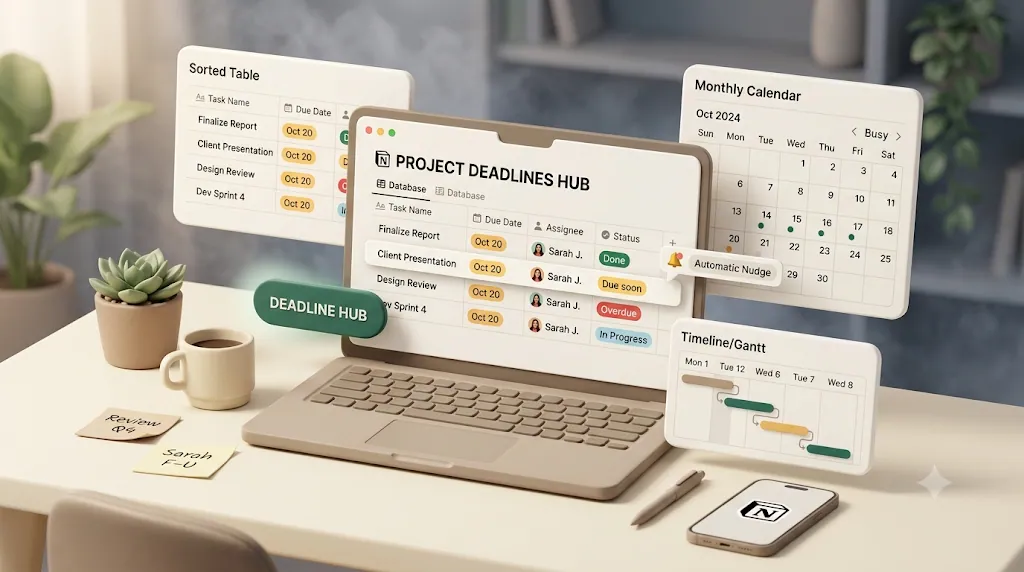
Managing deadlines in Notion comes down to two separate jobs: making due dates visible inside the workspace, and making sure the right people get reminded before those dates slip. Notion nails the first job — but its reminders and formulas can only notify people who are already logged in; a formula can flag "overdue," it can't message anyone. This guide walks through the full setup — the Date-property foundation, the views and filters that surface deadlines, Notion's native reminders, overdue formulas, and recurring tasks — and then covers the part most guides skip: reminding clients, vendors, and collaborators outside your workspace, and getting their status update back without anyone logging in.
TL;DR
- The foundation is a single Date property for the due date, paired with Assignee and Status properties, then surfaced through Table, Calendar, Board, and Timeline views.
- Filtered, saved views — Today / This Week / Overdue / All Tasks — plus a formula that flags overdue items handle visibility inside Notion.
- Notion's native reminders and formulas can show and notify — but only people who are already in your workspace and checking their notifications. A formula can flag "overdue"; it can't message anyone.
- Kapsel is a Notion notification tool that watches your due date, assignee, and status properties and emails reminders — including to people who don't have a Notion account — with a one-click confirm that writes the status back to Notion. It adds overdue follow-ups, target filtering, recurring digests, and a send log, and never sends to items marked completed or paid.
Start with the right Date property setup
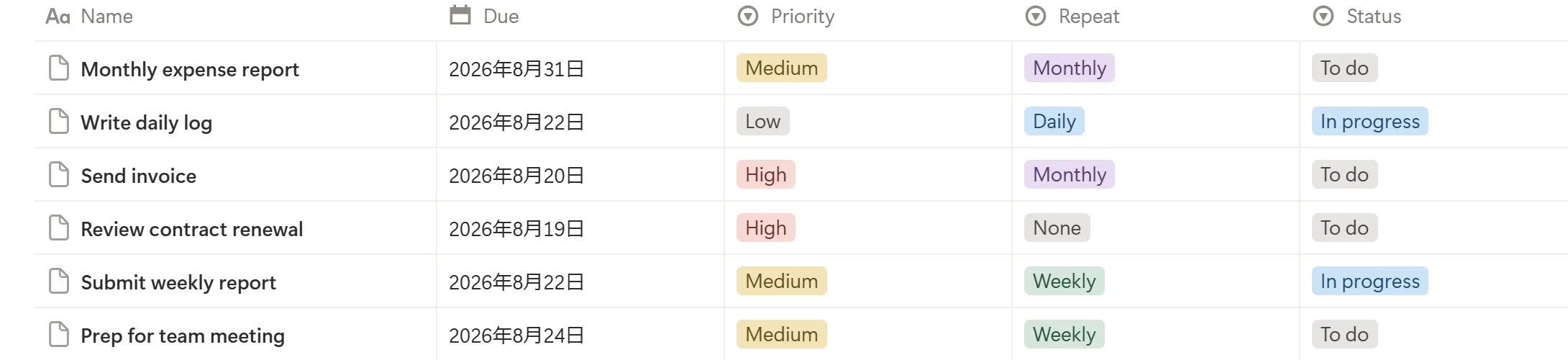
Every deadline system in Notion rests on one thing: a Date property on your task database. Without a structured date field, nothing else — views, filters, reminders, or overdue flags — has anything to sort or trigger on. Get this layer right first.
Single date vs. date range, and pairing Due Date with Assignee and Status
A Date property can hold either a single date or a date range (a start and an end). The right choice depends on what you're tracking:
| Date type | Use it for | Example |
|---|---|---|
| Single date | A hard deadline or a moment something is due | "Invoice due Aug 15" |
| Date range | Work that spans time, shown as a bar on Timeline/Calendar | "Design sprint Aug 4–Aug 11" |
For deadline tracking specifically, a single "Due Date" is usually the cleaner foundation, because reminders and overdue logic key off one clear moment. Ranges shine when you also want to visualize duration on a Timeline.
A Due Date on its own tells you when, but not who or where it stands. Pair it with two more properties so the database can answer all three questions:
- Assignee — a Person property (for workspace members) or a Text/email property (for people outside Notion) that says who owns the task.
- Status — a Status or Select property (e.g., Not started / In progress / Done, or Unpaid / Paid) that says whether the task is still open.
If your team is juggling assignments across several people, it's worth pairing this setup with our guide to reminding teammates about their tasks in Notion.
💡 The Due Date + Assignee + Status trio is what turns a list into a system. Every view, filter, and reminder in the rest of this guide reads from these three fields.
Build views that make deadlines visible
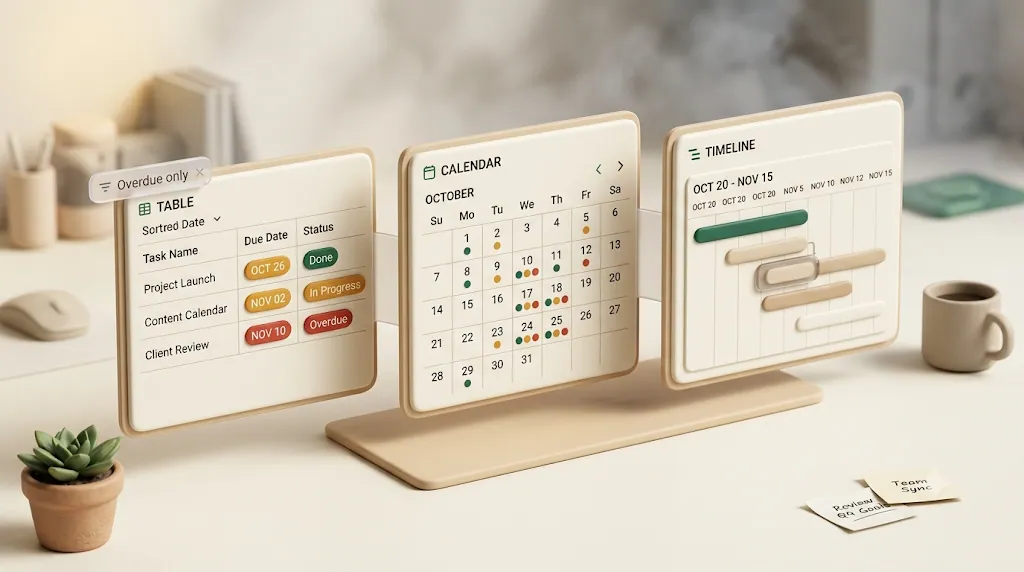
One database can be shown many ways at once. Each view type answers a different deadline question, and you can keep several side by side without duplicating data.
Table view sorted by due date
The Table view is the workhorse. Sort it ascending by Due Date and the next thing due is always at the top. Add Assignee and Status as visible columns and you have a single scannable list of what's coming and who owns it.
Calendar view for spotting heavy weeks
The Calendar view plots each task on its due date, which makes clustering obvious in a way a list never does. A week with six deadlines stacked on Thursday jumps out immediately — useful for rebalancing workloads before a crunch, not just tracking individual dates.
Board/Kanban view by status
Group the same tasks into a Board by their Status property and you get a Kanban flow: Not started → In progress → Done. This view answers "where does everything stand?" at a glance and is where a team physically moves cards as work progresses.
Timeline view for scheduling and duration
The Timeline view turns each task into a bar stretching from start to end, which is where a date range (rather than a single Due Date) earns its keep. Reach for it when you need to see how work overlaps — two projects competing for the same week, or a deliverable that depends on another one finishing first — rather than just a list of dates.
Filtered 'Today / This Week / Overdue' saved views
One of the most useful upgrades to deadline visibility is a set of saved, filtered views you pin to the top of the database. Each one uses a relative-date filter on the Due Date property:
| Saved view | Filter | Answers |
|---|---|---|
| Today | Due Date is Today | "What has to happen right now?" |
| This Week | Due Date is within the next week | "What's coming up?" |
| Overdue | Due Date is before Today and Status is not Done | "What has already slipped?" |
| All Tasks | No date filter | The full backlog |
💡 Relative-date filters ("Today," "within the next week") update themselves — you build them once and they stay accurate every day. Pin these as tabs and triage becomes a two-second glance instead of a manual scan.
Bring it together on one dashboard page
Rather than making people dig into the task database itself, embed linked views of it on a home page: an Overdue-filtered table at the top, a Today view below it, and a Calendar or Board off to the side. Because linked views stay connected to the same underlying database, that dashboard updates itself as due dates, assignees, and statuses change — turning several separate views into one task hub someone can check each morning instead of a database they have to remember to open.
Turn on Notion's native Date-property reminders (and know their limit)
Views make deadlines visible when someone is looking at Notion. Reminders are meant to reach people when they aren't. Notion has a built-in reminder feature attached to Date properties — genuinely useful, with one important ceiling.
How the built-in reminder presets work
Open any date value and choose Remind, then pick when the notification should fire:
- On the day of the date
- 1 hour before
- 1 day before
- 2 days before
- 1 week before
- A custom offset
Picking the right offset means the nudge lands while there's still time to act on it, instead of a same-day alert nobody can do anything about anymore.
At that moment, Notion sends a notification to relevant people through its in-app inbox (the badge), plus desktop and mobile push. Email is used only as a fallback when Notion isn't open on any of your devices.
The blind spot — reminders only reach people already in Notion
Here's the limit every guide glosses over: native reminders only reach people who are already members of your workspace and actively checking Notion.
⚠️ A Notion reminder is delivered through Notion. If the person you're waiting on doesn't have an account, doesn't have the app open, or isn't watching their inbox, the reminder effectively never arrives. There is no native way to email a due-date reminder to an outside client, vendor, or collaborator.
This is why some teams stop trusting native reminders and fall back to manually working their filtered views instead — reliable, but entirely manual.
Flagging overdue tasks with formulas (now(), dateBetween(), style())
Beyond a simple "Overdue" filter, a Formula property can compute and display an overdue state directly on each row — a color-coded badge that's visible in every view.
Color-coding overdue items
A formula compares the Due Date to the current time and outputs a styled label. The building blocks are:
now()— the current date and time.dateBetween(now(), prop("Due Date"), "days")— how many days from now until the due date (negative once it's passed).style()— applies color and weight to the output text, e.g. red and bold.
Conceptually, you write something like: if the days remaining is negative and the status isn't Done, output a red "⚠ Overdue" badge; otherwise show days left. Displayed as a property, it turns the whole database into a traffic-light view of what's slipping.
💡 Notion's Formula 2.0 lets
style()set text color and boldness, so overdue rows can literally turn red without any conditional-formatting menu.
Why a formula can flag overdue but can't notify anyone
A formula is powerful, but it's important to be clear about what it does not do:
⚠️ A formula only changes what's displayed inside Notion. It recalculates when someone opens the page — it does not push a notification, send an email, or reach anyone who isn't already looking. An overdue flag is a signal for whoever is watching the board, not an outbound message.
In other words, formulas solve visibility, not delivery. Nudging a person who isn't looking is a separate problem. For the deeper reasons deadlines still slip even with due dates set — and how to fix each one — see why deadlines get missed in Notion.
Recurring deadlines without manual resets
Many deadlines repeat: a weekly report, a monthly invoice, a recurring check-in, or a contract or subscription renewal. Notion has no single "make this recurring" switch, but two native patterns approximate it:
- Recurring database templates. A database template can carry a dynamic due date (e.g., "one week from creation"), and Notion can create it on a repeating schedule. New instance, fresh due date, no copying.
- Button / automation reset. A Button or a database automation can, on completion, roll the Due Date forward (e.g., +7 days) and reset the Status back to "Not started" in one action — turning a finished recurring task into its next occurrence.
💡 The button-reset pattern keeps one row that "rolls forward," while recurring templates spawn a fresh row each cycle. Choose templates when you want a history of every occurrence; choose the reset button when you want a single living task.
Both keep the task recurring inside Notion. Neither, on its own, sends a recurring reminder to the people who need to act on it — that's the next gap.
Closing the loop — reminders that reach people outside Notion and write status back
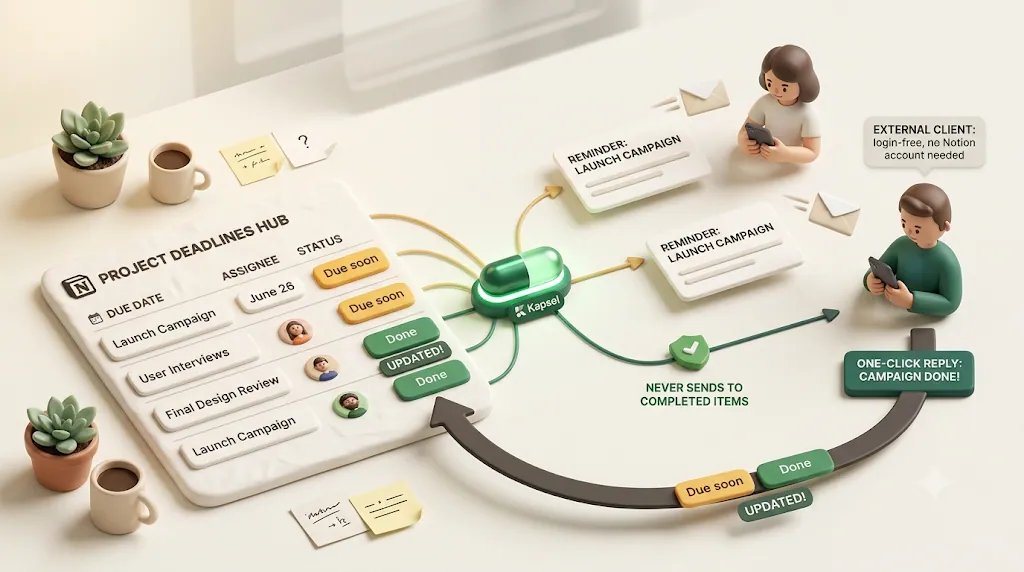
Everything above manages deadlines within Notion. But the person holding up a deadline is often someone who never opens it: a client who owes approval, a contractor who owes a deliverable, a vendor who owes an asset. Native reminders and @mentions can't reach them, and asking them to create a Notion account just to get a nudge is a non-starter.
This is the specific gap Kapsel fills.
Kapsel is a Notion notification tool that watches your due date, assignee, and status properties and sends email reminders automatically — including to people who don't have a Notion account.
Email reminders from due date / assignee / status, no login required
Kapsel reads three fields from each task — the Due Date, the Assignee, and the Status — and sends reminders as plain email. Because it's email, the recipient needs no Notion account and no login. You keep managing the work in Notion; Kapsel handles reaching the people who live outside it. You can read more in the guide to Notion email reminders.
One-click confirm writes the status back to Notion
Every native reminder is one-way: Notion → recipient. Kapsel closes the loop. The reminder email includes a one-click confirm, and when the recipient clicks it, Kapsel writes the updated status back into Notion — no login, no app. A client can mark something approved straight from the email, and your database stays current without anyone re-keying it by hand.
Never sent to completed or paid items
One of the quickest ways to lose trust with automation is to nag someone about something they've already handled — or, in a billing context, already paid for.
⚠️ Kapsel never sends reminders to items marked completed or paid. Because it reads the status property continuously, a task drops out of the reminder queue the moment it's closed — no manual cleanup, and no embarrassing "please pay" email to someone who already paid.
Overdue follow-ups, target filtering, recurring digests, and a send log
Kapsel treats "overdue" as something that triggers an outbound message, not just a red tag on a board:
- Overdue follow-ups. If a due date passes without a response, Kapsel sends a second nudge (and beyond) instead of going quiet.
- Target filtering. Narrow which tasks and which people get reminders — for example, only external assignees, or only one workspace — so nobody is pinged about work that isn't theirs.
- Recurring digests. Schedule a rollup of upcoming and overdue items on a regular cadence, the direct answer to Notion's missing recurring reminders (see recurring reminders in Notion).
- Send log. Kapsel keeps a record of who was reminded and when — useful before escalating, or if a deadline is ever disputed.
- Merge fields pull task-specific details (task name, due date) into each email so it reads as relevant, not generic.
Together, these turn "overdue" from a red badge only you can see into an outbound nudge that reaches the actual holdout — without you having to remember who's late, check who already paid, or manually chase the same person twice.
Putting it together — one deadline system for your team and the people outside it
The two layers work best together. Notion handles everything inside the workspace; Kapsel handles delivery to everyone outside it and the write-back that keeps both in sync.
| Job | Notion native | Kapsel |
|---|---|---|
| See deadlines in Table / Calendar / Board / Timeline | Yes | — (Notion's strength) |
| Filtered Today / This Week / Overdue views | Yes | — |
| Flag overdue rows in red | Yes (formulas) | — |
| Recurring tasks (reset / templates) | Yes (with setup) | — |
| Remind people in the workspace | Yes (in-app / push) | Yes (email) |
| Remind people without a Notion account | No | Yes (email, no login) |
| Overdue follow-up messages | No (visual only) | Yes |
| Recurring reminder emails / digests | No | Yes |
| One-click status write-back | No | Yes |
| Skip completed / paid items automatically | Manual | Yes, built in |
| Send log of who was reminded | No | Yes |
| Multiple workspaces + sender branding | — | Yes (Pro) |
Getting started takes only a few steps:
- Build your task database with a Due Date, an Assignee, and a Status property.
- Add saved views (Today / This Week / Overdue) and, optionally, an overdue formula for in-Notion visibility.
- Connect Kapsel and point it at those three properties.
- Set when reminders go out before the due date, and how overdue follow-ups should escalate.
- Add target filters and turn on a recurring digest if you run a standing check-in.
Follow these five steps once and the reminder work runs on its own from then on — no more manually checking the Overdue view and copy-pasting a nudge to whoever's holding things up.
Step-by-step instructions with visuals are in the setup guide, the full product overview is at Kapsel, and plans start free — see the pricing page (Free $0 / Standard $12 / Pro $29 per month).
Try Kapsel free. Kapsel watches your Notion due dates, assignees, and status, then sends automatic email reminders — including to people without a Notion account — and lets recipients confirm in one click, writing the status back to Notion. Free plan, no credit card required. → Start with Kapsel
FAQ
Does Notion send automatic email reminders for due dates?
Not reliably. Notion's Date-property reminders fire on presets (on the day, a day before, and so on), but they're delivered mainly through the in-app inbox and push notifications; email is only a fallback when Notion isn't open on any device. There's no native way to send a dependable due-date email to someone outside the workspace — a dedicated tool like Kapsel handles that.
Can Notion notify someone who doesn't have a Notion account?
No. Every native reminder and @mention relies on the recipient being a workspace member, so people without an account can't be reached. Kapsel closes this gap by sending reminders as plain email, which needs no Notion account or login.
How do I see overdue tasks in Notion?
Create a saved view filtered to "Due Date is before Today" and "Status is not Done," then pin it as an "Overdue" tab. For a per-row signal, add a Formula property using now() and dateBetween() with style() to turn overdue tasks red. Both surface overdue work inside Notion — but neither actively messages the person responsible.
Can I set up recurring due dates or recurring tasks in Notion?
Yes, with a bit of setup. Use a recurring database template that carries a dynamic due date, or a Button/automation that rolls the Due Date forward and resets the Status when a task is completed. Note that this makes the task recur — it doesn't send a recurring reminder, which is where Kapsel's recurring digests come in.
How do I stop reminders from going out for tasks that are already done?
With native automations you'd have to build that condition yourself. Kapsel handles it automatically: because it reads the status property, it never sends reminders to items marked completed or paid, and a task leaves the queue the moment it's closed.
What's the best Notion view for tracking deadlines?
There's no single best view — each answers a different question. A Table sorted by Due Date is the everyday workhorse, a Calendar reveals busy weeks, a Board tracks status flow, and pinned Today / This Week / Overdue filtered views make daily triage a glance. Most teams keep several of these on one database as tabs.
Can I remind a client or vendor about a deadline without giving them Notion access?
Yes, but not with Notion's own tools — they all require workspace membership. Kapsel sends reminders as plain email, so a client or vendor needs no Notion account and no login, and a one-click confirm in the email even lets them update the task's status back in Notion.
Notes
Published August 3, 2026 (updated 2026-08-27). The features and pricing described here reflect Kapsel as of the publish date; product details and plan pricing may change over time, so the pricing page and product overview hold the current specifics.