How to Sync Notion with Google Calendar: 3 Methods Compared (Plus the Manual Way)
TL;DR
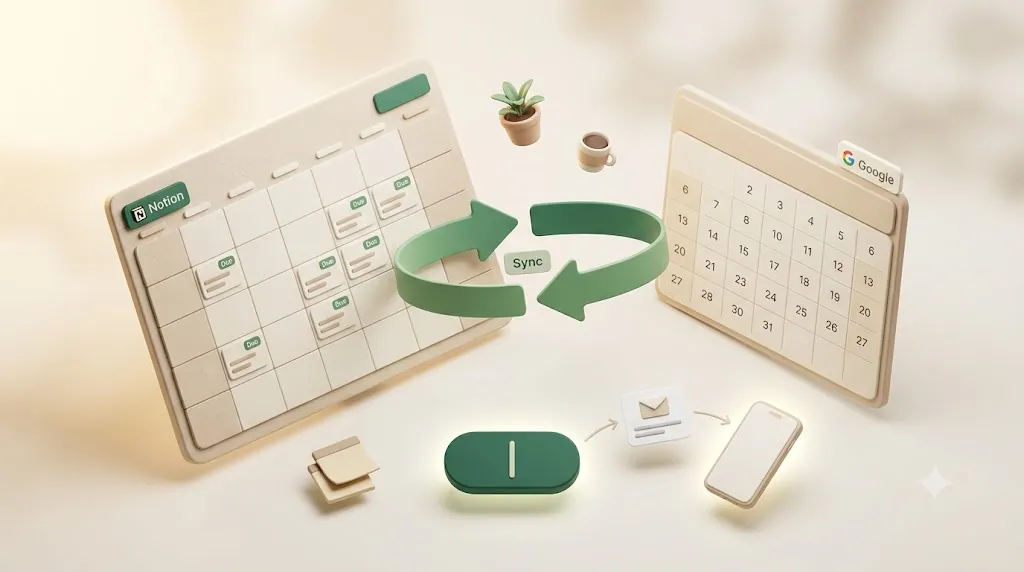
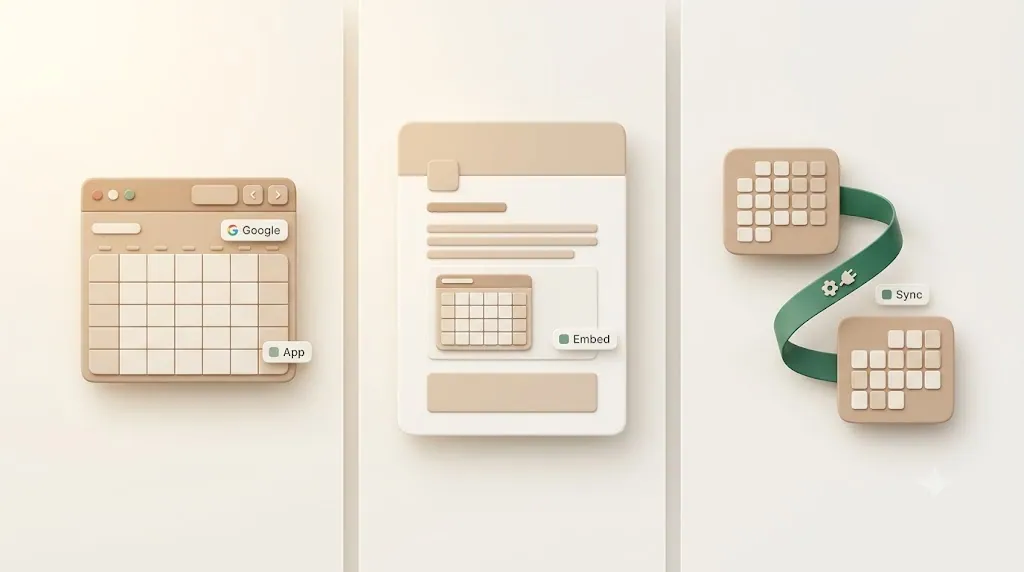
- There is no single "best" way to sync Notion with Google Calendar — the right method depends on your goal: see events side by side (Notion Calendar app), show a live calendar inside a page (embed), or keep a Notion database and Google Calendar events in true two-way sync (Zapier, Make, 2sync, or Google Apps Script).
- The official Notion Calendar app connects Google accounts (currently up to 5) and is two-way for events, but it does not push Notion database property changes into Google Calendar as a real database sync.
- Embedding is free and quick, but it's view-only and requires making the Google Calendar public — a real privacy tradeoff, not a footnote.
- Every method assumes someone opens Notion or Google Calendar to look. None of them reach an external client with no Notion account, and none escalate an overdue item — which is the gap a reminder layer like Kapsel fills.
If you're trying to keep Notion dates and Google Calendar lined up, the honest answer is there's no single best method — it depends on whether you just want to see events together, show a calendar inside a page, or keep a database and calendar events in true two-way sync. This tutorial walks through all three methods with equal depth, covers the manual baseline honestly, and gives you a decision table to pick by goal. But every method here shares the same blind spot: they all assume someone opens Notion or Google Calendar to look, so none of them reach a client with no Notion account or escalate an overdue item — that gap is what the final section covers.
Short answer: there's no single "best" method — pick by goal
The right method depends entirely on what you're trying to do. If you only want to see your Notion dates next to Google events, the native app is enough; if you need edits in one system to appear in the other, you need a third-party sync tool; if you want a calendar visible inside a Notion page, you embed one.
Here's the quick version before the detailed table below: native app for viewing, embed for a read-only preview inside a page, and a third-party tool for genuine two-way database sync. Each has a real cost — in setup time, money, or privacy — and none of them notify people who don't log in.
Quick comparison: which method fits your goal
Use this table to jump straight to the method that matches your goal. Each row trades off setup effort, cost, whether changes flow both ways, and whether anyone outside Notion is reached.
| Your goal | Best method | Setup time | Cost | Two-way? | Reaches non-Notion people? |
|---|---|---|---|---|---|
| See Notion dates + Google events together | Notion Calendar app | ~5 min | Free | Two-way for events only | No |
| Show a live Google Calendar inside a Notion page | Embed | ~5 min | Free | No (view-only) | No |
| Keep a Notion database and Google events in sync | Zapier / Make / 2sync / Apps Script | 20 min–hours | Free tier → paid | Yes (with delay) | No |
| Track a few dates with zero tools | Manual copy-paste | Ongoing | Free | No | No |
| Notify someone who never opens Notion or a calendar | A reminder layer (see final section) | ~10 min | Free tier available | One-click write-back | Yes |
💡 If more than one row applies, you can combine methods — for example, use the native app for your own viewing and a third-party sync for a shared team database. They don't conflict.
Method 1 — The official Notion Calendar app
Notion Calendar is a free standalone app (desktop and mobile) that signs in with Google and shows your Google Calendar events alongside any Notion database that has a date property. It's the fastest way to see both in one place, and it's two-way for events — but it is not a database-to-Google sync.
What it is and what it actually does
Notion Calendar displays two things side by side: your Google Calendar events and Notion database items that have a Date property. You can drag a Google event to reschedule it, and that change reflects back to Google Calendar (two-way for events). You can also open a connected Notion database as a calendar layer and see its dated items on the same grid.
What it does not do is treat your Notion database like a calendar that syncs into Google. Editing a Notion item's other properties — status, assignee, a custom field — does not create or update a Google Calendar event. The app is a unified view, not a database sync engine.
| Notion Calendar app — does it? | |
|---|---|
| Show Google events + Notion dated items together | ✅ Yes |
| Reschedule a Google event and reflect it back to Google | ✅ Yes (two-way for events) |
| Push Notion database property changes into Google Calendar | ❌ No |
| Reach someone with no Notion account | ❌ No |
Step-by-step: download, sign in with Google, connect a workspace
Goal: install the app and see your Google events next to your Notion dates. Prerequisites: a Google account and a Notion account.
- Go to Notion Calendar's download page and install the desktop app (or get the mobile app from your app store).
- Open the app and sign in with your Google account. This connects your primary Google Calendar automatically.
- When prompted, connect your Notion workspace and authorize access. Notion Calendar can now read databases that have a Date property.
- In the sidebar, add a Notion database as a calendar. Pick the database and the Date property you want to plot on the grid.
- Confirm both layers show up: Google events and your Notion dated items now appear together.
Once both layers are visible, you stop mentally cross-referencing two separate apps every time you plan your day.
Connecting multiple Google accounts (up to the current limit of 5)
Notion Calendar supports connecting more than one Google account, which is useful if you keep work and personal calendars separate. As of this writing the app allows up to 5 Google accounts connected at once.
- Open Settings in Notion Calendar.
- Go to the Accounts (or "Calendar accounts") section.
- Click Add account and sign in with the additional Google account.
- Repeat for each account, up to the current limit of 5.
- Toggle individual calendars on or off in the sidebar to control what's visible without disconnecting the account.
⚠️ Account and calendar limits change over time. Confirm the current maximum in Notion's help center before you build a workflow that depends on connecting a specific number of accounts.
Limits: it centers on events, and nothing reaches people without Notion
The app's design center is events and dated items you view yourself. Two limits matter:
- It does not push Notion database property changes back to Google Calendar as a "sync" — the two-way behavior is for events, not arbitrary database fields.
- It reaches only you and other logged-in Notion/Google users. A client with no Notion account sees nothing here, and the app never sends anyone a reminder — it displays; it doesn't chase.
For the broader picture of Notion's calendar features, including the in-database calendar view, see the pillar guide on how to use the Notion calendar.
Method 2 — Embed a Google Calendar in a Notion page
Embedding drops a live, read-only Google Calendar into a Notion page using the /embed block and a public calendar URL. It's free and takes about five minutes, but the calendar must be public and you can't edit events from inside Notion.
Step-by-step: make the calendar public, copy the embed URL, /embed in Notion
Goal: show a live Google Calendar preview inside a Notion page. Prerequisites: edit access to the Google Calendar and the Notion page.
- In Google Calendar, open Settings and select the calendar you want to embed from the left sidebar.
- Under Access permissions, enable "Make available to public." Google will warn you that the calendar becomes publicly visible — read that warning before continuing.
- Scroll to Integrate calendar and copy the Public URL to this calendar (or the embed code's
srclink). - In Notion, on the target page, type
/embedand choose the Embed block. - Paste the public calendar URL and click Embed link.
- Resize the block. You now have a live calendar preview on the page.
Anyone who opens that Notion page now sees current availability at a glance, with nothing to maintain on your end after setup.
What you get: a live, view-only calendar preview
The result is a genuinely live view — new Google events appear in the embed automatically, no manual refresh. It's a clean way to give a team page an at-a-glance schedule without leaving Notion.
But that's all it is: a preview. It reflects Google Calendar one way, and it isn't connected to any Notion database.
The tradeoff: view-only, not linked to a database, and the calendar must be public
Three limits define this method, and the third is a real security decision:
- View-only. You cannot create, edit, or drag events from inside the Notion embed. All changes happen in Google Calendar.
- Not linked to a Notion database. The embed is a picture of a Google Calendar, not a synced data source. Notion can't filter, roll up, or automate against it.
- The calendar has to be public. Generating a shareable embed URL requires making the calendar public — meaning anyone with the link (and, depending on settings, search engines) can see every event on it.
⚠️ "Public" means public. Don't embed a calendar that contains client names, private appointments, or sensitive details unless you're comfortable with anyone who gets the link seeing all of it. If you only need to share one thing with one person, a public embed is the wrong tool — see the final section for an email-based alternative that exposes nothing.
Method 3 — Third-party two-way sync (Zapier, Make, 2sync, Google Apps Script)
Third-party tools are the only route to true two-way sync between a Notion database and Google Calendar events — create a row in Notion and an event appears in Google, and vice versa. They're powerful, but each costs setup time, usually money past a free cap, and some sync delay. Other tools in this space work the same way but have their own constraints — Unito, for example, syncs a Notion database with Google Calendar but allows only one Notion user per workspace to connect it, which matters if more than one teammate needs to manage the sync.
What these add that the native app doesn't
The native app and the embed both fall short of real database sync. These tools close that gap by mapping fields between a Notion database and Google Calendar events:
- A new Notion row with a date → a new Google Calendar event.
- A rescheduled Google event → an updated date on the Notion row.
- Deletions and edits propagate in both directions (depending on the tool and how you configure it).
The tradeoff is that you're now maintaining a workflow, and Notion's API has no webhooks for this, so most tools poll on an interval rather than syncing instantly.
Zapier — setup pattern, free-tier limit, paid tiers
Zapier connects apps with "Zaps" (a trigger in one app, an action in another).
- Pattern: "New database item in Notion" → "Create event in Google Calendar" (and a second Zap for the reverse direction).
- Free tier: capped at 100 tasks/month with single-step Zaps, which is enough for a low-volume, one-direction relay but tight for real two-way sync.
- Paid tiers: unlock multi-step Zaps, more tasks, and shorter update intervals.
Make — setup pattern, free-tier limit, paid tiers
Make (formerly Integromat) uses visual "scenarios" with modules and is more flexible for multi-step logic.
- Pattern: a scenario that watches Notion and creates/updates Google events, plus a reverse scenario.
- Free tier: around 1,000 operations (credits)/month, a 15-minute minimum polling interval, and a 2-scenario limit — workable for modest two-way sync if a 15-minute delay is acceptable.
- Paid tiers: more operations, shorter intervals, and more scenarios.
2sync — purpose-built two-way sync
2sync is built specifically to sync Notion with Google Calendar (and a few other targets), so setup is more guided than a general automation platform.
- Pattern: connect Notion and Google, map the database to a calendar, choose the sync direction. Less field-wiring than Zapier/Make.
- Cost: a paid subscription (no perpetual free tier for ongoing sync), in exchange for a purpose-built, lower-friction setup.
Google Apps Script — free but code-it-yourself
Google Apps Script (GAS) is the DIY option: JavaScript that runs on Google's servers and calls Notion's API on a schedule.
- Pattern: create a Notion integration for an API key, share the database with it, then write a script using
UrlFetchAppto read Notion and write Google Calendar events (and back), triggered on a timer. - Cost: free to run, but you're writing and maintaining code. Highest setup effort of the four, and it breaks silently if the API or your schema changes.
💡 Many DIY scripts (including Pipedream-style ones) end up one-way only and can miss updates or deletions, because without webhooks they have to poll and diff. Budget time for handling edge cases, not just the happy path.
Shared limits across all four
No matter which tool you pick, three limits are constant:
- Sync delay. Polling means changes appear on an interval (often 1–15 minutes), not instantly.
- Setup and maintenance overhead. Field mapping, auth that can expire, and workflows that need occasional repair.
- It still only mirrors events. These tools copy dates back and forth. None of them add reminder logic — nothing nudges an owner, escalates an overdue item, or knows whether something is already done.
| Tool | True two-way? | Free tier | Setup difficulty | Notable limit |
|---|---|---|---|---|
| Zapier | Yes (2 Zaps) | 100 tasks/mo, single-step | Low–medium | Two-way needs paid multi-step |
| Make | Yes | ~1,000 ops/mo, 2 scenarios | Medium | 15-min minimum interval |
| 2sync | Yes | Paid | Low | Subscription cost |
| Apps Script | Yes (if coded) | Free | High | You maintain the code |
| Unito | Yes | No free tier for sync | Low–medium | Only one Notion user per workspace can connect |
For a fuller treatment of connectors and the Notion API, see Notion automation.
The manual approach (and why it breaks down)
The zero-tool baseline is to re-type Notion due dates into Google Calendar by hand. It costs nothing and needs no setup, which is fine for a handful of dates — but it quietly breaks down as soon as anything changes.
Just re-typing due dates into Google Calendar by hand
The method is exactly what it sounds like: when you add a dated item in Notion, you also open Google Calendar and create a matching event. For a solo user tracking three or four deadlines, this is genuinely the simplest option and worth naming honestly.
Its real limits: missed transcription and double maintenance
Two failure modes make manual entry unreliable at any real scale:
- Missed transcription. When a date changes in Notion, the Google event doesn't update itself. You have to remember to edit it — and the day you forget, the two systems silently disagree.
- Double maintenance, forever. Every add, change, and deletion has to be done twice, in two places, indefinitely. The effort never ends and grows with your task count.
💡 If you're doing manual entry for more than a handful of items, it's usually worth the one-time setup of Method 1 (viewing) or Method 3 (real sync) to stop the double bookkeeping.
What none of these methods solve: reaching people who don't use Notion
Every method above — native app, embed, and all four sync tools — assumes a person opens Notion or Google Calendar to look. None of them push a due date to someone who won't open either app, and none of them escalate a missed deadline.
Every method assumes someone opens Notion or a calendar to look
Syncing puts the date in a place. It still relies on a human going to that place. That works for you and your logged-in teammates, but an external client or contractor with no Notion account is never reached by a Notion Calendar layer, an embedded calendar (they'd need the public link), or a database sync (they're not in your workspace at all).
Calendar sync mirrors events; it doesn't nudge, escalate, or know what's done
There's a fundamental difference between syncing an event and acting on a due date:
- Sync tools mirror events and dates. That's the whole job.
- None of them nudge an owner when a date arrives, escalate an item that's still open days later, or suppress anything that's already completed or paid.
A calendar happily keeps showing a deadline that's three days overdue and does nothing about it — because status isn't part of what it syncs.
Public embedding is a real tradeoff with no middle ground
The embed method forces a binary: make the whole calendar public, or don't share it at all. There's no built-in way to tell one external person about one due date without exposing every event on that calendar. That's a genuine gap, not a preference.
How Kapsel covers that gap
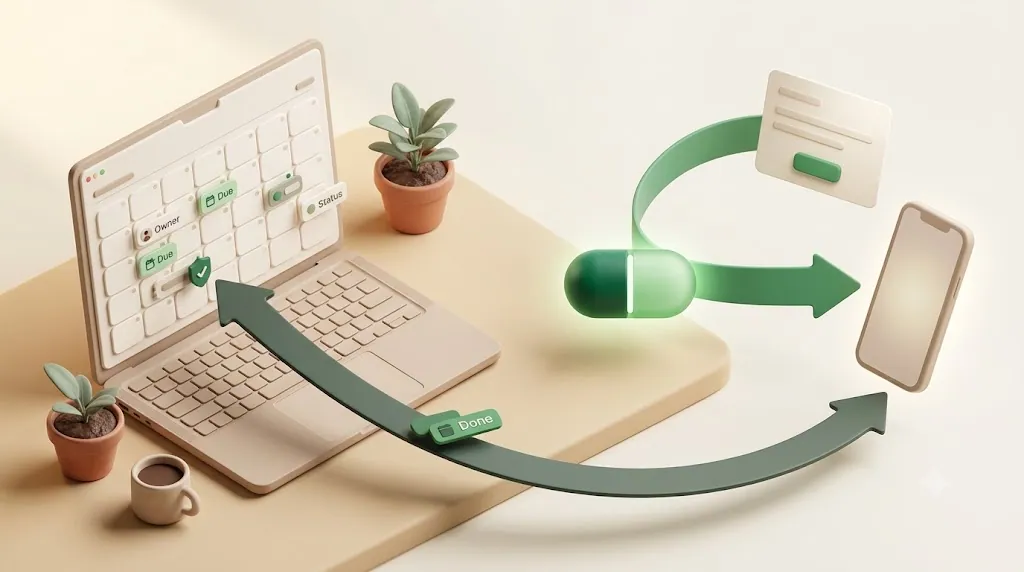
Where the methods above stop, a reminder-delivery layer picks up. Kapsel is a Notion notification tool that watches a database's due date, assignee, and status and sends email reminders to the people responsible — including people who don't use Notion. It sits alongside sync tools rather than replacing them; you can run both.
What it watches
Kapsel watches three things on your Notion database: the due date, the assignee, and the status. It acts on the state of an item, not just its position on a calendar grid.
Who it reaches
Reminders go out by email to internal teammates and to external people with no Notion account and no login required. The recipient doesn't need to open Notion or a calendar app — the reminder comes to their inbox. For more on why external clients and contractors fall outside Notion's native sharing and notification model in the first place, see notifying people outside Notion.
The one-click write-back
Each email includes a one-click confirm. When the recipient replies with it, the item's status updates in Notion — genuine two-way, without the recipient ever opening Notion. This is the piece calendar sync can't offer: a write-back from someone outside the workspace.
What it never does
Kapsel never sends to items already marked complete or paid. This is a built-in safeguard against the awkward reminder that lands on someone who already finished — not a setting you have to remember to configure.
Other pieces, in passing
Beyond the core loop, Kapsel includes overdue follow-ups, target filtering, recurring digests, a send log, and merge fields. The Pro plan adds multiple Notion workspaces and sender branding (company name, signature, logo). Together, that covers the ongoing-client and recurring-work cases a one-time calendar sync was never built to handle. Plans and limits are on the pricing page, and there's a walkthrough on the guide. For a closer look at how the reminder emails themselves are built, see Notion email reminders.
FAQ
Can Google Calendar sync with a Notion database directly?
Not natively. Notion's own tools don't sync Google Calendar events into a Notion database's properties. To get true database-to-events sync you need a third-party tool like Zapier, Make, 2sync, or a Google Apps Script.
Is Notion Calendar two-way with Google Calendar?
For events, yes. You can reschedule a Google Calendar event inside the Notion Calendar app and the change reflects back to Google. But it does not push arbitrary Notion database property changes into Google Calendar, so it isn't a full database sync.
How many Google accounts can I connect to Notion Calendar?
As of this writing, up to 5 Google accounts at once. You add them under Settings → Accounts and toggle individual calendars on or off. Limits change over time, so confirm the current number in Notion's help center.
How do I embed a Google Calendar in Notion?
Make the calendar public in Google Calendar's settings, copy the public calendar URL from "Integrate calendar," then type /embed on a Notion page and paste the link. The result is a live, view-only preview.
Is it safe to make my Google Calendar public to embed it in Notion?
Only if you're comfortable with anyone who has the link seeing every event on that calendar. Public means public. Don't embed a calendar with client names or sensitive appointments; use a calendar created specifically for public sharing instead.
Can I edit a Google Calendar event from inside Notion?
Not from an embed — embeds are view-only. In the standalone Notion Calendar app you can reschedule and edit Google events, and those changes sync back to Google.
What's the difference between Notion Calendar and embedding a Google Calendar?
The Notion Calendar app is a separate application that shows your Google events next to your Notion dated items and is two-way for events. An embed is a read-only Google Calendar preview placed inside a Notion page, requiring a public calendar and offering no editing or database link.
Is Zapier free for syncing Notion and Google Calendar?
Zapier's free plan allows 100 tasks per month with single-step Zaps, which can cover a simple one-direction relay. Real two-way sync usually needs multi-step Zaps and more tasks, which require a paid plan.
How much does Make.com cost for a Notion-Google Calendar sync?
Make's free plan includes roughly 1,000 operations per month, a 15-minute minimum polling interval, and a 2-scenario limit — enough for modest two-way sync if a delay is acceptable. Higher volume or shorter intervals require a paid plan.
Does Notion notify people who don't have a Notion account?
No. Notion's native notifications, reminders, and calendar layers all assume the recipient has a Notion account and logs in. Reaching someone without an account requires an outward channel such as email — a connector-driven email or a tool like Kapsel that emails them directly.
How do I stop reminders from going out for tasks that are already done?
Calendar sync tools don't have this concept — they mirror events regardless of status. To suppress reminders on finished items you need a status-aware layer; Kapsel, for example, never sends to items marked complete or paid.
Can I sync Notion tasks to Google Calendar without a paid tool?
Yes, two ways. Google Apps Script is free but requires writing and maintaining code, and the manual copy-paste method costs nothing but breaks down with double maintenance. Free tiers of Zapier and Make also exist but are capped and often too limited for full two-way sync.
Notes
Published August 7, 2026. The methods, limits, and pricing described here are current as of writing. Notion Calendar's account limits, and the free-tier caps for Zapier, Make, and 2sync, change over time — verify current details against each provider's own documentation before relying on a specific number. Kapsel pricing referenced above is USD: Free $0, Standard $12/month, Pro $29/month.