A Complete Guide to Schedule Management in Notion (Database → Views → the Standalone App → Team Workflow)

A fully built, color-coded Notion schedule can still let a deadline slip — because visualizing a date and notifying the person who owns it are two different jobs, and Notion only does the first for people already logged in. This guide is for anyone running a real schedule in Notion — a team lead, a freelancer juggling client milestones, or a solo planner — who wants to design the whole workflow, not just add one more view. You will learn how to build a schedule from the ground up, choose the right view or tool for each job instead of by default, and see exactly where a visualized plan stops short of nudging anyone.
TL;DR
- Build from a Date property in a database, not from a view — calendar and timeline are just display formats layered on top.
- Pick calendar vs. timeline vs. the standalone Notion Calendar app by the job, not by habit.
- Native recurrence and reminders only reach people already inside Notion with notifications on; recurrence recreates an item, it does not re-remind a misser.
- A visualized schedule notifies no one automatically, which is the real reason well-built plans still slip.
- Kapsel closes that last gap with due-date-based automatic email — including to people outside Notion — that writes status back to your database on a one-click reply.
Start From a Database With a Date Property, Not a View
A Notion schedule does not start with a calendar. It starts with a database that has at least one Date property. Every calendar, timeline, or board you add afterward is a view — a way to render those same rows — not a separate schedule. Get this order right and switching how you see the plan becomes a one-click change; get it wrong and you end up with disconnected calendars that never reconcile.
The minimum properties a schedule database needs
Four properties carry almost every schedule:
| Property | Type | What it does for the schedule |
|---|---|---|
| Name | Title | Identifies the task, event, or milestone |
| Date | Date | The single source of truth every view reads from; enables calendar/timeline display |
| Owner | Person | Who is responsible — powers "filter to me" and role-based views |
| Status | Status / Select | Where it stands (Not started → In progress → Done) — drives filtering and, later, automation |
Adding a proper Date property (rather than typing a date into text) is what unlocks every scheduling view — so it is the one field to get right first.
Why every calendar/timeline view is just a display format
Because views read from the same underlying rows, changing a due date in a table instantly moves the item in the calendar, the timeline, and the board. There is no syncing to manage and no duplicate to keep aligned. If your database structure still needs work — properties, relations, and how tasks roll up into projects — build that foundation first in the complete guide to Notion task management, then come back to layer views on top.
💡 One database, many views. Resist the urge to create a second database for "the calendar" — add a calendar view to the database you already have.
Visualize the Plan: Calendar View vs. Timeline View vs. Board
Once the data exists, the question is which view answers the question you actually have. Add any view with + Add view, or type /calendar, /timeline, or /board on a fresh page. A calendar view requires at least one Date property to render.
Calendar view — day/week-level scheduling
Calendar view plots each row on the day of its Date property. It is best for day- and week-level scheduling — seeing what is due this week, spotting a crowded Thursday, and dragging an item to a new day. The payoff: you catch an overloaded week before it arrives instead of after.
Timeline view — multi-week projects and dependencies (Gantt-style)
Timeline is Notion's Gantt-chart equivalent: horizontal bars across weeks or months, with drag-to-adjust start and end dates and support for dependencies. It is the right choice for multi-week projects where one task's slip pushes the next. The payoff: you see knock-on effects at a glance rather than discovering them one missed handoff at a time. For a dedicated walkthrough, see the Notion Gantt chart guide.
Board — execution-day tracking, not planning
A board (Kanban) groups rows by Status, not by date. It answers "what is in progress right now," which makes it an execution view, not a planning view. The payoff: your team gets a shared, drag-to-move picture of daily flow without touching the dates.
| View | Best for | The question it answers | Not great for |
|---|---|---|---|
| Calendar | Day/week scheduling | "What's due this week?" | Long projects, dependencies |
| Timeline | Multi-week projects, dependencies | "If this slips, what moves?" | Quick daily glance |
| Board | Execution-day tracking | "What's in progress right now?" | Anything date-driven |
The same framework covers the familiar use-case list — project milestones (timeline), a content calendar (calendar view), personal tasks (board or calendar), meetings (the standalone app), and classes (calendar) — pick by the job the schedule needs to do, not by whichever view you happen to open first.
Deciding When You Need the Standalone Notion Calendar App
The standalone Notion Calendar app (desktop and mobile) is a separate, deeper tool from an in-database calendar view — not a replacement for it. Setup runs roughly five steps: download the app, enable notifications, connect your Google account (external sync is built around Google; Apple/Outlook support is more limited and worth confirming in Notion's help center), link your Notion workspace, and add the databases you want to see.
What the app adds over an in-database calendar view
The app's value is everything a database view can't do on its own: merging your Google calendar alongside your Notion dates, one-click meeting links, keyboard shortcuts, and two-way drag-to-reschedule that writes the new date straight back into the Date property. (External sync is built around Google; Apple/Outlook support is more limited, so confirm current details in Notion's own help center before you commit a workflow to it.) If your scheduling never leaves Notion, a calendar view is enough; the app earns its place when external calendars and meetings are in the mix.
A 3-question decision check
Instead of installing it reflexively, ask:
- Do you juggle more than one workspace or an external (Google) calendar? If no, a database view likely suffices.
- Do you need Notion dates and meetings in a single time-blocked day view? If yes, the app helps.
- Do you schedule meetings with links and availability? If yes, the app is built for it.
Two or more "yes" answers mean the standalone app is worth the setup. For the full app walkthrough and the calendar-view-versus-app comparison, see the Notion Calendar guide.
Setting Up Recurring Schedules
Repeating work — weekly standups, monthly invoices, a daily publishing slot — belongs in a recurring template, not in manually re-typed rows.
- Open the database and click the dropdown next to New.
- Create or edit a template, then set it to repeat (daily, weekly, or monthly).
- Notion generates a fresh row on each cycle so the schedule fills itself in.
The benefit: recurring commitments appear on schedule without anyone remembering to recreate them.
What native recurrence does NOT do
⚠️ Recurrence recreates the item; it does not re-remind the person. If last week's recurring task was never done, this week's copy appears — but no one is chased about the one that slipped, and the owner is never re-notified. Recurrence solves "make the event exist again," not "make sure someone acted."
Sharing the Schedule With a Team
A schedule becomes a team tool through views and permissions, but the sharing model has one quiet assumption worth naming out loud.
Role-based views
The common pattern is one database, two audiences:
- Manager → Timeline view, unfiltered, to see the whole project and its dependencies.
- Individual contributor → Board view filtered by the Person property to "Me", so each person sees only their own work.
The benefit: everyone reads the same data at the altitude they need, without separate trackers drifting apart.
Viewing a teammate's calendar and permissions
To see a colleague's calendar, open the sidebar, search their email, and pin them; you can also surface time-zone display and availability links. Sharing the database itself is governed by Notion's normal permission levels (full access, edit, comment, view).
The unstated assumption behind all of this
Every step above — role-based views, viewing a teammate's calendar, adding someone as a Person, sharing an availability link — silently assumes the other person already has a Notion login. That works for internal teams. It quietly excludes the client, contractor, or vendor who needs to know a date is coming up but will never open Notion.
The Structural Limit: A Visualized Schedule Still Doesn't Notify Anyone
Here is the non-obvious core that most guides skip. Building the schedule and delivering a nudge are separate problems, and Notion natively solves only the first.
- Native reminders fire inside Notion only. Setting one is a per-entry checklist step — open the Date property, click the clock icon, and pick a lead time such as "on the day" or "1 day before" — and an
@remindmention works the same way inline. Either creates a notification in Notion's inbox — which surfaces for people who have a Notion account and notifications turned on. Someone who hasn't enabled notifications, or who simply isn't in Notion that day, may never see it. - External collaborators see nothing. A client or vendor without a Notion login is structurally outside the notification system. The date can be perfectly visualized and they will never be told.
- This is the gap between "visualized" and "someone got nudged." A schedule that looks complete on screen can still notify zero of the people who most need the reminder.
That gap — not a missing feature or a badly built database — is why a well-organized schedule still slips. For the full breakdown of what native @remind and date-property reminders can and can't do, see how to set reminders in Notion.
Closing the Gap: Automatic Confirmations, Nudges, and Follow-Ups on Top of Your Schedule
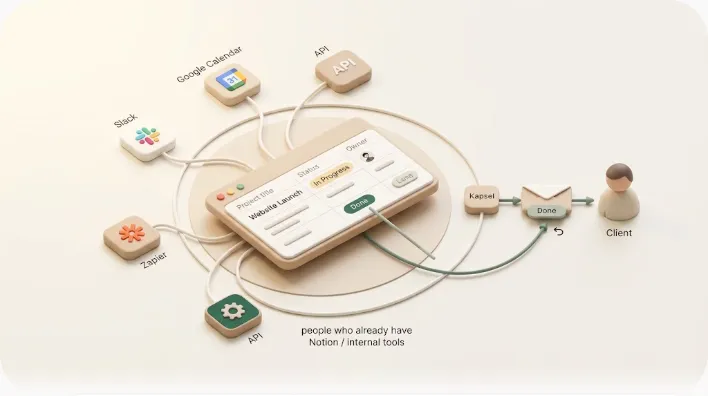
Kapsel is a tool that watches your Notion schedule's due dates, assignees, and status and automatically sends email reminders — including to people who don't use Notion — so the right person is nudged when a date approaches or passes, without anyone checking the database by hand. It's an independent, solo-built product, not a Notion feature.
It sits on top of the schedule you already built rather than replacing it:
- Watches due date, assignee, and status and emails the relevant person automatically — so you don't have to patrol the database by hand.
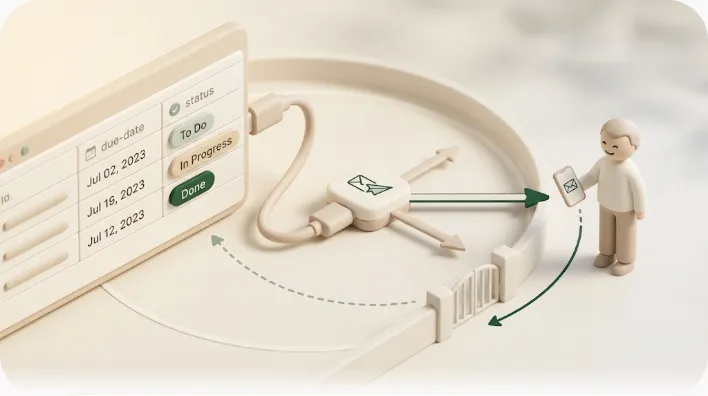
- Reaches recipients with no Notion login, over plain email, so clients and vendors finally get the reminder your database always "had."
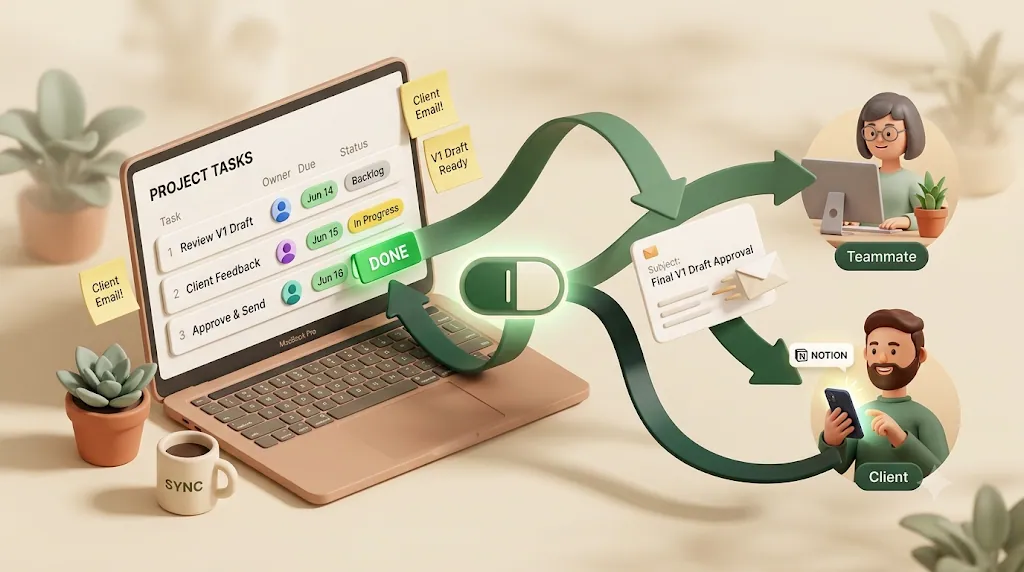
- One-click reply writes status back to Notion (two-way) — the recipient confirms or pushes a date without logging in, and your database updates itself.
- Never sends once an item is Completed or Paid — so no one who already delivered or paid gets an awkward chase.
- Overdue chasing, audience filtering, recurring sends, a send log, and merge variables — recurrence here re-reminds the person who missed, which is exactly what native recurrence doesn't do.
Pro adds multiple Notion workspaces and sender branding (your company name, signature, and logo). Pricing is Free $0 / Standard $12 / Pro $29 — check the official pricing page for exact, current figures.
Putting the Workflow Together (Worked Example)
Consider a freelancer or small agency running client milestones:
- Database first — one schedule database with Name, Date (milestone due), Owner, and Status.
- Timeline view for the overall project, so a slipped design review visibly pushes the launch date.
- Calendar view for the current week, to see what's due in the next few days.
- Kapsel on top for the reminder layer: as a client-review date approaches, the client — who has no Notion account — gets an automatic email; a one-click reply marks it approved (or requests a new date) and writes that straight back to the Status property. Once the milestone is marked Completed, the chasing stops.
The result: the internal team plans in Notion, the external client stays in the loop by email, and no one manually patrols due dates.
Frequently Asked Questions
How do I create a schedule in Notion? Create a database, add a Date property (plus Name, Owner, and Status), then add a calendar or timeline view on top. The schedule lives in the database; the views are just ways to display it. Start with the structure, not the calendar.
What's the difference between a Notion calendar view and the standalone Notion Calendar app? A calendar view renders one Notion database's dates inside your workspace. The standalone Notion Calendar app is a separate desktop/mobile tool that merges your Google calendar with your Notion dates, adds meeting links and keyboard shortcuts, and supports two-way drag-to-reschedule. (External sync centers on Google; Apple/Outlook support is more limited — check Notion's help center for the current status.) Use a view for Notion-only scheduling; use the app when external calendars or meetings are involved.
Does Notion send automatic reminders when a due date arrives? Notion can create a reminder that appears in the Notion inbox of people who have an account and notifications enabled. It does not send email to people outside Notion, and it won't reach anyone who isn't looking at Notion. For nudges that reach external collaborators by email, you need a tool built for that.
How do I set up recurring tasks or events in Notion? Use a database template set to repeat on a daily, weekly, or monthly cycle; Notion then creates a fresh row each cycle. Note that recurrence recreates the item — it does not re-remind anyone who missed the previous one.
Can I share my Notion schedule with someone who doesn't use Notion? Notion's own sharing (views, teammate calendars, availability links) assumes the other person has a Notion login, so it doesn't cover a client or vendor who isn't a user. To keep a non-Notion collaborator informed of upcoming or overdue dates, Kapsel emails them automatically and lets them respond with one click, which updates your Notion schedule.
Does Notion Calendar sync with Google Calendar or Apple Calendar? It syncs reliably with Google: the standalone Notion Calendar app connects your Google account so those events appear alongside your Notion dates, and rescheduling a Notion-backed event in the app writes back to the linked Date property. Support for Apple iCloud or Microsoft Outlook is more limited and inconsistently documented, so confirm the current status in Notion's own help center before relying on it.
Why didn't I get notified about a Notion reminder or due date?
Native reminders and @remind mentions only surface for people who have a Notion account with notifications enabled and who actually open Notion. If you're not logged in, don't have notifications on, or aren't a Notion user at all, the reminder never reaches you. See how to set reminders in Notion for the full mechanics.
How do you build a project timeline (Gantt chart) in Notion? Add a Timeline view to a database whose rows have start and end dates, then set dependencies so linked tasks shift together, and drag bars to adjust dates. It's Notion's Gantt-chart equivalent, best for multi-week projects. The Notion Gantt chart guide covers the setup in detail.
What's the best Notion view for tracking a team's weekly schedule? For a weekly at-a-glance, a calendar view shows the week's due dates; for daily execution, a board filtered by the Person property to each person's own name works better. Managers often keep a timeline for the bigger picture. Match the view to the question rather than defaulting to one.
How do I stop Notion from reminding people about tasks that are already done? Native reminders don't automatically stop when work is finished, so completed items can still trigger noise. Kapsel handles this by never sending once an item's status is Completed (or Paid), so no one who already delivered or paid gets chased.
Notes & sources
Published 2026-09-18. Primary references: Notion's official help documentation on databases, calendar and timeline views, the standalone Notion Calendar app, and recurring templates and reminders. Kapsel's described features and pricing (Free $0 / Standard $12 / Pro $29) are accurate as of the writing date; consult the official Kapsel pricing page for current figures.