How to Set Reminders in Notion: The Complete Guide to @remind and Date Property Reminders
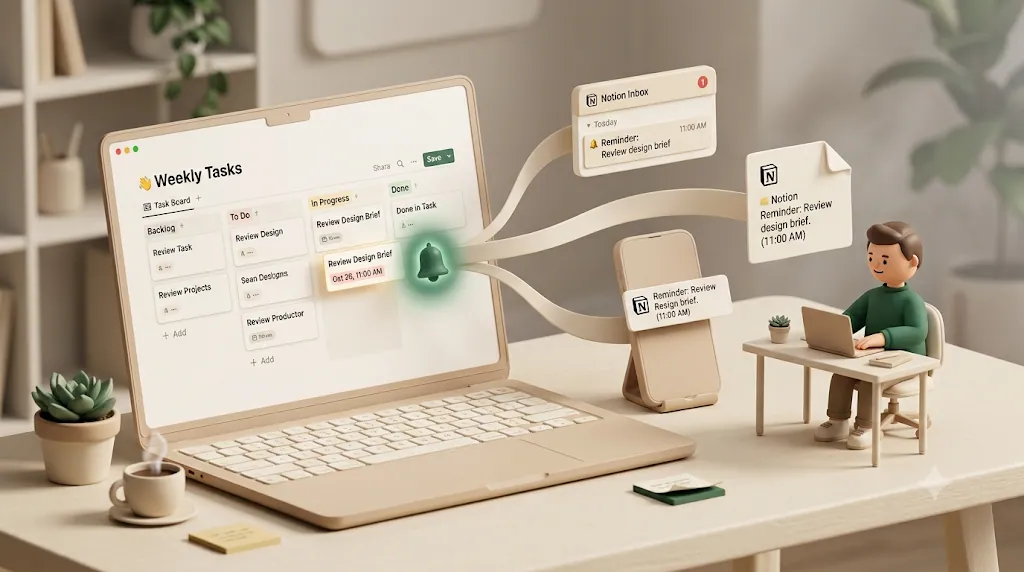
TL;DR Notion has three built-in ways to set reminders: an inline
@remindtag on any page, a reminder on a single database entry's Date property, and a property-level default that applies to a whole database. All three notify people through Notion's Inbox, desktop push, and mobile push, with email as a fallback that only fires when the app is closed. Every recipient must already have a Notion account with notifications turned on — native reminders don't reliably reach clients, contractors, or anyone outside your workspace, and Notion still has no recurring reminders.
You set a reminder in Notion, the due date comes and goes, and the client or contractor who actually needed the nudge never saw a thing — because they don't have a Notion account to see it in. That's the catch almost no guide states plainly: native reminders only reach people who are already inside your workspace. If you're setting up Notion reminders for the first time or trying to figure out why one didn't fire, this guide covers all three built-in methods step by step, exactly who receives each notification, and the limits that trip people up, from that outside-Notion gap to the still-missing recurring reminder. For the fundamentals first, see the complete guide to using Notion.
The 3 Ways to Set Reminders in Notion (Quick Overview)
Before the step-by-step instructions, here's how the three methods compare so you can pick the right one.
| Method | Where it lives | Best for | Who gets notified |
|---|---|---|---|
Inline @remind |
Any text line, on any page | One-off nudges, meeting prep, personal to-dos | You, plus anyone you @-mention on the same line |
| Single-entry Date reminder | One row's Date property in a database | A specific task or deadline in a tracker | The entry's creator + anyone in a People property |
| Database default reminder | The Date property's settings | A whole database where every deadline should ping automatically | The creator + People-property assignees on each entry |
💡 A quick mental model: use
@remindfor a single line of text, and Date-property reminders when the deadline lives inside a database you already track.
Method 1 — Inline @remind Reminders on Any Page
The fastest reminder in Notion isn't in a database at all. You can drop a reminder into any block of text — inside meeting notes, a doc, a daily journal, or a checklist.
Step-by-step: creating an @remind tag
- Click into any text block where you want the reminder.
- Type
@remindfollowed by a natural-language time. Notion understands phrases like@remind tomorrow,@remind Wednesday at 1pm, or@remind August 12. - Notion converts what you typed into a clickable blue reminder tag the moment you accept the suggestion or press space.
- To adjust it, click the blue tag. A small calendar popup opens where you can change the date, set a specific time, choose a lead time (for example, notify 30 minutes before), and confirm the time zone.
- Close the popup. The reminder is saved with the block — if you move or delete that line, the reminder goes with it.
That's a full reminder set up in the same place you were already typing, with no separate app or calendar entry to maintain.
💡 The lead-time setting is easy to miss. If you set a reminder for a 1:00 PM meeting and want a heads-up, open the popup and choose something like "30 minutes before" so the ping arrives at 12:30 instead of exactly at start time.
Reminding a teammate with @-mention + @remind
You can nudge someone else — as long as they're in your workspace — by combining a mention with a reminder on the same line:
- Type the person's name with an
@-mention (for example,@Jordan) so their name resolves to a blue person tag. - On the same line, add
@remindwith your chosen time. - When the reminder fires, both you and the mentioned teammate get notified.
This is handy for something like @Jordan please review the draft @remind Friday at 9am inside a shared doc.
When inline reminders make sense (and when they don't)
Inline reminders shine for one-off, context-rich nudges — a reminder attached to the exact paragraph it's about. They fall short when you have many deadlines to track, because each reminder is a manual, per-line action with no central list and no way to reuse it. For anything you track in bulk, the Date-property methods below scale far better. If you're specifically trying to keep on top of many due dates at once, our guide to tracking due dates in Notion goes deeper on structuring that.
Method 2 — A Reminder on a Single Database Entry's Date Property
Most Notion teams keep tasks, deadlines, or content calendars in a database. Any Date property in that database can carry its own reminder — so the ping is tied to the deadline itself, not a line of text.
Step-by-step: setting the reminder on one entry
- Open the database entry (row) you want to be reminded about.
- Click the Date property value — the field where the due date lives.
- In the date picker that opens, look for the Remind option.
- Choose when you want the notification relative to that date (see the preset intervals below).
- Click away to save. The reminder now travels with that entry's date — if you change the due date, the reminder shifts with it.
💡 Because the reminder is attached to the Date property rather than typed text, updating the deadline automatically updates when the reminder fires. That's the main advantage over inline
@remind.
The preset intervals you can choose from
When you set a reminder on a Date property, Notion offers preset lead times rather than a free-form field:
| Preset | When it notifies |
|---|---|
| On the day of | The morning of the due date |
| 1 day before | 24 hours ahead |
| 2 days before | 48 hours ahead |
| 1 week before | 7 days ahead |
If the date property includes a specific time, "on the day of" respects that time; otherwise Notion sends it in the morning.
Method 3 — A Default Reminder for an Entire Database Date Property
Setting a reminder on every entry by hand doesn't scale. Notion lets you set a default reminder at the property level, so every new entry inherits it automatically.
Step-by-step: setting the property-level default so every new entry inherits it
- Open the database and click the header of the Date property you want to configure.
- Choose Edit property.
- In the property settings, find the default reminder option and pick an interval (on the day, 1 day before, 2 days before, or 1 week before).
- Save. From now on, new entries with a value in that Date property carry the default reminder automatically.
That one-time setup means nobody on the team has to remember to add a reminder by hand every time a new deadline gets added to the database.
⚠️ Setting a default typically applies going forward. Entries that already exist may not retroactively pick up the new default, so check a few older rows and add the reminder manually if you need full coverage.
This is the closest Notion gets to "remind me about everything in this tracker," and it's the right tool when a database's whole purpose is deadlines — a content calendar, a client-deliverables board, or a task list. If you'd rather see those deadlines laid out on a grid, Notion's calendar view plots the same Date property.
Who actually receives the notification (creator + People-property assignees)
This is the detail that surprises people, so it's worth stating precisely. For a Date-property reminder, Notion notifies:
- The person who created the entry, and
- Anyone listed in a People property on that same entry (for example, an "Assignee" or "Owner" field).
So if you want a specific teammate reminded, they need to be in a People property on that row — simply having the database shared with them isn't enough. And, crucially, every one of those recipients has to be a Notion account holder. More on that limitation below.
How Notion Delivers These Notifications — and Where They Fall Short
Setting a reminder is only half the story. Whether someone actually sees it depends on Notion's delivery channels.
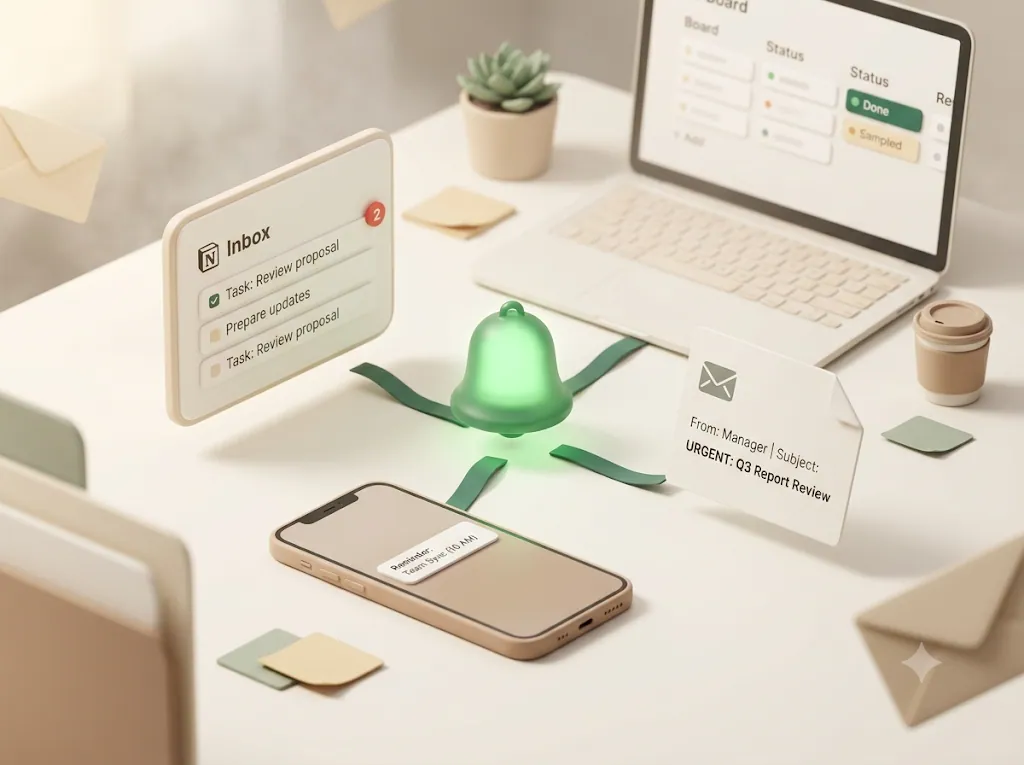
Sidebar badge, desktop push, mobile push, email-when-closed
Notion pushes reminders through several channels at once:
| Channel | Behavior |
|---|---|
| Sidebar Inbox | A red badge appears on the Inbox in Notion's left sidebar |
| Desktop push | A system notification if the desktop app is running |
| Mobile push | A push notification, typically within about five minutes of the trigger time |
| A fallback — Notion emails you only when you don't have the app open to catch the notification live |
⚠️ Note how email works here: it's a safety net for your own account when the app is closed, not a general-purpose email channel. It does not turn a reminder into something you can send to an arbitrary email address. We'll come back to why that matters.
Common reasons reminders get missed (device settings, battery saver, multi-device suppression)
If a reminder never showed up, run through this checklist before assuming it's broken (for a fuller diagnostic, see why Notion notifications aren't working):
- Notification permissions — Confirm your OS (Windows, macOS, iOS, Android) allows notifications from Notion, and that they're enabled inside Notion's own settings.
- Battery-saver / Focus modes — Low-power mode on phones and Focus/Do Not Disturb modes routinely suppress or delay push notifications.
- Multi-device suppression — If Notion is open and active on another device, it may consider the notification "seen" there and not duplicate the push elsewhere.
- The app was open — Because email is only a closed-app fallback, actively using Notion at trigger time means you get the in-app ping and no email.
- Recipient setup — For Date-property reminders, double-check the person is actually in a People property on the entry, not just a viewer of the database.
The Gap Nobody Mentions: Native Reminders Only Reach People Already Inside Notion
Everything above works well for one audience: people who log into Notion. The single most important thing to understand about native reminders is what happens when your recipient isn't one of those people.
Every recipient path requires a Notion account and notifications turned on
Look back at how each method reaches a human:
- Inline
@remindnotifies you and any@-mentioned teammate — who must be a member of your workspace. - Date-property reminders notify the entry creator and People-property assignees — each of whom must be a Notion account holder.
There is no native path to remind someone who doesn't have a Notion account. And even for account holders, the reminder only lands if they have notifications enabled on at least one device. Native reminders are, fundamentally, an inside-the-workspace system.
What that means when the person you need to nudge is a client, contractor, freelancer, or vendor who doesn't use Notion
For internal, all-Notion teams, that's often fine. It becomes a real problem when the person who actually needs the nudge lives outside your workspace:
- A client who owes you feedback or an approval
- A contractor or freelancer who needs to submit a deliverable
- A vendor you're waiting on for an invoice or asset
None of them are going to sign up for your Notion workspace, open the Inbox, and watch for a red badge. Native reminders simply can't reach them — the email channel is a same-account fallback, not an independent path to an outside email address. This is exactly the scenario where teams start looking for an email-based reminder that reaches people without a Notion account.
Three More Limits of Native Notion Reminders
Beyond the reach problem, there are three limits worth knowing before you build a workflow on top of native reminders.
No recurring or repeating reminders (still not built)
Notion reminders are tied to a specific date. There is no built-in recurring or daily reminder — you can't say "remind me every Monday" or "ping the assignee daily until this is done." This has been a long-standing, frequently requested gap (often described as "on the roadmap"). Workarounds exist with recurring database templates, but they create a new dated entry, not a repeating reminder on the same one. If repeating nudges are your core need, see repeating reminders in Notion.
One-off pings — nothing follows up again once a due date passes
A native reminder fires once, around the date. After the due date passes, Notion doesn't keep chasing. If someone misses the ping, there's no automatic overdue follow-up — the item just sits there, past due and silent, until a human notices.
No awareness of 'actually done' — reminders don't know a task is resolved outside Notion
A native reminder has no idea whether the underlying work is finished. If an invoice was paid, or a deliverable was approved over email, the reminder will still fire unless someone remembers to open Notion and change the status first. There's also no built-in way to filter which items or people get reminded beyond the basic date setup (for instance, "only In Progress items" or "only certain assignees"), and no send log recording who was reminded and when — which matters for accountability on client-facing or cross-team work.
When Native Reminders Are Enough, and When You Need Something Layered on Top
Native Notion reminders are genuinely good for a specific set of jobs. Here's an honest read on where they fit — and where people tend to outgrow them.
| Situation | Native reminders | Consider layering something on top |
|---|---|---|
| Personal to-dos and meeting prep | ✅ Great fit | — |
| Nudging teammates inside your workspace | ✅ Works well | — |
| One-off deadlines in a tracker | ✅ Date-property reminder | — |
| Reminding clients / contractors / vendors without Notion | ❌ No native path | ✅ Yes |
| Recurring or daily nudges | ❌ Not supported | ✅ Yes |
| Chasing overdue items until resolved | ❌ Fires once | ✅ Yes |
| Not pinging things already done/paid | ❌ No awareness | ✅ Yes |
| A record of who was reminded and when | ❌ None | ✅ Yes |
If your needs are all in the top rows, you may never need more than what's built in. If you're consistently in the bottom rows, that's the signal to add a dedicated layer — whether that's a general automation tool or a purpose-built reminder tool. For a broader survey of options, see automating reminders beyond native Notion, which weighs approaches like Zapier, Make, n8n, Google Apps Script, and Slack-based flows against dedicated tools.
A quick, fair note on those alternatives: general automation platforms (Zapier, Make, n8n, Google Apps Script) can send email or Slack messages triggered by Notion changes, which covers recurring and outside-Notion sends — but you build and maintain the logic yourself (filtering, status write-back, "don't send if done"). Slack reminders are excellent for internal teams but, like Notion, don't reach people without a Slack account. Dedicated Notion reminder tools trade flexibility for handling those specifics out of the box.
How Kapsel Extends Notion Reminders to People Who Don't Use Notion
If the gaps above describe your situation, a purpose-built tool can fill them without custom automation work. Kapsel is a Notion notification tool that watches your Notion due dates, assignees, and statuses and sends email reminders — including to people who don't have a Notion account. Here's how it maps to the limits covered in this guide.
Watches due date, assignee, and status automatically — no manual @remind setup per item
Instead of adding a reminder to each line or entry by hand, Kapsel monitors a database's due date, assignee, and status and sends reminders based on what it sees — so you're not maintaining per-item @remind tags.
Sends email reminders to anyone, no Notion account or login required
Kapsel delivers reminders by email to any address — the recipient doesn't need a Notion account, a login, or access to your workspace. That directly addresses the client/contractor/vendor gap.
A one-click confirm from the email writes the status back to Notion
Native reminders are one-way pings. Kapsel's emails include a one-click confirmation that writes the status back into Notion — so acting on the reminder updates your database without the recipient ever opening Notion.
Never emails about items that are already completed or paid
Because Kapsel reads status, it won't send reminders for items marked completed or paid — solving the "reminders don't know it's already done" problem so no one gets chased about finished work.
Overdue follow-ups, target filtering, recurring digests, a send log, and merge fields
Kapsel also covers the follow-up and accountability gaps: overdue follow-ups that keep nudging after a due date passes, target filtering to control which items and people get reminded, recurring digests (a periodic summary of what's upcoming or overdue), a send log of who was reminded and when, and merge fields to personalize each message. Put together, that means you can set the rules once and stop manually re-checking the tracker to see who still needs a nudge.
Free vs. Standard vs. Pro at a glance
| Plan | Price (USD/mo) | Notes |
|---|---|---|
| Free | $0 | Get started at no cost |
| Standard | $12 | Core reminder features |
| Pro | $29 | Adds multiple Notion workspaces and sender branding (company name, signature, logo) |
You can see full details on the pricing page, learn more on the product page, or read setup steps in the guide.
FAQ
How do I set a reminder in Notion?
Notion offers three built-in methods. Type @remind plus a time on any text line for an inline reminder, click a database entry's Date property and choose Remind for a single-entry reminder, or edit a Date property to set a default reminder for the whole database. Pick inline for one-off nudges and Date-property reminders for deadlines you track in a database.
What does @remind do in Notion?
Typing @remind followed by a natural-language time (like @remind tomorrow or @remind Friday at 9am) creates a clickable blue reminder tag on that line. When the time arrives, Notion notifies you through your Inbox and push notifications. Click the tag anytime to change the date, time, lead time, or time zone.
Can you set a reminder on a Notion database Date property? Yes. Open the entry, click its Date value, and choose the Remind option, then pick a preset interval — on the day of, 1 day before, 2 days before, or 1 week before. The reminder stays tied to the date, so changing the deadline moves the reminder with it.
Why am I not getting Notion reminder notifications? Check that your operating system and the Notion app both allow notifications, and that battery-saver or Focus/Do Not Disturb modes aren't suppressing them. If Notion is open on another device it may consider the notification already delivered there. Remember that email is only a fallback that fires when the app is closed, so an active session gives you the in-app ping instead.
Can Notion send reminders to people who don't have a Notion account?
No. Every native reminder recipient — the entry creator, People-property assignees, and @-mentioned teammates — has to be a Notion account holder with notifications enabled. The email fallback is tied to those accounts, not an independent channel to arbitrary addresses. Reaching people without Notion requires a tool that sends email directly, such as Kapsel.
Does Notion have recurring or repeating reminders? Not natively. Reminders attach to a single date, so there's no "remind me every Monday" or daily repeat option — a long-requested gap. Recurring database templates can generate new dated entries on a schedule, but that isn't the same as a repeating reminder on one item. See repeating reminders in Notion for the workarounds.
How do I remind someone else in Notion?
On any line, @-mention the person and add @remind with a time on the same line — both of you get notified. In a database, put the person in a People property on the entry and set a reminder on the Date property; the creator and everyone in that People property are notified. In all cases the person must be a member of your workspace.
Can you set a default reminder for an entire Notion database at once? Yes. Click the Date property header, choose Edit property, and set a default reminder interval. New entries with a value in that Date property will inherit the reminder automatically. Existing entries may not pick it up retroactively, so add reminders manually to older rows if needed.
Why does Notion keep reminding me about tasks that are already finished? Native reminders have no awareness of whether the work is actually done — they fire based on the date alone. If a task was completed or an invoice paid outside Notion, the reminder still triggers unless someone updates the status first. Tools that read the status field can skip items marked completed or paid automatically.
What's the difference between @remind and a Date property reminder in Notion?
@remind lives in a line of text and is best for one-off, in-context nudges; it's manual per line. A Date property reminder is attached to a database entry's date, scales across many rows (especially with a property-level default), and can automatically notify the creator and People-property assignees. Use @remind for standalone notes and Date reminders for structured, tracked deadlines.
How do I stop getting reminded about a Notion task after it's done?
For a Date-property reminder, native reminders fire once around the date and won't repeat, but if you keep getting pinged, remove the reminder from the entry or clear its Date value. For inline reminders, delete the blue @remind tag. Because native reminders don't read status, marking a task "Done" alone won't stop a still-pending reminder — you have to remove the reminder itself.
Can Notion notify clients or people outside my workspace? No. Native reminders only reach members of your workspace who hold Notion accounts, so clients, contractors, freelancers, and vendors outside Notion can't be reminded this way. To notify people outside your workspace you need an email-based layer — for example, Kapsel sends email reminders that require no Notion account and can write a one-click confirmation back into your database.
Notes
Published 2026-08-05. Kapsel features and pricing described here are current as of writing.