How to Use Notion: The Complete Beginner's Guide (2026)
Notion is one of those tools that looks intimidating on day one and obvious by day three. If you're starting from a blank account, this guide takes you all the way to a working setup — notes, a first database, a task tracker — and then covers the part most beginner guides skip: once your workspace is built, does the work inside it actually get followed through? Each section stands on its own, so you can read start to finish or jump to what you need.
TL;DR
- Notion is an all-in-one workspace for notes, docs, tasks, and databases. The free plan is enough for most individuals.
- Start small. Everything is a page made of blocks; type
/to insert anything. Don't build a "second brain" on day one — make one page you'll actually reopen.- Databases turn a list into something you can filter, sort, and view as a table, board, calendar, timeline, list, or gallery. Learn properties and views first; go deep later.
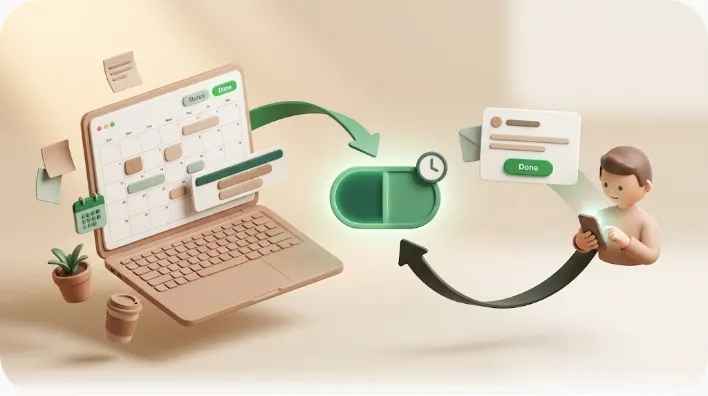
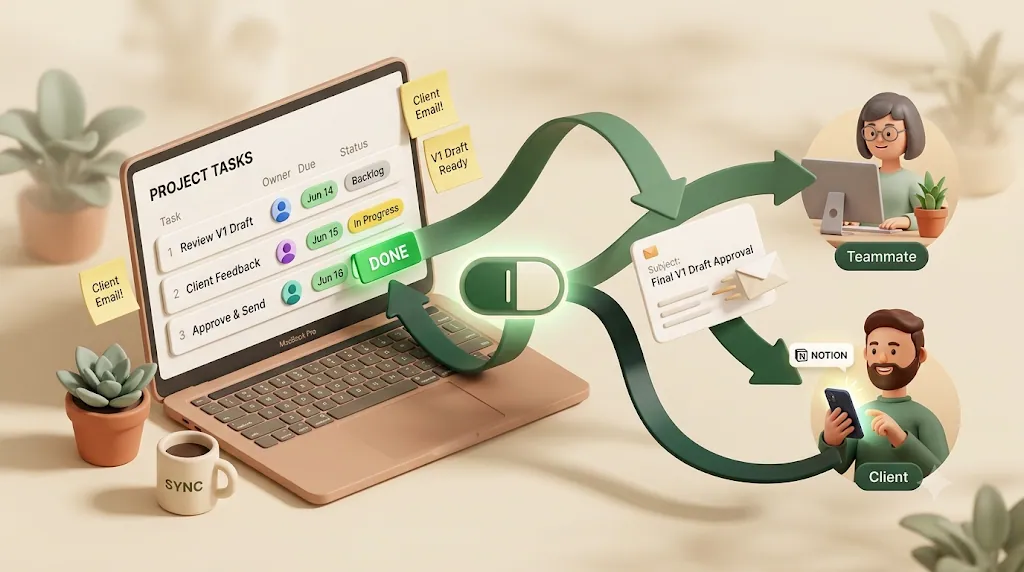
- Follow-through is separate from setup. Notion's own notifications only reach invited members who have a Notion account and notifications turned on — never external clients. Tools like Kapsel add an email reminder layer on top.
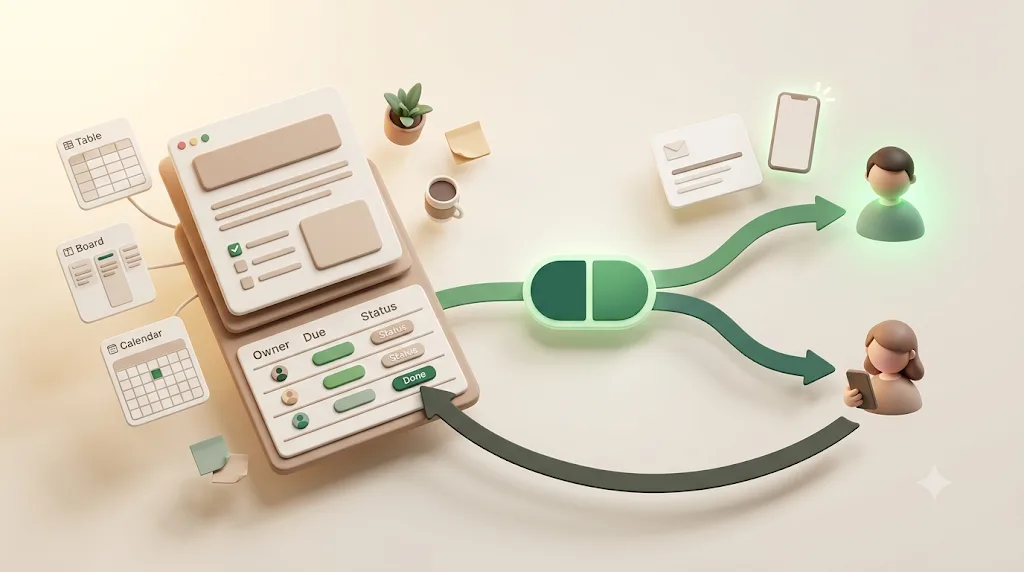
Here's the whole path in one picture. The order that works is: write things down → organize them in a database → run it with your team → follow through so nothing slips. Each step links to a deeper guide below the map.
How to walk this map (the deeper guide for each step)
- Learn the basics — pages, blocks, and the
/command. Start with "What Is Notion?" and the sections just below. - Build a database — designing properties and views → Notion database guide
- Manage tasks — owner, due date, and status in practice → task management in Notion
- Run it with your team — sharing and recurring work → team task management / recurring tasks and reminders
- Follow through — Notion's own notifications only reach members who have a Notion account, never external clients. Start with why Notion notifications aren't working; reaching people outside Notion is covered later in this guide.
What Is Notion?
Notion is an all-in-one workspace that combines notes, documents, wikis, tasks, and databases in one app, so information that would normally be scattered across five tools lives in one place. For an individual, the free plan is generally enough to run your whole personal system.
The core idea is that everything is a page, and pages are built from blocks — a heading, a paragraph, a to-do, an image, a table. Because any block can be moved, nested, or turned into something else, the same app can be a quick note today and a structured project database next week. That flexibility is Notion's biggest strength and its steepest part of the learning curve.
People use Notion for meeting notes, personal wikis, reading lists, habit trackers, content calendars, project trackers, lightweight CRMs, and company handbooks. It works solo and scales to teams, but you don't need to understand all of that to start — one useful page is plenty.
💡 If you're deciding whether Notion is "worth it," the honest answer is that it rewards people who want one flexible system and frustrates people who want a rigid app that makes every decision for them.
Notion vs. Evernote vs. Trello vs. Slack vs. Excel — Which Job Is Each Tool For?
Notion overlaps with several popular tools, but each of those tools is still better at its original job. The useful question isn't "which is best," it's "which job am I doing right now." The table below is the quick version; the sections after it add the nuance.
| Tool | Its core job | Where Notion overlaps | Choose the other tool when… |
|---|---|---|---|
| Evernote | Fast note capture & search | Notes, docs, web clips | You want frictionless capture and a mature search above all |
| Trello | Simple Kanban boards | Board view over a database | You want a board that works in 30 seconds with zero setup |
| Slack | Real-time team chat | Comments, mentions | You need live conversation and channels — different job entirely |
| Excel / Sheets | Calculation & big datasets | Structured data with views | You need heavy formulas, pivots, or thousands of rows |
Notion vs. Evernote (notes and docs)
Both hold notes, but they optimize for different moments. Evernote is built around fast capture and search — clip a page, snap a photo, find it later. Notion is built around structure — a note can become a database row, link to related pages, or live inside a project. If your pain is "I write things down and never find them again," Evernote's search-first design is hard to beat; if your pain is "my notes are disconnected islands," Notion's linking wins.
Notion vs. Trello (lightweight Kanban vs. flexible databases)
Trello is a Kanban board and almost nothing else, which is exactly why people love it — you're productive in under a minute. Notion's board view does the same thing, but it's one view of an underlying database, so the same tasks can also appear as a table, calendar, or timeline. Trello wins on instant simplicity; Notion wins when you outgrow "just a board" and want the same data seen multiple ways. See the Notion Kanban guide for the board setup.
Notion vs. Slack (workspace/docs vs. real-time chat — different jobs, not rivals)
This one isn't really a competition. Slack is for real-time conversation — quick questions, threads, channels. Notion is for durable information — decisions, docs, plans that should still make sense in six months. Chat is where things are said; a workspace is where things are kept. Most teams use both, and many connect them so Notion updates can post into Slack.
Notion vs. Excel/spreadsheets (structured data with views vs. calculation-heavy spreadsheets)
A Notion database and a spreadsheet both hold rows and columns, but they're tuned differently. Spreadsheets are unbeatable for calculation, large datasets, and ad-hoc number crunching. Notion databases are better when each row is a thing you want to open — a task, a client, a page with its own content — and when you want to view that data as a board or calendar instead of a grid. Rule of thumb: if you're mostly doing math, use a spreadsheet; if you're mostly organizing items you'll click into, use Notion.
Getting Started: Account, Workspace, and Your First Page
Getting into Notion takes about two minutes, and the interface is simpler than it first looks once you know the three regions. Here's the fastest path to a usable setup.
- Create an account at notion.so with an email or Google/Apple sign-in. Notion is available in the browser and as desktop and mobile apps.
- Understand your workspace. A workspace is the top-level container for all your pages. Personal use needs just one; you might join separate workspaces for different companies.
- Learn the three regions of the interface:
- Sidebar (left): your page tree, search, settings, and trash. This is how you navigate everything.
- Main area (center): the page you're currently editing.
- Top bar: breadcrumbs, share, comments, and the
⋯menu for page-level options (style, font, export, move).
Once you can place the sidebar, main area, and top bar, you can find anything in Notion without hunting — the same three regions never move, no matter what page you're on.
- Create your first page. Click + New page in the sidebar, give it a title, and start typing. That's it — you're using Notion.
💡 Make your first page something you'll genuinely reopen tomorrow — a daily note, a running to-do list, a "things I keep forgetting" page. Momentum matters more than structure at this stage.
Core Mechanics: Pages, Blocks, and Slash Commands
Once you understand pages, blocks, and the slash menu, you understand 80% of how Notion works — everything else is a variation on these three ideas. Learn this section well and the rest gets easy.
A page is a document that can also contain other pages, giving you infinite nesting (a "Work" page holding "Projects" holding individual project pages). A block is any single piece of content on that page — a line of text, a heading, a checkbox, an image, a toggle, a table. You can drag blocks to reorder them (grab the ⋮⋮ handle that appears on hover) and drag one beside another to create columns.
The slash command is the engine that makes this fast. Type / anywhere and a menu appears; keep typing to filter it:
/h1,/h2,/h3— headings/todo— a checkbox item/table,/board,/calendar— a database in that view/toggle— collapsible content/callout,/quote,/divider— formatting blocks/page— a nested sub-page
💡 A few keyboard basics save real time:
Ctrl/Cmd+Popens quick search,[[links to another page, and Markdown works inline (#for a heading,-for a bullet,*text*for italics).
Templates: The Fastest Way to Get Moving
Templates are the shortcut past the blank page — a pre-built page or database you can duplicate and start using immediately, instead of designing structure from scratch. For beginners, they're the single fastest way to see what "good" looks like.
There are two easy sources. Inside the app, + New page → Templates opens a built-in gallery covering to-do lists, meeting notes, project trackers, and habit trackers. Beyond that, Notion's public template gallery and the wider community offer thousands of free and paid options for almost any use case.
The smart way to use a template is to duplicate it, use it for a week, then delete the parts you never touch. Many beginner templates are over-built; the ones you keep are the ones you actually open. Good starting picks: a simple task list, a weekly planner, meeting notes, and a habit tracker.
⚠️ Downloading twenty templates is a form of procrastination. Pick one, use it, and only add more when a real need shows up.
Database Basics — Properties and Views (brief primer)
A Notion database is a collection of pages that share the same set of fields, which lets you filter, sort, and display them in different ways. This is the feature that separates Notion from a plain notes app — and it's worth a short primer here, with the full build covered in the dedicated guide.
Properties (the columns that describe each item)
Every row in a database is itself a page, and properties are the structured fields that describe it — the columns in a table view. The common ones you'll use constantly:
| Property | What it holds | Example |
|---|---|---|
| Text / Title | The item's name | "Redesign homepage" |
| Select / Multi-select | One or more tags | Priority: High |
| Status | A stage, grouped into to-do/in-progress/done | In progress |
| Date | A day or range | Due Aug 20 |
| Person | An assigned member | Assignee |
| Checkbox / Number / Relation | Done flags, counts, links to other databases | — |
You don't need all of them. Most useful databases run on four or five properties.
Views — table, board, calendar, timeline, list, gallery
A view is a way of looking at the same data, and switching views changes nothing about the underlying items — only how they're displayed. This is the payoff of using a database instead of a plain list.
| View | Best for |
|---|---|
| Table | Editing many fields at once, spreadsheet-style |
| Board | Kanban by status or category |
| Calendar | Anything with dates — deadlines, content, events |
| Timeline | Project schedules with durations (Gantt-style) |
| List | Clean, minimal reading |
| Gallery | Visual items with cover images |
You can filter and sort each view independently — for example, a board of everything and a table filtered to "my overdue tasks," both built on one database. For the full step-by-step build, see the Notion database guide, and for specific views the Kanban, calendar, and Gantt/timeline guides.
Task Management in Notion: Assignee, Due Date, Status
Task management in Notion is just a database with three properties doing the heavy lifting: who (Person), when (Date), and where it stands (Status). Get those three right and you have a real system, not a decorated to-do list.
The minimum viable task database:
- Create a database (
/tableor/board). - Add a Status property (To do / In progress / Done).
- Add a Date property for the due date.
- Add a Person property for the assignee.
- Switch to a Board grouped by Status to see flow, or a Calendar to see deadlines.
That's a real task system in five steps — no separate app, and the same rows show up as a board, table, or calendar depending on what you need to see. From there you can add filtered views — "Due this week," "Assigned to me," "Overdue and not done" — that turn a flat list into something you actually work from. For deeper setups, see the guides on task management, project management, and progress tracking.
💡 A single "Overdue and not done" filtered view (Date is before today, Status is not Done) is the highest-leverage thing a beginner can build. It surfaces exactly what needs attention.
Sharing, Guests, and Publishing to the Web
Notion pages are private until you share them, and you can share at three levels: with workspace members, with specific guests, or publicly on the web. Sharing is set per page (and inherited by its sub-pages), from the Share button in the top bar.
- Workspace members — people on your team who can be given access to internal pages.
- Guests — specific people you invite to one page by email, without adding them to your whole workspace. Good for a client or contractor. Each can have view, comment, or edit rights.
- Publish to web — turn a page into a public link anyone can open in a browser, no account required. Useful for a public portfolio, docs, or a read-only status page.
Choosing the right level up front means you're not stuck between over-exposing a page publicly or blocking out a client who just needs to see one thing.
⚠️ "Publish to web" and "share with a guest" are different. Published pages are public to anyone with the link; guest access is private to invited people. Know which one you're using before sharing anything sensitive.
Notion AI: What It Can Do (and What Depends on Your Plan)
Notion AI is a built-in assistant that can draft, summarize, translate, and answer questions using the content in your workspace — but exactly how much you get depends on your plan and can change over time. This nuance trips up a lot of beginners, so it's worth stating plainly.
What it does, in practice: draft or rewrite text, summarize long pages or meeting notes, extract action items, translate, and answer questions across your workspace ("search and ask"). It appears inline (press space in an empty block or highlight text) so it's woven into normal editing rather than a separate chat window.
On availability, the honest picture as of writing is that lower and free plans typically include a limited AI trial or capped usage, while fuller AI is bundled into higher-tier plans — and Notion has changed this packaging more than once. Don't assume "AI is included because I pay," and don't assume "AI is free forever." Check what your current plan actually includes on Notion's official pricing page before you rely on it.
Notion Pricing: Free, Plus, Business, Enterprise (overview)
Notion offers a genuinely usable free plan plus paid tiers that add collaboration, admin, and AI features; prices below are in USD per user per month and are meant as an orientation, not a contract. Plan names, limits, and what's bundled change periodically, so treat this as a map and confirm details on the official page. For a fuller breakdown of each tier and how to choose, see Notion pricing explained.
| Plan | Roughly who it's for | General direction |
|---|---|---|
| Free | Individuals | Unlimited pages/blocks for personal use; enough to run a full personal system |
| Plus | Small teams | Unlimited team collaboration, more guests, page history |
| Business | Growing companies | Advanced controls, SSO, larger limits, more AI |
| Enterprise | Large orgs | Advanced security, admin, and compliance |
⚠️ Pricing and plan names change, and features move between tiers. Always confirm current numbers and inclusions on Notion's official pricing page before committing — including whether Notion AI is part of your plan or a separate add-on.
After You Learn Notion — Do Due Dates and Owners Actually Get Followed Through?
Here's the question almost no beginner guide asks: you've built a beautiful task database with owners and due dates — but does anything happen when a due date passes? Setup and follow-through are two different problems, and Notion is excellent at the first one. The second one has real limits worth understanding before you rely on it.
What Notion's notifications actually do (and their real limit)
Notion can notify people, and it does more than people assume. When you're @mentioned, assigned, or a page you follow changes, Notion can send in-app, mobile push, and email notifications — including when the app is closed, if the recipient has those notifications enabled. So the common claim that "you only see it when Notion is open" is simply false.
The real limitations are narrower and more important:
- Only Notion-account holders are reachable. A person must have a Notion account, be invited to the page, and have notifications turned on. Miss any of those and the notification never lands.
- External people are unreachable. A client, vendor, or collaborator without a Notion account cannot receive Notion notifications at all.
- Noticing isn't controllable. Even for valid members, you can't centrally guarantee anyone actually reads a notification, and there's no built-in "email this owner the day their task is overdue" for a whole database.
Before adding anything, it's worth knowing the native options and their limits, and there are also general approaches — a Slack integration, Zapier, Make, n8n, or a Google Apps Script hitting the Notion API — that can push reminders out. Those are flexible but require building and maintaining the automation yourself.
Where a reminder layer like Kapsel fits
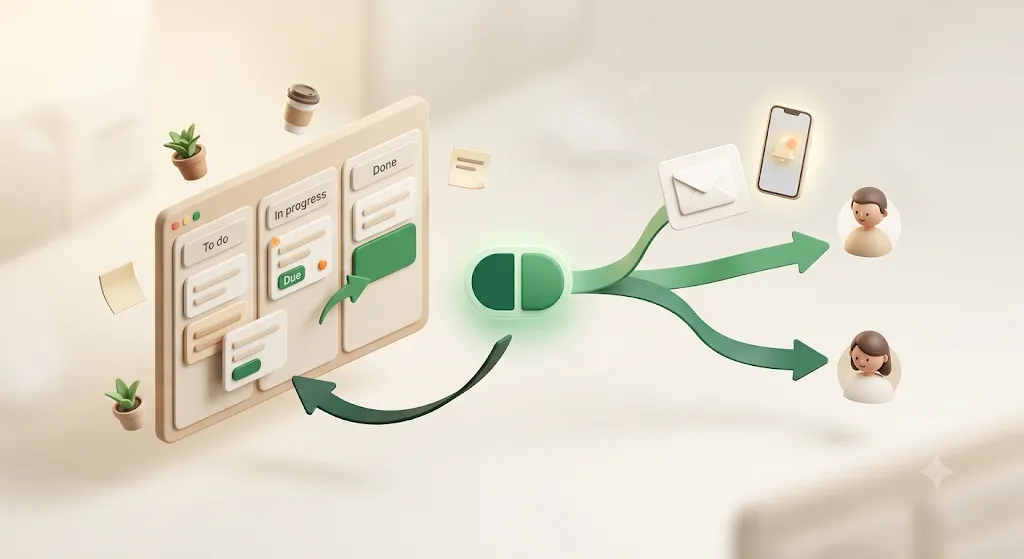
For teams and client work where the gap is external recipients and reliable status-based reminders, a purpose-built layer can be simpler than wiring up automations. Kapsel is a Notion notification tool that watches your database's due date, assignee, and status and sends email reminders to the right people — including people who don't have a Notion account, with no login required. When a recipient acts, a one-click confirmation writes the status back to Notion, so the board stays current without anyone opening the app. If you configure certain statuses as "done" values, Kapsel won't send reminders for items already in those states. It's one option among several — native notifications, Slack, and general automation tools all cover different needs — so pick based on whether your real gap is external reach, and see pricing if it fits.
FAQ (People Also Ask)
Is Notion free to use? Yes. Notion's free plan allows unlimited pages and blocks for individual use and is enough to run a complete personal system. Paid plans add team collaboration, admin controls, and more AI. Confirm current limits on Notion's official pricing page, since they change.
Is Notion good for beginners, or is it too complicated? It's beginner-friendly if you start small. The flexibility that makes Notion feel overwhelming disappears once you build one useful page instead of trying to design a whole system on day one. Learn pages, blocks, and the slash menu first; add databases later.
What is Notion actually used for? Notes, documents, wikis, task and project management, and lightweight databases like CRMs or content calendars. Individuals use it as a personal organizer; teams use it as a shared workspace and knowledge base. Its selling point is keeping all of that in one linked place.
What's the difference between a Notion page and a Notion database? A page is a single document made of blocks. A database is a collection of pages that share the same properties, which you can filter, sort, and view as a table, board, calendar, and more. Every database row is itself a page you can open.
Is Notion better than Trello for task management? It depends on your needs. Trello is faster to start and simpler if you only want a Kanban board. Notion is better when you want the same tasks shown as a board and a calendar and a filtered table, or when tasks connect to other data. See the Kanban guide.
Is Notion better than Excel for organizing data? For calculation-heavy work and large datasets, a spreadsheet is better. For organizing items you want to click into — tasks, clients, projects — and view multiple ways, a Notion database is better. Choose by whether you're doing math or organizing things.
Can Notion replace Evernote for note-taking? For many people, yes, especially if you value structure and linking notes to projects. Evernote still leads on frictionless capture and search-first design. If your notes are constantly lost, Evernote's search may suit you; if they're disconnected, Notion's linking helps more.
Does Notion work well for team collaboration, or is it more of a personal tool? Both. It's excellent solo and scales to teams with shared pages, comments, mentions, and guest access. It's best for durable, shared information rather than real-time chat — most teams pair it with a messaging tool like Slack. See project management.
Does Notion send notifications or reminders for due dates? Notion sends in-app, mobile push, and email notifications for mentions, assignments, and followed-page changes — even when the app is closed, if notifications are enabled. However, these reach only invited people who have a Notion account with notifications on, and never external people without an account.
Can I share a Notion page with someone who doesn't have a Notion account? Yes, via "Publish to web," which creates a public link anyone can open in a browser. Guest sharing, by contrast, invites specific people by email and generally works best when they have a Notion account. For emailing reminders to non-Notion people, you'd need an added layer.
Is Notion AI free, or do I need a paid plan? It varies. Lower and free plans typically include a limited AI trial or capped usage, while fuller AI is bundled into higher tiers — and Notion has changed this more than once. Don't assume it's fully included just because you pay; check your plan's current inclusions.
How much does Notion cost per month? In USD, Notion ranges from a free plan to paid tiers (Plus, Business, Enterprise) priced per user per month. Exact numbers and what each tier includes change over time, so confirm on the official pricing page rather than relying on any single roundup.
What are the best Notion templates for beginners? Start with a simple task list, a weekly planner, meeting notes, and a habit tracker — all available in the built-in gallery (+ New page → Templates). Duplicate one, use it for a week, and keep only the parts you actually open. See the templates guide.
Can Notion be used for project management with a team? Yes. A project database with status, assignee, due date, and views like board and timeline covers most small-to-mid team project management, with comments and mentions for collaboration. The main gap is external follow-through. See the project management guide.
Next Steps — Where to Go Deeper
You now have the whole map. Use these guides to go deeper on the parts that matter to you:
- Databases — the full build: properties, views, filters, and relations.
- Task management — assignee, due date, and status done right.
- Project management — running team projects in Notion.
- Calendar — deadlines and scheduling.
- Kanban boards — board view for workflow.
- Gantt / timeline — project schedules with durations.
- Progress tracking — rollups, status, and catching stalled work.
- Templates — start faster with proven structures.
- Reminders — how notifications work and how to make follow-through reliable.
- Pricing — if you're weighing a reminder layer for external recipients.
Notes
Published 2026-08-10. Notion's features, plan names, and pricing described here are current as of writing and change periodically; confirm specifics on Notion's official pricing and product pages. Kapsel details reflect shipped functionality at the time of publication.