Notion Project Management: How to Build a Projects + Tasks System (Step by Step)
Most "Notion project management" setups are really just task lists with a due date. If you're the one who has to answer "how's everything going across all our projects?", that's not enough — you need a layer above the tasks: a Projects database that groups work, rolls up its own progress, and shows a whole portfolio at a glance. This guide builds that layer step by step: link two databases with a relation, add rollups, set up four views that make the system usable, and track milestones — then decide honestly whether Notion is enough or a dedicated PM tool fits better.
TL;DR
- Notion project management means a Projects database linked to a Tasks database via a relation, so each project rolls up its own tasks — not a single flat task list.
- Give each project a few core properties (name, status/phase, owner/lead, start & due dates, priority, tasks relation) and use rollups for progress: % complete, task counts, and next due date.
- Add four views that each do one job: Timeline for the schedule, Board for phase, Calendar for deadlines, and a portfolio Table of every project.
- Notion organizes the plan; it doesn't actively chase deadlines. Native reminders only reach people who open Notion, so external clients and stakeholders never see project dates — a gap you close with an email layer.
This article focuses on the project layer. If you still need the basics of building the underlying task database — properties, views, the core pattern — start with the companion guide on Notion task management, then come back here to add the project structure on top.
What a Notion project management setup actually is
A Notion project management setup is two linked databases: a Projects database where each row is a project, and a Tasks database where each row is a task, connected by a relation so every project rolls up the tasks that belong to it. That relation is the whole idea — it's what turns a flat task list into a layered system where progress adds up from tasks to projects to a portfolio.
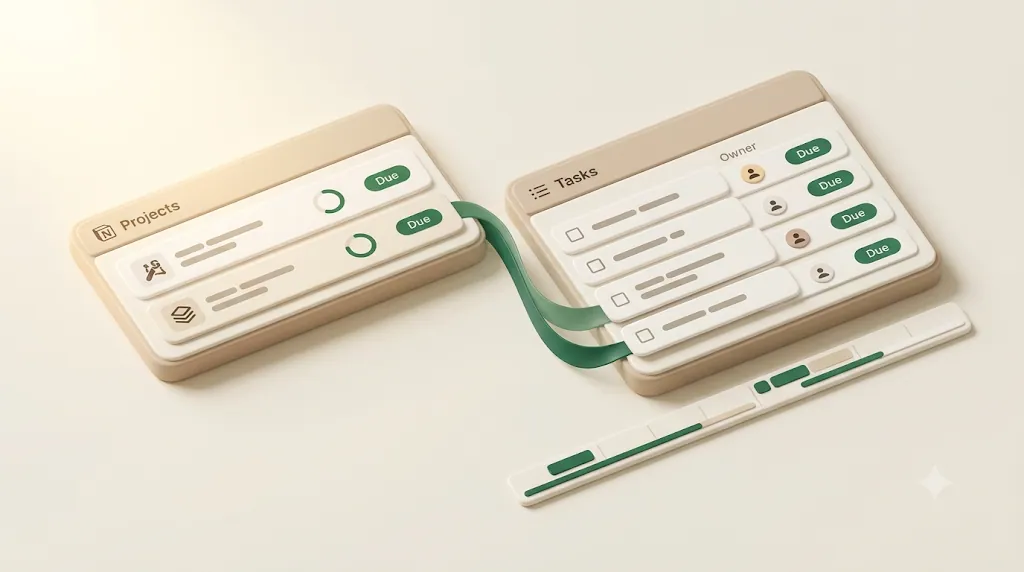
The distinction matters because a single task database can only answer "what's due?" A Projects-plus-Tasks structure also answers "how far along is this project, who owns it, and when does it ship?" — questions you can't ask of a flat list.
| Single task list | Projects + Tasks (linked) | |
|---|---|---|
| Rows represent | Individual tasks | Projects and their tasks, in two DBs |
| Groups work by | A "Project" text or select field | A real relation between databases |
| Progress | Counted by hand | Rolled up automatically per project |
| Portfolio view | Not possible | A table of every project with status |
| Best for | Personal to-dos | Client work, team projects, roadmaps |
💡 The relation is the dividing line between "task management" and "project management" in Notion. Everything else in this guide builds on it.
The core Projects database properties
A Projects database needs only a handful of properties to be useful — enough to answer who owns each project, what phase it's in, when it's due, and how it's progressing. Resist adding more until a real need appears; an over-built schema nobody maintains is worse than a lean one.
Project name, status/phase, owner/lead, start & due date, priority, tasks relation
These six properties cover the vast majority of project tracking. Each one unlocks a view or a filter later, so skipping one usually means losing a capability down the line.
- Project name (Title): every Projects database has this by default — the one-line name of the initiative.
- Status / Phase (Status property): where the project stands, e.g. Planning → In progress → Review → Done, or by phase like Discovery → Build → Launch. The dedicated Status property pre-groups options into To-do / In progress / Complete, which Board view understands automatically.
- Owner / Lead (Person property): who is accountable for the whole project. A Person property links to real Notion members, which enables "projects I lead" filters.
- Start date & Due date (Date property, or a single Date with an end): the schedule window. Use real Date properties so Timeline and Calendar views work.
- Priority (Select property): High / Medium / Low, so the portfolio can be sorted by what matters most.
- Tasks relation (Relation property): the link to the Tasks database — this is the connective tissue that makes rollups possible.
Six properties is a small price for what they unlock: every view, filter, and rollup later in this guide reads directly from this list, so nothing needs retrofitting once the portfolio table exists.
⚠️ Use a Date range (start + due) on projects, not a single date. Timeline view draws a project as a bar only when it has both a start and an end; a single date renders as a one-day sliver.
Build it step by step
The build has four steps: create the Projects database, create (or reuse) the Tasks database, link them with a relation, then add rollups so progress flows upward. Do them in order — each step depends on the one before it.
Step 1 — Create the Projects database
Create a new full-page database and name it Projects, then add the core properties above: Status/Phase, Owner/Lead, a Start–Due date range, and Priority. Leave the tasks relation for Step 3, once the Tasks database exists.
Add three or four example project rows now. Real data makes the views in the next section far easier to configure and sanity-check.
Step 2 — Create the Tasks database
Create a second database named Tasks with the standard task properties — Task name, Owner/Assignee, Due date, and Status. This guide keeps the task layer brief on purpose: for the full walkthrough of building a task database (property choices, "Turn into Tasks," view selection, and leveling up), follow the dedicated guide on Notion task management and return here.
The only thing to keep in mind for project management is that your Tasks database should already have a Status and a Due date, because those two properties are what the project rollups will summarize.
Step 3 — Link them with a relation
On the Projects database, add a Relation property pointed at the Tasks database, and name it Tasks. Turn on "show on Tasks" so a matching Project relation appears on each task — now you can assign a task to a project from either side.
Once the relation exists, open a project and add its tasks in the Tasks relation field (or open a task and pick its Project). Every task should belong to exactly one project.
💡 If you'd rather not wire this by hand, several official templates ship with the Projects ↔ Tasks relation already built — see the template vs. build-from-scratch section below.
Step 4 — Add rollups: % complete, task counts, next due date
On the Projects database, add Rollup properties that summarize the related tasks. A rollup reads a property from the linked tasks and aggregates it, which is how each project reports its own progress without any manual counting.
Three rollups cover most needs:
| Rollup | Relation | Property | Calculate | Shows |
|---|---|---|---|---|
| % complete | Tasks | Status | Percent per group → Done | A progress bar per project |
| Task count | Tasks | Task name | Count all | Total tasks in the project |
| Next due date | Tasks | Due date | Earliest date | The nearest upcoming deadline |
The % complete rollup sets Percent per group on the Done (Complete) group so Notion draws a live progress bar per project — the Notion progress tracking guide covers that mechanic in depth, including how to display it as a bar or ring and the divide-by-zero pitfall to guard against. The other two — a plain task count and a next due date — are rarely covered but genuinely useful: the count shows project size at a glance, and "next due date" surfaces the most urgent deadline inside a project without opening it.
💡 Rollups beyond % complete are where a Notion project system starts to feel like a real dashboard. A "next due date" rollup, sorted in the portfolio table, instantly tells you which project has the closest deadline.
The views that make the system usable
The same two databases become a usable project system through views — saved lenses on the same rows. Four views each answer a different question: Timeline for the schedule, Board for phase, Calendar for deadlines, and a portfolio Table for the whole picture.
| View | Reads | Answers |
|---|---|---|
| Timeline / Gantt | Project date ranges | "What's the schedule, and what overlaps?" |
| Board | Status / phase | "What phase is each project in?" |
| Calendar | Due dates | "What's due this month?" |
| Portfolio Table | Every project + rollups | "How's the whole portfolio doing?" |
Timeline/Gantt for schedule and dependencies
Timeline view (Notion's Gantt-style layout) draws each project as a bar across its start–due range, which makes the overall schedule and any overlaps visible at a glance. It's the closest thing Notion offers to a Gantt chart, and it's the right view for planning a multi-project quarter. For a step-by-step walkthrough of building one — dependencies, sub-items, and rollups included — see how to build a Notion Gantt chart.
Notion's Timeline also supports dependencies — you can link one bar to another so a slip in one shifts the linked items — and sub-items for breaking a project into phases on the same bar. For simple sequencing this is enough; for complex critical-path scheduling it's lighter than a dedicated PM tool (more on that below).
Board by status/phase
Board view groups projects into kanban columns by Status or Phase, so you can see at a glance how many projects sit in Planning, In progress, Review, or Done. Drag a card between columns and the Status property updates automatically. For the full setup, see how to build a Kanban board in Notion.
This is the view for a weekly project review: it answers "what's stuck in Review?" and "how many things are in flight?" without reading a single date.
Calendar for deadlines
Calendar view plots projects (or their due dates) on a month grid, which is the fastest way to see where deadlines cluster. Five project deadlines landing in the same week jump out here in a way they never do in a list. For a deeper look at both the database calendar view and the standalone Notion Calendar app, see the guide on the Notion calendar.
Use it for capacity checks — drag a due date to rebalance a crowded week before it becomes a crunch.
Portfolio table of all projects
The portfolio view is a Table of every project showing its status, owner, priority, due date, and the rollups (% complete, task count, next due date) side by side. It's the one deliberate "everything, at once" view — the project-level equivalent of a dashboard — and it's worth building as its own named view rather than leaving it as the default table.
Sort it by priority or by "next due date," and filter out completed projects, so the top of the table is always the work that needs attention now.
💡 Name this view "Portfolio" and set it as the database's default. When a stakeholder asks "how's everything going?", this single view is the answer.
Milestones and phases (as their own linked rows — target date vs. actual date)
Milestones are best modeled as their own rows — either flagged tasks or a small linked Milestones database — each carrying a target date and an actual date, so you can see slippage explicitly. Most Notion project guides skip milestones entirely or fold them into vague "sprints"; giving them real rows is what makes a schedule accountable.
There are two clean ways to do it:
- A checkbox or type field on Tasks. Add an
Is milestonecheckbox (or a Type select with a "Milestone" option) to the Tasks database, plus a Target date and an Actual date property. Filter a view toIs milestone = trueto get a milestone-only list. - A separate Milestones database. Create a small Milestones database related to Projects, each row with Target date and Actual date. This keeps milestones distinct from day-to-day tasks and lets a project roll up its milestone count.
Either way, the key move is tracking target vs. actual: a formula like dateBetween(Actual, Target, "days") shows how many days early or late each milestone landed, turning "we're behind" into a specific number. Group phases the same way — a Phase select on tasks, or the project's own Status stepping through Discovery → Build → Launch — so the plan reads as stages, not a wall of tasks.
If a phase's exit condition is really a client or stakeholder's sign-off rather than just a target date, that's a distinct pattern from a milestone — see how to build an approval workflow in Notion for a dedicated request-and-decision tracker.
Duplicate a template or build from scratch?
This is an explicit fork: start from an existing template for speed, or build from scratch for an exact fit. For most people, the fastest sensible path is to duplicate a template and then delete everything you don't use.
| Duplicate a template | Build from scratch | |
|---|---|---|
| Setup time | Seconds | An hour or two |
| Relation + rollups | Pre-wired | You build them |
| Fit to your workflow | Generic; trim to fit | Exact |
| Learn-by-example | Yes — inspect how it's wired | No |
| Risk | Inheriting unused properties | Missing a useful pattern |
Notion's gallery includes ready-made project setups — Projects & tasks and Projects, tasks & sprints — that come with the Projects ↔ Tasks relation, rollups, and several views already built. Duplicating one and studying how its relation and rollups are configured is one of the fastest ways to understand the pattern.
💡 A practical hybrid: duplicate a template, keep the relation, rollups, and views, delete the extra properties you'll never fill, then rename things to match your team's language.
Is Notion enough, or do you need a dedicated PM tool?
Notion is genuinely good for project management up to a point, and a dedicated tool (Asana, ClickUp, Jira, Monday) wins past that point — the honest answer is "it depends on scale and complexity." Neither choice is wrong; they're built for different jobs.
Notion fits when a small team wants one flexible, all-in-one workspace where projects live next to docs, notes, and wikis, and everyone can comment, edit, and collaborate on the same pages in real time. A dedicated PM tool fits when you need true dependency management, workload and resource planning, deep automation, or portfolio reporting at scale.
| Situation | Better fit |
|---|---|
| Small team, flexible needs, few projects | Notion |
| Projects live alongside docs, notes, wikis | Notion |
| Budget-conscious, all-in-one workspace | Notion |
| Complex task dependencies / critical path | Dedicated tool (Jira, ClickUp) |
| Workload & resource / capacity management | Dedicated tool (Monday, ClickUp) |
| Heavy automation & required fields | Dedicated tool (Asana, Jira) |
| Portfolio reporting across dozens of projects | Dedicated tool (Monday, Asana) |
The trade-off is flexibility versus structure. Notion lets you shape anything, which is powerful and also means nothing is enforced — no required fields, no built-in workload balancing, no rigorous critical-path engine. Dedicated tools impose structure that scales but is harder to bend. Many teams run both: Notion for docs and lightweight projects, a dedicated tool for the one program that truly needs resource planning.
⚠️ Don't force everything through Notion out of principle. If a project genuinely needs resource leveling or portfolio-level reporting across dozens of initiatives, a purpose-built tool will save more time than a clever Notion workaround.
The part a plan doesn't solve: getting deadlines to actually land
A project plan is only as good as whether its deadlines are actually hit — and organizing work in Notion doesn't, by itself, make anyone act on it. Notion holds the dates; it doesn't chase them. This is where even a well-built Projects + Tasks system leaves a gap.
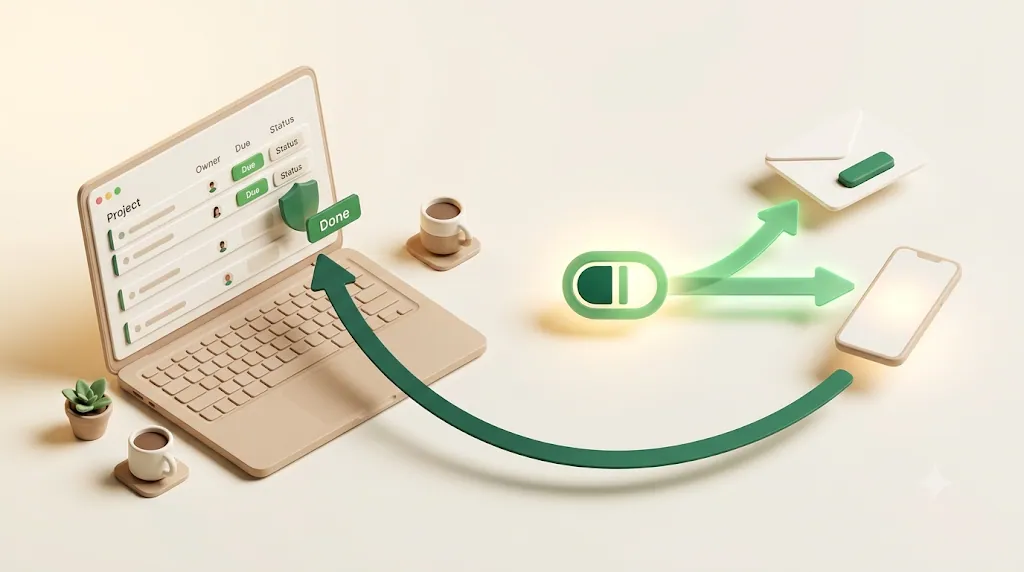
The dates sit in the database, correct and up to date, but nothing happens when one arrives unless a person opens the right view at the right moment. For internal work that's a minor friction; for client and stakeholder work, it's the difference between a milestone landing and a milestone slipping unnoticed.
What native Notion reminders cover — and their limit (only reach people who open Notion)
Notion does have native reminders — @remind mentions and date-property reminders — and they deliver to the in-app inbox and push notifications, with email only as a fallback. That's genuinely useful for people who live in Notion all day.
The limit is the dependency: the reminder assumes the recipient opens Notion. A teammate who rarely checks it misses the nudge, and an external client or stakeholder with no Notion account cannot receive one at all — there's no inbox to deliver to. Native reminders also fire once and don't escalate, so a missed milestone gets no follow-up.
Before adding any tool, it's fair to weigh the common bridges: Zapier, Make, n8n, and Google Apps Script can all push Notion dates out to email, Slack, or Google Calendar if you're willing to build and maintain the automation. Google Calendar sync surfaces dates as calendar alerts; a Slack integration reaches Slack users. Each works; the trade-off is setup and upkeep, and most only notify — they don't write status back.
| Approach | Reaches non-Notion people? | Overdue follow-up? | Writes status back? |
|---|---|---|---|
Notion @remind / date reminder |
No (in-app + push) | No | No |
| Zapier / Make / n8n / GAS | Yes, if you build it | Only if you build it | Only if you build it |
| Google Calendar sync | Calendar alerts only | No | No |
| Slack integration | Slack users only | No | No |
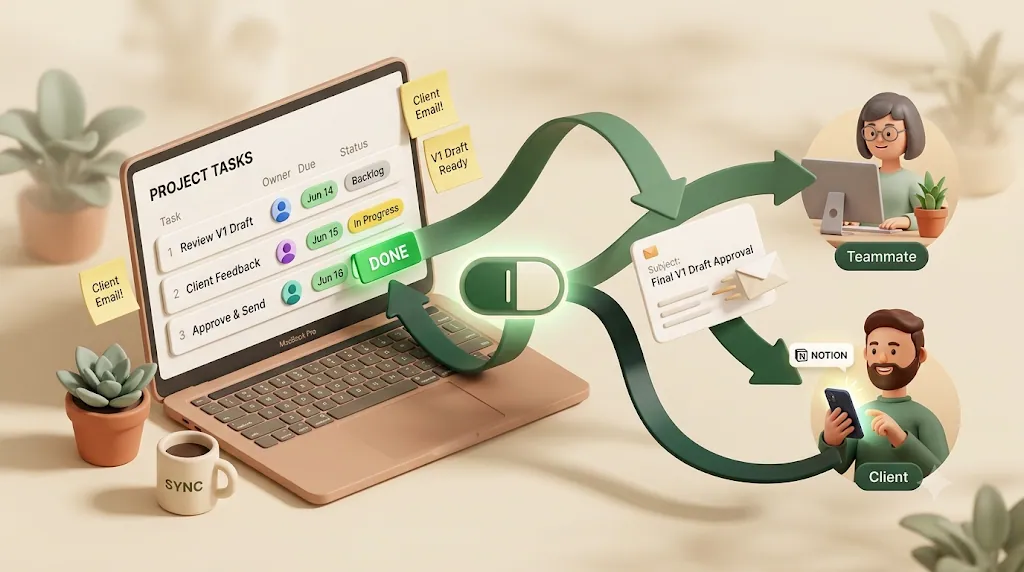
How Kapsel watches due date/owner/status and emails the owner — with one-click status write-back
If you'd rather not build and maintain an automation, a purpose-built notification layer covers the same gap. Kapsel is a Notion notification tool that watches your due date, owner, and status properties and emails reminders — including to people who don't have a Notion account — with a one-click confirm that writes the status back to Notion. It's an independent, indie-built product, not a Notion feature.
In practice, Kapsel reads the same Due date, Owner, and Status properties you set up in the steps above — no rebuild — and emails the project or task owner directly. Because it delivers by email, it also reaches an external stakeholder or client with no Notion account, which is exactly the case native reminders can't handle. The email carries a one-click button that writes the status back to Notion (no login for the recipient), so the update flows back into your database instead of leaving someone to log in and edit it. It sends overdue follow-ups after a date slips, and it never sends once an item is marked Done (or Paid) — the rule that makes it safe to point at client-facing work. See pricing (Free $0, Standard $12, Pro $29/month) for details.
FAQ
Is Notion good for project management? Yes, for small teams and flexible, all-in-one setups where projects live next to docs and notes. With a Projects database linked to Tasks by a relation, plus rollups and Timeline/Board/Calendar views, Notion handles most project tracking well. It's less suited to true critical-path dependencies, resource management, and portfolio reporting at scale, where a dedicated tool fits better.
Can Notion do Gantt charts? Yes — Notion's Timeline view is a Gantt-style layout that draws each project or task as a bar across its date range. It supports dependencies (linking one bar to another) and sub-items for breaking work into phases. It's lighter than a dedicated PM tool's scheduler but covers most planning needs.
How do I link tasks to projects in Notion? Add a Relation property to your Projects database pointed at the Tasks database (turn on "show on Tasks" so a matching Project field appears on each task). Then assign each task to its project from either side. That relation is what lets a project roll up its tasks' progress.
What's the difference between a Notion database and a page for project tracking? A page is a single document — good for one project's notes, brief, and meeting log. A database is a structured collection of rows with typed properties (status, dates, owner) you can sort, filter, group, and view as a table, board, calendar, or timeline. For tracking many projects, use a database; use pages for the detailed write-up inside each project row.
Can Notion track task dependencies? Yes, in Timeline view you can create dependencies between items so that linking one bar to another reflects sequencing, and shifting a predecessor can move its dependents. It handles straightforward "this before that" ordering well, but it doesn't do full critical-path analysis or automatic resource leveling the way a dedicated PM tool does.
What is a rollup property in Notion, and how does it show project progress? A rollup reads a property from related rows and aggregates it. For project progress, add a rollup on Projects that reads each task's Status and calculates Percent per group → Done — Notion then draws a live "% complete" bar per project. Other useful rollups are a task count and an earliest due date ("next due date") across a project's tasks.
Is Notion better than Asana (or ClickUp/Jira/Monday) for project management? Neither is universally better — they're built for different scales. Notion wins for small teams that want flexibility and projects alongside docs and notes, at a lower cost. Asana, ClickUp, Jira, and Monday win when you need rigorous dependencies, workload and resource management, heavy automation, or portfolio reporting across many projects. Plenty of teams use both.
How do you track milestones in Notion?
Give milestones their own rows — either a checkbox/type field on the Tasks database or a separate Milestones database related to Projects — and add both a Target date and an Actual date property. A formula like dateBetween(Actual, Target, "days") shows how early or late each milestone landed. Filter a view to milestones only to see them apart from day-to-day tasks.
Does Notion send reminders to people who don't have a Notion account? No. Native Notion reminders deliver to a person's in-app inbox and push notifications, so someone without a Notion account has no inbox to receive them. Reaching external clients or stakeholders requires email-based delivery — either a custom automation (Zapier, Make, n8n) or a dedicated tool such as Kapsel, which emails the owner and can reach people with no Notion account.
What's the difference between Notion's Board, Timeline, and Calendar views for projects? Board groups projects into kanban columns by status or phase, best for seeing what stage each project is in. Timeline draws projects as bars across their date ranges, best for the overall schedule and overlaps. Calendar plots due dates on a month grid, best for spotting crowded deadline weeks. All three read from the same database, so you switch views rather than duplicate data.
Keep the plan and the follow-through in one place
Building the Projects + Tasks system is the first half of Notion project management; keeping deadlines from slipping is the second. Get the structure right first — relation, rollups, and the four views — then add a notification layer only if native reminders stop reaching everyone who needs them.
For the underlying task database in depth, see Notion task management; for running projects across a team, Notion team tasks and task reminders for teams; and for repeating project work, Notion recurring reminders. If you want a ready-made starting point for getting Kapsel running on top of this structure, the guide walks through setup end to end.
Notes
This article was published on 2026-08-08. Product features and pricing described here (Kapsel Free $0, Standard $12, Pro $29 per month) are current as of writing and may change; check the pricing page or the guide for the latest details. Notion's own features, views, and menus may also change over time.