How to Track Progress in Notion (Rollups, Status, and Catching What's Stalled)
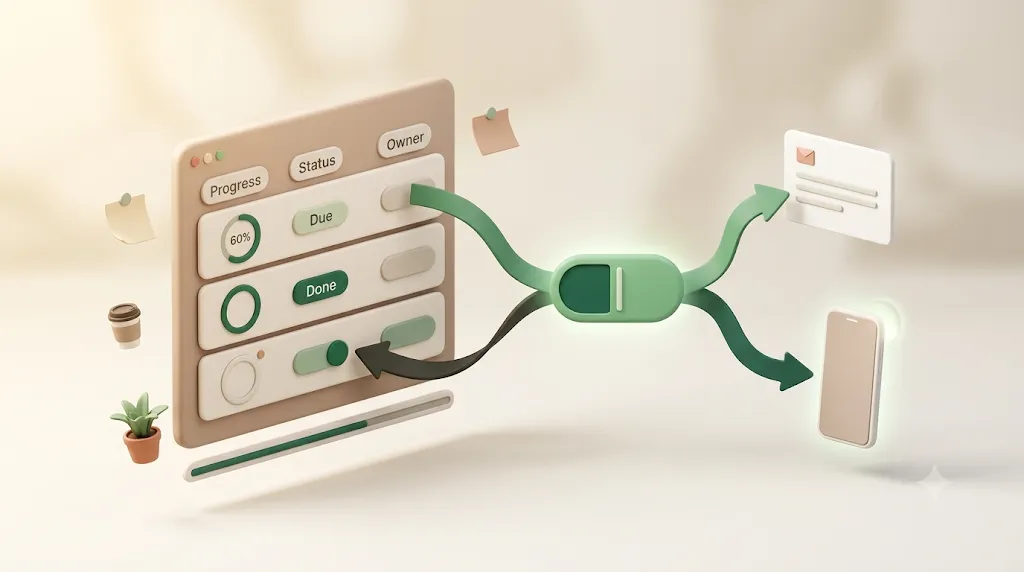
A progress bar in Notion can be perfectly accurate and still tell nobody anything. This guide is for anyone tracking task or project progress in Notion who wants that number computed automatically instead of typed by hand — a live percentage, a phase, or a bar you read in one glance. It builds every method from scratch, then covers what most tutorials skip: catching work that's quietly stalled, and making sure someone actually finds out before it's overdue.
TL;DR
- Compute progress, don't type it. Use a rollup over sub-items or a related Tasks database (
Percent checkedorPercent per group), or a formula that divides done by total.- Display it as a bar or a ring, not a raw decimal — it's a property display setting, one click.
- Status/phase progress (To do → In progress → Done) is the simpler, non-numeric option; group a Board or Timeline by Status to read progress at a glance.
- The gap most setups miss: a progress view is a display. It never tells anyone when an item is overdue or stalled, and people without a Notion account never see it. A filtered "overdue and not done" view catches problems; getting someone told takes a reminder layer.
What "progress tracking" actually means in Notion
Progress tracking in Notion is representing "how far along" a task or project is with a value Notion calculates for you, rather than a status you update manually. It comes in two flavors: a percent-complete number and a status or phase. Both are useful, and most mature setups use them together.
A percent-complete number vs. a status/phase — and why it should be computed, not typed by hand
The two representations answer slightly different questions, so pick based on what you need to see.
| Representation | Answers | Best for | How it's built |
|---|---|---|---|
| Percent complete (0–100%) | "How much of the work is done?" | Projects with many sub-tasks; client-facing progress | Rollup or formula |
| Status / phase (To do → Done) | "What stage is this in?" | Single tasks, editorial/pipeline work | Status property |
The reason to compute a percentage rather than type it is reliability. A hand-typed "70%" is a guess that goes stale the moment someone finishes a sub-task and forgets to update the parent. A rollup or formula recalculates itself every time a checkbox flips or a status changes, so the number is always true. This tutorial assumes you already have a task database with a Status property and, ideally, Sub-items enabled; if not, the Notion task management guide covers building that foundation first.
Method 1 — A percent-complete rollup from sub-tasks or a related Tasks database
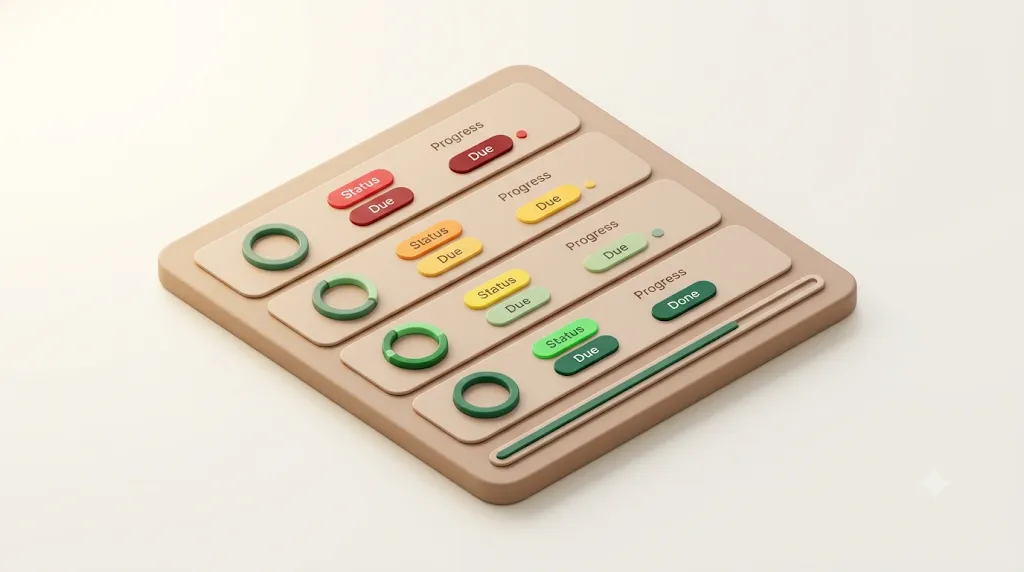
The cleanest way to get a live percentage is a rollup: a property that reaches into related rows and summarizes one of their properties. If a project has sub-tasks (or a linked Tasks database), a rollup can report what share of them are done. This is the recommended default for most people.
Rollup over Sub-item with a checkbox ("Percent checked")
If your database uses Notion's built-in Sub-items, the simplest progress bar is a checkbox rolled up as a percentage.
- On your task/project database, enable Sub-items (open ⋯ → Sub-items on the database — it may already be turned on).
- Add a Checkbox property called
Doneto the database, and tick it as each sub-task finishes. - On the parent, add a Rollup property. Set Relation → Sub-items, Property → Done, and Calculate → Percent checked.
The parent now shows the fraction of its sub-items whose Done box is checked — 4 of 5 sub-tasks reads as 80%. Because it counts direct sub-items, this works best when nesting is one level deep.
💡 A checkbox is binary, so
Percent checkedweights every sub-task equally. If some tasks are much bigger than others, that's a known trade-off — weighting requires a formula (Method 2).
Rollup over a related Tasks database's Status property ("Percent per group")
If your tasks live in a separate database linked to Projects by a relation, you can roll up their Status instead of a checkbox — which is handy because you're probably already setting Status anyway.
- On the Projects database, add a Rollup on the relation that points to Tasks.
- Set Property → Status and Calculate → Percent per group.
- Notion shows the split by status group; choose the Complete group to read the percentage of tasks that are done.
This reuses the Status you already maintain, so there's no extra checkbox to remember. The same pattern rolls up a People or any related database — anywhere "how many of these are finished" is the question. Either rollup means progress updates itself the moment a task's status changes, so you're never the one manually recalculating a percentage.
Displaying it as a number, a bar, or a ring
A rollup returns a bare decimal by default; Notion can render it as a visual gauge instead, which reads far faster in a table.
- Open the rollup (or number) property's settings and find Show as.
- Choose Bar or Ring, set the Divide by number to 1 (rollup percentages are already 0–1), and optionally pick a color.
| Show as | Reads as | Good for |
|---|---|---|
| Number | 0.8 / 80% |
Formulas, sorting, exact values |
| Bar | ▰▰▰▰▱ | Tables and dashboards |
| Ring | ◔ | Cards, galleries, board faces |
💡 Bar and Ring are display settings on Number and Rollup properties — the underlying value doesn't change, so you can still filter and sort by it.
Method 2 — A formula that divides done by total (when you don't want a rollup)
A formula computes progress directly from your data without setting up a rollup — useful when there's no relation, when nesting runs deep, or when you want to weight tasks. It's the more flexible route, at the cost of writing a small expression.
The core idea is simple: done ÷ total. In its simplest form, if you already have two number properties — Done count and Total count — the formula is:
Done count / Total count
With Notion's Formula 2.0, you can compute both sides from Sub-items in one property using map(), filter(), and length(): map over the sub-items, keep the ones whose status is Complete, and divide that length by the total length. The exact syntax varies with your property names, so treat this as a template to adapt rather than something to copy and paste directly:
length(filter(Sub-items, current.Status == "Done")) / length(Sub-items)
Set the formula's Show as → Percent (or Bar) and you have a live progress figure that never needed a rollup.
| Use a rollup when… | Use a formula when… |
|---|---|
| You want the simplest setup | There's no relation to roll up |
| One level of sub-items | Deep nesting or custom logic |
| Equal-weight tasks | You need weighting or rounding |
⚠️ Guard against dividing by zero. If a project has no sub-tasks yet,
totalis 0 and the formula errors or shows a blank — wrap the division in anif()check so an empty project reads 0% instead of breaking your view.
Method 3 — Status/phase progress: To do → In progress → Done
Not every project needs a percentage. Often "what stage is this in?" is the more useful question, and Notion's built-in Status property answers it with almost no setup. This is the simpler, non-numeric way to represent progress.
The Status property type ships with three groups — To-do, In Progress, and Complete — and lets you add custom sub-stages within them (for example, In Progress → In review → Blocked). Because Notion knows which options belong to the "Complete" group, Status also feeds the Percent per group rollup from Method 1. For a single task with no sub-items, Status is its progress.
Grouping a Board or Timeline by status to see progress at a glance
Once tasks carry a Status, grouping a view by it turns progress into something you can see across the whole project without opening a single card.
- Board view grouped by Status gives you a column per phase; the height of each column shows how much work sits in To do vs. In Progress vs. Done. Dragging a card between columns updates its Status.
- Timeline (Gantt) view grouped by Status shows the same phases along a schedule, so you see not just how many items are in each stage but when they're due.
Both are just views on the same database, so they stay in sync with your table. The mechanics of each are covered in the Notion Kanban board guide and the Notion Gantt chart guide — link out rather than rebuilding them here.
Spotting stalled or overdue work (what most guides skip)
A progress bar tells you how far along something should be; it doesn't flag the item that has quietly gone off the rails. The most valuable views for a project lead aren't the pretty percentages — they're the ones that surface work that's overdue and unfinished, plus tasks that have sat untouched. These take a few filters that most progress tutorials never mention.
A filtered view for "overdue and not done"
The single most useful progress-monitoring view is one that shows only work that is both past due and unfinished — because those are the items that drag a percentage down and nobody's watching.
- Duplicate your table (or add a new view) and name it Needs attention.
- Add a filter: Due date → is before → Today (Notion's relative "Today" option).
- Add a second filter: Status → is not → Done (or is not any option in the Complete group).
- Sort by Due date, ascending, so the most overdue rises to the top.
The view now stays empty when everything is on track and fills up only when something needs a nudge — a far better daily signal than scanning a full board.
A "last edited" or days-in-status signal for stalled items
Overdue catches missed deadlines, but some work stalls before its due date — it just stops moving. A last-edited signal catches that.
- Add a Last edited time property (Notion updates it automatically on every change).
- Add a formula like
dateBetween(now(), prop("Last edited time"), "days")to get days since last touched. - Filter or sort a "Stalled" view to surface anything untouched for, say, 7+ days while still not Done.
This is the closest Notion gets to a "days in status" signal, and it catches the task that's technically on schedule but hasn't budged in two weeks.
Color-coding by status so problems are visible without opening each task
Color turns a table into a dashboard you can triage at a glance, without reading a single row in full.
- Notion's Status and Select options each carry a color — make Blocked red and Done green so a wall of red is instantly legible.
- On board and timeline views you can color cards by a property (for example, by Priority or Status), so overdue or high-priority items pop visually.
- Notion can't conditionally color a raw Due date property on its own, but a formula property — something like
if(and(prop("Due date") < now(), prop("Status") != "Done"), "🔴 Overdue", "")— gives you a colorable flag column driven by the due date, which you can then color the same way as a Status option.
Color-coding turns triage from a reading task into a scanning task — you catch the problem row in a glance instead of parsing every cell.
💡 Color is a signal, not an alert. A red card only helps the person who happens to be looking at the board — which is exactly the limitation the next section is about.
A portfolio view — rolling up progress across multiple projects
When you run several projects at once, you want one screen that shows every project's percentage side by side. A portfolio rollup does this: a Projects database that summarizes progress from a related Tasks database — the same relation-plus-rollup pattern from Method 1, one level up. For the full build — creating the Projects database, linking it to Tasks, and adding the % complete, task-count, and next-due-date rollups — see the dedicated guide on Notion project management.
Once that structure exists, a linked table or gallery of Projects becomes a portfolio dashboard: every project as a row, each with a live bar, sortable by "least complete" or "most overdue," with a Days since last touched column to spot the project that has stalled across the whole portfolio, not just one task inside it. That single view turns a pile of separate percentages into one place where you can see, at a glance, which project actually needs your attention today.
💡 A decorative bar built from filled/empty characters (
▰▰▰▱▱) or colored withstyle()in a formula can be a nice motivational touch on a dashboard — just remember it's cosmetic, not a data source you can sort or filter on.
What a progress bar can't do on its own
Every method above produces a display: an accurate, self-updating picture of where things stand. That's genuinely valuable — and it's also where Notion's job ends. A display shows a problem; it doesn't act on one. Three limits are worth naming honestly before reaching for any extra tooling.
It's a display, not a follow-up — Notion shows a stalled item, it doesn't tell anyone
A progress bar stuck at 0% or a card three days overdue sits there silently until a human happens to look. Notion computed the fact perfectly; it just has no concept of "this is bad, alert someone." The information exists, but the follow-up is entirely manual — someone has to open the board, notice, and chase it.
Native reminders only reach people who open Notion and have an account
Notion does have native notifications. A date reminder on a task, @mentions, and database automations can ping people — and for a team that lives inside Notion all day, that's often enough. The catch is the delivery channel: those notices land in Notion's own inbox (and email/mobile if enabled), so they mainly reach someone who is already in Notion and has an account. If your assignee doesn't open Notion that day, an overdue nudge can go unseen.
An external client or contractor with no Notion account never sees the progress at all
The beautifully built progress board is invisible to anyone outside your workspace. A client waiting on a deliverable, a contractor you assigned a task to, or a vendor who owes you an asset has no Notion login — so they never see the bar, the status, or the overdue flag. For client and contractor work, this is often the most important audience and the one Notion can't reach on its own. General-purpose automation tools (Zapier, Make, n8n, or a Google Apps Script) can bridge some of this by pushing Notion changes to email or Slack, at the cost of building and maintaining the plumbing yourself.
How Kapsel closes that gap (without replacing your progress view)
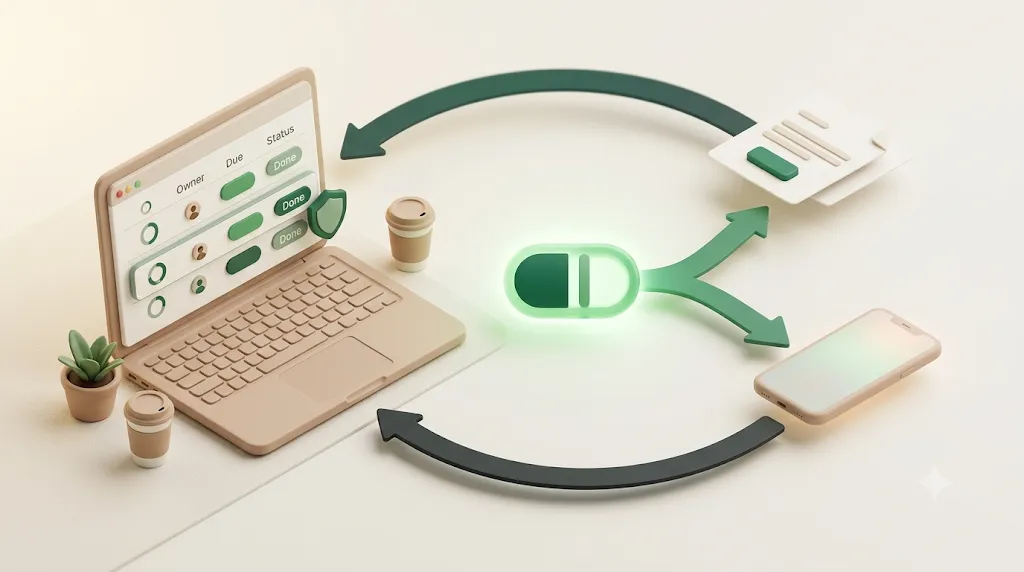
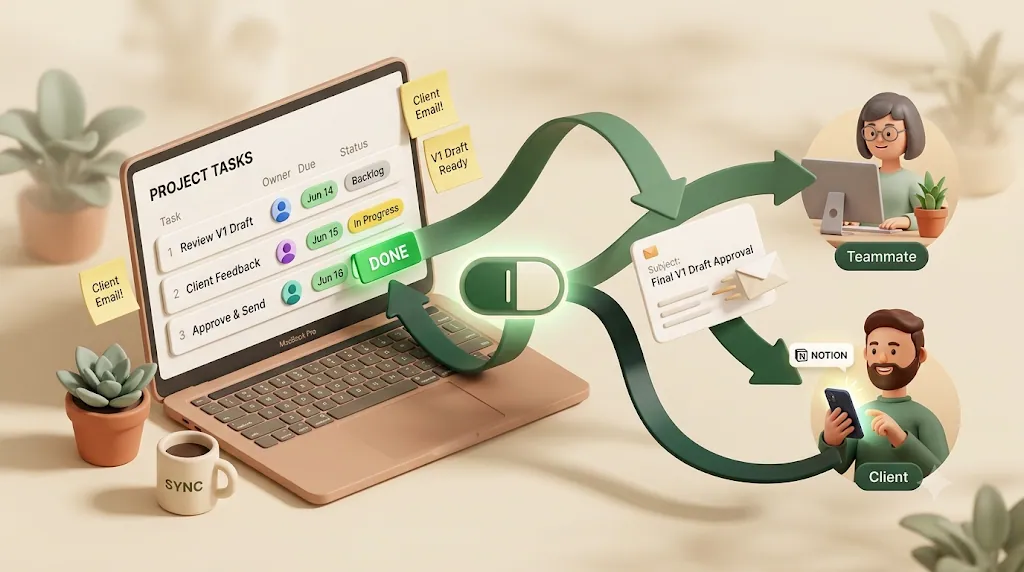
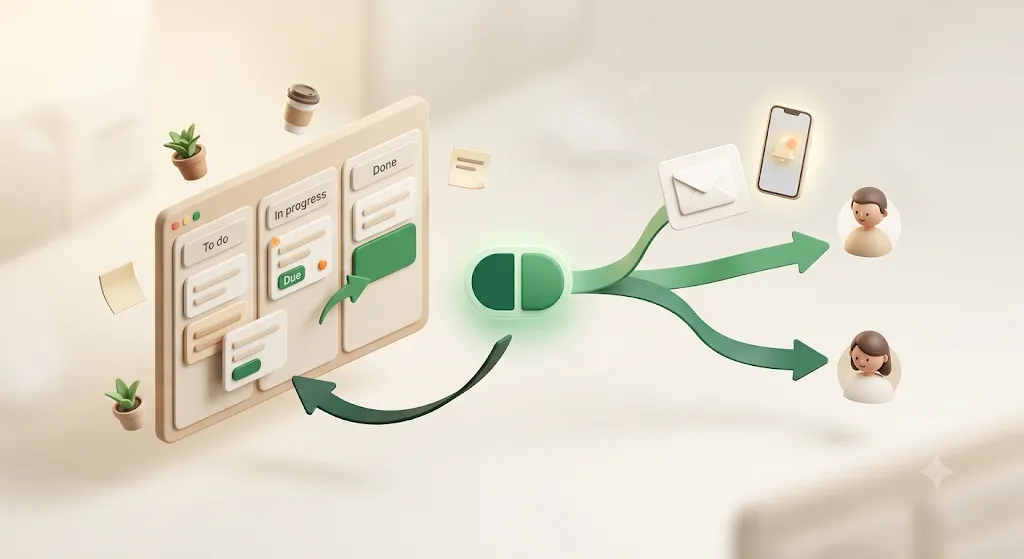
Kapsel is a Notion notification tool that watches a database's due date, assignee, and status and sends email reminders — including to people who don't use Notion — with a one-click confirmation that writes the status back to Notion. It sits on top of the exact progress setup this article just built; it doesn't replace your rollups, boards, or timelines.
The connection to progress tracking is direct. Kapsel watches the same due date, assignee, and status fields you used to compute progress. When an item goes overdue, it emails the assignee — and an external client or contractor with no Notion account, since delivery is by email with no login required. The recipient's one-click confirm writes the status back to Notion, which updates the very rollup or bar you built, so the picture stays current without anyone opening the app. And it never sends once an item is marked done or paid, so finished work stops generating noise. Overdue follow-ups, target filtering, recurring digests, a send log, and merge fields round it out; the Pro plan adds multiple workspaces and sender branding. Plans are Free $0, Standard $12, Pro $29 per month — see pricing for the details.
FAQ
How do you show percent complete in Notion?
Add a Rollup property over your sub-items or a related Tasks database, and set it to Percent checked (for a checkbox) or Percent per group (for a Status). Then open the property's display settings and choose Show as → Bar or Ring. The percentage recalculates automatically as tasks finish.
How do I create a progress bar in Notion?
Any Number or Rollup property can render as a bar. Open the property, choose Show as → Bar, and set Divide by to match your scale (use 1 for a rollup percentage). The bar reflects whatever the property calculates, so pair it with a Percent checked rollup for a live progress bar.
Can Notion calculate progress automatically from sub-tasks?
Yes. Enable Sub-items, add a Done checkbox to the sub-tasks, then add a rollup on the parent set to Percent checked. The parent shows the share of sub-items that are done and updates itself every time a box is ticked — no manual entry.
What's the difference between a rollup and a formula for tracking progress in Notion?
A rollup summarizes a property across related rows with a built-in calculation like Percent checked — simplest to set up. A formula computes the value directly (for example done / total), which is more flexible for deep nesting, weighting, or when there's no relation to roll up. Rollups are the easier default; formulas win when you need custom logic.
How do I see overdue tasks in Notion? Create a filtered view with Due date → is before → Today and Status → is not → Done, then sort by due date ascending. The view stays empty when you're on track and lists only overdue, unfinished work when something slips.
Does Notion notify you when a task is overdue? Notion can send date reminders and automation-based notifications, but they primarily reach people who have a Notion account and open Notion. There's no built-in way to email an overdue alert to someone outside your workspace, which is where an external reminder layer like Kapsel fits.
How do I track progress across multiple projects in Notion? Relate a Tasks database to a Projects database and add a rollup on each project that reports its tasks' completion as a percentage. A linked table of Projects, each with a progress bar, becomes a portfolio dashboard you can sort by least complete or most overdue.
How do I group a Notion board or timeline by status? Open the view's settings, choose Group by → Status, and each status value becomes a column (Board) or a swimlane (Timeline). It's a quick way to see how many items sit in each phase; the Kanban and Gantt guides walk through it.
How do I find stalled tasks in Notion?
Add a Last edited time property and a formula like dateBetween(now(), prop("Last edited time"), "days") to get days since last touched. Filter a view for items untouched beyond a threshold (say 7 days) that aren't yet Done, and you'll surface work that stopped moving even if it isn't overdue yet.
Can someone outside my company see progress on a Notion project? Not through Notion's own notifications — a client or contractor without a Notion account never sees your board or progress bar. You can share a public page, use an automation tool to email updates, or use a reminder service that emails external recipients directly with no account required.
Related reading
- Notion task management: the complete guide — the database foundation this article builds on.
- How to build a Kanban board in Notion — grouping by Status to see progress on a board.
- Notion Gantt chart and timeline guide — progress along a schedule.
- Recurring reminders in Notion — keeping repeating work moving.
- Team task reminders in Notion — multi-project setups and follow-through.
- Kapsel pricing — Free, Standard, and Pro plans.
Notes
Published 2026-08-10. Feature descriptions and pricing (Free $0, Standard $12, Pro $29 per month) are current as of writing; Notion's interface and Kapsel's plans may change over time, so verify specifics against the current product.