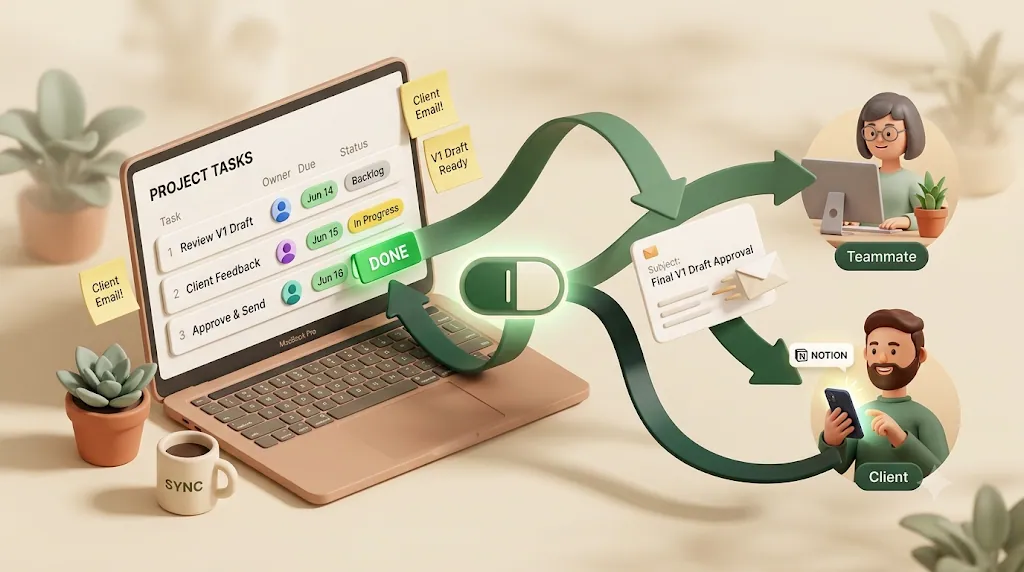
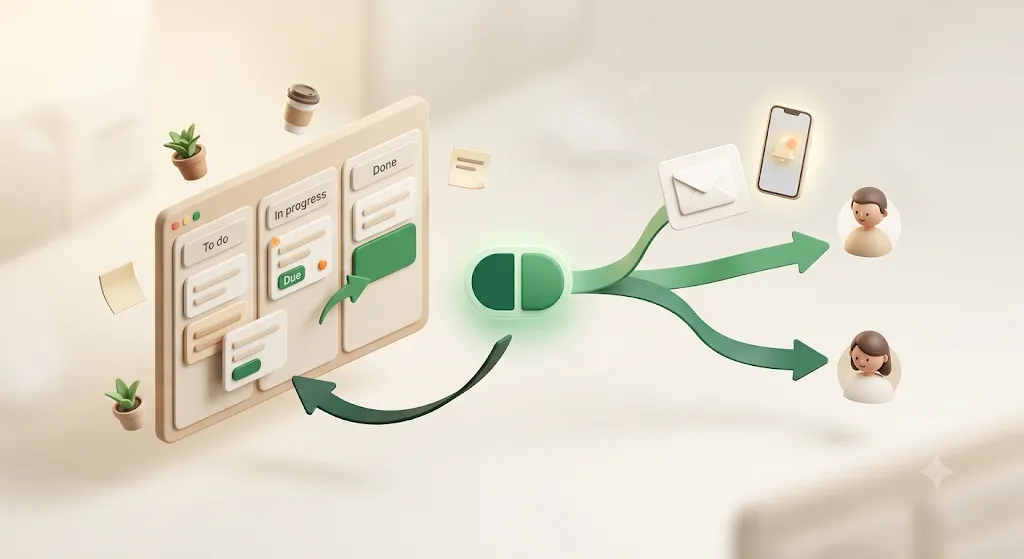
How to Build a Gantt Chart in Notion (Step-by-Step, With Templates)
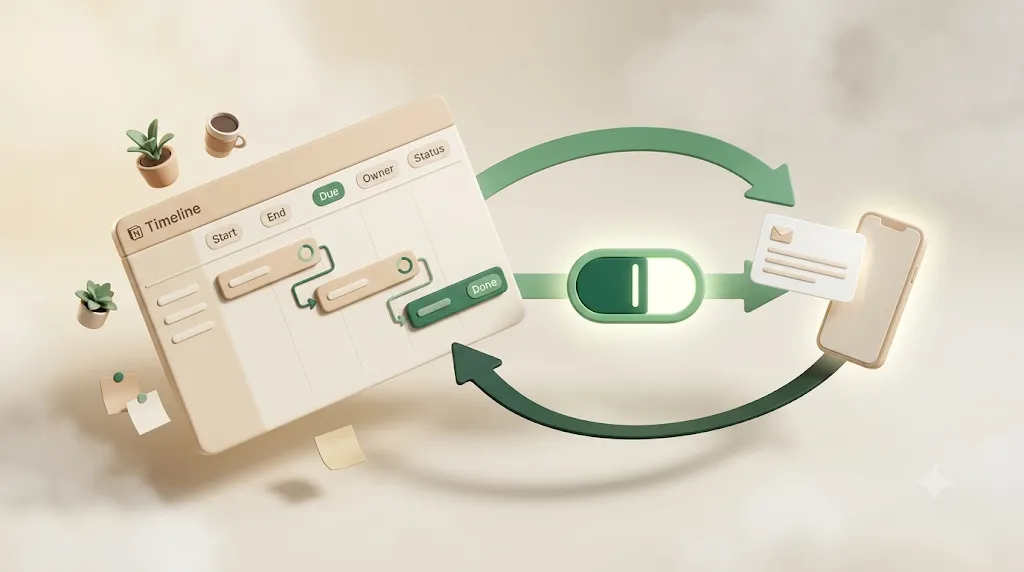
Build a Gantt chart in Notion and you'll end up with something that looks finished — bars, dependencies, a due date for everyone. But building the chart is the easy part: Notion won't email anyone when a date is set, approaching, or slips after a dependency shift, and it can't scope a client's view to just their milestone. This guide walks through building a Notion Gantt chart end to end — database setup, the Timeline view, dependencies, sub-items and rollups for progress — and then covers what most tutorials skip: who actually finds out when a bar's due date moves.
TL;DR
- A Notion Gantt chart is a Timeline view of a Tasks database. The bars come from a single Date property with "End date" toggled on, so each task has a start and an end.
- Core setup: Task name, Start date, Due date (end), Status, Assignee — then add the Timeline view and pick a display range (Day → Year).
- Notion supports finish-to-start dependencies only (not SS/FF/SF), plus three "shift" behaviors that are the closest it gets to automatic rescheduling.
- Sub-items + a rollup can show percent-complete or a task count on a parent bar — a real capability most guides never mention.
- Building the chart is the easy part. Notion won't email anyone when a date is set, approaching, or slips after a shift — and it can't scope a client's view to just their milestone. Tools like Kapsel cover that gap.
What a Notion Gantt chart actually is (and when it's the right view)
A Notion Gantt chart is a Timeline view placed on top of a normal database — the same rows you'd see in a table, drawn as bars along a horizontal calendar. Notion doesn't call the view "Gantt," but a Timeline with start/end dates and dependency lines is functionally a Gantt chart.
Reach for it when work has duration and sequence — a launch, a build, a client project with phases. If your tasks are just dated to-dos with no overlap or hand-offs, a Calendar or Board (Kanban) view is lighter and clearer.
| View | Best for | Shows duration? | Shows dependencies? |
|---|---|---|---|
| Timeline (Gantt) | Multi-week projects, phases, hand-offs | Yes (start → end bars) | Yes (finish-to-start) |
| Calendar | Deadlines and single-day items | No | No |
| Board (Kanban) | Daily execution by status | No | No |
| Table | Planning, bulk editing, portfolio lists | No | No |
💡 A Gantt chart is a view, not a separate database. Build one solid Tasks database and you can add Timeline, Board, Calendar, and Table views over the same data — no duplication. For the database fundamentals, see Notion task management.
Step 1 — Set up your Tasks database
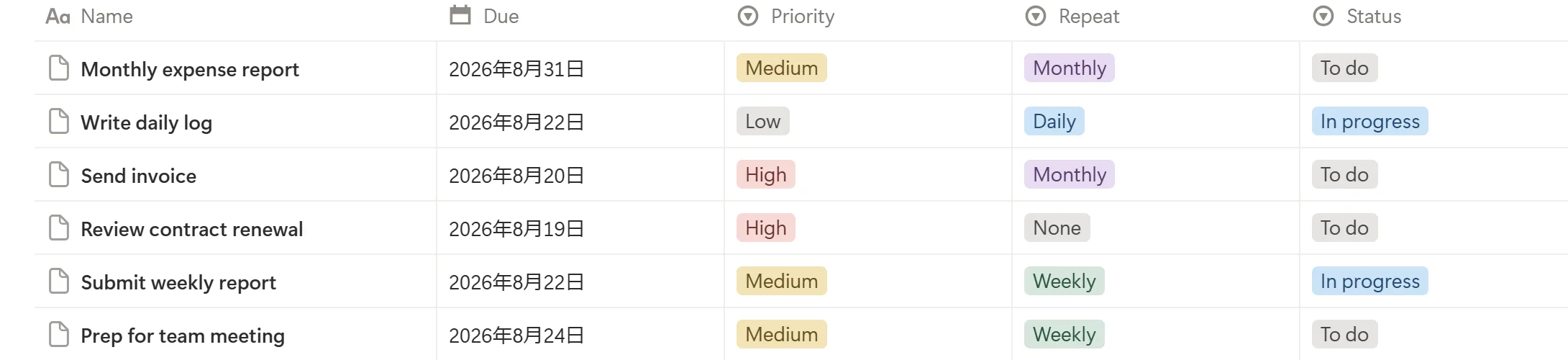
Start with a database, because the Timeline view can only draw what your properties describe. Get the Date and Status properties right here and every later step gets easier.
Core properties: Task name, Start date, Due date (end date), Status, Assignee
Every workable Gantt chart rests on a handful of properties. The one that makes the bars appear is a Date property with the "End date" option turned on — that's what gives a task both a start and an end instead of a single point.
- Task name (Title): what needs doing. Included by default.
- Dates (Date property): open the property, toggle End date on, and set a start and an end. This single property drives the length of each bar.
- Status (Status property): Not started → In progress → Done. Use the dedicated Status type so it pre-groups into To-do / In progress / Complete.
- Assignee (Person property): who owns the task. A Person property links to real workspace members, which lets you filter "assigned to me."
Getting these four right up front means every later step — grouping, dependencies, rollups — just works instead of fighting missing data.
⚠️ If your bars show up as thin single-day marks, the Date property doesn't have End date enabled — or a task only has a start filled in. Notion needs both ends to draw a span.
Optional properties: Priority, Sub-items, a Tasks-to-Project relation
Once the core five work, a few optional properties make the chart more useful without much effort. Add them as the project grows rather than all at once.
- Priority (Select): High / Medium / Low — useful for color-coding and grouping later.
- Sub-items: Notion's built-in way to nest smaller tasks under a parent (enabled in the database's
•••→ Sub-items). Covered in Step 4. - Project relation: if you track more than one project, a relation to a Projects database lets each Gantt task roll up to a portfolio. See team task setups for how that scales.
Step 2 — Turn it into a Timeline (Gantt) view
With the database in place, the chart itself is two clicks. This step adds the Timeline view, sets the zoom level, and makes the chart scannable so it doesn't become a wall of bars.
Adding the Timeline view and choosing a date range
Add the view with the + next to your existing view tabs and choose Timeline, or type the /timeline slash command on a page to insert a linked Timeline view. Notion will ask which Date property to use for the bars — pick the one with End date enabled.
Then set the zoom with the range selector in the top-right: Day, Week, Bi-week, Month, Quarter, or Year. Match it to your horizon — Week or Bi-week for a sprint, Quarter or Year for a roadmap.
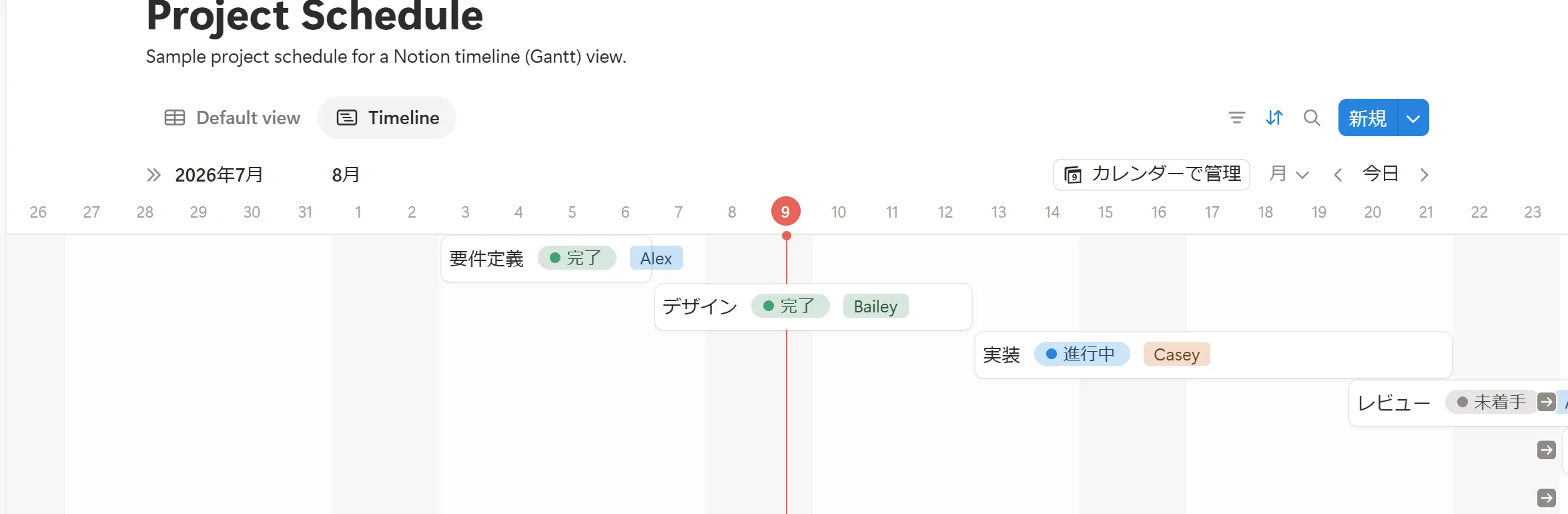
💡 Timeline has a split layout: a table on the left, bars on the right. Drag the divider to show key properties (owner, status) beside the chart without leaving the view.
Grouping by Assignee, Status, or Priority to keep it scannable
A flat Timeline gets noisy fast. Grouping stacks the bars into labeled lanes so you can read the chart by person or by phase instead of scanning one long pile.
- Group by Assignee to see each person's workload as its own lane — an easy way to spot who's overloaded.
- Group by Status to separate what's done, in progress, and not started.
- Group by Priority to keep the critical work visually together.
Then filter to cut clutter (for example, hide Done, or show one project) and sort by date or status so the lanes read in order.
Color-coding bars by status or priority so at-risk work stands out
Notion can color each bar by a property, which most Gantt tutorials skip. In the Timeline's settings, set the bar color to follow Status or Priority, and an at-a-glance signal appears — overdue-prone or high-priority work reads in one color, routine work in another.
You also control which fields show on each bar (property visibility): in the view settings, choose to display, say, the assignee or status label directly on the bar. Keep it to one or two fields so the chart stays legible.
Step 3 — Add dependencies between tasks
Dependencies draw the lines that turn a schedule into a plan: "this can't start until that finishes." Notion supports them, with one important limit worth knowing before you build a plan around it.
How to link tasks with the ->o connector
Hover over the end of a timeline bar and a small ->o link handle appears. Drag it to another task's bar to create a dependency line. The two tasks are now linked in sequence, and Notion keeps the connecting line between them as you move either bar.
What "automatic rescheduling" really means in Notion — the three shift modes
Notion's dependencies come with a rescheduling behavior you choose per database. This is the closest Notion gets to "automatic rescheduling," and it has exactly three modes:
| Shift mode | What it does |
|---|---|
| Shift only when dates overlap | A dependent task moves only if a change would make it collide with its predecessor. |
| Shift and maintain time between items | Dependent tasks move together, preserving the gap you set between them. |
| Do not automatically shift | Dependencies are drawn but nothing moves on its own; you reschedule by hand. |
💡 "Shift and maintain time between items" is what people usually mean by automatic rescheduling — push one bar and the chain slides while keeping the spacing. Set the mode in the Timeline view's dependency settings before you rely on it.
Picking the right shift mode up front means a schedule change ripples through your plan automatically instead of leaving you to reschedule every downstream task by hand.
The one thing to know first: Notion supports finish-to-start (FS) dependencies only
Standard project-management vocabulary has four dependency types — finish-to-start (FS), start-to-start (SS), finish-to-finish (FF), and start-to-finish (SF). Notion supports finish-to-start only. The ->o connector always means "the linked task begins after this one ends."
That's fine for most plans, which are mostly FS anyway. But if your schedule genuinely needs two tasks to start together (SS) or finish together (FF), Notion can't model that relationship natively — you'd approximate it with dates, or use a dedicated PM tool. Knowing this up front saves you from building a plan around dependency types Notion doesn't have.
Step 4 — Use sub-items and rollups to show progress
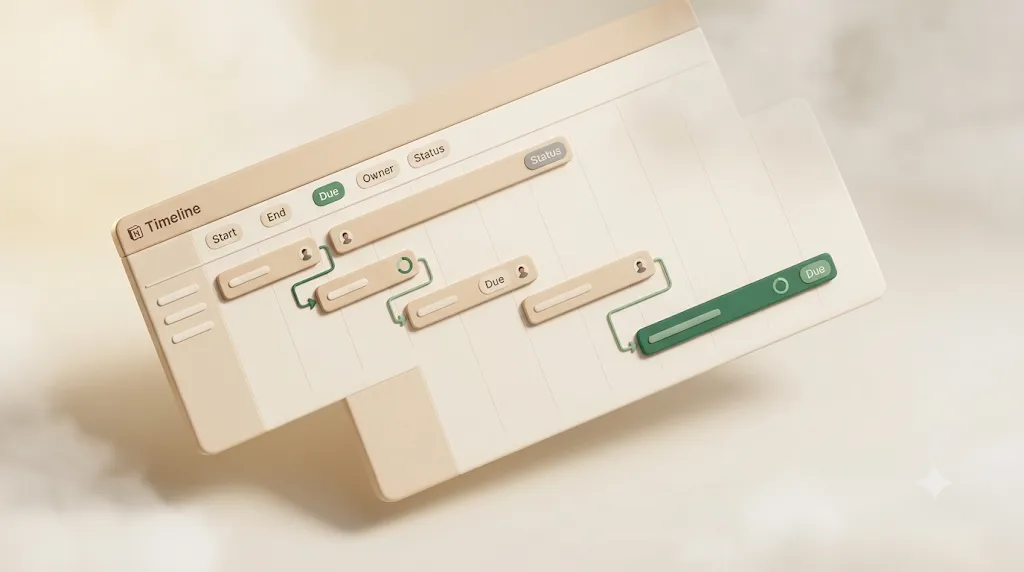
A bar tells you when, not how far along. Sub-items break work down, and a rollup turns those sub-items into a percent-complete or count on the parent — something most Gantt guides skip entirely.
Breaking a task into sub-items
Enable Sub-items in the database's ••• menu, then expand any task and add smaller tasks beneath it. Sub-items are still rows in the same database, so they can carry their own dates, owner, and status — and they appear nested under the parent on the Timeline.
Rolling up sub-item status into a percent-complete or count on the parent
Because sub-items are a relation, you can add a Rollup property that summarizes them on the parent row. Point the rollup at the Sub-items relation and the Status (or a checkbox) property:
- Percent complete: roll up Status and calculate the percent that are Done (or use a Checkbox and "Percent checked") — a live 0–100% figure on the parent.
- Task count: roll up and count the sub-items, or count how many are complete, e.g. "3 / 8 done."
Show that rollup as a property on the parent's bar (Step 2's visibility settings) and each project bar carries its own progress indicator.
💡 Rollups recalculate automatically as sub-items change status — no manual updating. It's a straightforward way to get a "% complete" on a Notion Gantt without a formula.
Step 5 — Filter and save views for different audiences
One database can serve many audiences by saving several filtered views. Instead of one crowded chart, give each person or stakeholder a view scoped to what they care about.
- "My work": filter Assignee = Me so each person opens straight to their own bars.
- "This phase": filter by a Phase or Priority property for a focused near-term view.
- "Active only": filter out Done to keep the timeline about what's ahead.
- Portfolio table: a Table view of every project for a high-level list alongside the Gantt.
Saved views are free and non-destructive — the underlying data never changes, only the lens. Keep a small set and switch between them.
Duplicating a free Notion Gantt template vs. building from scratch
You don't have to start empty. Notion and its community offer free Gantt/Timeline templates you can duplicate, which is often the faster path — but building it yourself teaches you the moving parts.
| Duplicate a template | Build from scratch | |
|---|---|---|
| Speed | Minutes | 20–40 minutes |
| Fit to your workflow | May need trimming | Exactly what you need |
| Understanding of the setup | Lower — it's pre-wired | Higher — you know every property |
| Best for | A quick start, or a reference | Custom phases, relations, rollups |
💡 A good middle path: duplicate a template to see how the Date/dependency/rollup pieces fit together, then rebuild the parts that don't match your process. Notion's own template gallery includes project and roadmap timelines to start from.
Is Notion's Gantt chart enough — or do you need a dedicated PM tool?
Notion's Timeline is genuinely capable for small teams and flexible projects, and it lives right next to your docs and notes. But it has honest limits that a dedicated tool is built to handle, and it's fair to name them.
| Notion Gantt fits when… | A dedicated PM tool (Asana, ClickUp, Jira, Monday) wins when… |
|---|---|
| Small team, flexible plan, all-in-one with docs | You need true SS/FF/SF dependencies and critical-path logic |
| Mostly finish-to-start sequencing | You need workload/resource management across many people |
| Manual dependency upkeep is fine | You want deep automation and portfolio reporting at scale |
| Progress via sub-items and rollups is enough | You need built-in Gantt reporting, baselines, and exports |
This isn't "Notion is bad." It's that Notion's Gantt is a view on a database, while a PM tool is purpose-built for scheduling. Dedicated tools like ClickUp make this case directly in their own Notion comparisons: Notion's Timeline doesn't scale cleanly to large, multi-team portfolios, dependencies need manual upkeep as a plan changes since there's no critical-path engine behind them, and there's no built-in reporting layer for burndown charts, baselines, or exports — you'd build those views yourself. For many teams the trade — losing some scheduling power to keep everything in one workspace — is worth it.
The gap standard Gantt tutorials skip: who finds out when the chart changes
Here's what almost every Gantt guide leaves out: a chart is only as good as whether the right person acts on it. Notion draws the bars and moves them, but it does very little to actively tell anyone. Three blind spots show up once real people and clients are involved.
Reminders only reach people who have Notion open
Notion's native @remind and date reminders send an in-app notification, and an email only when the app isn't open at the moment it fires. A contractor who checks Notion twice a week, or a client with no account, effectively never sees a project deadline in the chart.
When a dependency shifts a due date, the new owner doesn't get told
This is the quiet failure mode of automatic rescheduling. When a bar slides and Notion pushes the dependent tasks, it updates the dates — but it doesn't notify the person who now owns a new, earlier deadline. They only find out if they open the chart and look. A plan that reschedules silently is a plan people miss.
Sharing a Gantt with a client usually means sharing the whole database
Notion's sharing is page- or database-level. Share the Gantt page publicly or invite a guest, and you typically expose every task, every status, and everyone's name — not a scoped "here's just your milestone" view. There's no native way to send an external stakeholder only their slice.
How Kapsel closes that gap (light touch)
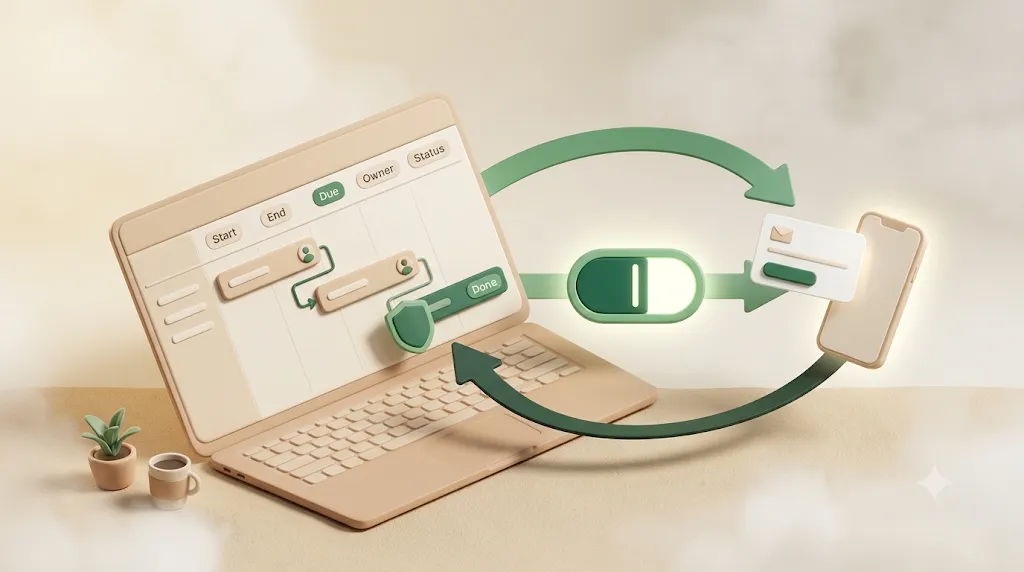
Definition: Kapsel is a Notion notification tool that watches your database's due date, assignee, and status, then sends email reminders — including to people who don't use Notion — with a one-click confirm that writes the status back to Notion.
Kapsel sits on the same Tasks database behind your Gantt chart and handles the "after you build it" part:
- Watches due date, assignee, and status and emails the owner when a date is set, approaching, or has slipped after a dependency shift — so a silently rescheduled deadline still reaches a person.
- Reaches people with no Notion account by email only — the client or contractor who was never going to open the shared page still gets their milestone.
- One-click confirm writes status back to Notion, so one click in the email updates the row (and the bar) without anyone logging in.
- Never sends once an item is marked done or paid, so no one gets nudged about work they've already finished.
Together, that closes the exact gap the tutorial above can't: the chart shows the plan, and Kapsel makes sure the right person hears about it when a date actually matters. It's an add-on to the tutorial above, not a replacement for it — build the chart in Notion, then let a reminder layer make sure the dates actually get acted on. Pricing is Free $0 / Standard $12 / Pro $29 per month (Pro adds multiple workspaces and sender branding); details on the pricing page.
Try Kapsel free. Kapsel watches your Notion due dates, assignees, and status, then sends automatic email reminders — including to people without a Notion account — and lets recipients confirm in one click, writing the status back to Notion. Free plan, no credit card required. → Start with Kapsel
FAQ
How do you make a Gantt chart in Notion for free?
Create a database with a Date property that has "End date" toggled on, add a Timeline view via the + next to your views (or the /timeline command), and pick a display range. This is fully available on Notion's Free plan.
Does Notion have a built-in Gantt chart template? Notion doesn't label anything "Gantt," but its template gallery includes project and roadmap Timeline templates you can duplicate, which are functionally Gantt charts. You can also build your own in a few minutes.
Can Notion Gantt charts show task dependencies?
Yes. Hover over the end of a timeline bar to reveal the ->o link handle and drag it to another task to link them. You can also choose how dependent tasks reschedule using the three shift modes.
Does Notion support finish-to-start and other dependency types (SS, FF, SF)? Notion supports finish-to-start (FS) only — the linked task begins after its predecessor ends. Start-to-start, finish-to-finish, and start-to-finish relationships aren't modeled natively; you'd approximate them with dates or use a dedicated PM tool.
How do you show percent complete on a Notion Gantt chart? Break the task into sub-items, then add a Rollup property pointing at the Sub-items relation and the Status (or a checkbox) property, calculated as a percentage of Done. Display that rollup on the bar for a live progress indicator.
Can you color-code tasks in a Notion timeline view? Yes. In the Timeline view settings you can set the bar color to follow a property such as Status or Priority, which makes high-priority or at-risk work stand out at a glance.
How do I add sub-tasks to a Notion Gantt chart?
Enable Sub-items in the database's ••• menu, then expand any task and add smaller tasks beneath it. Sub-items carry their own dates and status and appear nested under the parent on the Timeline.
Does Notion send reminders when a Gantt chart task is due or overdue?
Only weakly. Native @remind and date reminders reach logged-in members and send an email only when the app is closed, and Notion doesn't notify anyone when a dependency shift moves their due date. Tools like Kapsel add email reminders that reach external people too and never send to completed items.
Can you share a Notion Gantt chart with clients who don't use Notion? You can share the page publicly or with a guest, but that usually exposes the whole database — every task, status, and name — not a scoped view of just their milestone. A reminder layer that emails a client only their item avoids sharing the entire chart.
Is Notion's Gantt chart good enough for large or complex projects, or do I need a dedicated PM tool? For small teams and flexible, mostly finish-to-start plans, Notion's Timeline is usually enough and keeps everything beside your docs. For true SS/FF/SF dependencies, resource management, deep automation, or portfolio reporting at scale, a dedicated tool like Asana, ClickUp, Jira, or Monday is the better fit.
Related reading
- Notion task management: build the database behind your Gantt chart — the foundation this view sits on.
- Notion team tasks: assign, filter, and share work across a team
- Notion team task reminders that reach everyone
- Notion calendar: deadlines and scheduling views
- How to manage deadlines and due dates in Notion
- Recurring reminders from Notion, automatically
Notes
Published 2026-08-09 (updated 2026-08-27). Notion features (Timeline view, dependency shift modes, sub-items, rollups, color-coding) and Kapsel's features and pricing (Free $0 / Standard $12 / Pro $29 per month) are described as current as of the publish date and may change over time.