How to Build a Kanban Board in Notion (+ Alerts When Cards Stall)
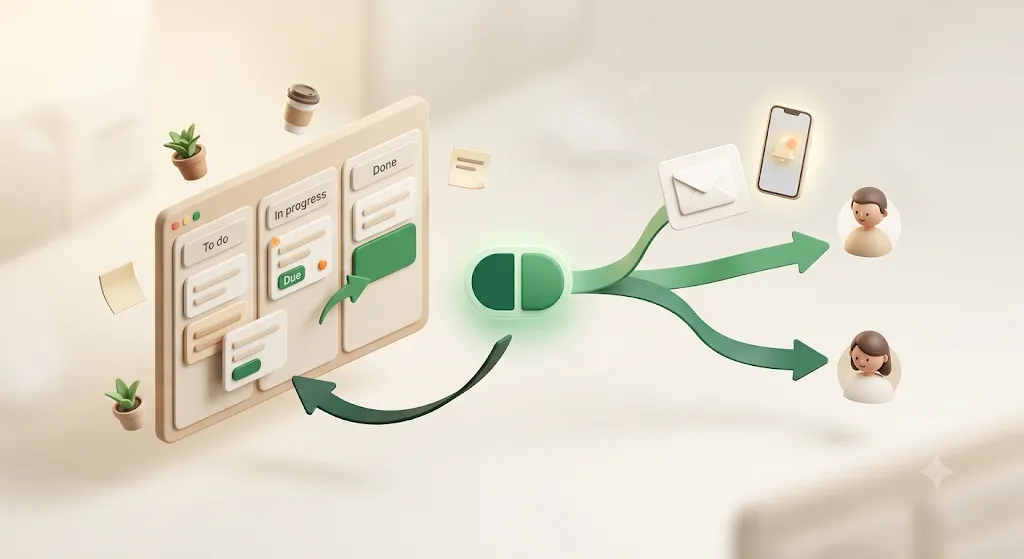
A Kanban board turns a list of tasks into columns you can see and drag across at a glance — and if you're already living in Notion, you don't need a separate app for it: a board is just one of the views your task database can wear. This guide walks through building a Board view from scratch, running it day to day, and handling the one thing a board quietly can't do on its own — telling people when a card stalls.
TL;DR
- A Notion Kanban board is a Board view of a database, grouped by a property (usually Status). Each card is a database row/page; each column is one value of that property.
- Build it in four moves: open or create a Tasks database → add a Board view → Group by Status → choose which properties show on the card face.
- The same database also renders as Table, Calendar, and Timeline — all in sync, because it's one underlying database.
- A board makes work visible, but visibility isn't follow-through: a card can sit past its due date with nobody told, and clients without a Notion account never see the board at all.
What a Notion Kanban board actually is
A Notion Kanban board is a Board view of a database, grouped by a single property so that each value of that property becomes a column. It is not a separate document type — it's a lens on data you already have.
Two facts explain almost everything about how boards behave:
- Each card is a row (page) in the database. Open a card and you get a full Notion page: properties at the top, free-form content below.
- Each column is one value of the grouping property. Group by a Status property with values To-do, In Progress, and Done, and you get three columns with those names. Change the grouping property and the columns change with it.
Because the board is a view, the same tasks can appear as a table or a calendar at the same time. You're never copying data between formats — you're re-grouping one dataset.
💡 New to Notion databases? The properties, views, and filters that make a board work are covered in the Notion task management guide. This article builds directly on that foundation.
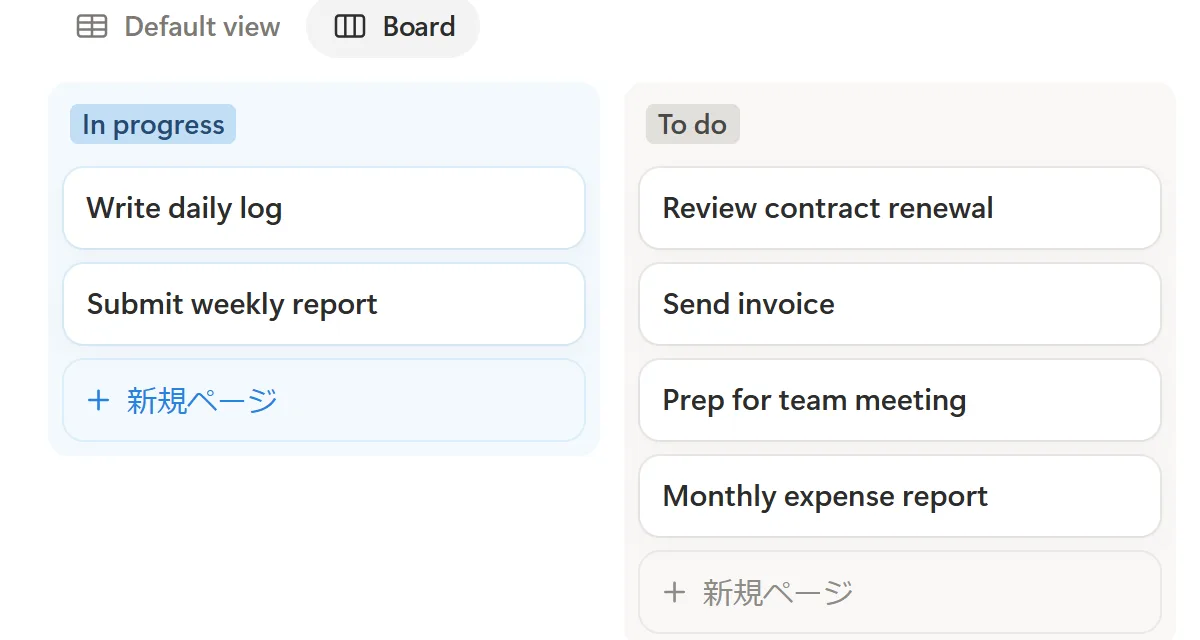
The core card properties
A workable board needs only a handful of properties. Everything else is optional polish. These five cover most Kanban workflows.
| Property | Notion type | What it does on the board |
|---|---|---|
| Task name | Title | The card's headline; the one field every row has |
| Status | Status (or Select) | Drives the columns; dragging a card changes its value |
| Assignee | Person | Who owns the card; enables "my cards only" filters |
| Due date | Date | When it's due; powers reminders and Calendar/Timeline views |
| Priority | Select or Number | Sort order and quick visual triage |
The Status property is the most important choice. Notion's dedicated Status type ships with three preset groups — To-do, In Progress, and Complete — and knows which options count as "done." A plain Select property also works and is more flexible, but you lose that built-in concept of completion. For a first board, the Status type is the cleaner default.
Build the board step by step
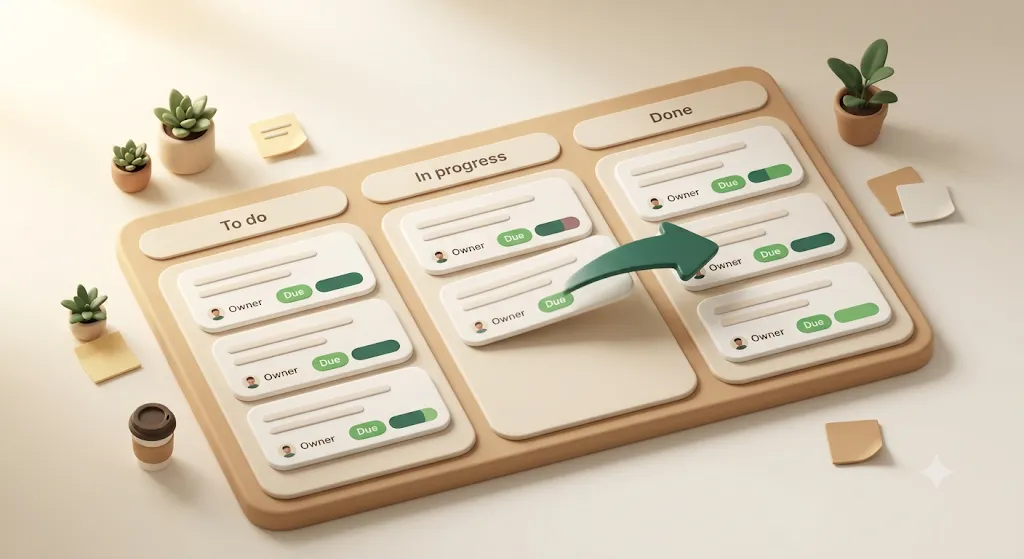
Building a board takes four concrete steps once you have a database to hold the tasks. Below, each step is a single action you can do in order.
Start from your Tasks database
A board needs rows to display, so start with the database that holds your tasks — create a new one or open an existing one.
- New database: on a blank page, type
/databaseand choose Table view (or/boardto jump straight to a board — more on that next). - Existing database: just open it. Any task list you already keep can become a board without moving data.
Make sure it has at least a Status property before you continue. If you're setting up the database itself — properties, relations, sub-tasks — do that first using the task management guide, then come back here for the board.
Add a Board view to the database
There are two ways to get a board: add a brand-new Board view next to your existing ones, or convert an existing view's layout to Board in place.
Add a new Board view (keeps your Table view intact):
- At the top of the database, click the + next to the current view name (e.g., next to Table).
- Choose Board.
- Name the view (e.g., Board or Pipeline) and confirm.
You end up with the same tasks visible two ways at once, so nobody has to choose between a spreadsheet-style edit and an at-a-glance status view.
Or convert an existing Table view: open that view's ••• menu → Layout, and change the layout to Board. This turns the current view into a board rather than adding a separate one — useful if you'd rather not have an extra tab in the database.
If you added a new view, the original Table view stays exactly where it was. You can switch between them anytime from the view tabs. Typing /board on a blank page does the same thing in one step — it creates a new database that opens directly in Board view.
💡 Add as many views as you like. A common setup is one Table (for editing lots of rows fast), one Board (for status at a glance), and one Calendar or Timeline (for dates).
Group by Status
The board needs to know which property becomes the columns. That setting is Group by, and for a Kanban board you want it set to Status.
- Open the view's ••• menu (or Settings) → Group.
- Set Group by to your Status property.
If your first columns don't look right, this is almost always where to check. Grouping by the wrong property (say, Created time) produces a column for every distinct value, which is rarely what you want on a Kanban board.
Group by isn't locked to Status, either. Set it to Assignee and you get a board where each column is a person — handy for a quick per-person workload view. Set it to Priority and columns run Low → Medium → High instead of by stage. Same Group setting, different lens on the same data.
Set your column order and edit the status options
Columns follow the order and colors of the Status property's options, so when you shape the property, the board follows.
- Reorder columns: drag a column header left or right. The new order sticks for that view.
- Rename or recolor an option: click the column header's •••, or edit the Status property directly (Rename, pick a color).
- Toggle column color: in the Group settings, click a group's color swatch and pick a color, or set it back to Default to turn the tint off — useful for making one column (like Blocked) stand out from the rest.
- Add a column: scroll to the right edge and click + Add group, or add a new option to the Status property.
- Hide a column: in the Group settings, toggle individual groups off. You can also hide empty groups so unused statuses don't clutter the board.
A typical order reads left to right as the work flows: To-do → In Progress → In Review → Done. Color helps too — cool colors for early stages, green for done — so the board reads at a glance.
Choose which properties show on the card face
By default a card shows only its title. You decide what else appears and how large each card is.
- Show/hide properties: view ••• → Properties, then toggle which ones show on the card (e.g., Assignee, Due date, Priority). Keep it to two or three — cards get noisy fast.
- Card size: ••• → Layout → Card size (Small / Medium / Large).
- Card preview: in Layout, set the preview image to Page cover, Page content, or a Files & media property — useful for design or content boards where a thumbnail matters.
⚠️ Every property you show adds height to the card. On a busy board, showing Assignee + Due date + one color-coded Priority is usually the sweet spot; everything else lives inside the card page.
Using the board day to day
Day to day, you'll mostly drag cards, then reach for grouping, filters, and sorting to cut the board down to what matters right now. Here's each move.
Drag cards between columns to change status
The core interaction: drag a card from one column to another to change its Status. Moving a card from In Progress to Done writes Done into that row's Status property — the same as editing it in the Table view. Because it's one database, the change shows up everywhere that row appears.
Sub-group by Assignee (or anything else)
A second layer of grouping splits each column into horizontal bands. This is how you see who owns the work inside each status.
- View ••• → Group.
- Set Sub-group by to Assignee (or Priority, Project, etc.).
Now each Status column is divided into rows per person: In Progress → Alex, In Progress → Sam, and so on. It's the fastest way to spot someone carrying too much in one stage.
Filter — hide Done, show only my cards
Filters trim the board to a relevant slice without deleting anything. Two filters do most of the work.
- Hide completed work: add a filter Status is not Done (or Status → Complete group is not checked). The Done column disappears from that view; the cards still exist.
- My cards only: add a filter Assignee contains Me. Notion's Me token resolves to whoever is logged in, so the same view shows each person their own cards.
Between the two, everyone opens the board to a short, relevant list instead of scrolling past finished work to find their own cards. Filters are per-view, so a "My tasks" board and a "Whole team" board can share one database with different filters.
Sort cards within a column
Sorting sets the order of cards inside each column. Add a sort from the view ••• → Sort.
Common choices: sort by Priority (highest at top) or by Due date (soonest first) so the next thing to work on is always at the top of each column. You can stack sorts — Priority first, then Due date as a tiebreaker.
WIP-limit habits (Notion has no hard WIP limit)
Kanban's core discipline is the WIP (work-in-progress) limit: cap how many cards sit in a stage so the team finishes work instead of starting more. Notion has no built-in hard cap — it won't stop you from dropping a 12th card into In Progress — so you enforce limits by convention or by making the count visible.
Naming-convention limits
The lightest approach is to put the target in the column name: rename In Progress to In Progress (max 3). It's a visible reminder every time someone looks at the board.
⚠️ A naming convention is a nudge, not a guardrail. Notion won't block the fourth card — the habit only works if the team agrees to respect it.
A filtered view with a live count
A more concrete technique uses features Notion already has: a filtered view that shows a live count of in-progress cards.
- Duplicate the board (or add a Table view) and filter it to Status is In Progress.
- Notion shows the number of rows in that view — a live count of current WIP.
- Optionally, add a Board grouped by Assignee with the same filter to see each person's in-progress count.
When the count creeps past your target, that's the signal to finish before starting. It's not an automated block, but it turns an abstract rule into a number you can actually watch.
The same database as Table, Calendar, and Timeline
Because a board is a view, the same tasks can appear as a Table, a Calendar, or a Timeline at the same time — and they all stay in sync, since there's one underlying database.
| View | Best for | Needs |
|---|---|---|
| Board | Status at a glance, dragging work forward | A Status/Select property |
| Table | Fast bulk editing, seeing every property | Nothing extra |
| Calendar | Seeing due dates on a monthly grid | A Date property |
| Timeline | Schedules, durations, dependencies (Gantt) | A Date (or start/end) property |
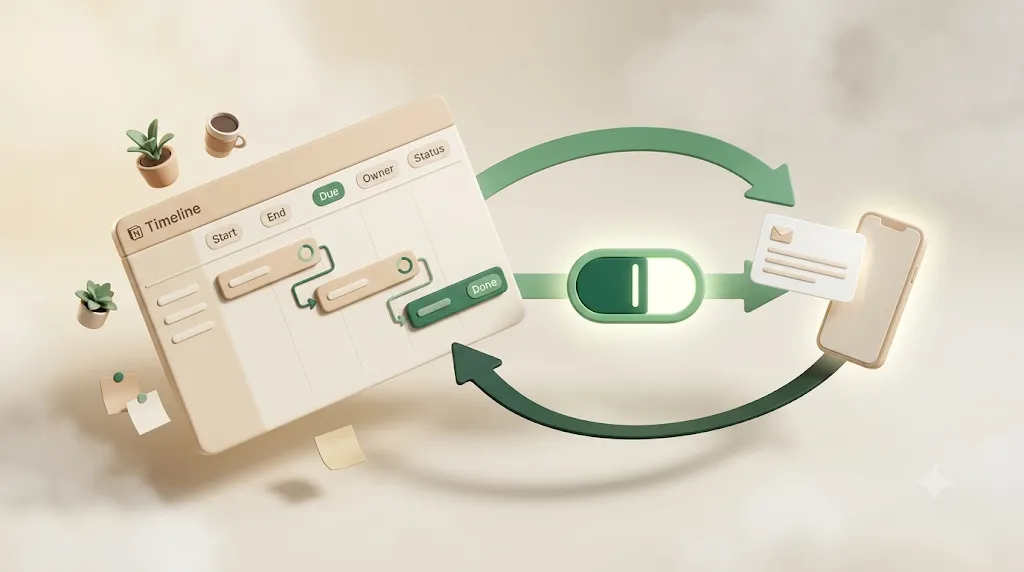
Change a card's status on the board and the Table reflects it; change a due date in the Calendar and the Timeline moves. You maintain one dataset and read it however the moment calls for. The Timeline view — Notion's Gantt-style schedule — has its own setup and dependency options, covered in the Notion Gantt chart guide.
Template vs. building from scratch
You can start from a prebuilt template or build the board yourself. Both end up at the same place — a database with a Board view — so the choice is about speed versus fit.
| Template | From scratch | |
|---|---|---|
| Speed | Instant; columns and properties preset | Slower; you add each property |
| Fit | May include fields you won't use | Exactly what you need |
| Learning | Less; you inherit someone's structure | More; you understand every property |
Notion's template gallery includes ready-made task and project boards (yes — Notion has Kanban templates), and duplicating one is a fine way to start. That said, a board is quick enough to build from scratch that many teams prefer to grow their own so every property earns its place. A middle path: duplicate a template, then delete the properties you don't need.
What a Kanban board can't do on its own
A board is excellent at showing the current state of work. What it doesn't do is reach out when that state goes wrong — a stalled card just sits there, silently. Here's what Notion notifies about natively, where the gaps are, and one tool that fills them.
What native Notion notifications actually cover
Notion does send notifications, and it's worth knowing exactly what they cover before adding anything on top.
- Date-property reminders: on a Date property you can set a reminder (e.g., 1 day before or 2 days before the due date). Notion notifies at that time.
- Person-property notifications: the Person property has a setting for who gets notified when assigned — Users and groups, Users only, or None.
The catch is who these reach. Native notifications only land for someone who has a Notion account, has notifications turned on, and actually checks Notion — the in-app bell or the email digest. If a person doesn't open Notion, the reminder waits in Notion.
The two gaps: silent stalls and people outside Notion
Two everyday situations fall outside what native notifications handle.
- The silent stall. A card can sit in In Progress past its due date indefinitely, and no one is automatically told beyond whatever the assignee happens to notice. The board shows the problem, but only to someone looking at the board.
- People with no Notion account. A client or contractor without Notion cannot see the board or a card at all. Due dates and status changes are invisible to them by default, so "it's on the board" doesn't reach them.
These aren't flaws in the board — they're the edge of what a visibility tool is designed to do. Closing them means adding a notification layer.
How Kapsel fills the gap
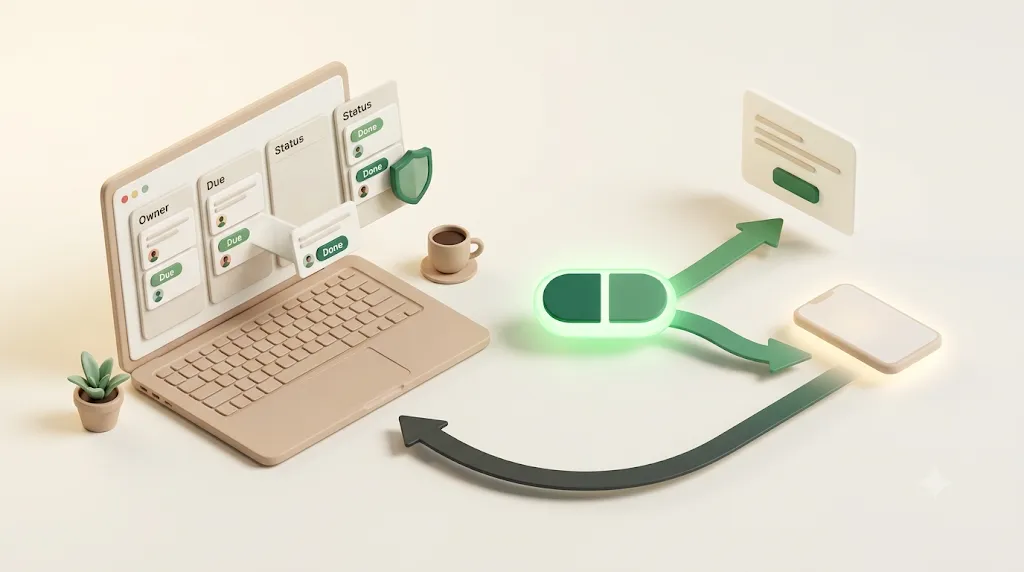
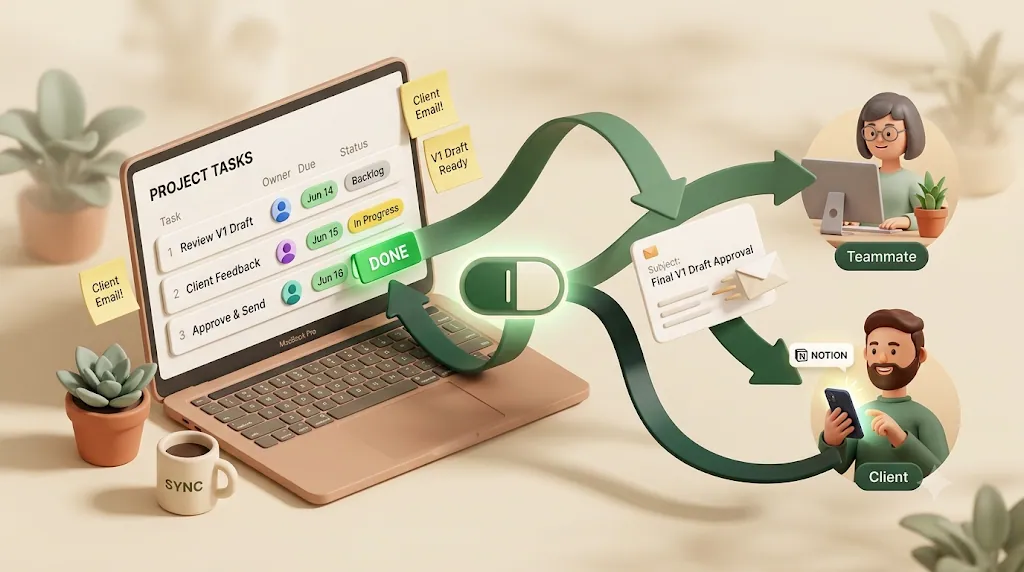
Kapsel is a notification tool that watches a Notion database's due date, assignee, and status, then sends email reminders — including to people who don't use Notion. It sits on top of the same board you just built, so there's nothing new to maintain.
On that database, Kapsel:
- Emails the assignee — and any external recipient with no Notion account (email only, no login required), so a client or contractor sees the due date without ever opening the board.
- Includes a one-click confirm button that writes the status back to Notion (two-way), which can move the card to the next column — the recipient updates the board from their inbox.
- Never sends once a card is marked done. Completed and paid items are skipped by design, so no one gets a reminder for something they already finished.
That's the whole role: the board keeps work visible inside Notion; Kapsel handles the follow-through that has to travel outside it. For a fuller treatment of team-facing reminders, see team task reminders in Notion and recurring reminders.
Try Kapsel free. Kapsel watches your Notion due dates, assignees, and status, then sends automatic email reminders — including to people without a Notion account — and lets recipients confirm in one click, writing the status back to Notion. Free plan, no credit card required. → Start with Kapsel
FAQ
What is a Kanban board in Notion? It's a Board view of a Notion database, grouped by a property (usually Status). Each card is a database row/page, and each column is one value of the grouping property. Because it's a view, the same data can also appear as a table, calendar, or timeline.
How do I create a Kanban board in Notion?
Open or create a database, click the + next to the view name and choose Board, then set Group by to your Status property. On a blank page you can also type /board to create a new database that opens directly in Board view.
Does Notion have a Kanban template? Yes. Notion's template gallery includes prebuilt task and project boards you can duplicate. You can also build one from scratch in a few clicks, which many people prefer so every property fits their workflow.
Can you set WIP limits in Notion? Not as a hard cap — Notion won't block extra cards in a column. You can enforce a limit by convention (rename a column to In Progress (max 3)) or make it concrete with a filtered view that shows a live count of in-progress cards so you can watch when it exceeds your target.
How do I add sub-groups to a Notion board view? Open the view's ••• menu → Group, then set Sub-group by to a second property such as Assignee or Priority. Each column then splits into horizontal bands per value — for example, In Progress broken out by person.
Can the same Notion database show as a table, calendar, and timeline? Yes. A board is one view of a database, and you can add Table, Calendar, and Timeline views of the same data. They stay in sync automatically because they all read from one underlying database.
Does Notion notify people when a task is overdue? Notion can remind on a Date property (e.g., 1 day before due) and notify on assignment, but it doesn't automatically chase a card that has already gone overdue. Those notifications also only reach people who have a Notion account, have notifications on, and check Notion.
How do I stop tasks from getting stuck on a Notion Kanban board? Use filters and sorts to surface overdue and high-priority cards, and a WIP-limit habit to stop overloading In Progress. For cards that stall past their due date, you need something that actively notifies the assignee. A layer like Kapsel emails a reminder — and can reach people outside Notion — when a due date passes.
Can someone update a Notion Kanban card without a Notion account? Not natively — without an account, a person can't see or edit the board. Kapsel adds this: it emails an external recipient a one-click confirm button that writes the status back to Notion, so they can move a card forward without logging in.
What's the difference between a Notion Kanban board and Trello? Trello is a dedicated Kanban tool where the board is the product. In Notion, the board is one view of a broader database, so the same tasks can also be a table, calendar, or timeline, and cards carry rich properties and full pages. Trello can feel simpler to start; Notion is more flexible for teams that want one connected workspace. For a fuller breakdown, see the Notion vs Trello comparison.
How many columns should a Kanban board have? Enough to reflect your real workflow and no more — often three to five (e.g., To-do, In Progress, In Review, Done). Too many columns make the board hard to scan and blur where work actually sits.
Can you filter a Notion board to show only your own tasks? Yes. Add a filter Assignee contains Me. The Me token resolves to whoever is logged in, so a single view shows each person only their own cards.
Try it on your own board
Build the board, wire up Status and Due date, and run it for a week — the structure above works with nothing extra. When you hit the point where visible isn't the same as finished — a stalled card, or a client who never opens Notion — that's where a notification layer earns its place. You can see how Kapsel's plans compare, including the free tier, on the pricing page.
Notes
Published 2026-08-09 (updated 2026-08-27). Notion features (Board view, grouping, sub-groups, filters, Date-property reminders, Person-property notification settings) and Kapsel features and pricing described here are current as of writing. Notion's interface and Kapsel's plans may change; check the respective product for the latest. Kapsel pricing referenced: Free $0, Standard $12, and Pro $29 per month (Pro adds multiple workspaces and sender branding).