How to Build a Notion Task System That Still Works When Your Team Doubles
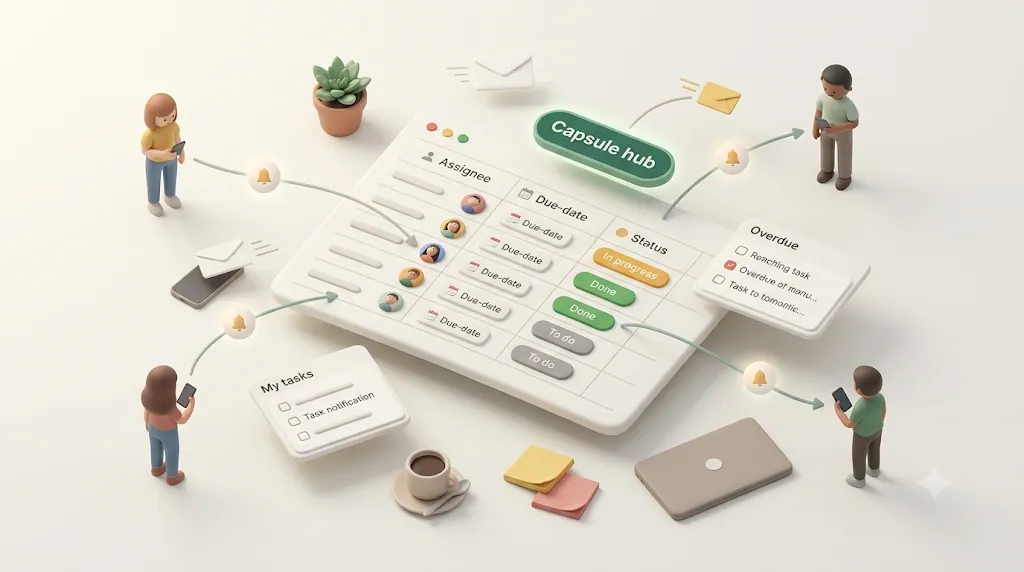
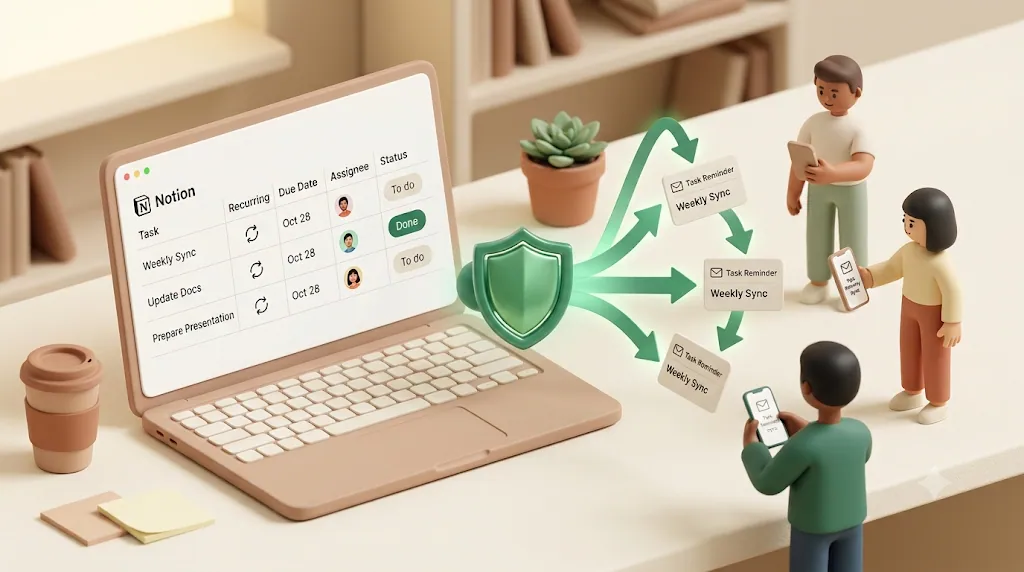
You built a clean Notion task database — Assignee, Due Date, Status, all wired up — and tasks are still slipping through the cracks. That's because a Notion task system is really two layers: a structure layer (the database itself — properties, relations, views) that barely notices when your team doubles, and a notice layer — the mechanism that gets the right task in front of the right person — that quietly cracks first. Most setup guides only ever tune the first one.
This is a blueprint for both: the minimal property set, one master database, and the views that make the structure layer scale — plus the notice-layer failure mode that a good schema alone can't fix. It builds on the fundamentals in how to set up Notion task management.
TL;DR
- Three properties carry the whole system: Assignee (Person), Due Date, and Status. Add anything else only when a recurring need forces it.
- Use one master task database with relations to a Projects database — not a separate list per team, project, or person.
- Most "we need a new field" requests are actually solved by adding a view, not a property: a board by Status, a calendar for deadlines, and a personal filtered view cover almost everything.
- What breaks at scale is notice, not structure. Notion's Person-property notification only reaches people who are already in the workspace, logged in, and watching Notion. The moment a client, freelancer, or vendor is involved, the schema still works but the reminders don't reach them.
The three properties that carry the whole system: Assignee, Due Date, Status
A team task database needs far fewer properties than most people add. In practice, a task record answers three questions: who owns it, when it's due, and where it stands. Everything else is optional.
A workable minimal core is:
| Property | Type | What it answers |
|---|---|---|
| Title (Name) | Title | What is the task |
| Assignee | Person | Who owns it |
| Due Date | Date | When it's due |
| Status | Status | Where it stands |
| Priority (optional) | Select | Which of these comes first |
💡 Priority earns its place only if your team actually sorts or filters by it. If nobody looks at it, it's clutter that makes every new row slower to fill in.
Start here and resist the urge to pre-build for every future scenario. A lean schema is faster to fill in, which is the single biggest driver of whether a team actually keeps the database up to date.
Person property vs. tags for assignee — a tag is a label, a Person property is the only one with a notification path
This is the one property choice with real consequences. You can record who owns a task two ways, and they are not equivalent:
- A Person property links the task to an actual workspace member. It's the only assignee type that can trigger Notion's built-in notification, and it powers the "Assignee is Me" filter that makes personal views possible.
- A tag or Select property (typing someone's name as an option) is just a colored label. It looks the same in a table, but it notifies no one and can't be filtered to "me."
The catch: a Person property only works for people who are already members of your Notion workspace. You can't assign a task to someone who doesn't have a seat. That's fine for staff, and it becomes the central tension once outside collaborators enter the picture — more on that below.
⚠️ If you find yourself using a text or Select field for assignee because the person "isn't in Notion," that's a signal, not a workaround. It means part of your team lives outside the notification path entirely.
Designing Status as signal, not decoration (healthy states vs. needs-attention states)
Status is usually treated as a passive label — To Do, In Progress, Done. It works harder if you design it to separate healthy states from states that need attention. Notion power users — Notion VIP among them — take this further, using a formula to compute status automatically, so "needs attention" is calculated rather than remembered.
A more useful status vocabulary might be:
| Status | Category | Signals |
|---|---|---|
| Not Started | Healthy | Queued, nothing wrong yet |
| In Progress | Healthy | Being worked on |
| Blocked | Needs attention | Waiting on someone or something |
| Overdue | Needs attention | Past due, not done |
| Done | Complete | Finished — should stop appearing in active views |
The point isn't the exact labels. It's that a manager should be able to filter to "needs attention" and see the short list of things actually at risk, instead of scanning every row.
Due date set by a manager vs. the date an assignee actually plans around
One quiet source of missed deadlines: the Due Date is often the date a manager wants it done, not the date the person doing the work is planning around. When those two dates silently disagree, the task looks on-track right up until it isn't.
Two practical options:
- Keep a single Due Date and make it a shared commitment — the assignee is expected to flag early if it's unrealistic, not to quietly miss it.
- Add a second date (e.g., Target vs. Due) only if your team genuinely negotiates internal dates against external deadlines. For most teams, one honest date beats two half-maintained ones.
One task database, not one list per project or per person
The most common structural mistake is spawning a new task list for every project, team, or person. It feels organized on day one and fractures by month three: tasks are impossible to see across, the same person's work is scattered, and nobody can answer "what's due this week" without opening ten pages.
The alternative is a single master task database that everything flows into.
Relating tasks to a Projects database instead of duplicating rows
Instead of separate lists, keep one Tasks database and one Projects database, connected with a Relation property. Each task points to its project. This gives you the best of both worlds:
- Every task lives in one place, so cross-project views and per-person views are trivial.
- Each project page can still show just its own tasks (via the relation), so it feels like a dedicated list without actually being a separate database.
- Rollups on the Projects database can summarize progress (e.g., percent of tasks done) without any manual counting.
💡 The test: if you ever need to see "everything Dana owns across every project," a single database answers it instantly. Separate lists per project can't answer it at all.
Resist adding properties — most 'new field' requests are actually solved by a new view
As a team grows, requests for new fields arrive constantly: "Can we add a column for my tasks?" "Can we tag deadline tasks?" Most of these are view requests wearing a property costume.
- "I want to see only my tasks" → a filtered view, not a property.
- "I want to see what's due this week" → a calendar or a date filter, not a property.
- "I want the urgent ones on top" → a sort, not a new field.
Every property you add is a field every teammate has to consider on every new row. Views are free by comparison — they reshape the same data without adding maintenance. Add a property only when the information genuinely doesn't exist yet; add a view for everything that's really about seeing existing data differently.
Views are how the system scales without getting more complicated
A well-built Notion task system stays simple underneath and gets its power from views. The same rows, filtered and grouped differently, serve the whole team without anyone touching the schema.
Four views cover the vast majority of needs:
| View | Type | Filter / Group | Who it's for |
|---|---|---|---|
| Team board | Board | Group by Status | Weekly sync |
| Deadlines | Calendar / Timeline | By Due Date | Anyone checking load |
| My tasks | Table / List | Assignee is Me, Status ≠ Done, sort by Due Date | Every individual |
| Workload | Table | Group by Assignee | Managers |
Together these four views mean nobody has to build or maintain a personal tracking system on the side — the same underlying data just looks like whatever each person needs to see.
A team board grouped by Status for the weekly sync
A Board view grouped by Status is the natural artifact for a standup or weekly sync. Cards move left to right as work progresses, and the "Blocked" and "Overdue" columns make the at-risk items impossible to miss. It's a status conversation you can run through on one screen instead of asking each person in turn. See how to build a Kanban board in Notion for the board setup itself.
A calendar or timeline for deadline load, not day-to-day status
A Calendar or Timeline view answers a different question than the board: when is everything due, and is any week overloaded. Use it to spot crunches before they happen — five deadlines landing on the same Friday is obvious on a calendar and invisible in a table. It's for planning capacity, not for tracking daily status; the board handles that. When the schedule has real duration and hand-offs, turn that Timeline into a full Notion Gantt chart with dependencies.
A personal filtered view — Assignee is Me, Status is not Done, sorted by Due Date
The single most valuable view for individuals uses Notion's dynamic "Me" filter: Assignee is Me, Status is not Done, sorted by Due Date ascending. Because it's built on the current user, one saved view gives every team member their own personalized, always-current to-do list from the shared database — no per-person setup, no separate page.
💡 This view is also the strongest argument for using a Person property over tags. "Assignee is Me" only works with a Person property; a text label can't be resolved to the current user.
A manager/workload view grouped by person to see who's overloaded
As the team grows past the point where a manager can hold everyone's load in their head, add a Table view grouped by Assignee, optionally filtered to open or overdue work. At a glance it shows who has fifteen open tasks and who has two, which is exactly what you need to rebalance work before someone burns out or a deadline quietly slips.
💡 A companion "needs attention" view — filtered to Blocked or Overdue across the whole team — is often more useful than any per-person breakdown. It's the short list of what's actually at risk right now.
A note on permissions: as teams grow there's a temptation to lock the database down hard — restrict who can edit, wrap everything in rigid templates. In practice, a permissive structure with clear conventions tends to beat heavy restrictions for adoption. Over-locked databases push people back to their own scattered lists, which is exactly the fragmentation you were trying to escape.
Breaking large projects into tasks and sub-tasks with dependencies
For simple work, a flat task list is enough. As projects get more complex, two native Notion features keep them legible:
- Sub-tasks let a large task hold its child tasks, so "Launch the site" can expand into the ten things it actually requires without cluttering the top-level view.
- Dependencies (on a Timeline view) let you mark that one task can't start until another finishes, which makes sequencing and downstream slippage visible.
Used well, both keep a sprawling project legible on a single page instead of forcing you into a maze of linked lists.
Reach for these when complexity actually demands them — not by default. A three-person team rarely needs dependency chains; a twenty-person team shipping a product often does.
Where the schema stops being the problem: the 'who actually notices' layer
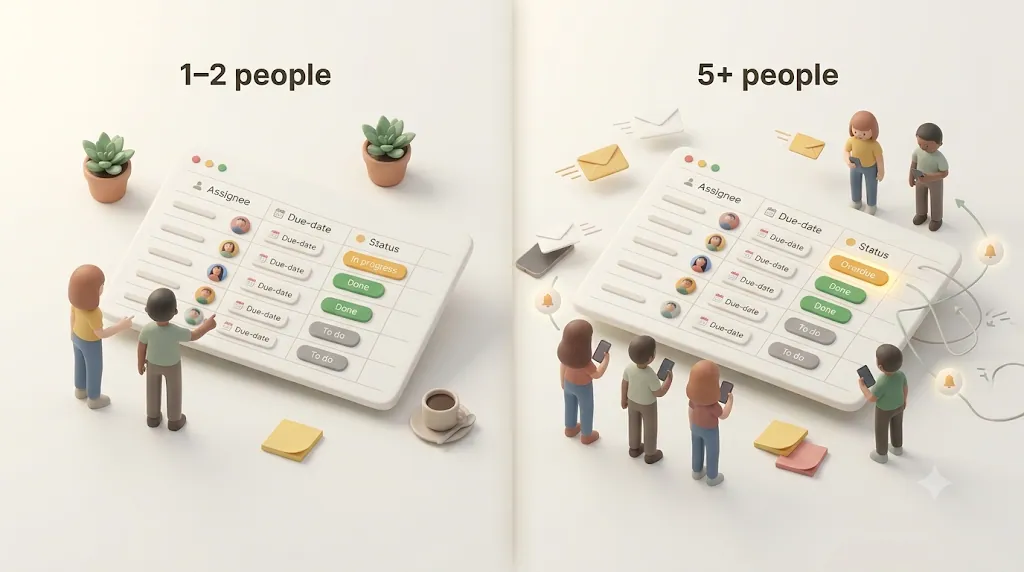
Here's the part most Notion setup guides skip. You can get every property, relation, and view exactly right and still watch tasks slip — because a task system has two layers, and only one of them is the database.
The first layer is structure: properties, relations, views. Notion is excellent at this, and the blueprint above scales cleanly. The second layer is notice — the mechanism that gets the right task in front of the right person at the right time. That layer is where growth actually bites.
Notion's Person property only reaches people who are in the workspace, logged in, and watching Notion
When you assign a task via a Person property, Notion can notify that person. But that notification only lands if the person is a workspace member, is logged in, and is actively watching Notion's inbox (or a connected Slack). Landmark Labs states it plainly: the Person property requires the team member to already be part of your workspace to be notified.
Every setup guide treats that as sufficient. For a small, fully Notion-native team, it nearly is. The problem is that guides state it as a fact and stop there, without following it to its real conclusion: this is a scaling problem.
The schema still works once you add a client, freelancer, or vendor — the notifications don't reach them
The moment your task system touches someone outside the workspace — a client waiting on an approval, a freelancer delivering an asset, a vendor confirming a date — the structure layer keeps working perfectly and the notice layer goes silent.
- You can't assign a Person property to someone without a workspace seat.
- Buying seats for every occasional external collaborator is rarely realistic.
- So their tasks get tracked with a text label, and no one is ever notified.
The structure layer still says who's responsible. The notice layer just has no way to tell them.
Nobody's watching the board for you: why 'it's assigned, they'll see it' breaks first at scale
On a small team, "it's assigned, they'll see it" is roughly true because everyone lives in Notion all day. As the team grows and outside collaborators appear, that assumption is the first thing to break. Some people don't open Notion daily. Some don't have accounts at all. And nobody is sitting and watching the board on your behalf.
This is why tasks slip even with due dates and assignees set correctly. The failure isn't the structure layer — it's the notice layer: the quiet gap between assigned in Notion and noticed by a human.
Turning the schema into reminders people actually get
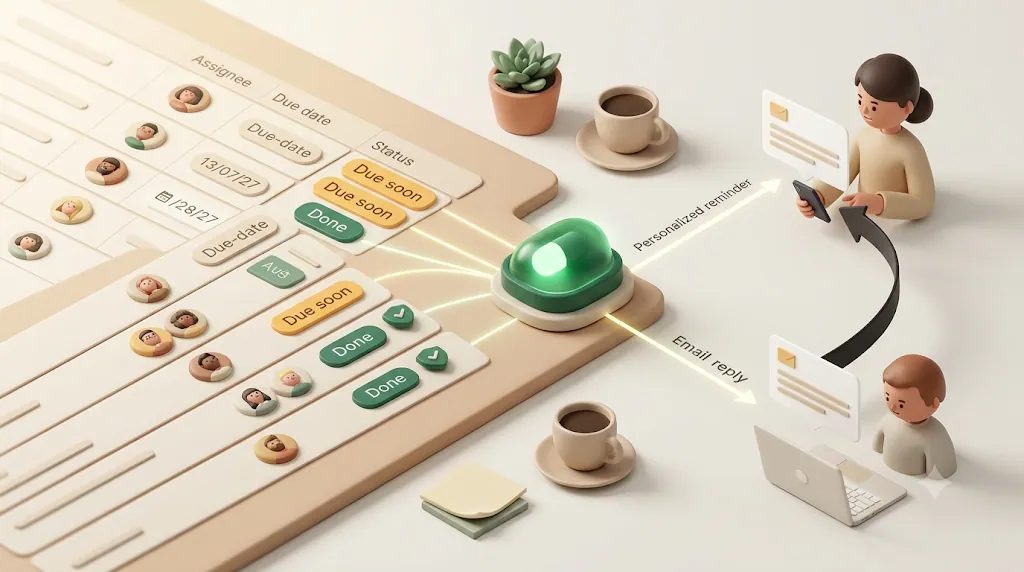
Once you've named that gap, the fix is a notice layer that reads the structure you already built and actively reaches people — including the ones who will never log into Notion.
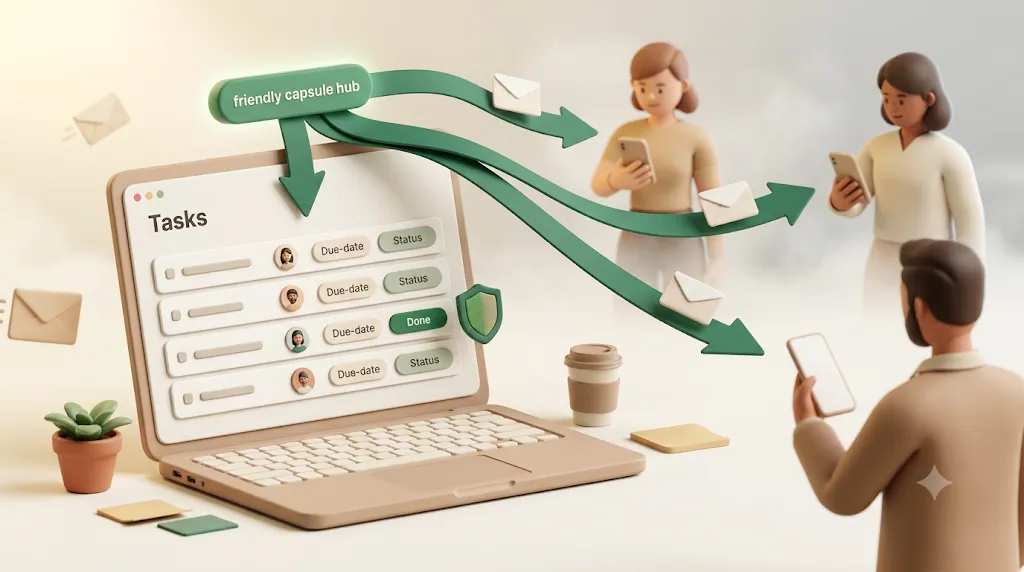
Kapsel is a Notion notification tool that watches your due date, assignee, and status properties and sends email reminders — including to people who don't have a Notion account — with a one-click confirm that writes the status back to Notion. This section is a brief overview; the full step-by-step for the team reminder setup lives in Notion task reminders for teams.
Watching due date + assignee + status together instead of one field in isolation
Native reminders work off a single date field. Kapsel evaluates due date, assignee, and status together, so a reminder goes to the right person, about the right task, only while it's still open. That combination is what turns a raw date into a targeted nudge instead of a blanket alert.
Reaching people by email with no Notion account or login needed
Because reminders go out by email, the recipient doesn't need a Notion account, a workspace seat, or a login. This is the direct answer to the client-and-contractor gap: the people most likely to be the bottleneck are usually the ones who were never going to have a Notion seat, and email reaches them where they already are.
A recipient's one click updates the status back in Notion — two-way, no login
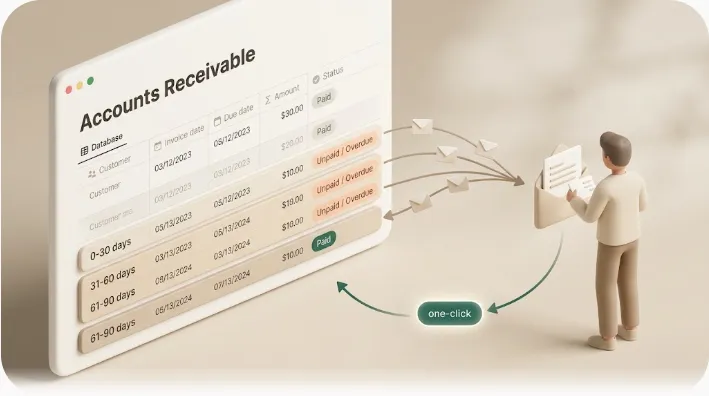
Most reminder workflows are one-way: they assume the assignee will open Notion and change the Status themselves. Kapsel's reminder includes a one-click confirm that writes the status back into Notion — no login, no account. The person who acts on the task closes the loop, and the board reflects reality without anyone re-entering it by hand.
Never nagging about tasks that are already done
A predictable complaint once reminders are automated is notification fatigue — getting pinged about work that's already finished. Kapsel never sends reminders for items marked completed or paid. Combined with the "healthy vs. needs-attention" status design above, that means nudges only go out for work that's genuinely still open.
Beyond the basics, Kapsel also handles overdue follow-ups, target filtering, recurring digests for stakeholders who aren't daily Notion users, a send log, and merge fields. On the Pro plan it adds multiple workspaces and sender branding (company name, signature, logo).
A short setup checklist for teams about to outgrow the current setup
If your team is approaching the point where the current setup is fraying, work through this in order:
- Consolidate into one Tasks database; relate it to a Projects database instead of keeping separate lists.
- Confirm assignee is a Person property, not a text tag — for everyone who has a workspace seat.
- Design Status to separate healthy states from needs-attention states (Blocked, Overdue).
- Add the four core views: team board, deadline calendar, "Assignee is Me" personal view, and a workload view grouped by person.
- Delete or merge any property no one actually filters, sorts, or reads.
- Identify who lives outside Notion — clients, freelancers, vendors — and decide how they'll be notified, since the Person property can't reach them.
- Add a notice layer for overdue and external follow-ups so nothing depends on someone happening to watch the board.
Work through it once and you close off the two failure modes that actually sink team task systems — a fractured schema and a notice layer nobody built — before either one costs you a missed deadline.
See the product overview and the setup guide for the reminder-layer specifics.
Notion-native automations vs. Zapier/Make vs. a dedicated reminder layer
There are several honest ways to add notice on top of your Notion schema. They trade off differently, and the right choice depends on who you're trying to reach and how much you want to maintain.
| Approach | Good at | Watch out for |
|---|---|---|
| Notion Person property + database automations | Zero extra tools; instant for in-workspace staff | Only reaches logged-in workspace members; no overdue escalation; no external recipients |
| Slack / Google Calendar routing | Meets people in tools they already watch | Still assumes accounts/seats; external clients rarely in your Slack |
| Zapier / Make / n8n | Flexible; can email anyone; connect many apps | You build and maintain the logic (skip-if-done, overdue, write-back) yourself; costs scale with volume |
| Google Apps Script (GAS) | Free, fully custom | Requires coding and ongoing upkeep; no UI for non-technical teammates |
| Dedicated reminder layer (e.g., Kapsel) | Purpose-built: watches due/assignee/status, emails non-users, one-click write-back, skips done/paid | A separate tool and subscription; scoped to reminders, not full PM |
The general-purpose automation tools (Zapier, Make, n8n, GAS) can technically reproduce most of this — the question is how much of the logic you want to own and maintain versus have handled for you. For a deeper side-by-side, see Notion reminder automation tools and, for standing check-ins, Notion recurring reminders. Pricing for a dedicated layer is on the pricing page (Free $0, Standard $12, Pro $29 per month).
FAQ
How do I manage a team's tasks in Notion?
Start with a single master task database holding Title, Assignee (Person), Due Date, and Status, and relate it to a Projects database instead of keeping separate lists. Then add views rather than more properties — a board grouped by Status, a deadline calendar, and a personal "Assignee is Me" view. Keep the schema lean so people actually keep it updated.
Does Notion notify someone when a task is assigned to them?
Yes, if you use a Person property and the person is a member of your workspace who is logged in and watching Notion (or a connected Slack). The notification lands in their Notion inbox and as a push. It does not reach anyone without a workspace account, which is why external collaborators often go unnotified.
What's the best Notion setup for team task management?
One task database related to a Projects database, three core properties (Assignee, Due Date, Status) with Priority only if you sort by it, and a small set of saved views for different audiences. Keep permissions permissive with clear conventions rather than locking everything down, since rigid restrictions hurt adoption. Add sub-tasks and dependencies only when project complexity genuinely calls for them.
What's the difference between a Board view and a Timeline view in Notion?
A Board view groups cards into columns (usually by Status) and is best for tracking where work stands — ideal for a weekly sync. A Timeline view lays tasks out against dates and is best for seeing schedule and deadline load, and it's where you set dependencies. Use the board for status, the timeline (or a calendar) for when.
Can Notion remind someone about an overdue task automatically?
Notion's native reminders fire around a date but don't do dedicated overdue escalation, and they only reach logged-in workspace members. To follow up automatically after a due date passes — especially for people outside your workspace — you need a layer on top, whether that's an automation tool you build yourself or a dedicated reminder service. Kapsel handles overdue follow-ups by email and skips items already marked done.
How do I remind a client or contractor who doesn't have a Notion account?
Notion's Person property and built-in notifications can't reach anyone without a workspace seat, so this needs an email-based layer. A tool like Kapsel watches your task properties and emails the reminder directly, with no Notion account or login required for the recipient — and a one-click confirm they can use to update the status. That closes the most common gap: the outside collaborator you're actually waiting on.
Why do tasks still slip through the cracks even with due dates and assignees set in Notion?
Because a correct schema doesn't guarantee anyone notices. Native notifications only reach logged-in workspace members, some people don't open Notion daily, and external collaborators have no account at all — so "it's assigned, they'll see it" quietly stops being true as the team grows. The fix isn't a better database; it's a notice layer that actively reaches people, including by email.
Notes
Published 2026-08-04. Feature descriptions and pricing (Free $0, Standard $12, Pro $29 per month) are current as of writing and may change; check the pricing page for the latest. Notion features referenced (Person property, Status, Board and Timeline views, sub-tasks, dependencies, database automations) reflect Notion's functionality at the time of writing.