How to Manage Accounts Receivable in Notion (Ledger, Aging Buckets, and Reminders That Reach Clients)
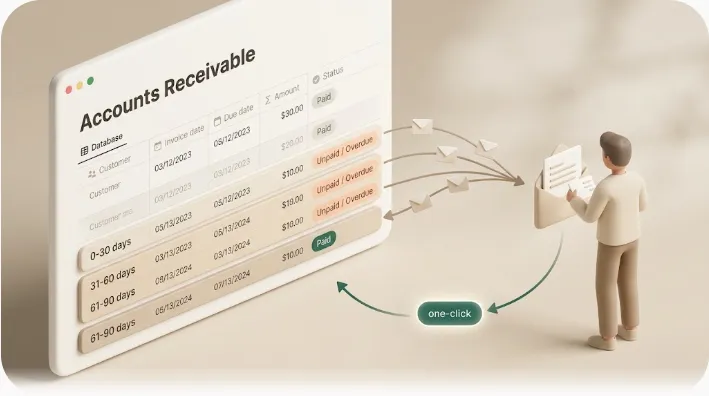
If invoices live in a Sheets tab while the work lives on a Notion board, answering "who still owes us?" means cross-checking both every week. This guide replaces that with one Notion ledger: a single filtered view of exactly what is outstanding, aging buckets that surface the risky accounts first, and reminders that go out to clients on their own — including clients who have no Notion account.
TL;DR
- An accounts receivable (AR) ledger is a running record of every invoice and what is still owed; without one, overdue invoices quietly become a cash-flow problem.
- In Notion, the ledger is a database with a
Days Overdueformula and an aging-bucket formula (Current / 1–30 / 31–60 / 61–90 / 90+) that both zero out the moment an invoice is marked Paid.- The gap every spreadsheet and most Notion templates leave open: nothing actually notifies the client, and native Notion automations don't reach people outside your workspace.
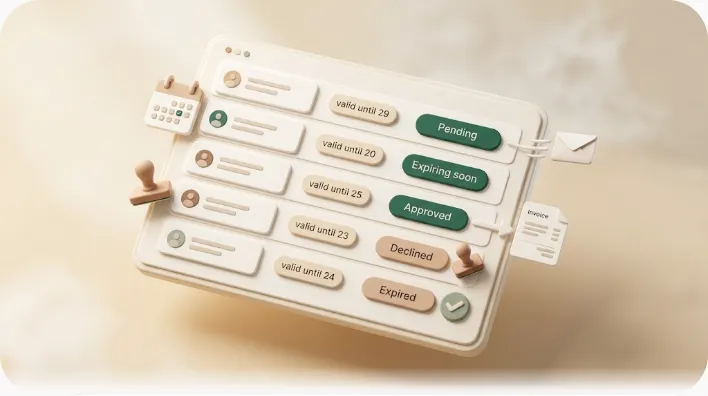
- Kapsel watches the ledger's due date and status and emails overdue clients directly, with a one-click action that writes the status back to Notion — and it never emails an invoice once it is marked Paid.
💡 Definition: Kapsel is a tool that watches a Notion database's due dates, assignees, and statuses and sends automatic email reminders to recipients who do not need a Notion account, with a one-click action in each email that writes the response back to Notion.
Why a spreadsheet AR tracker breaks down as client count grows
A spreadsheet AR aging report is a snapshot: it tells you what is overdue at the moment you open it. That is its ceiling. A Sheets tracker never messages a client, never changes color on its own, and never prompts you — it simply sits there until someone remembers to look. With five clients that is tolerable. With thirty invoices at different stages, the "remember to look" step is exactly where follow-ups get missed and cash slips later and later.
The second failure is manual aging math. Spreadsheet aging columns are built on SUMIFS or nested IF formulas tied to cell references. Insert a row in the wrong place, sort the sheet, or copy it to a new month and the references drift — and the aging report quietly reports the wrong numbers. A database-backed ledger recalculates per row automatically, so the aging stays correct no matter how you sort or filter.
Notion closes the first gap partway: it is a live database, so views, filters, and formulas update in real time. The piece Notion alone does not solve — reaching a client who has no Notion login — is covered later in this guide.
Build the receivables ledger: the property schema
An AR ledger is a Notion database where one row = one invoice. The columns below are the canonical AR fields; the three formula properties are what turn a flat list into an aging report. (If you are new to Notion databases, relations, and property types, start with Notion databases explained.)
| Property | Type | Purpose |
|---|---|---|
| Customer | Relation (to a Clients DB) | Links each invoice to a client; enables per-client totals via rollup |
| Invoice Number | Title or Text | Unique human-readable ID for the invoice |
| Invoice Date | Date | When the invoice was issued |
| Due Date | Date | The payment deadline — the signal every reminder keys off |
| Amount Billed | Number (currency) | Total invoiced |
| Amount Paid | Number (currency) | Running total received so far (updated as money comes in) |
| Outstanding Balance | Formula | Amount Billed − Amount Paid — what is still owed |
| Status | Select | Draft / Sent / Overdue / Partially Paid / Paid |
| Days Overdue | Formula | Days past due, forced to 0 once Paid |
| A/R Aging | Formula | The bucket: Current / 1–30 / 31–60 / 61–90 / 90+ |
| Payment Date | Date | When payment cleared (for reconciliation) |
| Payment Method | Select | Bank transfer / card / cash / other |
| Notes | Text | Context: disputes, promised dates, partial-payment terms |
The benefit of putting Customer as a relation rather than plain text: you can roll up each client's total outstanding onto their row, so a single glance tells you which client owes the most across all their invoices.
Status options that matter for collections — and why "Paid" must be a hard stop
Collections only needs five statuses. Keep the list short so a reminder rule can trust it.
| Status | Meaning | Reminder behavior |
|---|---|---|
| Draft | Invoice created, not yet sent | No reminder |
| Sent | Delivered, within terms | Optional pre-due heads-up |
| Overdue | Past due, unpaid | Active chasing |
| Partially Paid | Some money received, balance remains | Still chasing the balance |
| Paid | Settled in full | Hard stop — never remind again |
⚠️ "Paid" is not just a label — it has to be a logic gate. The single worst collections mistake is emailing a reminder to a client who already paid. Both the
Days Overdueformula and any reminder rule should treatStatus = Paidas a stop condition, so a settled invoice drops out of every overdue view and every send automatically.
The Days Overdue formula (zeroed once Paid)
This is the formula most AR guides describe but never actually write in Notion syntax. Paste this into the Days Overdue formula property:
if(
  prop("Status") == "Paid",
  0,
  dateBetween(now(), prop("Due Date"), "days")
)
dateBetween(now(), prop("Due Date"), "days") returns the number of days between today and the due date: positive once the invoice is late, negative (or zero) while it is still within terms. Wrapping it in the if(prop("Status") == "Paid", 0, …) guard means a settled invoice reports 0 instead of climbing forever — so paid rows never pollute your aging report.
💡 Because
now()re-evaluates each day,Days Overdueis self-updating. You never touch it again; it is the single source of truth that both the aging bucket and your reminder timing read from.
Aging buckets: grouping invoices into 0–30 / 31–60 / 61–90 / 90+ days
An AR aging report sorts outstanding invoices by how long they have been unpaid. The standard buckets are near-universal across accounting: Current (not yet overdue), 1–30, 31–60, 61–90, and 90+ days past due. The older the bucket, the lower the odds of collecting — which is why you want the ledger to show buckets, not a flat list.
One formula that buckets every invoice
Add an A/R Aging formula property that reads the Days Overdue value you already built:
ifs(
  prop("Status") == "Paid", "Paid",
  prop("Days Overdue") <= 0, "Current",
  prop("Days Overdue") <= 30, "1–30",
  prop("Days Overdue") <= 60, "31–60",
  prop("Days Overdue") <= 90, "61–90",
  "90+"
)
ifs() checks each condition top to bottom and returns the first match, so order matters — the Paid check sits first so settled invoices never land in an overdue bucket. The benefit: now you can Group a board view by A/R Aging and see your risk as columns (a tall "90+" column is a problem you can't miss), instead of scanning a flat table row by row.
Migrating an existing Excel/Sheets AR tracker into this schema
Moving from a spreadsheet is a CSV import plus a cleanup pass. The order matters because of what breaks on import.
- Build the Notion database first with the properties above (including the three formula fields). Importing into an empty database lets you map columns deliberately instead of accepting Notion's guesses.
- In your spreadsheet, delete the calculated aging column before export. A
SUMIFS/IF-based aging column exports as static text values, not a live formula — importing it gives you a frozen, soon-wrong column. Your NotionA/R Agingformula replaces it entirely. - Export the sheet as CSV (one row per invoice, a clean header row, no merged cells or summary rows at the bottom).
- Import the CSV into the Notion database and map each spreadsheet column to the matching property. Set Amount Billed / Amount Paid to Number, and Invoice/Due/Payment dates to Date — Notion often imports these as Text, which silently breaks the date math.
- Rebuild relations and statuses. The Customer column imports as plain text; convert it to a Relation (or paste names into a Clients database and link them). Confirm your Status values match the five select options exactly so filters and reminders catch them.
⚠️ The most common import break: date columns arriving as Text. If
Days Overdueshows an error or blanks after import, open the Due Date property and change its type to Date —dateBetweencan only read real date values.
Build the "what's still owed" view
The ledger holds everything; the view you actually open every week should hold only what is unpaid. Create a new view (Table or Board) and apply one filter:
- Status is not
Paid(or, equivalently,Outstanding Balanceis greater than 0).
That single filter is the whole point of the ledger. Paid invoices stay in the database for your records but vanish from your working view, so what you see is a clean list of open balances. Sort it by Days Overdue descending, and the account that has waited longest sits at the top — the first one you chase. Treat this view as a recurring check rather than a one-time query — a weekly pass through it, prioritizing anything already 30+ days delinquent, is enough to catch problems while they are still collectible.
Reconciling payments without breaking the aging math
Partial payments are where most trackers quietly go wrong, and most competing guides skip the mechanics — offering only "track partial payments" as a checklist line. Here is exactly what happens to the formulas when money arrives.
When a client pays part of an invoice, update one field — Amount Paid — and set Status to Partially Paid. The downstream effects are automatic:
| Field | What happens on a partial payment |
|---|---|
| Outstanding Balance | Recalculates immediately: Amount Billed − Amount Paid (e.g. 100,000 − 40,000 = 60,000 still owed) |
| Days Overdue | Keeps counting — because Status is "Partially Paid", not "Paid", the guard doesn't fire |
| A/R Aging | Stays in its real overdue bucket, so the remaining balance is still visibly at risk |
This is the design decision that keeps the aging honest: the hard stop is keyed to Status = Paid, not to any money arriving. A partial payment correctly leaves the invoice in its overdue bucket with a smaller balance. Only when the final payment lands — you set Amount Paid = Amount Billed, Status = Paid, and fill Payment Date / Payment Method — does Days Overdue snap to 0, the bucket flips to "Paid", and the row leaves your working view.
💡 Don't drive the aging stop off
Outstanding Balance == 0alone. Rounding, credits, or a small write-off can leave a balance of a few cents that would keep nagging a client who has effectively settled. A deliberateStatus = Paidis the clean, auditable off-switch.
Reminder timing by days overdue
A single repeated "please pay" is easy to ignore. Tie the cadence to the aging bucket instead, so the message escalates with the risk. A workable baseline:
| Aging bucket | Timing | Tone |
|---|---|---|
| Current (pre-due) | 2–3 days before due date | Friendly heads-up: "this is coming due" |
| 1–30 | Day 1–3 overdue, then ~every 10–14 days | Polite reminder, assume an oversight |
| 31–60 | Every 10 days | Firmer, restate terms and the balance |
| 61–90 | Every 7–10 days | Direct, reference prior reminders |
| 90+ | Weekly | Escalation / final-notice framing |
The benefit of bucket-based cadence: early invoices get a light touch (which protects the relationship), while genuinely stale accounts get the pressure they need — automatically, without you deciding each case. For the actual wording at each stage, see how to chase late payments and ready-to-use payment reminder email templates.
The part Notion's automations can't do: reaching a client with no Notion account
Everything above lives inside Notion. The one thing it cannot do is tell the client. Notion's native automations and @mentions are built to notify people inside your workspace — a client who has never opened Notion gets nothing. That is the structural gap between "I have a tidy ledger" and "my invoices get paid on time," and it is where an external delivery layer is needed.
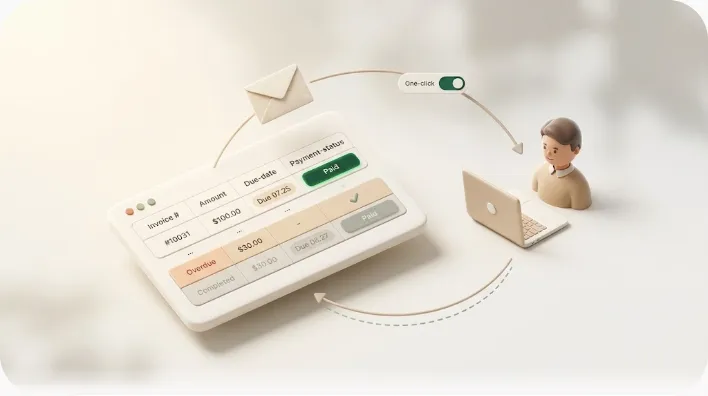
Kapsel sits on top of the ledger you just built. It watches the Due Date and Status fields and, when an invoice is overdue and unpaid, emails the client directly — no Notion account, no login required on their end. Each email carries a one-click action; when the client confirms, the response writes back to the invoice's Status in Notion, so your ledger updates itself instead of waiting for you to log the reply.
The safety rule is the piece worth naming explicitly, because most automation walkthroughs skip it: Kapsel does not send to an invoice already marked Paid (or Completed). Keying off Status, not a timer, is what prevents the stale-reminder accident — the moment a client pays and the row flips to Paid, that invoice drops out of the send queue. You get automatic chasing without the risk of dunning someone who has already settled. For a deeper look at the reminder mechanism and cadence once the ledger exists, see Notion overdue invoice reminders; freelancers running this solo will also want the freelance payment reminders workflow.
How to get started
- Build the ledger (schema + the two formulas above) and import your existing tracker.
- Add the "what's still owed" filtered view and confirm paid invoices drop out.
- Connect the database to Kapsel, set the trigger to fire on overdue + unpaid, and set your cadence. Exact figures are on the official pricing page; the Free plan ($0) is enough to test the flow before moving to Standard ($12) for regular sending.
Frequently Asked Questions
What is an accounts receivable aging report, and what are the standard aging buckets? An AR aging report is a breakdown of unpaid invoices organized by how long they have been outstanding. The standard buckets are Current (not yet due), 1–30, 31–60, 61–90, and 90+ days past due. It matters because collectability drops sharply as invoices age, so the report tells you which accounts to chase first.
How do you track accounts receivable in Notion? Create a database where each row is one invoice, with properties for customer, invoice number, invoice/due dates, amount billed, amount paid, status, and payment details. Add formula properties for Outstanding Balance, Days Overdue, and the aging bucket. Then make a filtered view showing only invoices that are not Paid so your working list is always just the open balances.
What is a good formula for calculating days overdue in Notion?
Use if(prop("Status") == "Paid", 0, dateBetween(now(), prop("Due Date"), "days")). The dateBetween part counts days from the due date to today (positive once overdue), and the if guard forces it to 0 once the invoice is Paid so settled rows don't keep aging. Feed that value into an ifs() formula to assign the Current / 1–30 / 31–60 / 61–90 / 90+ bucket.
How do I migrate my AR tracker from Excel or Google Sheets to Notion? Build the Notion database with its properties first, delete the spreadsheet's calculated aging column (it exports as frozen text), then export to CSV and import, mapping each column to the right property type. Set amounts to Number and dates to Date, since Notion often imports them as Text and breaks the date math. Finally, convert the customer column to a relation and rebuild the Notion aging formula so it recalculates live.
How do you set up automatic payment reminders for overdue invoices? Point a reminder tool at your Notion invoice database and trigger it on the condition "due date passed and status is not Paid." Match the cadence to the aging bucket — a heads-up before due, then follow-ups every 10–14 days once overdue, escalating for older accounts. The trigger must read live status so a reminder stops the instant an invoice is marked paid.
Can Notion automatically email clients who don't use Notion when an invoice is overdue? Not with native Notion features — Notion's notifications and mentions only reach people inside your workspace. To email a client with no Notion account, you need an external layer such as Kapsel, which watches the database and sends the reminder by plain email. The client can respond in one click, and that response writes the status back to Notion.
How often should you review an AR aging report? Weekly is the common cadence for small businesses and freelancers, with priority on accounts 30+ days delinquent, since those are where cash is most at risk. A larger or faster-moving receivables book may warrant twice-weekly checks. If reminders are automated, the review becomes lighter — you are confirming edge cases rather than deciding every single send.
What's the difference between accounts receivable and accounts payable? Accounts receivable (AR) is money owed to you by customers for invoices you've issued — it's an asset you are waiting to collect. Accounts payable (AP) is money you owe to suppliers and vendors — a liability you need to pay. This guide covers AR; the Notion ledger pattern can be mirrored for AP by swapping "customer" for "vendor" and tracking bills you owe.
How do you avoid sending a payment reminder for an invoice that's already paid?
Key both your aging formula and your reminder trigger off Status = Paid as a hard stop, not off a date or timer. When an invoice is marked Paid, Days Overdue returns to 0, the row leaves your unpaid view, and the reminder condition no longer matches. Tools like Kapsel enforce this by design — they never send to an invoice marked Paid or Completed.
Notes & sources
- Published 2026-10-30.
- Primary references: Notion's official help documentation on databases, formulas (the
dateBetween,now,if, andifsfunctions), and CSV import; standard accounts-receivable aging conventions (Current / 1–30 / 31–60 / 61–90 / 90+) as used in general accounting practice. - Formula snippets use Notion's current formula syntax; verify property names match your own database exactly.
- Kapsel's features and pricing (Free $0, Standard $12, Pro $29) are stated as of the publish date; see the official pricing page for current figures.