Notion Payment Reminders for Freelancers: Track Invoices and Automate Client Follow-Ups
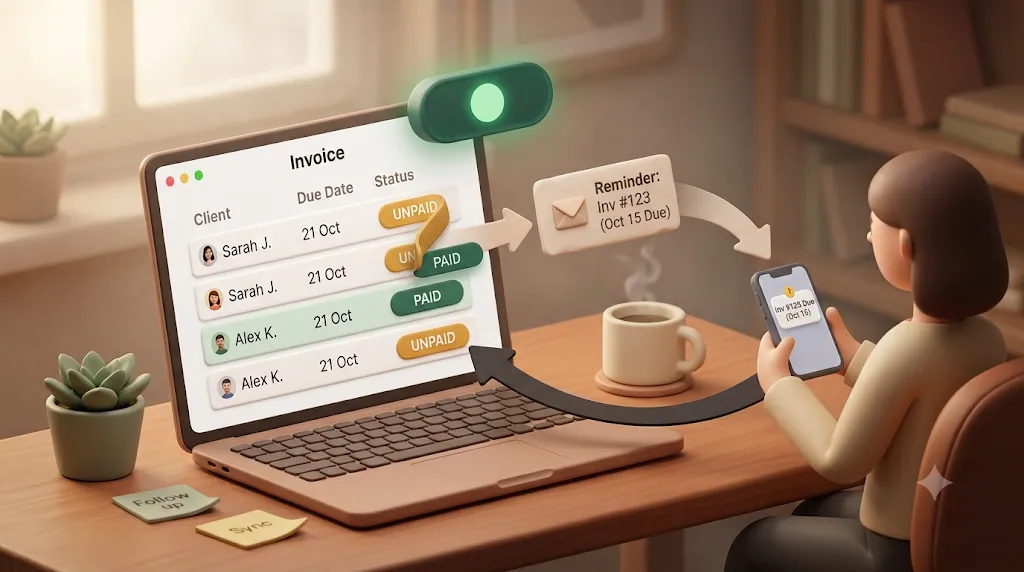
The due date passed three days ago, the client hasn't said a word, and you're rereading your own invoice trying to word a follow-up that doesn't sound like an accusation. That awkward pause is where freelance invoices quietly go from late to forgotten — not because the client refuses to pay, but because chasing money feels confrontational and nobody wants to send that email. Many freelancers and small studios already run their client work in Notion — the invoice tracker lives there, the project notes live there, the due dates live there — so this guide covers how to build a lightweight Notion tracker, set a reminder cadence that doesn't feel pushy, and automate the client-facing follow-ups that Notion itself can't send to a client who never logs in.
TL;DR
- A Notion invoice tracker (Client, Amount, Due date, Status) is a great source of truth, but Notion's built-in reminders notify people inside your workspace — not a client who never logs in.
- A cadence that gets you paid without friction is simple: one heads-up before the due date, a neutral note on the due date, then a polite, escalating follow-up while it stays overdue.
- The realistic ways to automate this are native Notion automations plus a Zapier/Make bridge, a standalone invoicing tool, or a dedicated Notion reminder layer — each has trade-offs.
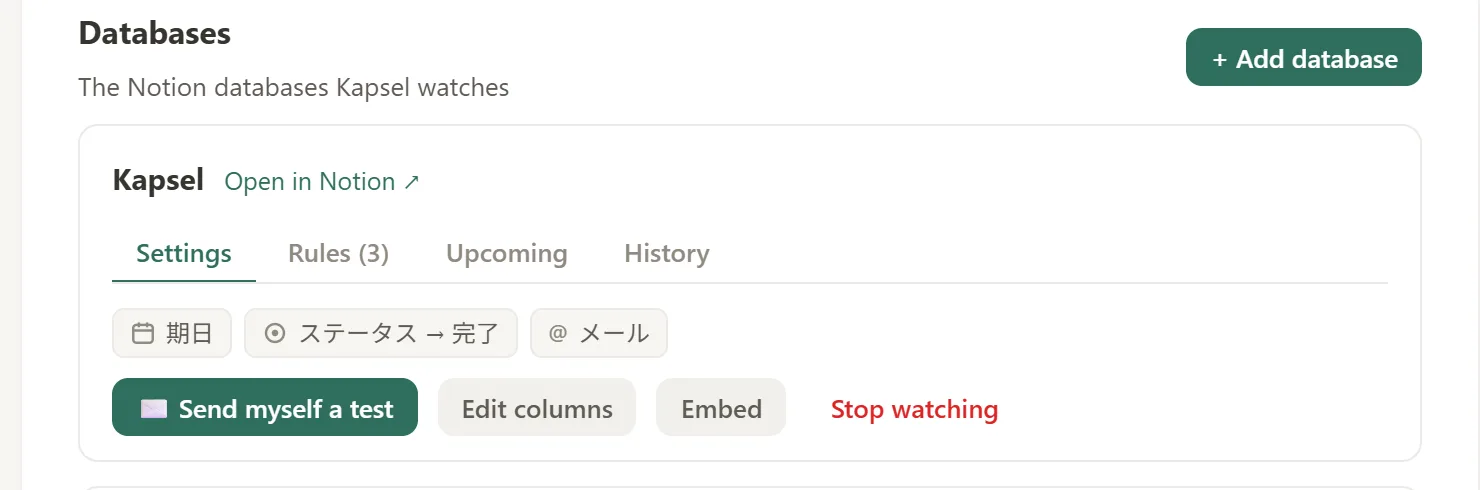
- Kapsel watches a Notion invoice tracker's due date and status, emails reminders to clients who don't use Notion, never nudges anyone already marked paid, and lets the client confirm payment in one click, which writes the status back to Notion.
💡 Definition: Kapsel is a Notion notification tool that watches your database's due dates, assignees, and statuses and sends automatic email reminders to people who don't need a Notion account — with a one-click confirmation in each email that writes the status back to Notion.
Why freelance invoices go unpaid — and why it's rarely malice
Late payment feels personal when you're the one waiting on the money. In practice, most overdue invoices are not a client refusing to pay. They're a client who lost track.
Spam folders, forgotten due dates, and "I'll deal with it later"
An invoice sits in an inbox next to a hundred other emails. It gets filed for "later," the due date passes, and later never comes. Sometimes the invoice landed in spam and the client genuinely never saw it. Sometimes it reached a general inbox and never got forwarded to whoever actually approves payments. None of these are bad faith — they're the ordinary friction of a busy client, and a single well-timed reminder usually clears them.
Why manual chasing feels awkward — and why that hesitation costs you money
The harder problem is emotional. Sending a "you still owe me money" email to a client you want to keep working with feels confrontational, so freelancers put it off. A week becomes three. The invoice ages, the conversation gets more awkward, and the cash-flow gap widens. The awkwardness isn't just uncomfortable — the hesitation it creates is what actually costs you the money. A reminder system's real job is to remove the emotional decision, so a neutral, professional nudge goes out on schedule whether or not you feel like sending it.

Build the invoice/payment tracker in Notion first
No reminder can fire until Notion knows what an invoice is and when it's due. The tracker comes first; automation is a layer on top of it.
Core properties: Client, Project, Amount, Due date, Status
A single database (a plain table works fine) with one row per invoice covers most freelancers. Useful properties:
- Invoice — a title or unique ID for each invoice.
- Client — the client name, plus a Client email property (email type) so a reminder knows where to go.
- Project — which engagement the invoice belongs to.
- Amount — a number property, formatted as currency.
- Issued / Due date — date properties; the due date is the signal every reminder keys off.
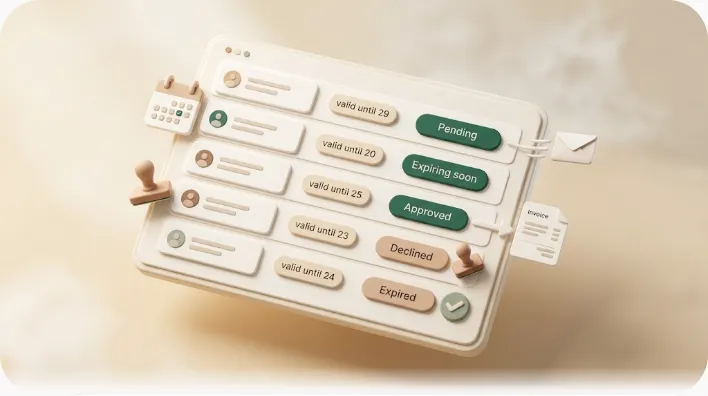
- Status — a select or status property with values like
Not Sent,Sent(sometimes labeledPending),Paid, andOverdue, usually color-coded so the board reads at a glance.
With those six properties filled in, you can see at a glance who owes you money and when it's due, instead of digging back through email threads to check an invoice's status.
A filtered view that surfaces everything still owed
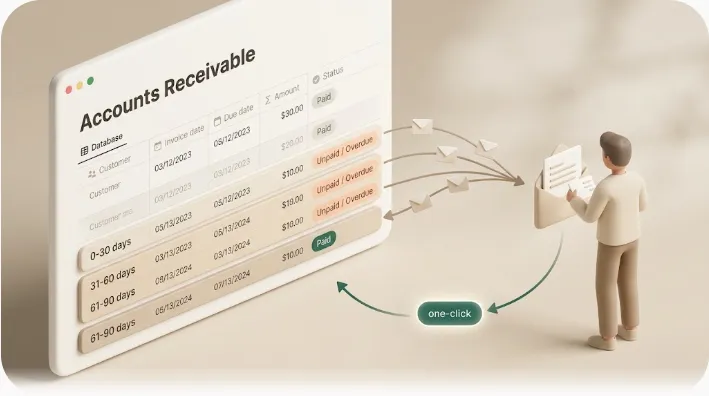
Add a filtered view — for example, filter where Status is not Paid — to get a live list of everything outstanding. If you want an automatic "overdue" label rather than setting it by hand, a formula property can compare the due date to now() and output "Overdue" once the date has passed and the status isn't Paid. To group those overdue invoices into standard aging buckets (0–30 / 31–60 / 61–90 / 90+ days) and build a full receivables ledger, see how to manage accounts receivable in Notion.
Filtered views and formulas are excellent for seeing the problem. What they don't do on their own is contact the client — they surface outstanding invoices inside Notion, where only you are looking.
Why "Status = Paid" should be the one thing that silences every reminder
Most guides mention marking an invoice Paid as a step. It's worth treating as something bigger: the single condition that should silence every reminder for that row, automatically. If your automation reads status correctly, "Paid" is the off switch — and getting that switch right is what prevents the most damaging mistake in the whole workflow (more on that below).
💡 Keep the client's email in a dedicated property from day one. Whichever automation route you choose, the reminder needs a reliable place to read the recipient's address.
The reminder cadence that gets you paid without sounding pushy
Automation handles whether a reminder goes out. Timing and tone decide whether it works. A sane cadence keeps you top of mind without making the client feel cornered. Most freelance advice on this stops at telling you to set yourself a reminder a few days before the due date — a personal calendar note or Notion reminder that nudges only you to follow up manually. That's a fine habit on its own, but it only reminds the freelancer; it doesn't put anything in front of the client. The cadence below is about the message that actually reaches them.
A gentle nudge before the due date
A short, friendly note a few days before the due date (7 days, or 1 day, depending on your terms) reframes the whole exchange. It's a convenience, not a warning — and it quietly removes the "I never got the invoice" excuse before it can happen.
Subject: Invoice #123 — due Friday Hi [Client], quick heads-up that Invoice #123 for [amount] is due on [date]. Payment details are on the invoice — let me know if you need anything.
On the due date: a neutral, factual prompt
On the day itself, a plain, factual prompt is enough. No pressure, no emotion — just the invoice number, the amount, and the fact that it's due today.
Overdue: an escalating follow-up, not a single angry email
Once an invoice is past due, the answer is a series of calm messages, not one sharp email. A reasonable rhythm is a light "just checking in" a day or two after the due date, then a polite follow-up roughly every 10–14 days. The tone progresses while the hostility never does: warm before the due date, firm-but-respectful around a week overdue, formal and direct by 30+ days, ending in a clear final notice. If you want concrete checkpoints rather than a vague rhythm: a light touch at 1–3 days overdue, a firmer note at 7 and 14 days, a formal notice at 30 days, and — for anything still open at 60 or 90 days — a final notice paired with a phone call before you consider collections. Reference the original due date and the number of days outstanding each time so the ask stays factual.
The full escalation ladder — including when to switch from email to a phone call or a formal notice — is worth its own read. See our guide to automatic overdue invoice reminders for the tone-by-stage breakdown and the automation side together. Before you escalate, it's also worth confirming the invoice actually reached the right inbox — for a larger client, that often means going around the person who hired you and contacting their accounts-payable contact directly, since they're usually the one who controls when it actually gets paid.
⚠️ Escalate the clarity of your message over time, never the hostility. A calm, factual tone protects the relationship even when a payment is badly overdue.
The gap in "just set a Notion reminder": your client isn't in Notion
Most advice about reminders in Notion quietly assumes the person you're reminding is a Notion user. For freelance invoicing, that assumption usually breaks.
Notion reminders notify people inside your workspace
Notion's @mentions, date reminders, and database automations are built to alert members of your workspace. They land in a person's Notion notification center or their account email — which is perfect for a teammate who opens Notion daily, and irrelevant to a client who never will. A "reminder set in Notion" is, by default, a reminder to you, not to the person who owes you money.
Clients won't create an account or log into a portal to check a due date
Most freelance clients don't use Notion, and they aren't going to create an account or log into a portal just to see whether an invoice is due. Any workflow that depends on the client opening a Notion page has a delivery problem baked in — and you'll never know whether the message was seen.
What actually has to happen: a Notion due date/status becomes a plain email
For a Notion-based tracker to actually reach a client, the due date and status have to turn into a normal email that lands in the client's regular inbox — no account, no guest invite, no app to open. That's the piece most Notion tutorials skip. Kapsel sends plain email to external recipients who don't use Notion, which is exactly this gap. For a deeper look at why external delivery is the hard part, see reaching clients who don't use Notion.
Automating the cadence without hand-building a Zapier flow
Once the tracker exists, freelancers have a few realistic ways to automate the emails. They're genuinely different tools for different situations — it's worth being fair about the trade-offs.
| Approach | Reaches non-Notion clients | Setup effort | Two-way write-back | Skips paid invoices |
|---|---|---|---|---|
| Manual (you send each email) | Yes | None to build, but constant to run | You update status by hand | Only if you remember |
| Notion native + Zapier/Make/n8n/GAS | Yes, if you wire an email step | Multi-step, per-database, technical | Usually one-directional | You build the filter yourself |
| Standalone invoicing tool (Stripe, accounting apps) | Yes | Moderate; separate source of truth from Notion | Within that tool, not Notion | Yes, within that tool |
| Dedicated Notion reminder layer (Kapsel) | Yes — plain email, no login | Connect workspace once, then configure | One-click confirm writes back to Notion | Built in — never sends to paid items |
If your invoicing already lives in a dedicated platform, that platform's own reminders may be all you need. The case for a Notion reminder layer is specifically for freelancers whose source of truth is the Notion tracker and who don't want to duplicate it elsewhere.
Watching due date, assignee, and status directly from your Notion database
A dedicated reminder layer reads your invoice rows and acts on them: when an invoice is past due and still marked Sent/Unpaid, a reminder fires. Kapsel watches Notion's due date, assignee, and status properties and sends email based on those conditions — no per-database Gmail wiring, no separate scheduler to maintain. Once it's connected, reminders go out on schedule even on the days you're heads-down in client work and would otherwise forget to chase anyone.
Personalizing with merge fields (client name, project, amount, due date)
Hand-editing the client name, project, amount, and due date into every reminder doesn't scale and invites embarrassing mistakes. Kapsel supports merge fields, so you write one template and it pulls the right values from each Notion row — every client gets a personalized email while you maintain a single message.
Target filtering — only the clients/projects you choose, not every open invoice
Not every open invoice deserves the same treatment. You may want to nudge two slow-paying clients while leaving your reliable ones alone. Kapsel's target filtering lets you scope reminders to specific clients or projects instead of blasting every outstanding row identically. That way you can spend your limited follow-up energy on the clients who actually need a nudge, instead of worrying an automatic reminder will land awkwardly on someone who always pays on time.
The one rule that prevents an embarrassing mistake
Automating reminders introduces a new risk alongside the old one: a system that keeps nudging a client after they've already paid. The fix is a hard, status-based stop condition rather than a step you hope to remember.
The real risk: nudging a client who already paid
There's one mistake that undoes all the goodwill a polite cadence builds: a "your payment is overdue" email landing in the inbox of a client who already paid. It reads as careless at best and accusatory at worst, and it's exactly the kind of slip that makes freelancers afraid to automate at all.
A status-based stop condition that blocks the send automatically
The fix is to treat "Paid" (or "Done") as a hard stop-gate baked into the automation, not a step you hope you remembered. Kapsel never sends to items marked completed or paid, so a settled invoice is automatically off the list — the send is blocked at the source. This safeguard is the reason status accuracy matters so much in the tracker: once the status is right, the "don't remind a paid client" rule enforces itself.
Closing the loop without a back-and-forth
Most reminder setups stop the moment the email goes out, leaving you to update the invoice tracker by hand every time a client pays. Kapsel closes that loop with a one-click confirmation that writes the status straight back to Notion.
A recipient one-click confirmation on the reminder email
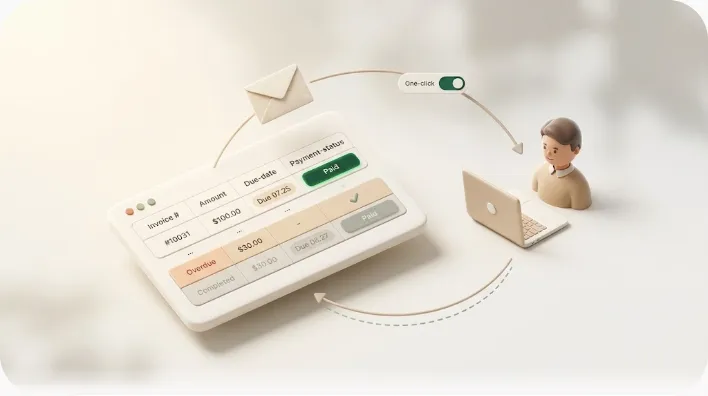
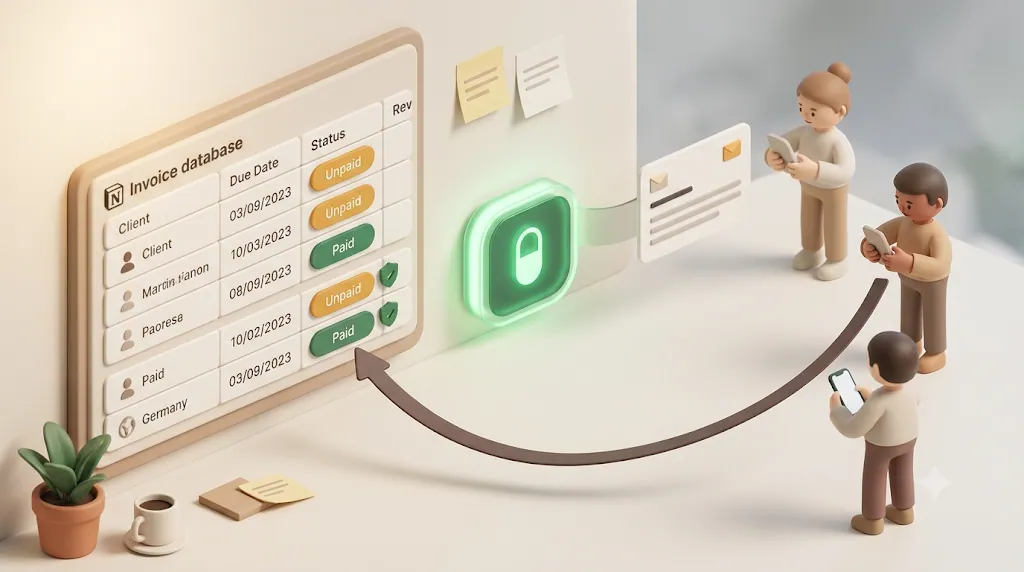
Most reminder setups stop at "the email went out," which leaves you manually updating the tracker every time a client pays. Kapsel's reminder email includes a one-click confirmation button. The client clicks to confirm payment — no Notion account, no login, just a link in the email they already received.
How that writes the status back to Notion automatically (two-way, not one-way)
That one click writes the status back into your Notion database. You don't hunt down the invoice row and flip it to Paid yourself, and because Kapsel never sends to items already marked paid, no further reminder goes out for that invoice. Email out, status back — a genuine two-way loop rather than a one-directional blast.
Why this beats "reply here once you've paid"
Asking a client to "reply once you've paid" depends on them writing an email, which many won't. A single button is lower friction for the client and removes the manual database update for you. Fewer steps on both sides means the status stays accurate, which in turn keeps the stop-gate above working correctly.
Keeping a record: send logs for when a client says "I never got a reminder"
When you're billing clients, "I'm pretty sure I reminded them" isn't good enough. If a payment gets disputed or a client claims they never heard from you, you want a record. Kapsel keeps a send log of what went out, to whom, and when — an audit trail tied to your Notion-based tracker. Neither native automations nor most invoice-chasing guides offer this, and it's genuinely useful for accountability on client work.
Recurring digests: a weekly outstanding-invoices summary
If you juggle several clients from one Notion base, per-invoice pings aren't the only option. Kapsel can send recurring digests — for example, a weekly summary of what's still outstanding — so you get one consolidated view instead of tracking each row by hand. It's the difference between managing invoices one email at a time and seeing the whole outstanding picture on a schedule.
Getting started: build the tracker, then layer on automation
The workflow is deliberately ordered — the tracker is the foundation, automation sits on top.
Step-by-step checklist
- Build the Notion tracker — one row per invoice, with Client, Client email, Project, Amount, Due date, and Status properties.
- Add a filtered view — Status is not
Paid— so outstanding invoices are always visible. - Decide your cadence — a pre-due heads-up, a due-date prompt, then a polite follow-up every 10–14 days while overdue.
- Choose an automation route — manual, a Notion-native + Zapier/Make bridge, a standalone invoicing tool, or a dedicated Notion reminder layer.
- Connect once and scope it — if you use Kapsel, connect the workspace, point it at the invoice database, set which properties to watch and which holds the client's email, then filter targets to the right clients. The setup guide has the walkthrough.
- Confirm the safeguards — verify paid invoices are excluded and that the one-click confirm writes back to Notion. Send a reminder to yourself first to watch the full loop before rolling it out to clients.
When it's worth adding a tool like Kapsel on top of your existing Notion base
A dedicated reminder layer earns its place when your invoices already live in Notion, your clients don't use Notion, and you want reminders to go out — and stop — without manual babysitting. If your invoicing already runs entirely inside a separate accounting platform, that platform's reminders may be enough. Kapsel is a solo-built product aimed squarely at the first case: the reminder layer on top of a Notion tracker.
Pricing: Free, Standard, and Pro
| Plan | Price (USD / month) | Good for |
|---|---|---|
| Free | $0 | Trying reminders on a single workspace |
| Standard | $12 | Solo freelancers running invoice reminders regularly |
| Pro | $29 | Multiple Notion workspaces and sender branding (company name, signature, logo) |
Start on the Free plan, wire up one invoice database, and see the full loop before you roll it out. Full details are on the pricing page, and the product overview covers how the pieces fit together.
Try Kapsel free. Kapsel watches your Notion due dates, assignees, and status, then sends automatic email reminders — including to people without a Notion account — with one-click write-back. Free plan, no credit card required. → Start with Kapsel
FAQ
How do I track invoices and payments in Notion?
Create a database with one row per invoice and properties for Client, Client email, Project, Amount, Issued and Due dates, and Status (Not Sent, Sent/Pending, Paid, Overdue). Add a filtered view where Status is not Paid to see everything outstanding at a glance. Color-code the status so the board reads quickly, and keep the client's email in its own property so reminders have somewhere to send.
How do you politely remind a client to pay an overdue invoice?
Assume the best — most late payments are oversights — and keep the message short and factual. Reference the invoice number, the amount, and the original due date, and offer an easy next step like resending the invoice. A subject line such as "Just checking in on Invoice #123" strikes a friendly tone; save firmer, more formal wording for invoices that are 30+ days overdue.
How many days before the due date should you send a payment reminder?
A common choice is a single heads-up 7 days before, or 1 day before if your terms are short. The goal isn't pressure — it's to surface the invoice while there's still time to act and to remove the "I never received it" excuse. One pre-due reminder is usually plenty; more than that starts to feel like nagging.
How often should you follow up on an unpaid invoice?
A workable rhythm is a gentle nudge a day or two after the due date, then a polite follow-up roughly every 10–14 days while the invoice stays overdue. Keep the cadence steady and the tone consistent so each message feels routine rather than emotional. If several follow-ups over 30–60 days go unanswered, switch from email to a phone call or a formal written notice.
Can Notion send reminders to people who don't use Notion?
Notion's @mentions, date reminders, and database automations are designed to notify people inside your workspace, so they don't reliably reach a client with no account. To reach an external client you need email that lands in their normal inbox without a login. Kapsel sends plain email to people who don't use Notion — no account or guest invite required.
What should a payment reminder email include?
A clear subject line with the invoice number, the amount owed, and the original due date, plus a payment link or the payment details and your contact information. Keep the body short and factual, and make the next step obvious. For overdue notices, add the number of days outstanding and any late terms you agreed to.
How do you avoid accidentally reminding a client who already paid?
Treat "Paid" as a hard stop condition in your automation, not a step you hope you remembered to do. If the tool reads status correctly, a paid invoice should be excluded from every send automatically. Kapsel never sends to items marked completed or paid, so once an invoice is settled, no further reminder can go out for it.
What's the best way to automate invoice reminders from Notion?
There's no single best route — it depends on where your source of truth lives. If invoices already run in a separate accounting platform, that platform's reminders may be enough; if the Notion tracker is your source of truth, a Notion-native + Zapier/Make bridge or a dedicated reminder layer fits better. Kapsel is built for that last case: it watches your Notion due date and status, emails non-Notion clients, skips paid invoices, and writes the status back when the client confirms.
How do I know if a client actually saw my payment reminder?
Manual and in-app Notion reminders give you little visibility into whether a message was received. A send log helps: a record of what went out, to whom, and when gives you something concrete if a client says they never heard from you. Kapsel keeps a send log tied to your tracker, which is useful for accountability and for resolving a payment dispute.
Is there a free way to automate Notion payment reminders?
Yes. Kapsel has a Free plan at $0 that lets you connect a workspace and send reminders, which is enough to test the full loop — email out, one-click confirm, status back in Notion. Notion's own native automations are also available within Notion, though reaching non-Notion clients and closing the loop back to your database is where a dedicated tool adds the most.
Notes
Published 2026-08-05. Kapsel features and pricing described in this article are current as of writing: Kapsel watches Notion due dates, assignees, and statuses and sends email reminders to recipients who don't need a Notion account; a one-click confirmation in each email writes the status back to Notion, and reminders are never sent to completed or paid items. Pricing referenced: Free $0, Standard $12, and Pro $29 per month (USD). Notion's own product behavior may change over time; verify native capabilities in Notion's current documentation.