How to Build a Notion Quote Tracker That Follows Up on Pending Quotes Automatically
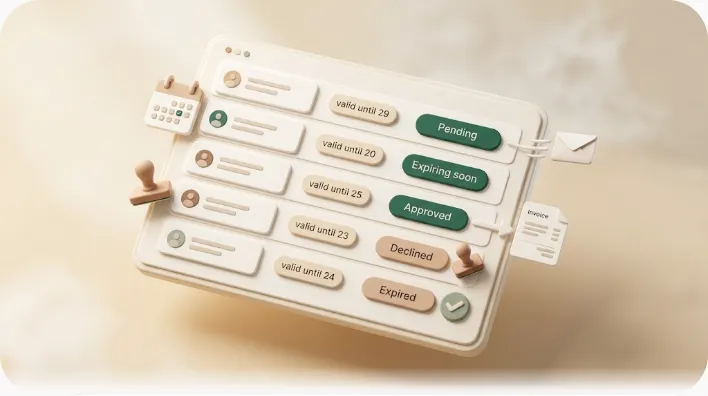
Most quote trackers in Notion look finished the moment the totals calculate — and then quietly leak revenue, because a quote nobody chases is a deal nobody closes. The number that decides whether you get paid isn't the total; it's the Valid Until date, and no formula watches it for you. This guide builds a quote/estimate database with correct tax math, turns it into a pipeline you can see at a glance, and closes the one gap every tutorial leaves open: actually following up before a quote goes stale — including with clients who never open Notion.
TL;DR
- A complete quote tracker has three layers: a template (line items + tax formula), a pipeline (Status + expiry date + filtered views), and follow-up (something that acts when a quote sits Pending or nears expiry).
- Notion gives you the first two layers. The third — the automatic nudge before a quote expires — is where deals go stale, because someone has to keep watching the board.
- Kapsel watches your quote database's Status and Valid Until date and emails the reminder automatically, skipping anything already Approved, Rejected, or Expired.
- Clients act on a one-click email link (no Notion account, no login), and their Approve/Reject response writes straight back to the Status property.
💡 Definition: Kapsel is a tool that watches a Notion database's dates, assignees, and statuses and sends automatic email reminders to people who don't need a Notion account — with a one-click action in each email that writes the response back to Notion.
Step 1 — Design the quote/estimate database properties
A quote tracker is just a Notion database where each row is one quote. Get the properties right first; everything downstream (formulas, views, reminders) reads from them. Create a new database and add these:
| Property | Type | Purpose |
|---|---|---|
| Quote # / ID | Unique ID or Title | Human-readable reference on the quote and in emails |
| Client | Relation or Select | Who the quote is for (Relation if you keep a client/CRM database) |
| Line items | Sub-items or linked Items DB | One child row per product/service line |
| Unit Price | Number | Price per unit on a line item |
| Quantity | Number | Units on a line item |
| Date Sent | Date | When the quote went out (anchors your follow-up cadence) |
| Valid Until | Date | Expiry date — the single most important property here |
| Status | Select | Draft / Sent / Pending / Approved / Rejected / Expired |
| Total | Formula / Rollup | Pre-tax grand total |
| Total (incl. tax) | Formula | What the client actually owes |
💡 The Status select is your pipeline's backbone. Keep the options few and mutually exclusive — one clean lifecycle (Draft → Sent → Pending → Approved/Rejected/Expired) beats a sprawling field that tries to encode payment state too. Payment belongs in a separate invoice stage (Step 7).
Benefit: with Client as a Relation, each quote links to the same record your CRM and later invoices use, so you never retype contact details as a deal moves from estimate to paid. If you're structuring the surrounding pipeline, the Notion CRM setup guide covers that relation in depth.
Step 2 — Line-item totals and the tax formula
This is the one genuinely non-obvious part of a Notion quote template, so it's worth doing precisely. You calculate in two directions: horizontally on each line item, then vertically by rolling those lines up to the parent quote.
1. Line total (horizontal). On the line-item (sub-item) database, add a formula property that multiplies price by quantity:
prop("Unit Price") * prop("Quantity")
2. Grand total (vertical). On the parent quote, add a Rollup that targets the sub-items' Line Total and uses Calculate → Sum. That sum is your pre-tax Total.
3. Total including tax. Add a formula that applies your tax rate to the rolled-up total. For a 10% consumption tax:
prop("Total") * 1.1
Prefer to make the rate explicit and easy to change? Multiply by (1 + rate):
round(prop("Total") * (1 + 0.10))
⚠️ Rollups only sum what they can see. If a line item is missing a Unit Price or Quantity, Notion treats the blank as
0and the grand total silently drops — it won't warn you. Make both fields required in your row template, or wrap the line formula so an empty value is obvious.
Benefit: once these three formulas exist in your row template, every new quote tallies itself and shows the tax-inclusive figure automatically — you quote faster and you stop sending numbers that don't add up.
Step 3 — Turn it into a trackable pipeline
A list of quotes isn't a pipeline until you can answer "what needs action today" in one glance. Two Notion features do that: a board grouped by Status, and a formula that counts down to expiry.
Board view. Add a Board view and group by Status. Each column becomes a stage (Draft, Sent, Pending, Approved, Rejected, Expired), and dragging a card moves the deal. This is the primary "see what needs action" surface most quote and invoice templates rely on.
Days-to-expiry formula. Add a formula that compares today's date to Valid Until, so urgency is a number, not a memory:
dateBetween(prop("Valid Until"), now(), "days")
A positive result is days remaining; 0 means it expires today; negative means it already lapsed. This is the quote-tracking analog of the "days overdue" formula used in invoice trackers — same mechanic, aimed at expiry instead of a due date.
Filtered views. Build a few saved views on top of Status + dates so each answers one question:
| View | Filter | Answers |
|---|---|---|
| Pending | Status is Sent or Pending | Who hasn't decided yet |
| Expiring Soon | Days-to-expiry ≤ 3 and Status is Pending | What needs a nudge now |
| Expired | Days-to-expiry < 0 and not Approved | What lapsed unactioned |
| Won | Status is Approved | Ready to convert to an invoice |
Benefit: the "Expiring Soon" view turns a vague worry ("is anything about to lapse?") into a short, concrete list you can act on in two minutes.
Step 4 — Where every quote tracker quietly breaks
Here's the honest limitation of Steps 1–3: you've built a beautiful board that only helps if a human opens it. The pipeline surfaces what needs action, but it never takes the action. That gap is where quotes expire unactioned.
Two common workarounds don't really close it:
- "Just use Zapier/Make." Most invoice- and quote-tracker guides wave at this without a recipe. The practical problem: firing an email the moment a Select changes to "Pending," or a scheduled check for rows nearing Valid Until, means building and maintaining multi-step scenarios and mapping every field by hand. It's possible, but it's infrastructure, not a setting. (If you want to see what that path actually involves, we walk through it in Notion reminders via Zapier.)
- Manual copy-paste cadence. Sales advice suggests following up ~1–2 days after sending, again about a week later, then 24–48 hours before the quote expires, with templates that reference the expiry date to create urgency. The cadence is right. But copy-pasting it works for three open quotes and collapses at thirty — and the moment you're busy is exactly when you skip it.
Step 5 — Automate the follow-up without leaving Notion
The fix is to let something watch the pipeline you built in Step 3 and act on it. This is exactly what Kapsel does: it reads your quote database and treats Status + Valid Until as the trigger.
- It watches the signal you already defined. Set a rule like Status is Sent or Pending AND Valid Until is within N days — the same filter logic as your "Expiring Soon" view — and Kapsel checks it on a schedule so you don't have to open the board.
- It emails the reminder automatically. When a row matches, the client gets the nudge by plain email. Your cadence (day 1–2, ~1 week, then before expiry) runs on its own instead of depending on you remembering.
- It won't chase a settled quote. Rows already marked Approved, Rejected, or Expired are excluded — the same safety behavior that stops a payment reminder from reaching someone who already paid.
Benefit: the "someone has to watch the board" problem from Step 4 disappears. The list of open, not-yet-expired quotes gets worked every day whether or not you had time to look.
Step 6 — Reaching the client when they don't use Notion
Every Notion quote tutorial quietly assumes the client lives inside a shared page, a PDF, or a link — and none of them explain how the client's decision gets back into your database. In reality most clients will never open Notion, so the response has to travel by email and write itself back.
That round trip is Kapsel's core design:
- The client receives the quote reminder as a normal email — no Notion account, no login.
- The email carries one-click Approve / Reject actions.
- Their click writes straight to the Status property on that quote row.
Benefit: you stop playing telephone. Instead of a client emailing "yes let's go," you finding the row, and you updating Status by hand, the board reflects reality on its own — which also means the Step 3 views stay accurate without maintenance.
Step 7 — Connecting quotes to invoicing
An approved quote isn't the finish line; it's the handoff to getting paid. Keep that transition inside the same workspace so nothing gets re-entered.
The simplest pattern: keep a separate Invoices database and a Relation from Quote → Invoice. When a quote's Status flips to Approved, create the linked invoice row — it can inherit the client, the amount, and the line items you already computed. From there, the exact same watch-and-remind pattern you set up for quotes now applies to the invoice's due date and Paid status. The reminder engine doesn't care whether it's chasing an approval or a payment; only the trigger property changes.
Benefit: a won deal flows Quote → Invoice → Paid without you retyping the amount or rebuilding a reminder. For the payment side, the Notion overdue invoice reminders guide picks up precisely where this step ends.
Common mistakes
- Chasing a quote that's already settled. Following up on a row that's Approved, Rejected, or Expired looks careless to the client and wastes the sends. Always scope follow-ups to genuinely pending and not yet expired rows — filter on Status and the days-to-expiry formula, never Status alone.
- One giant Status field doing too much. Cramming Draft, Sent, Approved, Invoiced, and Paid into a single Select makes filters ambiguous and reporting mushy. Split the quote lifecycle from the invoice lifecycle.
- Forgetting Valid Until entirely. Without an expiry date there's no urgency and no trigger to nudge against — the deal just drifts. It's the property most worth making required.
- Treating "Sent" as "seen." A quote marked Sent only means it left your hands. Until the client actually responds, "Pending" is the truthful state — which is exactly why the response needs to write itself back (Step 6) rather than being guessed.
Frequently Asked Questions
How do I create a quote/estimate template in Notion? Make a database where each row is one quote, with properties for Client, Quote #, Date Sent, Valid Until, and a Status select. Add line items as sub-items (or a linked items database) with Unit Price and Quantity, then add formulas for the totals (Step 2). Save the whole layout as the database's default template so every new quote starts pre-built.
How do I calculate tax automatically in a Notion database?
Add a formula property that multiplies your pre-tax total by the tax rate — e.g. prop("Total") * 1.1 for 10%, or prop("Total") * (1 + 0.10) to keep the rate explicit. If your total is a rollup of sub-item line totals, reference that rollup property inside the tax formula so it updates automatically as line items change.
How do I track the status of quotes sent to clients in Notion? Use a Status select (Draft / Sent / Pending / Approved / Rejected / Expired) and a Board view grouped by that property, so each quote is a card in a stage. Add filtered views like "Pending" and "Expiring Soon" for the shortlists that actually need action.
How do I set a quote expiration date and get reminded before it expires?
Add a Valid Until date property, then a formula — dateBetween(prop("Valid Until"), now(), "days") — to show days remaining. Notion will display the countdown but won't notify anyone; for a reminder before expiry you need automation, such as Kapsel watching that date and emailing the nudge.
How do I follow up on a quote that hasn't been approved yet? A common cadence is a check-in 1–2 days after sending, a follow-up about a week later, then a final nudge 24–48 hours before the quote expires, referencing the expiry date. Doing this by hand works for a few quotes; past that, automate it so pending-and-not-expired quotes get chased without you tracking each one. The freelance payment reminders guide covers the same chasing rhythm for solo operators.
Can I send a quote or invoice reminder to someone who doesn't use Notion? Yes. Notion's native reminders and @mentions only reach people inside your workspace, so a client without an account won't see them. Kapsel sends the reminder as a plain email to anyone, and a one-click Approve/Reject (or confirm-payment) action in that email writes the result back to your Notion status property — no account or login required for the recipient.
How do I turn an approved Notion quote into an invoice? Keep an Invoices database with a Relation back to the quote, and when Status flips to Approved, create the linked invoice row inheriting the client, amount, and line items. The same reminder pattern then applies to the invoice's due date and Paid status. See how to chase late payments for the collection side.
What's the best way to organize a sales/quote pipeline in Notion? Anchor it on a clean Status select and a Board view, link quotes to a client/CRM database via Relation, and keep separate lifecycles for quotes and invoices. Layer saved views (Pending, Expiring Soon, Won) on top, and use ready-made structures from Notion templates if you'd rather start from a scaffold than build from scratch.
Try it inside your own quote tracker
You can build the whole thing — line items, tax formula, Status board, and expiry countdown — in Notion today; those are the first two layers, and they cost nothing but setup time. The third layer, the automatic follow-up on pending quotes and the write-back from clients who don't use Notion, is where a tool earns its place.
If your quote board already has a Valid Until date and a Status field, that's all the trigger Kapsel needs. Check the pricing page for current plans (Free $0 / Standard $12 / Pro $29), or read how the same watch-and-remind pattern handles the next stage in Notion sales follow-up reminders and payment reminder email templates.
Notes & sources
- Published 2026-10-01.
- Primary references: Notion's official help documentation for databases, sub-items, rollups, formulas (
dateBetween,now()), Select properties, and board/filtered views; general sales guidance on quote follow-up cadence and expiry-date urgency. - Notion formula syntax is illustrative; confirm exact property names and current function behavior against Notion's official documentation.
- Kapsel's features and pricing (Free $0 / Standard $12 / Pro $29; multiple workspaces and sender branding on Pro) are stated as of the publish date above; see the official pricing page for current figures.