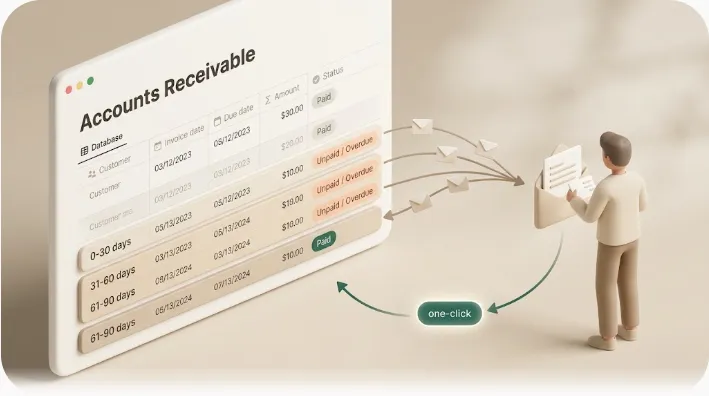
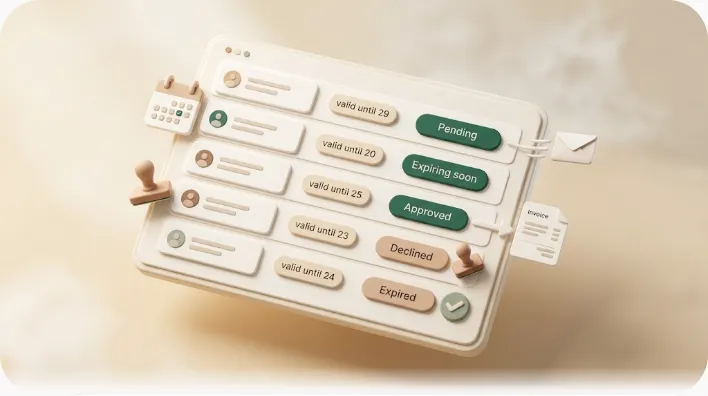
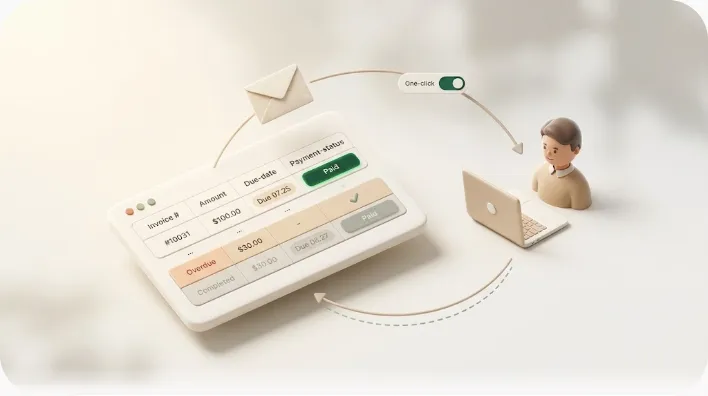
How to Send Automatic Overdue Invoice Reminders From Notion (Without the Awkward Follow-Up)
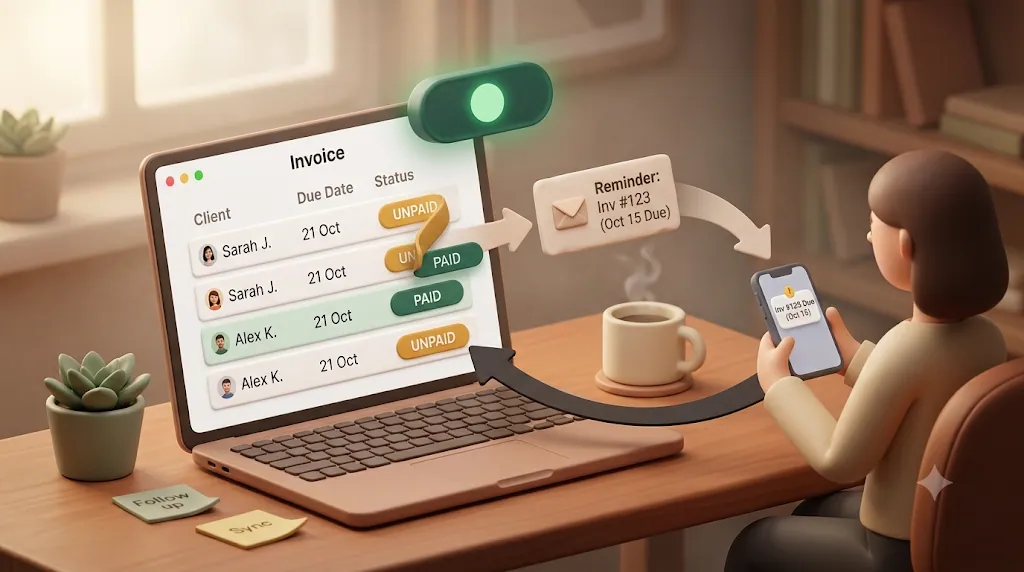
If you invoice clients through a Notion tracker, you already know the awkward part isn't building the database — it's remembering to nudge someone who hasn't paid. Notion's own reminders don't reach anyone outside your workspace, so that job falls back on you, every time, out of your own memory. This guide turns the invoice tracker you already have into automatic email reminders that reach clients with no Notion account, and that stop the instant an invoice is marked paid.
TL;DR
- Notion's native automations and
@mentionsare designed to notify people inside your workspace, so they don't reliably reach a client who has no Notion account.- A working reminder system needs three things: it watches the right signal (due date and status), reaches the client by plain email with no login, and never nudges someone who already paid.
- Kapsel watches your Notion invoice tracker and emails reminders to clients without a Notion account, and a one-click confirm button in the email writes the status back to Notion.
- Pair automation with a sane cadence (a heads-up before the due date, then a polite follow-up every 10–14 days) so chasing payment never feels confrontational.
💡 Definition: Kapsel is a Notion notification tool that watches your database's due dates, assignees, and statuses and sends automatic email reminders to people who don't need a Notion account, with a one-click confirmation in each email that writes the status back to Notion.
Why invoice reminders sent from Notion often don't land
The theory is simple: your invoice is overdue, so Notion should tell your client. In practice, most reminders sent from Notion are built to notify the wrong audience.
Notion's automations are built for people inside your workspace
Notion's database automations and @mentions are designed to alert members of your workspace. When you @mention someone or trigger an in-app notification, it appears in that person's Notion notification center or their account email. That works well for a teammate who logs into Notion every day. It does not work for a client who has never created a Notion account and never will.
The "did they even see it" problem when your client doesn't use Notion
Most freelance and small-team clients do not use Notion. If your reminder depends on the client opening Notion, checking a notification, or being a workspace guest, you have no way of knowing whether the message was seen. (If you bill clients solo, our guide to freelance payment reminders covers the wider workflow.) That uncertainty is exactly what pushes people back into manual chasing, copying invoice details into a fresh email every couple of weeks.
⚠️ Before you invest time wiring up automations, confirm how the reminder is delivered. An in-app Notion notification is not the same thing as an email your client will actually open in their normal inbox.
If you already invoice in Notion, you don't need a separate AR tool
Most accounts-receivable software — the Chaser/Upflow/QuickBooks-reminder category — assumes your invoices live in their database, so step one is exporting or re-entering everything you already track in Notion. If your invoice tracker (client, amount, due date, status) already lives in Notion, that migration is unnecessary work. A Notion overdue invoice reminder tool reads the tracker you already maintain instead of asking you to duplicate it in a second system. That's the specific case this guide covers: not "which invoicing platform should I switch to," but "how do I add automatic overdue invoice reminders on top of the Notion database I already have."
What a reminder system actually needs to do
A reminder is only useful if it reaches the person who owes you money, at the right time, without embarrassing you. Three requirements matter more than anything else.
Watch the right signal: due date, status, assignee
The system should read your invoice's due date and status and act on them automatically. When an invoice is past due and still marked Unpaid, a reminder should fire. Kapsel watches Notion's due date, assignee, and status properties and sends email reminders based on those conditions.
Reach the client wherever they are, no login required
The reminder has to arrive as a normal email in the client's inbox. No account, no guest invite, no app to open. Kapsel sends plain email to external recipients who do not use Notion, which is the gap most Notion tutorials skip entirely.
Never nudge someone who already paid
Sending a "your payment is overdue" email to a client who already paid is one of the fastest ways to damage a relationship. A reminder system needs a hard rule against it. Kapsel never sends to items marked completed or paid, so a settled invoice is automatically off the list.
| Requirement | Why it matters | How Kapsel handles it |
|---|---|---|
| Watch the right signal | Reminders should fire on real conditions, not manual triggers | Watches Notion due date, status, and assignee |
| Reach non-Notion clients | Most clients have no Notion account | Sends plain email, no login or account needed |
| Never bother a paid client | Chasing a paid invoice damages trust | Never sends to completed or paid items |
| Close the loop | Status should update without manual editing | One-click confirm in the email writes back to Notion |
| Keep a record | Client work needs accountability | Send log of what went out, to whom, and when |
Get these five right and chasing payment stops being a task on your to-do list — it just happens on schedule, aimed only at invoices that are genuinely still owed.
Step 1 — Set up your invoice tracker in Notion
No reminder can fire until Notion knows what an invoice is and when it is due. Build the tracker first.
Properties worth tracking (due date, status, amount, client email)
Create a database (a table works fine) with one row per invoice and these properties:
- Invoice number — a title or unique ID for each invoice.
- Client — the client name, and a Client email property (email type) for where reminders should go.
- Amount — a number property, formatted as currency.
- Due date — a date property; this is the signal reminders key off.
- Status — a select or status property with values like
Draft,Sent,Overdue, andPaid.
Get these five right once and every reminder rule later in this guide has exactly the data it needs — due date to trigger on, status to suppress, and an email to send to — with no retrofitting. For the full column design and how to turn it into a reusable template, see how to build a Notion invoice template. If you bill the same clients every month, managing recurring invoices in Notion covers the next-due-date formula and retainer-specific setup.
A simple filtered view for "overdue"
You can flag overdue invoices two ways. The quick way is a filtered view: filter where Status is Sent (or not Paid) and Due date is before today. That gives you a live list of everything outstanding.
If you want an automatic label, add a formula property. Using dateBetween or a simple comparison of the due date to now(), a formula can output "Overdue" when the due date has passed and the status is not Paid. Formulas and filtered views are great for seeing overdue invoices at a glance, but on their own they only surface the problem inside Notion. They do not contact the client.
💡 Keep the client's email in a dedicated property from day one. Whether you use Notion's native automations or a dedicated tool, the reminder needs a reliable place to read the recipient's address.
Step 2 — Two ways to automate the reminder emails
Once the tracker exists, you have two realistic paths to automatic emails.
Notion's native database automations (what they can and can't do)
Notion lets you build a database automation where the trigger is a condition (for example, a status change) and the action can send a notification or, when connected to Gmail, send an email. Layering third-party tools like Zapier or Make on top can add more hands-off sending, using a Gmail "send email" step or an AI agent to draft the message.
This path works, but it has real limits for invoice chasing:
- Setup is technical and per-database. Building the automation means opening the automations panel, naming the workflow, setting the trigger, connecting Gmail, mapping the dynamic fields, and granting permissions — then repeating the whole process for every database you want covered.
- It's mostly one-directional. Sending the email is where the tutorial ends. You still flip the status back to
Paidyourself once the client pays. - Date-based triggers are awkward. Native automations trigger cleanly on changes like a status edit; "X days after a due date with no payment" often needs an external scheduler or a third-party tool to run reliably.
Connecting a dedicated tool for client-facing, two-way reminders
The alternative is a tool built specifically for reminding external recipients from Notion. Instead of wiring Gmail steps and permission grants per database, you connect your workspace once, choose what to watch, and let the tool handle delivery, timing, and write-back. Kapsel is that kind of tool: a solo-built product designed to send Notion-driven reminders to people outside the workspace and update Notion when they respond.
| Notion native automations (+ Zapier/Make) | Kapsel | |
|---|---|---|
| Reaches clients with no Notion account | Depends on connecting an email step; not the default behavior | Yes — plain email, no login needed |
| Setup | Multi-step, per-database, some technical config | Connect workspace once, then configure |
| Two-way write-back | Manual — you update status yourself | One-click confirm writes status back to Notion |
| Skips already-paid invoices | You must build the filter yourself | Built in — never sends to paid/completed items |
| Follow-up cadence for overdue items | Needs external scheduling | Overdue follow-ups and recurring digests built in |
| Send log / audit trail | Not provided | Built-in send log |
The payoff of connecting a dedicated tool once is that every invoice database you add afterward inherits the same rules automatically, instead of another round of Gmail steps and permission grants.
Closing the loop: one-click confirmation that writes back to Notion
Most advice about Notion invoice reminders stops at "the email got sent." That leaves a manual chore every time a client pays.
The client marks it paid from the email itself
Kapsel's reminder email includes a one-click confirmation button. When the client clicks it to confirm payment, that action writes the status back into your Notion database. The client never needs a Notion account or a login to do this — they just click a link in the email they already received.
No more manually updating the database after the fact
Because the confirmation updates Notion directly, you don't have to hunt down the invoice row and flip it to Paid yourself. And because Kapsel never sends to items already marked paid or completed, once that status is set, no further reminder goes out for that invoice. This two-way loop — email out, status back — is the piece that native automations and general chasing guides leave to you.
A follow-up cadence that doesn't feel like a threat

Automation is only half the job; timing and tone are the other half. A good cadence keeps you top of mind without making the client feel cornered, and starting from ready-made payment reminder email templates keeps each message consistent.
Before the due date: a friendly heads-up
Send a short, neutral note a few days before the invoice is due. Frame it as a convenience, not a warning.
Subject: Invoice #123 — due Friday Hi [Client], just a quick heads-up that Invoice #123 for [amount] is due on [date]. Payment details are on the invoice — let me know if you need anything.
Just after: a gentle nudge
If the due date passes, wait a day or two, then send a light "just checking in" message. Assume the best; most late payments are oversights, not refusals.
Subject: Just checking in on Invoice #123 Hi [Client], I wanted to make sure Invoice #123 didn't slip through. It was due on [date] — no rush if it's already on its way. Happy to resend the invoice if that's easier.
Still overdue: an escalating but polite series
For invoices that stay unpaid, a reasonable rhythm is a follow-up roughly every 10–14 days. Keep each message polite, but make the ask progressively clearer — reference the original due date, the number of days outstanding, and any late terms you agreed to. Kapsel's overdue follow-ups and recurring digests let you keep this rhythm going automatically instead of setting manual calendar reminders.
When to stop automating and call instead
Automation is best thought of as the way to avoid the classic collections ladder — email, phone call, formal letter, collections agency, legal action. A steady, polite cadence often resolves the invoice at the email stage, before it ever needs to escalate. But there is a point where a real conversation beats another email. If several polite follow-ups over 30–60 days go unanswered, pause the automated series and pick up the phone or send a formal written notice. Automation handles the routine; a human handles the exception.
⚠️ Escalate the clarity of your message over time, never the hostility. A calm, factual tone protects the relationship even when a payment is badly overdue.
Personalizing reminders at scale with merge fields
Copy-pasting a template and hand-editing the client name, invoice number, and amount for every reminder does not scale, and it invites mistakes. Kapsel supports merge fields, so you write one message and let it pull the right values — client name, invoice number, due date, amount — from each Notion row automatically. Every client gets a personalized email; you maintain a single template.
Keeping a record: why a send log matters for client work
When you are billing clients, "I'm pretty sure I reminded them" is not good enough. If a payment is disputed or a client says they never heard from you, you want a record. Kapsel keeps a send log of what went out, to whom, and when. That audit trail is something neither Notion's native automations nor the general invoice-chasing guides tend to offer, and it is genuinely useful for accountability on client work.
Setting this up with Kapsel
📊 Measured setup time: We built this exact flow—remind only unpaid invoices, escalate once overdue, and stop automatically once marked paid—in Kapsel from a minimal setup, and initial configuration took about 5 minutes (first build, minimal setup, as of 2026; it varies with familiarity and requirements). It's fewer steps than wiring the same "stop when paid" condition together in a general-purpose automation tool, because the completed/paid suppression is built in.
Here's the shortest path from a Notion invoice tracker to automatic, client-facing reminders.
Connect your Notion workspace
Sign up and connect the Notion workspace that holds your invoice database. You do this once, rather than configuring an email integration per database. See the setup guide for the walkthrough.
Choose what to watch and who receives it
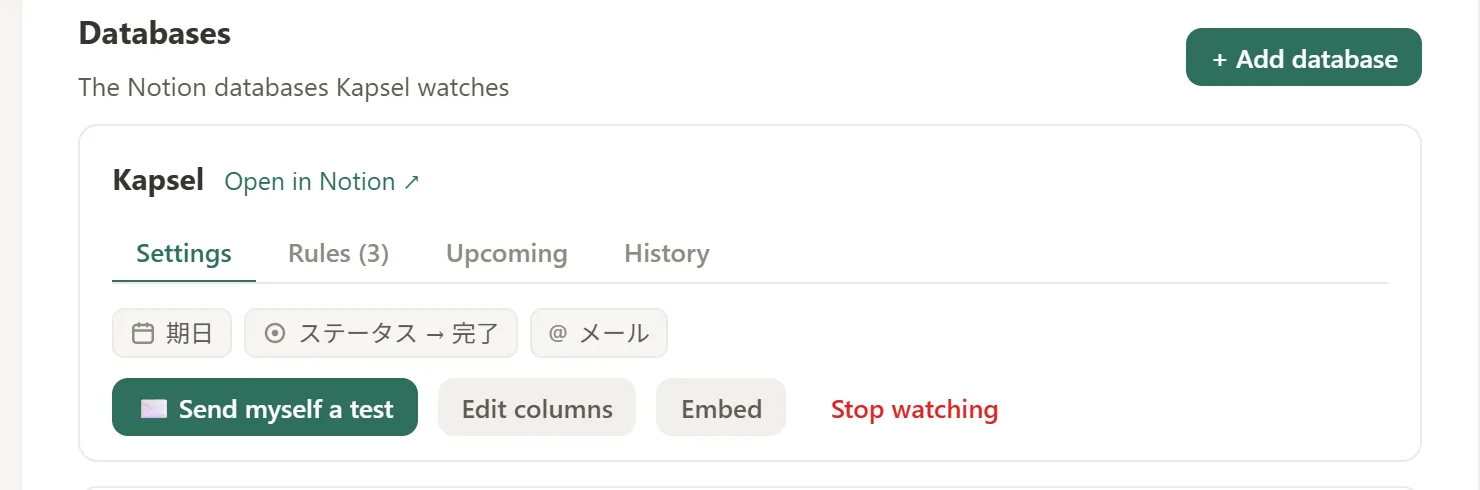
Point Kapsel at your invoice database and tell it which properties to watch — the due date and status — and which property holds the recipient's email address (your Client email property).
Filter targets so only the right invoices trigger a reminder
Use target filtering so reminders only go out for invoices that actually qualify — for example, status is not Paid and the due date has passed. Combined with Kapsel's built-in rule against sending to completed or paid items, this keeps reminders aimed only at genuinely outstanding invoices.
Check the send log
After reminders start going out, review the send log to confirm what was sent and to whom. When a client clicks the one-click confirm button, the status updates in Notion and no further reminders fire for that invoice.
Learn more about how Kapsel reaches people who don't use Notion, or see the full product overview.
Pricing: Free, Standard, and Pro
Kapsel has a free plan you can use to test the workflow before paying anything.
| Plan | Price (USD / month) | Good for |
|---|---|---|
| Free | $0 | Trying reminders on a single workspace |
| Standard | $12 | Solo freelancers running invoice reminders regularly |
| Pro | $29 | Multiple Notion workspaces and sender branding (company name, signature, logo) |
Full details are on the pricing page.
💡 Start on the Free plan, wire up one invoice database, and send a reminder to yourself first to see the full loop — email out, one-click confirm, status back in Notion — before you roll it out to clients.
Try Kapsel free. Kapsel watches your Notion due dates, assignees, and status, then sends automatic email reminders — including to people without a Notion account — with one-click write-back. Free plan, no credit card required. → Start with Kapsel
FAQ
How do I send automatic payment reminders from a Notion invoice tracker?
First build an invoice database in Notion with due date, status, amount, and client email properties. Then either configure a native Notion database automation with an email action, or connect a dedicated tool like Kapsel that watches those properties and emails clients automatically. The tool approach also handles overdue follow-ups and writes the status back to Notion when the client confirms payment.
Can Notion send reminders to people who don't have a Notion account?
Notion's native automations and @mentions are built to notify people inside your workspace, so they don't reliably reach a client with no account. To reach an external client, you need email delivery that doesn't require the recipient to log in. Kapsel sends plain email to people who don't use Notion — no account or guest invite required.
How often should you send an overdue invoice reminder?
A common cadence is a friendly heads-up a few days before the due date, a gentle nudge a day or two after it passes, then a polite follow-up roughly every 10–14 days while the invoice stays unpaid. Keep the tone consistent and factual each time. If several follow-ups over 30–60 days go unanswered, switch to a phone call or a formal written notice.
What should an overdue invoice reminder email say (without sounding aggressive)?
Keep it short, assume the best, and make the ask clear. A subject line like "Just checking in on Invoice #123" works well, followed by the invoice number, amount, original due date, and a simple next step. Avoid accusatory language; most late payments are oversights, and a calm tone protects the relationship.
Does Notion automatically stop sending reminders once an invoice is marked paid?
Not by default — with native automations you generally have to build the filter yourself so a paid invoice is excluded, and you must remember to update the status. Kapsel handles this directly: it never sends to items marked completed or paid, so once an invoice is settled, no further reminder goes out for it.
Can a client confirm they paid without logging into Notion?
Yes, with Kapsel. Each reminder email includes a one-click confirmation button, and clicking it writes the status back into your Notion database. The client doesn't need a Notion account or login — they just click the link in the email.
What's the difference between Notion's built-in automations and a dedicated reminder tool like Kapsel?
Notion's automations are strong for notifying teammates inside the workspace and can send email when connected to Gmail, but setup is technical, per-database, and mostly one-directional. Kapsel is purpose-built to reach external clients by email, skip paid invoices automatically, keep a send log, and close the loop with one-click confirmation that updates Notion. In short, native automations notify insiders; Kapsel handles client-facing, two-way reminders.
Is there a free way to automate invoice reminders from Notion?
Yes. Kapsel has a Free plan at $0 that lets you connect a workspace and send reminders, which is enough to test the full loop. Notion's own native automations are also available within Notion, though reaching non-Notion clients and closing the loop back to your database is where a dedicated tool adds the most.
Do I need to switch invoicing tools to set up a Notion overdue invoice reminder?
No. A Notion overdue invoice reminder tool like Kapsel connects to the invoice tracker you already have in Notion — it doesn't require exporting your data into separate accounts-receivable software. If your client, amount, due date, and status properties already exist in a Notion database, that's all a reminder tool needs to start watching it.
Notes
Published 2026-08-03. Features and pricing described in this article are current as of writing. Kapsel watches Notion due dates, assignees, and statuses and sends email reminders to recipients who do not need a Notion account; a one-click confirmation in each email writes the status back to Notion, and reminders are never sent to completed or paid items. Pricing referenced: Free $0, Standard $12, and Pro $29 per month (USD). Notion product behavior may change over time; verify native automation capabilities in Notion's current documentation.