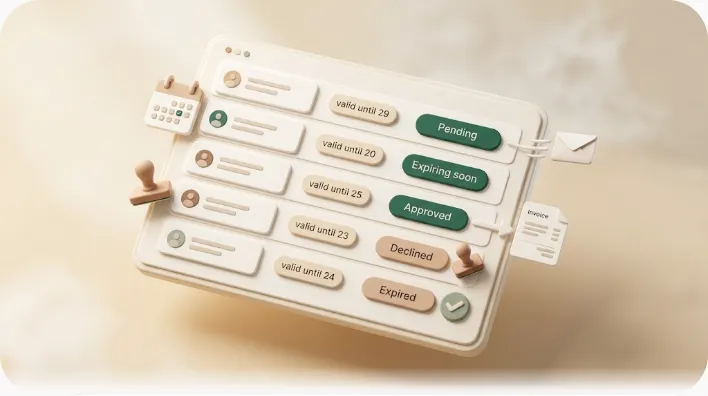
Notion Invoice Template: The Column Design That Actually Tracks (and Chases) Payment
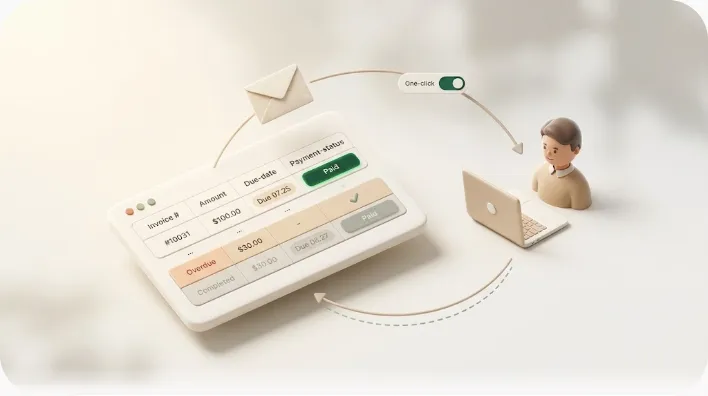
Most "Notion invoice template" posts hand you a database to duplicate and stop there — a nice-looking table with no idea who still owes you, and nothing watching what happens after you hit send. If you're a freelancer, solo dev, or small team already billing through Notion, that's the wrong finish line: the template itself takes ten minutes, but tracking who's paid and remembering to chase who isn't is the part that actually costs you money. This guide gives you both halves — the exact column design a usable invoice database needs, and the follow-up workflow that turns it into something that actually gets you paid.
TL;DR
- The hard part of a Notion invoice template isn't the layout — it's choosing the right columns (invoice number, client, amount, tax, dates, status, recipient email) so every invoice is complete and every reminder later has the data it needs.
- Notion is a genuinely good place to track invoices next to your projects, but it's a weak print/PDF layout tool — the honest workaround is exporting the invoice page to PDF, accepting that the styling is limited.
- The step most template posts skip is the after-work: once you've sent an invoice, something has to watch the due date, flag what's unpaid, and email the client — and Notion alone can't send conditional email to people outside your workspace.
- Kapsel is a Notion notification tool that watches your database's due dates and statuses, emails reminders to clients who don't need a Notion account, writes the status back to Notion on the client's one click — and never sends to a row marked paid.
It's also honest about where Notion is the wrong tool. Notion is excellent at organizing invoice data alongside your work, but it was never built to produce a pixel-perfect, print-ready invoice document. Rather than pretend otherwise, this article shows you the columns that matter, a sensible way to export a page to PDF when you need to send a formatted invoice, and how to close the loop on payment afterward.
Why manage invoices in Notion at all
The case for Notion isn't that it's the best invoicing software — it isn't. It's that your invoices live where your work already does. If your projects, clients, and deliverables are in Notion, adding an invoice database means one less tool, one less login, and one place where "what did I bill this client, and did they pay?" has a single answer. You can relate invoices to project pages, roll up totals per client, and filter to "everything still outstanding" without exporting anything.
That said, be clear-eyed about the limits before you commit:
- Notion is not a formatted-invoice or print tool. There's no built-in invoice PDF generator with your logo, aligned line-item tables, and a total block positioned exactly where an accountant expects it. You can lay a page out reasonably, but you don't get fine control over print layout.
- The workaround is exporting a page to PDF. Notion can export a page as PDF, which is usually good enough to send a client a record of what they owe. The styling is basic — expect a clean document, not a designed one. For anything that needs strict formatting, some people pair Notion (as the source of truth) with a dedicated invoice generator for the final document.
- Notion can't email your client on its own. Native automations and
@mentionsnotify people inside your workspace; they don't reliably reach a client who has no Notion account. That gap is exactly what the second half of this guide addresses.
None of these are dealbreakers for tracking and light invoicing. They're just worth knowing before you decide Notion is your billing hub.
The columns your Notion invoice template needs
This is the core of the whole thing. A good invoice — on paper or in a database — generally includes an invoice number, the parties involved, dates, an itemized description, and a total (with tax shown separately). Get the columns right once and everything downstream — filtering, exporting, and automated reminders — has the data it needs, with no retrofitting later.
Here's a column design that covers a standard invoice and is ready for follow-up automation:
| Column | Property type | Purpose |
|---|---|---|
| Invoice # | Title, or a Unique ID property | The unique reference each invoice is filed under |
| Client | Relation (to a Clients DB) or text | Who the invoice is for |
| Contact | Text | The named person you're billing / who approves payment |
| Description | Text or rich text | What the invoice covers (line items / work performed) |
| Subtotal | Number (currency) | The amount before tax |
| Tax | Number or formula | Tax amount or rate applied — shown separately from the subtotal |
| Total | Formula (or number) | Subtotal plus tax — the amount actually owed |
| Issue date | Date | When the invoice was issued |
| Due date | Date | When payment is due — the signal reminders key off |
| Payment status | Status or Select | e.g. Draft, Sent, Overdue, Paid — drives what gets chased |
| Recipient email | Where reminders are sent — clients rarely live in your Notion | |
| Bank / payment details | Text | How to pay (bank info, payment link, instructions) |
| Notes | Text | PO numbers, terms, anything invoice-specific |
A few of these earn special mention. The Recipient email column is easy to skip and the most costly to omit — it's what lets a reminder actually reach a client who doesn't use Notion. The Payment status column is what makes the difference between a static list and a workflow: it's the field you filter on to see what's outstanding, and the field automation later reads to decide who to chase and who to leave alone. And keeping Tax separate from Subtotal and Total keeps your records clean and your invoices legible.
This is general guidance on what an invoice usually contains, not tax advice. What a compliant invoice must include — required fields, tax rates, registration numbers — varies by country and situation. Confirm the rules for your jurisdiction before relying on any template.
Steps to build the template in Notion
With the columns decided, building it is quick.
- Create the database. Add a new database (a table view is the natural default) and give it one row per invoice.
- Set up the properties. Add each column from the table above with its property type. Set
SubtotalandTotalto display as currency, and givePayment statusits status values (Draft,Sent,Overdue,Paid). - Add a total formula. Instead of typing the total by hand, use a formula property so it computes itself. Conceptually it's something like
Subtotal * (1 + Tax rate)— if you store tax as a rate — orSubtotal + Taxif you store a tax amount. Notion's formula syntax has its own conventions, so treat this as the shape of the idea rather than exact code, and adjust to how you've defined your tax column. - Auto-number invoices. For a stable reference, Notion's Unique ID property assigns an incrementing number to each row automatically (you can give it a prefix like
INV-). Alternatively, a formula can build an invoice number from a date plus a counter. Either keeps you from hand-typing numbers and accidentally reusing one. - Build the views you'll actually use. A filtered "Outstanding" view (Payment status is not
Paid) shows what's still owed; an "Overdue" view adds Due date is before today. These are the same filters your reminders will key off later — see how to design a Notion database for view and property patterns worth reusing. - Save it as a duplicable template. Turn a single invoice row into a Notion template button (or duplicate a model row) so issuing a new invoice is one click with the structure pre-filled. If you'd rather not build from scratch, ready-made Notion templates can give you a starting point to adapt.
When you need to send the actual document, open the invoice's page and use Notion's export to PDF — plain, but a valid record of what's owed.
After you build it: tracking payment and chasing overdue invoices
Here's the premise most template posts leave out: a template records what you billed, but it doesn't tell you what's been paid, and it can't chase what hasn't. Notion on its own can't send a conditional, automated email to a client outside your workspace — its notifications are built for people who log into Notion, and your clients almost certainly don't. So the moment you've sent an invoice, you're back to manually checking who's paid and drafting follow-ups from memory. That's the exact task that slips during a busy week.
This is the gap Kapsel fills. Kapsel is a Notion notification tool that watches your invoice database's due dates and payment status and acts on them automatically:
- It watches the right signal. When an invoice passes its due date and is still marked unpaid, it qualifies for a reminder — nothing depends on you noticing it that morning.
- It reaches clients who don't use Notion. Kapsel sends a plain email — no Notion account, no login, no guest invite. The address comes straight from your Recipient email column.
- It closes the loop both ways. Each email includes a one-click confirmation; when the client uses it, the status writes back into Notion automatically, so your database updates itself.
- It keeps the chase going. Overdue follow-ups repeat the nudge on a cadence, scheduled sends give you a periodic rollup of everything outstanding, and target filtering lets you chase only the invoices that qualify. A send log records what went out, to whom, and when — merge variables pull each client's name, amount, and due date from their Notion row so one template serves every invoice.
For the full walkthrough of this workflow, see overdue invoice reminders from Notion, and for the exact wording to send at each stage, payment reminder email templates.
Don't send to a client who already paid — the safety design
The scariest failure in any reminder setup isn't forgetting to send — it's an "overdue" email landing in the inbox of a client who already paid. That's a trust-breaker, because you've effectively accused a paying customer of not paying. Most guides tell you to "just check before each send," which relies on a human remembering, every time. Kapsel handles it structurally instead: it never sends to a row marked paid or done. Once the status is set to paid — whether you update it or the client confirms with one click — no further reminder goes out for that invoice, so the rule holds even on a week when you never look at the database. It's the same principle covered in unpaid invoice reminder templates: chase only what's genuinely still owed.
Pricing: Free, Standard, and Pro
Kapsel has a free plan you can use to test the whole loop before paying anything.
| Plan | Price (USD / month) | Good for |
|---|---|---|
| Free | $0 | Trying reminders on a single workspace |
| Standard | $12 | Solo freelancers running invoice reminders regularly |
| Pro | $29 | Multiple Notion workspaces and sender branding (company name, signature, logo) |
Start on Free, connect your invoice database, and send a reminder to yourself first to watch the full loop — email out, one-click confirm, status back in Notion — before you roll it out to clients. The Free plan stays free.
Try Kapsel free. Kapsel watches your Notion due dates and status, then sends automatic email reminders — including to clients without a Notion account — with one-click write-back, and it never emails a paid invoice. Free plan, no credit card required. → Start with Kapsel
FAQ
Can you create invoices in Notion?
Yes. You can build an invoice database in Notion with one row per invoice and properties for the invoice number, client, amounts, dates, and payment status — which is a solid way to track invoices alongside your projects. What Notion doesn't do well is produce a designed, print-ready invoice document; for that, you export the page to PDF (plain but valid) or pair Notion with a dedicated invoice generator for the final file.
Is a Notion invoice template free?
Building one yourself in Notion is free within your existing Notion plan — it's just a database you set up. Many community templates are also free to duplicate. Separately, if you want to automate reminders on top of that template, Kapsel has a Free plan at $0 so you can test the workflow before paying.
How do I auto-number invoices in Notion?
Notion's Unique ID property assigns an automatic, incrementing number to each new row and lets you add a prefix like INV-, which is the simplest way to get stable invoice numbers without hand-typing. Alternatively, a formula can construct a number from a date plus a counter. Either approach avoids the risk of accidentally reusing a number.
Can I export a Notion invoice as a PDF?
Yes — open the invoice page and use Notion's export-to-PDF option. It produces a clean, readable document, though the layout control is limited, so don't expect a designed invoice with precise positioning. For most freelance and small-team billing, the exported PDF is enough to send a client a record of what's owed.
What columns should a Notion invoice template have?
At minimum: invoice number, client, a description of what's billed, subtotal, tax, total, issue date, due date, and payment status. Add a recipient email property so reminders can reach clients who don't use Notion, plus payment details and a notes field. Keeping tax separate from subtotal and total keeps your records clean and the invoice legible.
How do I automate reminders for unpaid invoices in Notion?
Notion's native automations notify people inside your workspace but don't reliably email outside clients or stop once an invoice is paid. A tool like Kapsel watches your invoice database's due date and payment status, emails clients automatically when an invoice is overdue and unpaid, repeats follow-ups on a cadence, and — importantly — never sends to a row marked paid. See overdue invoice reminders from Notion for the setup.
How do I reach clients who don't have a Notion account?
Your reminder has to arrive as a normal email, not an in-app Notion notification. Kapsel reads the recipient's address from an email property in your invoice database and sends a plain email — no account, login, or guest invite required. The client can even confirm payment with one click straight from that email, which writes the status back to Notion.
Does the client have to log into Notion to confirm payment?
No. Each Kapsel reminder includes a one-click confirmation button; clicking it writes the status back into your Notion database without the client needing a Notion account or login. They just click the link in the email they already received, and your records update themselves.
Notes
Published 2026-09-30. Notion database, property, Unique ID, and PDF-export behavior described here is based on the general capabilities documented in Notion's Help Center (notion.so/help); Notion's product may change, so verify current behavior in its documentation. This article is general information about what invoices typically contain — it is not legal or tax advice; required invoice fields and tax rules vary by country and situation, so confirm the rules for your jurisdiction before relying on any template. Kapsel features and pricing are as implemented at the time of writing: Kapsel watches Notion due dates, assignees, and statuses and sends email reminders to recipients who do not need a Notion account; a one-click confirmation in each email writes the status back to Notion, and reminders are never sent to completed or paid items. Kapsel also supports overdue follow-ups, target filtering, scheduled sends, a send log, and merge variables; the Pro plan adds multiple Notion workspaces and sender branding. Pricing referenced: Free $0, Standard $12, and Pro $29 per month (USD).