What Is a Notion Database? The Big Picture on Properties, Views, and Relations

One source of truth, viewed five different ways, updating everywhere at once the moment you change it in one place — that is what a Notion database is actually for, and it is easy to miss if you only ever use the grid view. If you have used Notion for more than a few minutes, you have seen something that looks like a spreadsheet: rows, columns, a grid. This guide is for anyone who wants the one conceptual read that ties it together — what a database really is, the property types that give it structure, the views that let one dataset serve many purposes, and how relations and rollups connect separate databases into a system — instead of piecing it together from Notion's docs, which split the story across separate pages for "what a database is," "creating one," and "relations and rollups." It is an overview, not a click-by-click build tutorial — the how-to guides linked throughout cover building each specific view. New to Notion overall? Start with the complete guide to using Notion.
TL;DR
- A Notion database is a collection of pages, not a spreadsheet. Each row is a full page; the columns ("properties") give every page structure so you can filter, sort, and group it.
- The central idea is views: Table, Board, Calendar, Timeline, Gallery, and List are just different windows onto the same underlying data — filtering, sorting, and grouping turn one database into many purpose-built screens.
- Relations link two databases (Tasks ↔ Projects), and rollups summarize across that link (count, sum, percent complete).
- Reach for a database when items share fields you want to filter or roll up; a plain checklist is fine when you just need to tick things off.
What a Notion database actually is (a collection of pages, not a spreadsheet)
A Notion database is a structured collection of pages, where each row is a real page and each column is a property that stores one piece of information about that page. It looks like a spreadsheet, but it behaves more like a filing cabinet of documents that all share the same labeled fields.
Every row is a real page
Every row in a Notion database is a full Notion page you can open. Click the row and it expands: properties sit at the top, and below them is a blank canvas for text, checklists, images, sub-pages, or anything else Notion pages hold. This is the biggest difference from a spreadsheet cell, which holds only a value. A task row can contain the whole brief; a contact row can hold every meeting note.
Properties are what make it structured
Properties are the "columns" that give each page structure and make the whole collection filterable and sortable. A task might have a Status, an Assignee, a Due date, and a Priority — each one a property with a defined type. Because every page shares the same set of properties, Notion can do database things with them: show only overdue tasks, sort by priority, group by owner. Without properties you would have a pile of pages; with them you have data.
One source of truth you can reshape without duplicating data
The payoff of this model is a single source of truth you can reshape endlessly without copying anything. You enter each item once. From there you can view it as a table today and a calendar tomorrow, filter it five different ways, or group it by owner — all reading from the same records. Update a due date in one place and every view reflects it instantly, because there is only ever one underlying dataset.
💡 Rule of thumb: in a Notion database, the data lives in the pages and properties; everything else you see (the grid, the board, the calendar) is just a way of displaying that data.
Inline vs. full-page databases
Notion databases come in two placements: inline, embedded inside another page alongside other content, or full-page, where the database is the entire page. The data works identically either way; the difference is where it lives and how much surrounding context it gets.
Inline databases — embedded inside a page
An inline database sits inside a normal page, so you can put text, headings, and other blocks around it. This is ideal when the data belongs to a larger context — an "Open items" table right on a client's page, or a reading list embedded in a project doc. The reader sees the database in the flow of the page instead of navigating away. The tradeoff is a bit less screen room and a slightly busier layout.
Full-page databases — the database is the page
A full-page database takes over the whole page: it becomes a standalone hub with its own icon in the sidebar. Reach for this when the database is important enough to be a destination — a master Tasks database, a company CRM, a content calendar the whole team opens directly. You can always convert between the two (turn an inline database into a full page, or vice versa) as its role grows.
| Inline database | Full-page database | |
|---|---|---|
| Where it lives | Embedded inside another page | Is the page itself |
| Best for | Context-specific data (client page, project doc) | A standalone hub you navigate to |
| Surrounding content | Yes — text and blocks around it | No — just the database |
| Sidebar presence | Under its parent page | Its own top-level entry |
Property types and what each one is for
Properties are typed, and the type decides what a field can hold and what Notion can do with it. Choosing the right type up front is what makes filtering, sorting, and rollups work later. Here is what each common type is for.
Text, number, and URL/email/phone — the basics
These store plain values. Text holds free-form notes or short descriptions. Number holds quantities and can be formatted as a plain number, currency, or a percent bar — and it is the type rollups and formulas do math on. URL, Email, and Phone store their values as clickable links, so a contact's email becomes a one-tap action rather than text you have to copy.
Select, multi-select, and status — categorizing and tracking state
These three assign items to categories from a defined list. Select picks one option (a Category, a Type). Multi-select picks several (Tags). Status is the important one for workflows: it is a select-like property that groups its options into three stages — To-do, In Progress, and Complete — and knows which options count as done. That "done" awareness is why Status drives Board columns and progress rollups cleanly, where a plain Select would not.
💡 Use Status when an item moves through stages (not started → doing → done). Use Select for a category that does not have a lifecycle, like "Department" or "Content type."
Person and date — who and when
Person links a property to actual members of your workspace, which is what powers "assigned to me" filters and native assignment notifications. Date stores a day or a date range (start and end), can include a time, and is what Calendar and Timeline views read from. A single Date property with a range is what lets a task span multiple days on a timeline.
Checkbox and files — simple flags and attachments
Checkbox is a simple true/false toggle — good for "Paid?", "Reviewed?", or a quick done flag on lightweight items. Files & media attaches images, PDFs, or other files directly to the page, and can even become a card's cover image in Gallery view. Together they cover the two everyday needs a text field cannot: a yes/no flag and an actual attachment.
Formula — calculating values from other properties
A Formula property computes a value from other properties instead of storing something you type. It can flag overdue items (compare Due date to today), calculate days remaining, combine text fields, or return an emoji based on status. Formulas recalculate automatically as the underlying properties change, so they are the way to add derived, always-current information without manual upkeep.
Relation and rollup — connecting to other databases
Relation and Rollup are the two properties that connect databases to each other rather than describing a single item. A relation links a page in one database to pages in another; a rollup pulls information across that link and summarizes it. They deserve their own section, so they are previewed here and explained in full below.
The key idea: views are just different windows onto the same data
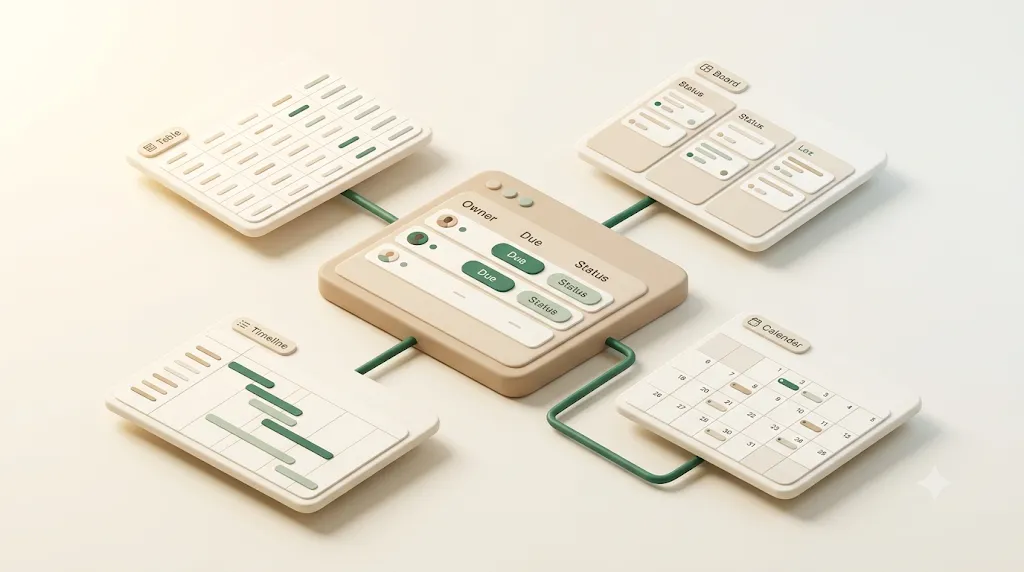
This is the concept that makes databases click: a view is a saved way of displaying one database, and a single database can have many. Table, Board, Calendar, Timeline, Gallery, and List are not six kinds of data — they are six windows onto the same records, each filtered, sorted, and grouped for a specific job.
Table — the spreadsheet-like default
The Table view is the grid most people picture: rows and property columns, best for entering data quickly and seeing every field at once. It is the workhorse for editing many items in bulk and the easiest place to add or rename properties.
Board — grouping by status or stage
A Board view groups pages into columns by a property — usually Status — so each column is a stage and each card is a page you drag between them. It is the Kanban view, ideal for seeing where work sits and moving it forward. Building and running one has its own steps, covered in the Notion Kanban board guide.
Calendar — grouping by date
A Calendar view places each page on a monthly (or weekly) grid according to its Date property. It is the natural view for anything scheduled — deadlines, publish dates, events — and lets you drag an item to a new day to change its date. The broader calendar workflow is covered in the Notion calendar guide.
Timeline — for schedules and dependencies
A Timeline view is Notion's Gantt-style layout: pages become horizontal bars across a time axis, using a Date range for start and end. It is built for schedules, durations, and dependencies between items — seeing how a project's phases overlap. Setup and dependency options are covered in the Notion Gantt chart guide.
Gallery and List — visual and compact browsing
A Gallery view shows pages as cards with a cover image, which suits visual libraries — moodboards, recipes, a product catalog. A List view is the opposite: a clean, minimal stack of page titles with almost no visual weight, good for notes, docs, or a simple index where scanning names is all you need.
Why the same database can power five different views for five different purposes
The reason one database can serve so many roles is that each view carries its own filter, sort, and group settings. One Tasks database can be a Table for editing, a Board filtered to "not done" for daily standups, a Calendar of this month's deadlines, a Timeline for the project plan, and a List filtered to "assigned to me" — all at once, all in sync. You are never copying tasks between formats; you are re-asking one dataset a different question. That single idea — one source of truth, many purpose-built windows — is the heart of working well in Notion.
| View | Reads from | Best for |
|---|---|---|
| Table | Any properties | Bulk editing, seeing every field |
| Board | A Status/Select property | Stages at a glance, dragging work forward |
| Calendar | A Date property | Deadlines and scheduled items |
| Timeline | A Date range | Schedules, durations, dependencies |
| Gallery | A cover image / Files | Visual, image-first browsing |
| List | The title (mostly) | Compact, low-clutter indexes |
Master this and you stop maintaining five separate lists by hand — you build one dataset once, then filter, sort, and group it into whatever screen the moment calls for.
Relations and rollups: linking databases and summarizing across them
Relations and rollups are how separate databases work together. A relation connects records in two databases; a rollup reaches across that connection to pull in or aggregate the linked data. Used together, they turn isolated lists into a connected system.
Relations connect two databases
A relation property links a page in one database to one or more pages in another. The classic example is Tasks ↔ Projects: each task points to the project it belongs to, and each project automatically shows its list of tasks. Now you can open a project and see everything under it, or open a task and jump straight to its project — without duplicating any names. Relations are also how you build a CRM (Contacts ↔ Deals) or a content calendar (Articles ↔ Campaigns, so each post links back to the campaign it belongs to).
Rollups summarize the linked data
A rollup rides on top of a relation and summarizes the pages on the other end. Once Tasks are related to Projects, a rollup on the Projects database can count the linked tasks, show their due dates, or calculate the percent complete by looking at how many linked tasks are done. That is how a project row displays "8 of 12 tasks complete (67%)" with no manual tallying — the rollup recomputes as tasks change. Building progress rollups step by step is covered in the progress tracking guide.
💡 The order matters: you must create the relation first, then add a rollup that points through it. A rollup needs a relation to travel along.
Templates: auto-filling new items with preset properties and content
A template is a preset starting point for new pages in a database. Instead of filling in every property by hand each time, you click "New from template" and Notion creates a page that already has default properties set — a Status of "Not started," a standard Priority, a checklist or outline in the page body — so you only fill in what's actually different about this item. A database can have several templates for different kinds of entries: a "Client project" template and a "Quick task" template in the same Tasks database, for instance. Templates are what make a database fast to use day to day instead of a chore, especially for anything you create repeatedly, like weekly reports or a recurring client onboarding checklist.
Database vs. a plain checklist or doc: when you actually need one
Not everything needs a database. Use one when your items share fields you will want to filter, sort, or roll up; stick with a plain checklist or doc when you just need to capture or tick things off. The overhead of setting up properties and views only pays off when you will actually query the data.
A quick decision guide:
| Situation | Use a database | Use a checklist / doc |
|---|---|---|
| Items share the same fields (owner, due date, status) | ✅ | |
| You want to filter, sort, or group them | ✅ | |
| You need multiple views of the same items | ✅ | |
| You will summarize with rollups (counts, %) | ✅ | |
| A one-off list you will finish and delete | ✅ | |
| Freeform notes with no repeating structure | ✅ | |
| Ticking off five things for today | ✅ |
Get this call right and you dodge both classic time-sinks: an elaborate database whose filters nobody ever uses, or a checklist that quietly outgrows itself and needs to become a real database.
⚠️ A common mistake is building an elaborate database for something a checklist would handle. If you find yourself never using the filters or properties you created, that is a sign the list was enough.
One database with several views vs. many separate databases
When data is related, one database with several views almost always beats many separate databases. Split into different databases only when the items are genuinely different types of things. Splitting by status, person, or month is the classic trap — those are filters, not separate databases.
The principle: one database per type of thing, then views to slice it. All your tasks belong in one Tasks database, not a "This week," "Next week," and "Someday" database — those are just three filtered views of one dataset. Separate databases make sense for genuinely different entities you will relate to each other: Tasks, Projects, and Clients are three types, so three databases linked by relations.
| Approach | Good when | Watch out for |
|---|---|---|
| One database, many views | Same type of item sliced by status, person, date, or purpose | Trying to force two different entity types into one database |
| Separate databases + relations | Genuinely different things (Tasks vs. Projects vs. Clients) | Splitting one type across many databases — you lose filtering and rollups |
Splitting one type across multiple databases quietly costs you the things databases are good at: you can no longer filter across all of them at once, sort them together, or roll them up. Keep the type together, and let views do the slicing.
Keeping a database current: who actually sees what changes

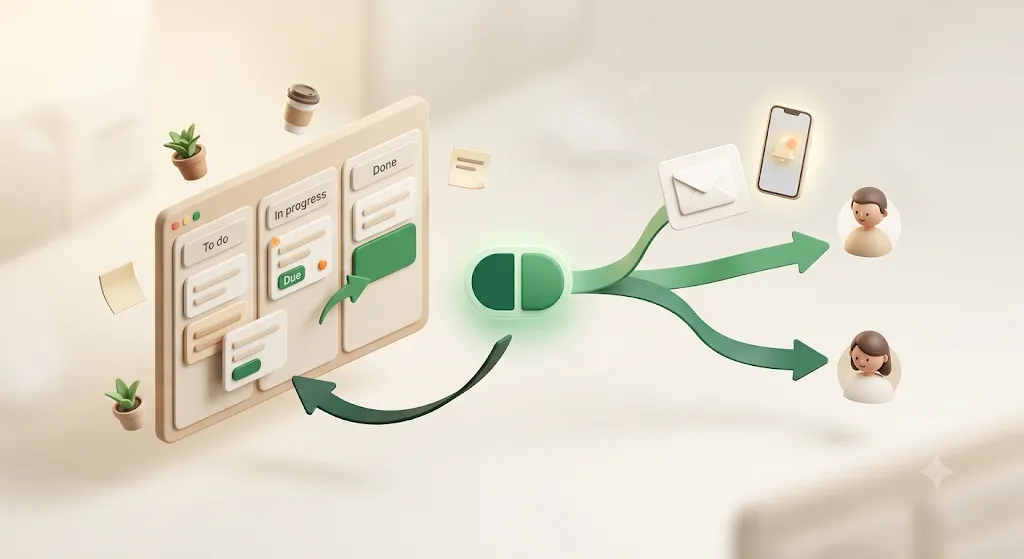
A database only helps if the people who depend on it act on what it holds — and most guides quietly assume everyone involved lives inside Notion. In real client and team work, the person who owes a due date often does not open Notion at all, which is where a reminder layer comes in.
Your database is where due dates, assignees, and statuses live. Getting that information seen is a separate problem, and there are several ways to approach it:
- Native Notion can remind on a Date property and notify a Person on assignment — but only for people who have a Notion account, have notifications on, and actually check Notion.
- Zapier, Make, or n8n can watch a database and push updates to email, Slack, or elsewhere — flexible, but you build and maintain the automation yourself.
- Slack or Google Calendar integrations bring updates into tools a team already checks, if everyone is in those tools.
- Kapsel is a notification tool that watches a Notion database's due date, assignee, and status and sends email reminders — including to people who do not use Notion (email only, no account needed). Its one-click confirm button writes the status back to Notion, so a recipient can update the record from their inbox, and it never sends for items already marked done. You can compare its plans, including a free tier, on the pricing page.
Picking the right one here is what turns a well-built database into work that actually gets done, instead of a record of due dates nobody outside Notion ever saw. Which one fits depends on your team. The point is that the database holds the truth; a notification layer is what carries that truth to whoever needs to act on it.
FAQ
What is a database in Notion used for? A Notion database is used to store a collection of similar items — tasks, contacts, articles, deals — as structured pages you can filter, sort, group, and view in different ways. It is the tool for anything you will keep a list of and want to organize by fields like status, owner, or date, rather than as freeform notes.
What is the difference between a database and a regular page in Notion? A regular page is a single document with freeform content. A database is a collection of pages that all share the same set of properties, so you can query and reshape them as a group. Every row in a database is itself a page, so a database is best thought of as many structured pages managed together.
What is the difference between an inline and a full-page database in Notion? An inline database is embedded inside another page alongside text and other blocks, which is good for context-specific data. A full-page database is the entire page and acts as a standalone hub with its own sidebar entry. The data behaves identically in both; only the placement differs, and you can convert between them.
What is a relation in a Notion database? A relation is a property that links a page in one database to one or more pages in another database — for example, connecting each task to its project. Both sides update automatically, so you can see a project's tasks and jump from a task to its project without duplicating any information.
What is a rollup in Notion and how is it different from a relation? A relation creates the link between two databases; a rollup uses that link to pull in and summarize the connected data. For instance, once Tasks are related to Projects, a rollup can count the tasks or calculate the percent complete for each project. In short, the relation is the connection and the rollup is the summary that travels along it.
Can you link two databases together in Notion? Yes. You add a relation property to one database and point it at another, which creates a two-way link between their pages. From there you can add rollups to summarize the linked data, such as counts, sums, or completion percentages.
Is a Notion database the same as a spreadsheet? No, although the Table view looks like one. In a spreadsheet, a cell holds a value; in a Notion database, each row is a full page that can hold documents, sub-pages, and rich content, and its columns are typed properties. A database also offers many views (board, calendar, timeline) and can link to other databases, which a spreadsheet does not do natively.
How many views can one Notion database have? There is no practical limit — a single database can have as many views as you find useful, each with its own filter, sort, and grouping. A common setup is a Table for editing, a Board for status, a Calendar for deadlines, and a filtered List for "my items," all reading from the same data.
What is the difference between a table and a database in Notion? A database is the underlying collection of pages and their properties; a Table is one view that displays that database as a grid. The same database can also be shown as a board, calendar, timeline, gallery, or list, so the table is just one of several windows onto the data, not the data itself.
Do I need a database for a simple to-do list, or is a checklist enough? For a short, one-off list you just tick through, a plain checklist is enough and faster to make. Reach for a database when your items share fields you want to filter, sort, or roll up — such as due dates, owners, or status — or when you want more than one view of the same tasks.
Can I use one Notion database for multiple purposes instead of creating separate databases? Yes, and usually you should when the items are the same type of thing. One database with several filtered views typically beats many separate databases, because you keep filtering and rollups intact. Create separate databases only for genuinely different entities — like Tasks versus Projects — and link them with relations.
What is the status property in Notion and how is it different from select? The Status property is a select-like field whose options are grouped into three stages — To-do, In Progress, and Complete — and it knows which options count as done. A plain Select just stores one option from a list with no built-in concept of completion. Because Status understands "done," it works cleanly with Board columns and progress rollups, while Select is better for categories that have no lifecycle.
Where to go next
This overview is the entry point to a cluster of hands-on guides. Once the model above makes sense, these show how to build each specific view and workflow:
- Notion task management — set up the core task database (properties, statuses, sub-tasks) that most of the views below build on.
- Notion Kanban board — turn that database into a Board view grouped by Status.
- Notion Gantt chart — build a Timeline view with schedules and dependencies.
- Notion progress tracking — use relations and rollups to show percent complete across projects.
- Notion calendar — put due dates and events on a calendar view.
Notes
Published 2026-08-10. The Notion features described here (database property types, inline and full-page databases, Table/Board/Calendar/Timeline/Gallery/List views, filtering, sorting, grouping, relations, and rollups) and Kapsel's features and pricing are current as of writing and may change; check each product for the latest. Kapsel pricing referenced: Free $0, Standard $12, and Pro $29 per month (Pro adds multiple workspaces and sender branding).