How to Create Recurring Tasks and Reminders in Notion (3 Ways)

TL;DR
- Notion has three ways to make recurring tasks: a button block for manual "add the next one" clicks, a repeating database template (daily/weekly/monthly/yearly), and a database automation with a recurring/scheduled trigger.
- You can attach a one-time reminder to a task's date property, but Notion doesn't repeat that reminder on a schedule — so recurring tasks reappear without anyone being nudged.
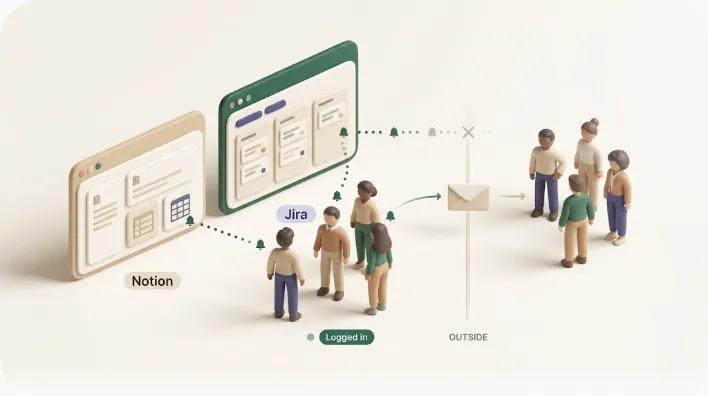
- Native reminders only reach logged-in workspace members, and Notion emails only when the app is closed when the reminder fires.
- To catch overdue recurring items and reach people outside Notion, you can add an email layer. Kapsel is one such option — it watches your due date, assignee, and status and emails the right people, with one-click write-back to Notion.
If you need a task in Notion to come back every week, month, or year, you have three native ways to build it — and this guide walks through all three, from the one-click button to the fully automated version. Notion is good at making a task come back; it's much weaker at making sure someone acts on it, so along the way we'll also cover attaching a reminder to each method and where that reminder runs out of road.
By the end you'll have a recurring task set up the right way for your situation, plus a practical setup for making sure that recurring work — internal or external — actually gets done rather than quietly slipping.
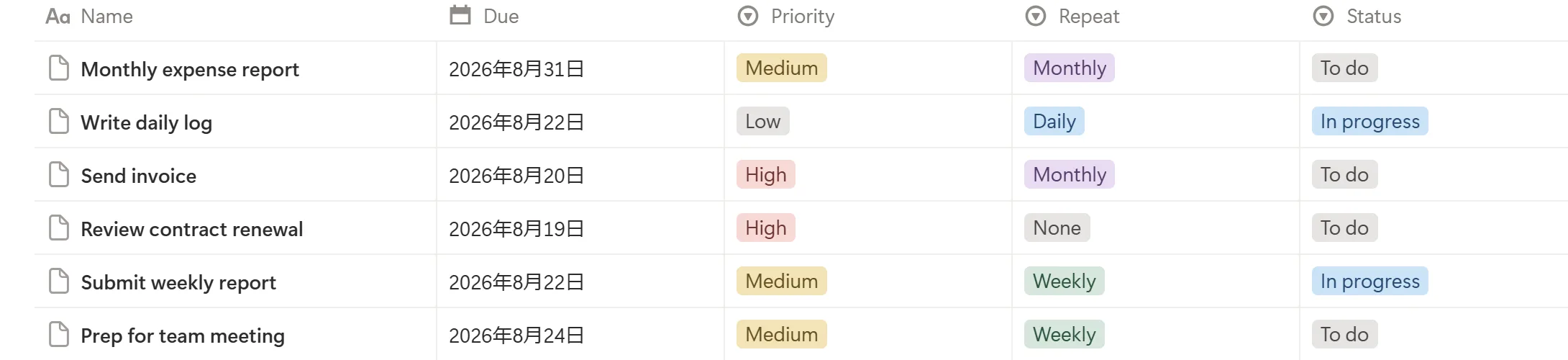
Recurring tasks vs. recurring reminders: the distinction that matters
A quick definition, because searches for "Notion recurring tasks" and "Notion recurring reminders" often get tangled:
| Concept | What it does | Native Notion support |
|---|---|---|
| Recurring task | A fresh task/page appears on a schedule | Yes — buttons, templates, or automations |
| One-time reminder | A single notification at a set time | Yes — date property reminder or @remind |
| Recurring reminder | A notification that repeats on a schedule | Limited — no dedicated feature; you rebuild it each time |
If you only need the work item to reappear, native Notion covers you well. If you need someone to be told about it every time — especially someone who doesn't live in Notion — that's where you'll want to add a layer, which we'll get to.
Way 1: A button block to add the next task manually
The simplest form of recurrence isn't automatic at all — it's a button block that creates the next task with one click. This suits work that recurs irregularly (a task you do "every so often" rather than on a fixed date) or when you want a human to consciously start the next cycle.
How to set it up:
- Type
/buttonon any page (a dashboard works well) and name it, e.g. "Add weekly report." - Add the action Add page to and point it at your task database.
- Pre-fill the new page's properties — set Status to "Not started," and optionally set a due date using a formula like
dateAdd(now(), 7, "days"). - Save. Each click drops a ready-made task into the database.
Set the fields up right once, and every future click produces a task with consistent status, due date, and formatting — no retyping the same setup from scratch each cycle.
This is fully free and works on any plan, since a button is just a block. The trade-off is obvious: it only fires when a person remembers to click it. It's a fast way to standardize a repeating task's fields, not a way to guarantee the task appears on time. For the underlying database structure these buttons act on, see Notion task management.
Way 2: A repeating database template (the free automatic option)
Notion database templates can repeat on a schedule — this is the most accessible automatic recurrence, and it doesn't require a paid plan.
- Open your task database and click the dropdown arrow next to the blue New button.
- Choose + New template and build the task: title, default Status, checklist, any standard properties.
- In the template editor, open Repeat and pick a frequency — daily, weekly, monthly, or yearly — plus a time.
- Save. Notion now generates a new instance from that template on the schedule you set.
Once this is set, the task simply exists on schedule — nobody has to remember to create it, and it never depends on someone being at their desk that day.
This is the right default for genuinely periodic work: the Monday standup notes, a monthly report shell, a weekly QA checklist. Because it's template-based, it's the free path to automatic recurring tasks. If you build task templates a lot, Notion templates covers the broader patterns worth reusing.
If a recurring cycle spans multiple phases rather than a single task — a monthly release, say, with design, build, and review steps each time — a Timeline view makes that schedule and its dependencies visible in a way a flat task list can't. See how to build a Gantt chart in Notion for the setup.
One thing to check if instances appear on unexpected days: repeating templates schedule the next copy relative to their configured cadence, so confirm the frequency and time are what you intended.
Way 3: A database automation with a recurring/scheduled trigger
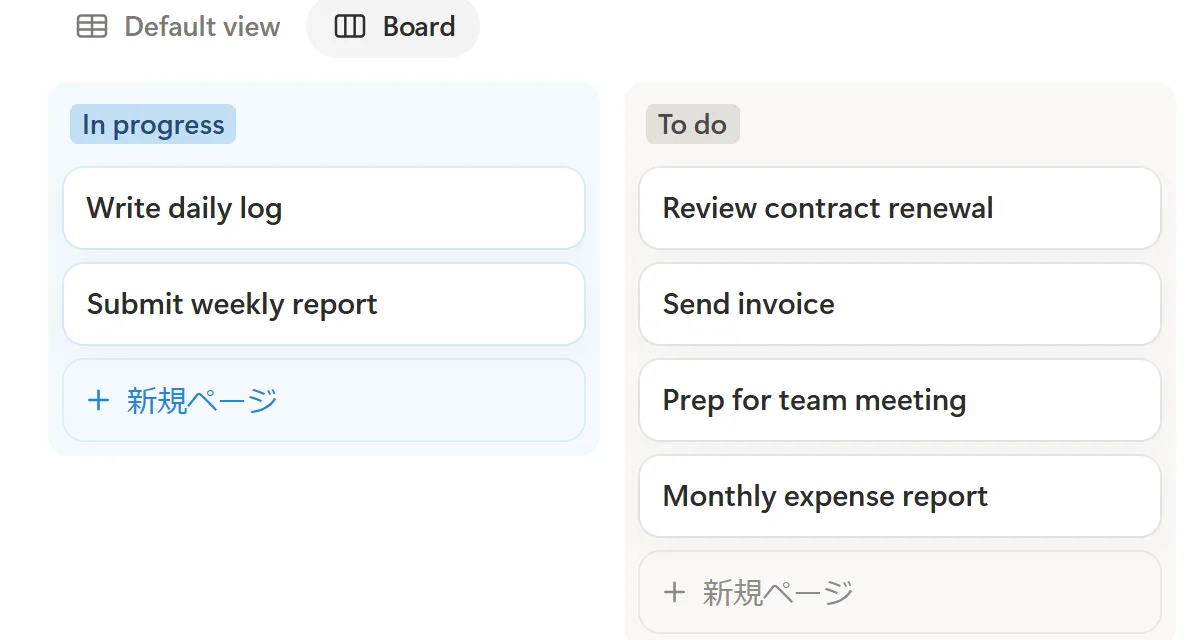
The most flexible native option is a database automation using a recurring/scheduled trigger (often shown as an "Every…" option) — a capability Notion has been rolling out to automations. Instead of only reacting to an edit, it can generate a page on a cadence.
- Open the database and click the lightning-bolt icon in the top-right toolbar.
- Click + New automation and give it a clear name.
- Set the trigger to the recurring "Every…" option (daily, weekly, or monthly).
- Add the action Add page to — this database — and set the default properties for the new task.
- Create. Notion now spins up the task on that schedule automatically.
A second common pattern handles "repeat after completion" rather than on a fixed calendar: when a task's Status hits "Done," an automation duplicates it and sets the new due date with a formula such as dateAdd(now(), RecurInterval, "days").
Two limits to know:
- Full automations on your own database require a paid Notion plan. Automations that ship inside a template can run on free workspaces, but building your own does not.
- Event triggers and the recurring trigger typically aren't combined in one automation. As currently built, an automation generally runs as either "every Monday" or "when status changes" — not both at once.
For the full picture of native automations, connectors, and the API, see Notion automation.
Setting a recurring reminder via the date property
Now the reminder side. Once a task exists, you can attach a reminder to its Date property:
- Open a task and click its due date value.
- Turn on Remind, and choose an offset — on the day, or some time before.
- Save. Notion notifies at that moment.
You can also type @remind inline in any block for a one-off nudge tied to that line.
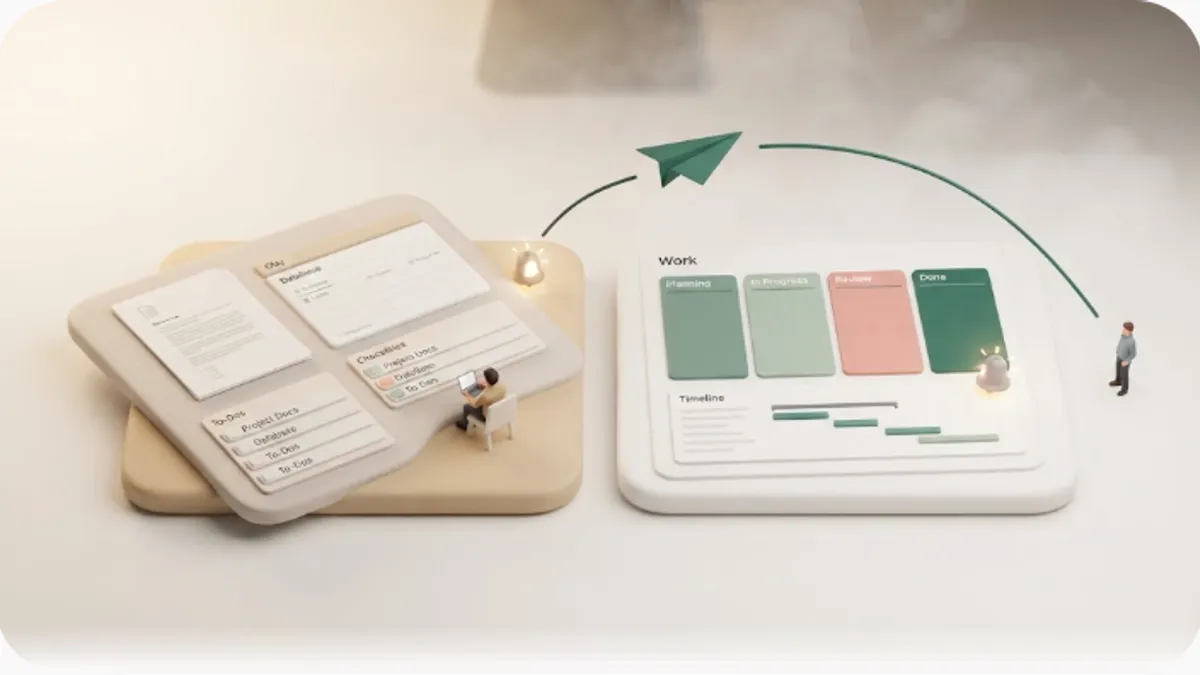
Here's the catch that trips people up: these reminders don't repeat on their own. When a repeating template or automation generates the next instance, you generally have to set the reminder again on that new task — the reminder isn't inherited as a recurring schedule the way the task is. So even a perfectly configured recurring task can arrive with no reminder attached, and the nudge you were counting on never fires.
The other constraint is delivery: a date reminder or @remind fires as a push notification in the Notion app. Notion only falls back to email if the app wasn't open when the reminder fired, and either way it only reaches a logged-in workspace member. If the assignee doesn't open Notion that day — or the person responsible is a client with no account — the reminder accomplishes nothing.
Why Notion's built-in recurring reminders are limited
In short: Notion's notification system is scoped to workspace members with permissions, so it has no concept of a scheduled nudge to an outside email address — which is why native reminders fire once and can't reach a client, vendor, or contractor with no Notion account. The Notion recurring reminders guide walks through why that architecture exists and what it means for internal vs. external recurring work in more depth than fits here.
If reminders simply aren't arriving even for members, Notion notifications not working walks through the common causes. But for recurring work specifically, the structural gap is the bigger problem: the task reappears, and nobody gets proactively told.
A practical setup for catching overdue recurring items
Here's a setup that keeps Notion as the source of truth while closing the reminder gap.
1. Pick your recurrence method by the type of work.
| If the work is… | Use |
|---|---|
| Irregular, human-initiated | A button block to add the next task |
| Genuinely periodic, free plan | A repeating template |
| Periodic or "repeat after done," paid plan | A database automation |
2. Standardize the fields that a reminder depends on — a real due date, an assignee, and a status. Consistent properties are what any reminder layer reads. Notion deadline tracking covers structuring dates so nothing falls between views.
3. Add an email layer for the nudge — especially for overdue items and outside people. Native reminders fire once and stay inside Notion. To catch what's slipping and to reach people who don't log in, an outward email tool is the missing piece.
This is where Kapsel fits as one option. Kapsel is an independent tool that watches your Notion database's due date, assignee, and status, then sends email reminders to the right people — including recipients with no Notion account — and lets them update the status back in Notion with one click. A few specifics relevant to recurring work:
- Overdue follow-ups. If a recurring task's deadline passes without action, Kapsel can send a follow-up rather than firing once and going quiet.
- Target filtering. You choose which tasks trigger a reminder — by assignee or status — so you nudge only the person on this week's report, and only while it's still open.
- It skips items already handled. Kapsel reads the live status before each send and doesn't send to items marked done or paid, so a finished instance isn't chased. That safeguard matters most for billing and client work.
- One-click write-back. The recipient clicks a button in the email and the status updates in Notion — no login, no app.
Put together, these four turn a recurring task from "reappears and hopes someone notices" into "reappears and someone gets told" — the exact gap native Notion leaves open.
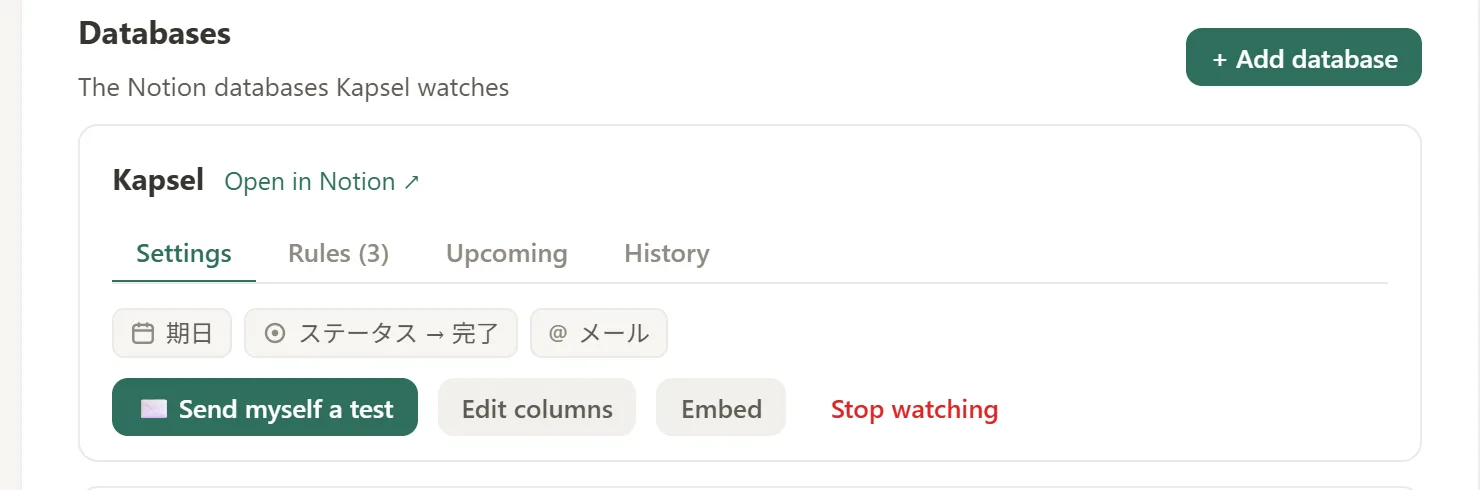
Kapsel sits alongside native recurrence rather than replacing it — you still create recurring tasks in Notion the ways above; the email layer just makes sure someone acts on each one. For related setups, see team task reminders and Notion email reminders.

Kapsel is built and run by an independent developer — it started as a way to stop chasing people by hand — so the scope stays focused on this one job. There's a free plan at $0, with Standard ($12/month) and Pro ($29/month); Pro adds multiple workspaces and sender branding.
FAQ
How do I create a recurring task in Notion?
Three native ways. Use a button block with an "Add page to" action for manual, one-click adds; use a repeating database template (open the New dropdown, create a template, set its Repeat schedule) for free automatic recurrence; or use a database automation with the recurring "Every…" trigger for more flexible, paid-plan recurrence. Pick the one that matches how predictable the work is.
Can Notion send recurring reminders automatically?
Not as a dedicated feature. You can attach a one-time reminder to a task's date property or type @remind, but Notion doesn't repeat that reminder on a schedule — you generally re-set it on each new instance. Native reminders also only reach logged-in members and email only when the app is closed. For automatic recurring reminders, including to non-members, you'd add an email layer such as Kapsel.
Is creating recurring tasks in Notion free?
Partly. Button blocks and repeating templates work on the free plan. Building your own database automations on your own database requires a paid Notion plan, though automations that ship inside a template can run for free. So the free path to automatic recurring tasks is a repeating template.
Why did my recurring task appear but no reminder went off?
Because the reminder usually isn't inherited by the newly generated instance. A repeating template or automation creates the next task, but a date-property reminder set on the previous one doesn't automatically carry over as a recurring schedule — so the new task often arrives with no reminder attached. Check that each instance has its date reminder set, or use a tool that reminds based on the due date itself.
How do I send a recurring reminder to someone who doesn't use Notion?
Notion can't do this natively — its notifications are scoped to workspace members. To reach an external client, vendor, or contractor, you need an outward channel. Kapsel watches your Notion database and sends the reminder as a normal email; the recipient needs no account, login, or app, and can update the status back in Notion with one click.
How do I stop a recurring task in Notion?
For a repeating template, open the template, go to Repeat, and turn it off (or delete the template). For a database automation, open it and pause it or remove the "Add page" step. For a button, just stop clicking it or delete the block. Turning off recurrence only stops future instances — tasks already created stay put.
Notes
Published 2026-08-22. Notion's native behavior is described as of this date and may change. Kapsel details are current as of writing: it watches Notion due date, assignee, and status; sends automatic email reminders including overdue follow-ups to both members and non-members; supports one-click status write-back, target filtering, and a send log; and doesn't send to items marked done or paid. Pricing is Free $0, Standard $12/month, and Pro $29/month, with Pro adding multiple workspaces and sender branding.