Notion Automation: How to Automate Notion with Built-in Automations, Zapier/Make/Apps Script, and the API
TL;DR
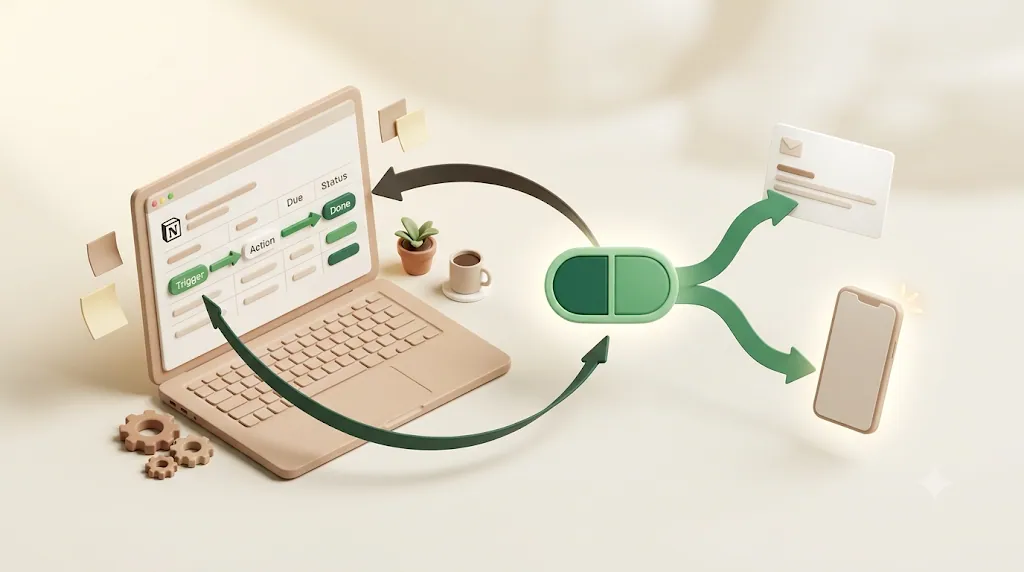
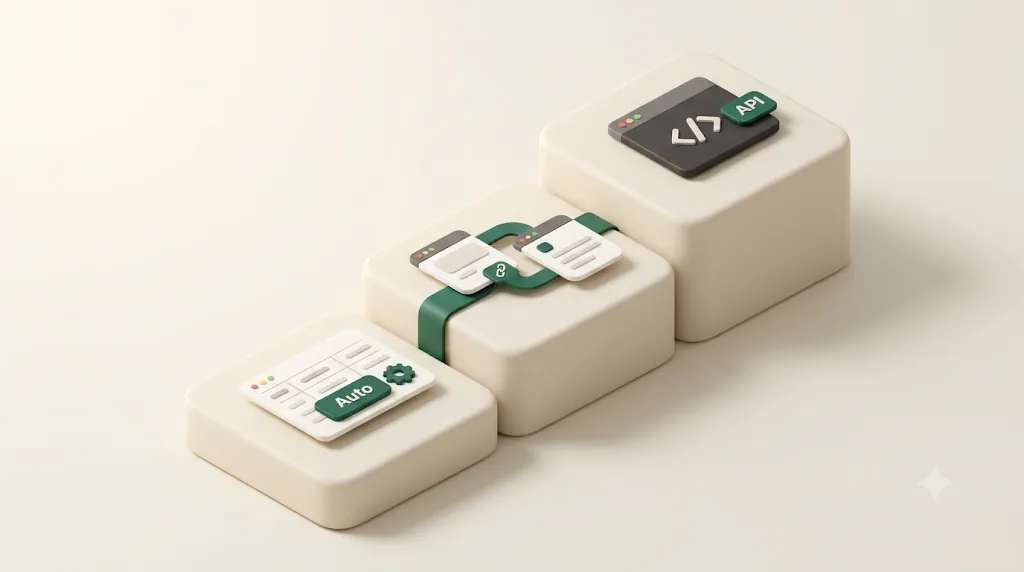
- Notion automation works in three layers: built-in database automations (no code, inside Notion), external connectors like Zapier, Make, and Google Apps Script, and the Notion API for developers. All three run on the same "if this, then that" trigger-and-action model.
- Start native for property updates and Slack pings, add a connector for cross-app relays, and reach for the API only when you need custom logic no-code can't express.
- Full automations on your own databases require a paid Notion plan; free workspaces can run automations on templates and, per Notion's 2026 change, create Slack-notification-only automations.
- Every layer shares one blind spot: the notification only lands if the recipient is logged into Notion or the connected tool. Infrequent Notion users and clients with no account never get reached, and overdue items get no second nudge.
If you run tasks, approvals, or client work through Notion, you've probably hit this wall: the automation fires, but the person who needed to see it — a teammate who barely opens Notion, or a client with no account at all — never does. This tutorial covers all three ways to automate Notion, from the no-code lightning-bolt menu to the developer API, so you can pick the right layer for the job instead of guessing. It also names the blind spot every layer shares — the notification only lands if the recipient is logged into Notion or the connected tool — and how to close it. New to Notion? Start with the complete guide to using Notion.
What "automating Notion" actually means — the trigger-and-action model
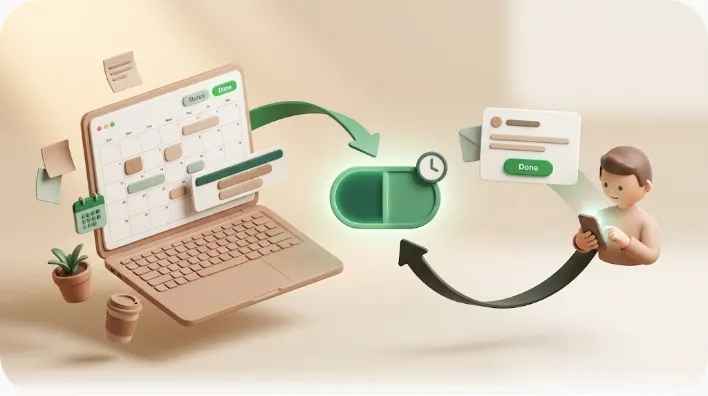
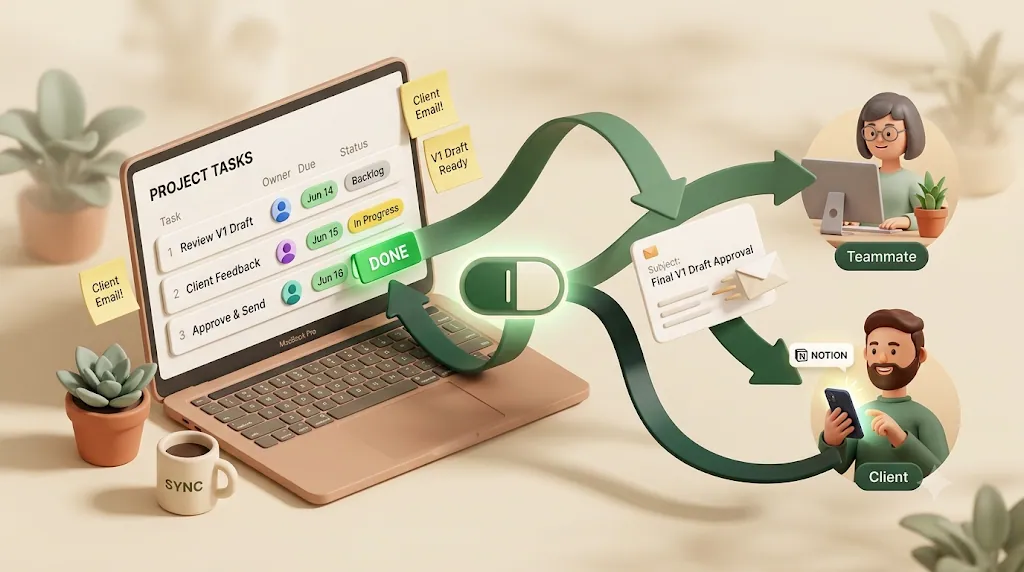
Every Notion automation, at every layer, is built from the same two-part logic: a trigger (the event that starts things) and an action (what happens next). If you understand "if this, then that," you already understand the model that native automations, Zapier, and the API all share.
| Part | Question it answers | Native example | Connector example |
|---|---|---|---|
| Trigger | When should this run? | A page's Status changes to "Done" | A new row is added to a database |
| Action | What should happen? | Set the "Completed on" date to today | Post a message to a Slack channel |
The three layers differ only in where the logic lives and how much it can reach, not in the core idea:
- Layer 1 — Built-in database automations: triggers and actions run entirely inside one Notion database. No code, no external account.
- Layer 2 — External connectors (Zapier, Make, Pipedream, Google Apps Script): Notion is one node in a workflow that spans other apps.
- Layer 3 — The Notion API: you write the trigger-and-action logic yourself and host it wherever you like.
💡 A useful rule of thumb: keep automation as close to Notion as the task allows. Only move outward a layer when the layer you're on genuinely can't do the job.
Layer 1 — Built-in database automations (no code, inside Notion)
Built-in database automations live inside a single Notion database and run without any external tool or code. They're the fastest way to automate property changes, page creation, and Slack or email pings for data you already keep in Notion — see how to set up a Notion task database for the underlying structure these automations act on.
How to create your first database automation (step by step)
Goal: set up an automation that changes one property automatically when another property changes. Prerequisites: a Notion database you can edit, and (for automations on your own database) a paid workspace plan.
- Open the database as a table, board, or any database view.
- Click the lightning-bolt icon in the top-right corner of the database toolbar. This opens the Automations panel.
- Click + New automation and give it a clear name (for example, "Stamp completion date"). Naming matters — a database can hold several automations, and vague names make later troubleshooting harder.
- Choose the scope. You can run the automation across the whole database or limit it to a specific view. A view-scoped automation only fires for pages that match that view's filter.
- Set the trigger (the "when"). For this example, choose Property edited and point it at your Status property, set to "Done."
- Add the action (the "then"). Choose Edit property, select a Date property such as "Completed on," and set it to Now.
- Click Create. The automation is live immediately and runs on future edits — it does not retroactively fire on rows that already met the condition.
Once this is set, every task that hits Done stamps its own completion date on the spot, so you stop hand-editing dates and your reports reflect what actually happened instead of what someone remembered to update.
⚠️ Scope is the most common setup mistake. If you attach a trigger to a filtered view, it only fires for pages that match that filter. A row that never enters the view never triggers the automation.
Trigger types: page added, property edited, and the recurring/scheduled trigger
Native automations offer a small, dependable set of triggers. Each answers "when should this run?"
| Trigger | Fires when… | Typical use |
|---|---|---|
| Page added | A new page/row is created in the database | Assign a default owner, set a start time on creation |
| Property edited | A chosen property's value changes | Stamp a date when Status hits "Done" |
| Recurring / scheduled ("Every…") | A time interval elapses (daily, weekly, monthly) | Generate a repeating task or page on a schedule |
The recurring/scheduled "Every…" trigger (rolled out across 2025–2026) is the one that lets Notion generate pages on a cadence — for example, creating a fresh "Weekly report" row every Monday — rather than only reacting to an edit.
⚠️ Event triggers and the recurring trigger can't be combined in a single automation. An automation is either event-driven (page added / property edited) or time-driven ("Every…"), not both at once.
Action types: edit property, add page, edit pages in, Slack notification, email notification, webhook, define variable
Once a trigger fires, one automation can run one or more actions. The native action menu covers:
| Action | What it does |
|---|---|
| Edit property | Change a value on the triggering page (status, date, select, checkbox, etc.) |
| Add page to | Create a new page in another database (e.g., log an event, spin off a subtask) |
| Edit pages in | Update pages in a related database |
| Send Slack notification | Post a message to a connected Slack channel |
| Send email / in-app notification | Notify people via email or Notion's in-app inbox |
| Send webhook | POST data to an external URL (the bridge into Layer 2/3) |
| Define a variable | Capture a value to reuse inside the same automation's later actions |
💡 The Send webhook action is the quiet power feature: it lets a no-code native automation hand off to Zapier, Make, or your own endpoint, blurring the line between Layer 1 and Layer 2.
Free vs. paid plan limits
Native automations are mostly a paid feature, with a couple of important exceptions.
| What you want to do | Free plan | Paid plan |
|---|---|---|
| Run automations built into a template | Yes | Yes |
| Create a Slack-notification-only automation | Yes (per Notion's 2026 change) | Yes |
| Create/edit full automations on your own database | No | Yes |
In short: free workspaces can use automations that ship inside templates and can create Slack-notification automations, but building or editing full automations (property edits, page creation, webhooks) on your own databases requires a paid plan.
Common use cases (auto-update a property, assign an owner on creation, set a start time, generate repeating pages)
These four cover most of what people set up on day one:
- Auto-update a property on status change — when Status becomes "Done," check a box or stamp a completion date.
- Assign an owner / default assignee on page creation — when a row is added, set the Person property to a default teammate.
- Set a start time — when a page is created, populate a Date property so downstream views and rollups work.
- Generate repeating tasks — use the recurring "Every…" trigger to create a new task page every week or month.
Set up once, these four handle themselves every time a row is touched — status, ownership, and start dates stop being things you chase people to fill in.
Layer 2 — Connecting external tools (Zapier, Make, Google Apps Script)
External connectors let Notion talk to other apps — Slack, Google Sheets, Gmail, Calendar, and hundreds more — by chaining a trigger in one app to an action in another. Reach for this layer when your workflow crosses an app boundary that native automations can't span.
"No-code" still means webhooks, connected accounts, or scripts — being honest about the setup
Zapier, Make, and Pipedream are genuinely capable, and for a non-engineer they remove the need to write a program. But "no-code" isn't "no setup." In practice you'll still deal with:
- Connected-account OAuth — you authorize each app (Notion, Slack, Gmail) so the connector can act on your behalf. Those tokens can expire.
- Trigger events and field mapping — you pick a trigger ("New database item"), then map Notion fields to the destination app's fields by hand.
- Webhooks or light scripts — some steps need a webhook URL or, in Google Apps Script, actual JavaScript calling Notion's API.
💡 A fair way to think about it: Zapier/Make/Apps Script are no-code in spirit — they save you from building and hosting a service — but they still expect account auth, field mapping, and sometimes a webhook or script. They're powerful; they're just not zero-setup.
What this layer is good for (cross-app relays, e.g. Notion → Slack, Notion → Sheets/Calendar)
This layer shines when the job is a relay between two apps:
| Relay | What it does |
|---|---|
| Notion → Slack | Post to a channel when a row's status changes (native can also do this now, but connectors add routing/formatting) |
| Notion → Google Sheets | Append a row to a spreadsheet for reporting or backup |
| Notion → Google Calendar | Create a calendar event from a Notion date |
| Form/email → Notion | Turn an inbound form submission or email into a Notion page |
The common thread: every destination is another connected tool. That's the strength — and, as the next section explains, also the boundary. (For the specific Notion-to-calendar case, Notion and Google Calendar sync walks through keeping dates in step both ways.)
Layer 3 — The Notion API, for developers
The Notion API is the developer layer: instead of clicking through a menu, you write code that reads and writes Notion data directly. Choose it when you need custom logic, scheduling, or data handling that no-code tools can't express.
Creating an integration and getting an API key
The setup is short and the same for any project:
- Go to Notion's integrations settings and create a new internal integration. Give it a name and select the workspace.
- Copy the generated API key (integration token) — treat it like a password.
- Open the Notion page or database you want the integration to touch, and share it with the integration (via the page's Connections menu). The API can only see content explicitly shared with it.
- Call the REST endpoints for databases, pages, blocks, and users — query a data source, create or update pages, read block content, or list workspace users.
⚠️ The API only has access to pages and databases you've explicitly connected the integration to. A "not found" error is very often a sharing problem, not a bad ID.
What self-hosted/custom logic unlocks that no-code can't
The API is worth the extra effort when you need things the click-based layers can't do:
- Conditional logic across many pages — loops, branching, and multi-step decisions beyond a single trigger/action.
- Custom scheduling and batching — run nightly jobs, backfills, or bulk updates on your own timing.
- Deeper integrations — build a service that combines Notion with your own database, auth, or business rules.
- Reaching outside the connected-app ecosystem — send data to systems Zapier/Make don't natively support.
The trade-off is that you (or a developer) own the hosting, error handling, and maintenance.
More automation use cases across all three layers (property updates, cross-database transfer, scheduled tasks, Slack pings)
Most real-world Notion automation falls into a few recurring patterns, and the right layer depends on how far the data has to travel. Here's how the same needs map across layers.
| Use case | Native (Layer 1) | Connector (Layer 2) | API (Layer 3) |
|---|---|---|---|
| Property update on change | Best fit — instant, no setup | Overkill | Only if logic is complex |
| Cross-database transfer | "Add page to" / "Edit pages in" | Good for cross-workspace or cross-app | Full control over mapping |
| Scheduled / recurring tasks | "Every…" trigger | Zapier/Make schedulers | Cron on your own host |
| Slack ping | Native Slack action (free-plan eligible) | Richer routing/formatting | Custom Slack app |
💡 A practical progression: build it native first, add a connector only when the data leaves Notion, and write API code only when neither can express the logic.
Troubleshooting — "my automation didn't run" / "the notification never arrived"
When an automation misbehaves, the cause is usually one of a handful of predictable issues. Work through the technical checklist first, then consider the failure mode that no checklist catches.
Common technical causes (view-scope mismatch, restricted pages, expired third-party auth, formula/property errors)
| Symptom | Likely cause | Fix |
|---|---|---|
| Never fires | Trigger scoped to a filtered view; the page never matched the filter | Re-scope to the whole database, or check the view filter |
| Never fires | The page has restricted access — automations can fail silently on pages the automation can't see | Check page permissions |
| Fires but action does nothing | Formula or property error; the target property was renamed or has an unexpected value | Verify the property still exists and holds the expected type/value |
| Stopped after a database change | The trigger property was renamed or deleted | Re-point the trigger at the current property |
| Connector automation silently dead | Slack/Gmail OAuth token expired — Notion gives no warning when third-party auth lapses | Reconnect the account in the connector |
Two structural limits are worth remembering because they look like bugs but aren't:
- No automation chaining — one automation can't trigger another. An action that edits a property will not set off a second automation watching that property.
- Event triggers can't combine with the recurring/scheduled trigger — you can't have "every Monday and when status changes" in one automation.
The failure mode none of the above explains: it fired, but the person never saw it
Here's the case the technical checklists miss. The automation ran correctly. The Slack message posted. The email sent. And the person who needed it still never saw it — because they don't open Slack much, rarely log into Notion, or, in the case of an outside client, have no account in any of these tools at all.
This isn't a misconfiguration; nothing is broken. Delivery succeeded — just into a channel the recipient doesn't watch. It's a genuine, underserved troubleshooting category: the automation fired, but the notification landed somewhere the human never looks.
The blind spot that Notion, Zapier, Make, and the API all share
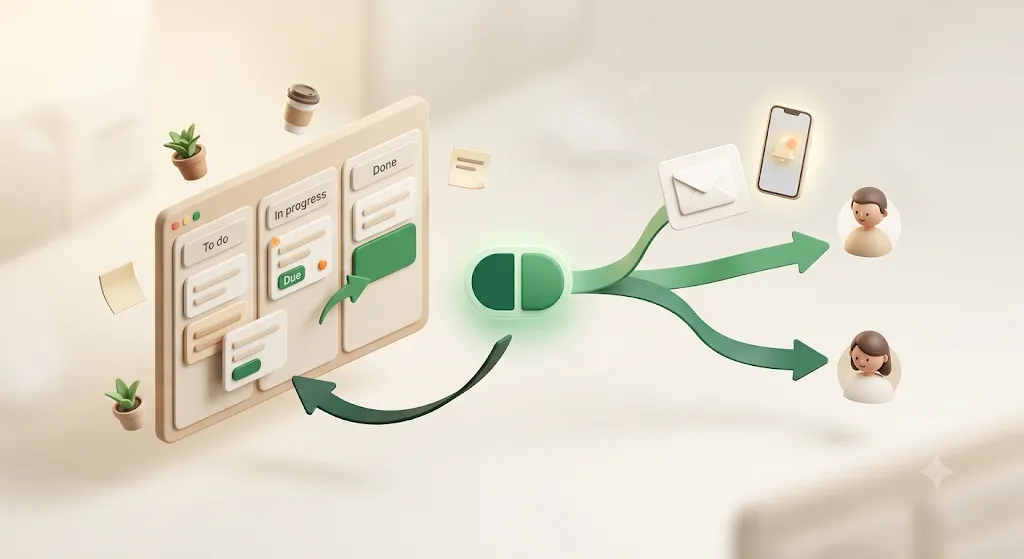
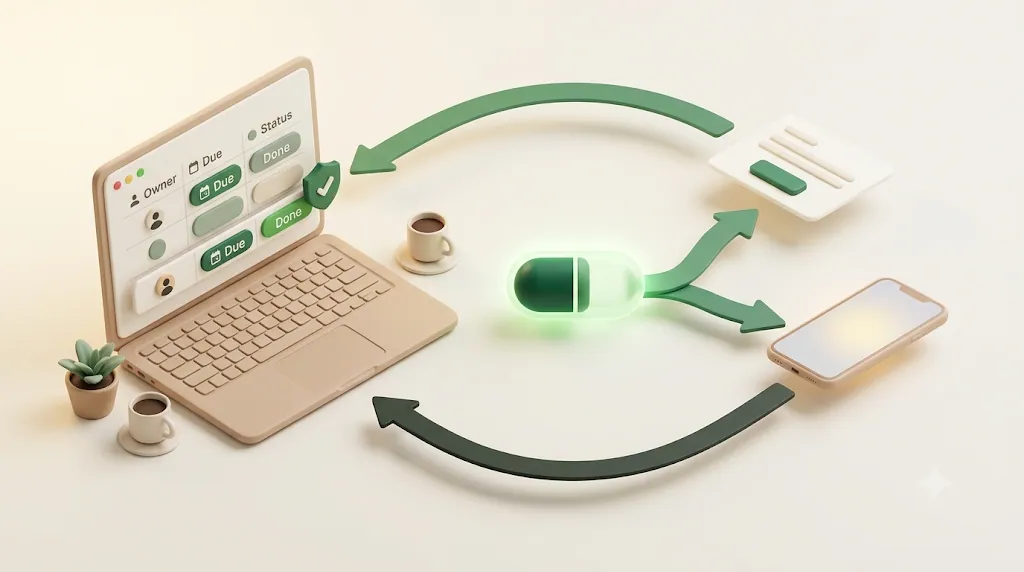
All three automation layers assume the recipient is already inside Notion or the connected tool. That assumption quietly breaks for infrequent Notion users, external clients, and any item that's still overdue after its one-time trigger already fired.
What native @remind and Slack notifications actually cover
Native Notion notifications are real and useful — within their boundary:
- @remind and database reminders notify people through Notion's in-app inbox, desktop push, and mobile push, with email only as a fallback when the app is closed.
- Slack notifications (native or via connector) post to a channel your team already uses.
The shared condition: the recipient must be logged into Notion (or the Slack/Gmail workspace) to ever see it. For a comprehensive walkthrough of the native options, see how to set reminders in Notion.
Who never gets reached: infrequent Notion users, and external clients with no Notion account
Two groups fall through every layer:
- Teammates who rarely open Notion — the ping is waiting in an inbox they don't check. The automation "worked," but the nudge never lands.
- External clients and contractors with no Notion account — they can't receive an in-app notification at all, and they're not in your Slack. See external share notifications for why sharing a page isn't the same as reaching someone.
There's also a timing gap none of the layers close: native automations and @remind fire once, at a set moment. An item that's still overdue three days later gets no second nudge unless you build one.
A no-code option for reaching people outside Notion — how Kapsel fits in this stack
Kapsel is a Notion notification tool that watches a database's due date, owner, and status and sends email reminders to the people responsible — including people who don't use Notion. It sits alongside the three layers above rather than replacing them, filling the specific gap where the recipient isn't logged into any connected tool.
Concretely, Kapsel:
- Watches due date, owner, and status on your Notion database and filters to items that still need action — so stale or resolved rows don't trigger anything.
- Emails the owner — including an external, non-Notion person — with no account or login required on their end.
- Includes a one-click confirm button in the email that writes the status back to Notion, so an outside client can mark something done or paid without ever opening the app.
- Never sends to completed or paid items — a deliberate safeguard against the awkward reminder that goes to someone who already finished, rather than a feature you have to remember to configure.
- Adds overdue follow-ups for items that are still open past their date — the recurring nudge that native one-time triggers don't provide.
Put together, that means the deadline conversation moves out of your inbox and into automatic email — you stop being the manual bridge between Notion and everyone who isn't in it.
This is the honest version of "no-code outward email": a non-engineer can point Kapsel at a database and reach someone outside every connected tool, which is exactly what Zapier-to-Slack and API-to-Sheets relays can't do on their own.
Which layer should you actually use?
Match the layer to the job: stay native when the data stays in Notion, add a connector when it crosses into another app, and use the API when you need custom logic. Add an outward-email layer only when a real person outside the tools has to be reached.
| If you need to… | Use |
|---|---|
| Update a property, assign an owner, or generate a recurring page | Native automations |
| Relay data to Slack, Sheets, Calendar, or another app | Zapier / Make / Pipedream |
| Build custom logic, scheduling, or a deeper integration | The Notion API |
| Reach a teammate who rarely opens Notion — or a client with no account | An email layer like Kapsel |
For related setups, see recurring reminders in Notion, team task reminders, and Notion email reminders. Plans and limits for the outward-email layer are on the pricing page.
FAQ
Can Notion send automatic email reminders?
Partly. Native database reminders and @remind can send an email, but only as a fallback when the recipient's Notion app is closed, and only to people with a Notion account. For reliable email that reaches non-users, you'd layer on a connector (Zapier/Make with Gmail) or a dedicated email tool.
What's the difference between Notion's built-in automations and the Notion API?
Built-in automations are no-code triggers and actions you configure inside a single database from the lightning-bolt menu. The API is a developer interface — you create an integration, get a key, and write code that reads and writes Notion data with custom logic the no-code menu can't express.
Is Notion automation free, or do I need a paid plan?
Creating or editing full automations on your own databases requires a paid plan. Free workspaces can run automations that ship inside templates and, per Notion's 2026 change, can create Slack-notification-only automations.
Can I use Zapier to automate Notion for free?
Zapier has a free tier with limited tasks and single-step Zaps, which can cover a simple Notion relay. Higher volumes, multi-step workflows, or shorter update intervals require a paid Zapier plan, and you'll still connect your Notion account via OAuth.
Does Notion support recurring or scheduled automation triggers?
Yes. The recurring/scheduled "Every…" trigger, added across 2025–2026, can generate repeating pages on a daily, weekly, or monthly cadence. It can't be combined with event triggers like "property edited" in the same automation.
Why isn't my Notion automation working?
The usual causes are a trigger scoped to a filtered view the page never matched, restricted page permissions that make it fail silently, a renamed or deleted trigger property, or a formula/property error in the action. For connector automations, an expired Slack or Gmail token is common — and Notion gives no warning when it lapses.
Can I automate Notion without writing any code?
Yes, at two layers. Native database automations are fully no-code inside Notion, and connectors like Zapier and Make are no-code in spirit — though they still require account authorization, field mapping, and sometimes a webhook. Only the API layer requires actual code.
How do I connect Notion to Google Apps Script?
Create a Notion integration to get an API key, share the target page or database with that integration, then write an Apps Script that calls Notion's REST endpoints using the key (typically via UrlFetchApp). Apps Script sits between no-code and full development — no separate server, but you are writing JavaScript.
Can Notion automations or notifications reach people who don't have a Notion account?
Native notifications can't — in-app, push, and reminder emails all assume a Notion account. To reach someone with no account, you need an outward channel like a connector-driven email or a tool such as Kapsel that emails the person directly and can write their reply back to Notion.
What is the Notion API actually used for?
Reading and writing Notion data programmatically: querying databases, creating and updating pages, reading block content, and listing users. Developers use it to build custom integrations, run scheduled jobs, and connect Notion to systems that no-code tools don't support.
Can one Notion automation trigger another automation?
No. Native automations don't chain — an action that edits a property will not set off a second automation watching that property. If you need multi-step logic, combine several actions inside one automation or move to a connector or the API.
What's the difference between Notion's @remind and a database automation?
@remind is an inline, one-off reminder you type into any text block, tied to that line. A database automation is a reusable rule attached to a whole database (or view) that fires on triggers like "page added" or "property edited" and runs actions across many rows automatically.
Notes
Published August 7, 2026. Features and pricing described here are current as of writing. Notion's plan limits and automation capabilities change over time — most recently the 2026 update allowing Slack-notification automations on free workspaces and the recurring "Every…" trigger — so verify current details against Notion's own documentation before relying on a specific limit. Kapsel pricing referenced elsewhere on this site is USD: Free $0, Standard $12/month, Pro $29/month.