Notion Integrations, Organized by What You're Actually Trying to Do
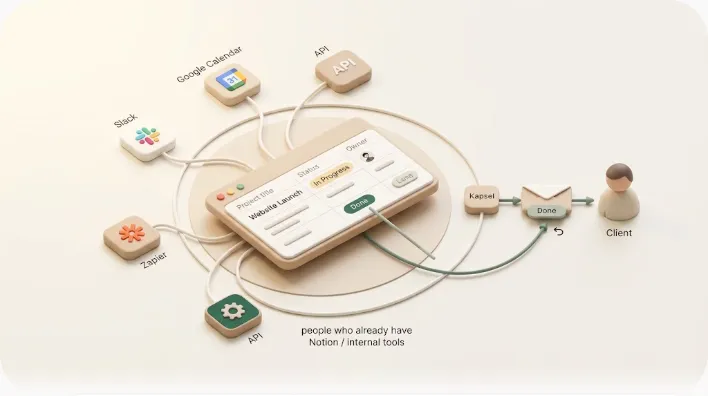
You don't need a list of every app that connects to Notion — you need to know which integration solves your problem, what it quietly can't do, and where the bill lands later. This guide organizes the main Notion integrations by use case: broadcasting to a team channel (Slack), lining dates up with your calendar (Google Calendar), wiring multi-app workflows (Zapier and Make), and building custom automation (the Notion API). For each, you get the honest strengths, the real limits, and the pricing gotcha. Then it names the one thing every option on this page shares as a blind spot.
TL;DR
- Pick by goal, not by popularity: Slack for internal real-time broadcast, Google Calendar for lining up dates, Zapier/Make for multi-app workflows, and the Notion API for custom programmatic work.
- Each has a pricing gotcha most guides bury: Slack's automation action needs a paid Notion plan + Full Access; two-way calendar sync leans on paid connector tiers; Zapier bills per task run, not per message; the API is "free" but costs developer time and hosting.
- Every one of these shares the same ceiling: they're built to move data inside a workspace or between apps you control. None can deliver a two-way notification to a person who has no Notion account and turn their reply into a status change back in Notion.
- If that specific job is yours — chasing clients, vendors, or students who'll never log into Notion — an email-based delivery layer like Kapsel is built for exactly that gap, without exaggeration and without code.
Short answer: match the integration to the job
There is no single "best" Notion integration, only the right one for a specific goal. Before the detail, here's the whole map in one table so you can jump straight to the section that fits.
| Integration | What it does | Who it reaches | Pricing gotcha | Best for |
|---|---|---|---|---|
| Notion → Slack | Posts page/property events to a channel; forwards your @mentions | People with a Slack seat | Automation action needs a paid Notion plan + Full Access | Internal, real-time team broadcast |
| Notion × Google Calendar | Shows dates side by side; two-way sync of events via connectors | You and logged-in Notion/Google users | True database↔event sync usually needs paid connector tiers | Lining up deadlines with your calendar |
| Zapier / Make | Multi-step workflows across thousands of apps | Wherever the action sends (email, Slack, etc.) | Billed per task run; useful reminders are multi-step = paid | Wiring Notion to many other SaaS |
| Notion API | Programmatic read/write, bulk sync, custom logic | Workspace members (via code) | "Free," but costs dev time + hosting + upkeep | Custom, developer-built automation |
| Email delivery layer (e.g., Kapsel) | Watches due/assignee/status, emails the recipient, one-click writes back | People with no Notion account | Subscription; no API keys to manage | Two-way reminders to people outside Notion |
Notice the last row exists because the first four all stop at the same boundary. We'll get to why after walking each one.
Notion → Slack: internal broadcast that stops at the Slack seat
Slack is the right integration when the people who need the update already live in a shared channel. Notion offers two native paths: personal Slack notifications (your own @mentions and comment mentions, under Settings → My notifications → Slack) and a database automation with a "Send Slack notification" action that fires when a page is added or a property changes.
Strengths. For a team that's already in Slack, it's genuinely the right move — status changes land in the channel the moment the trigger fires, and nobody has to remember to open the database.
Limits. Two matter. First, replying in the Slack thread for a Notion alert changes nothing in Notion — not the status, not the assignee, not the due date. Slack is a messaging layer, not a write-back path. Second, expect a few-minutes delay, which makes it wrong for last-minute, time-critical nudges.
Pricing gotcha. The channel-broadcast automation requires Full Access to the database and is offered on Notion's paid plans (Plus/Business/Enterprise) — which is why the "Send Slack notification" option is greyed out for some teammates and not others. On larger workspaces, an admin may also have to approve the integration first.
For the full step-by-step setup, the reverse (Slack → Notion) direction, and how teams tame notification overload, see how to send Notion updates to Slack. The one thing to carry forward: every Slack path assumes the recipient has a Slack seat and can open Notion — so external clients and vendors are structurally out of reach.
Notion × Google Calendar: great for dates, silent on status
This is the integration for lining Notion deadlines up with the rest of your schedule. There's no single method — you pick by goal: the Notion Calendar app to see events side by side, an embed to show a live calendar inside a page, or a connector (Zapier, Make, 2sync, Apps Script) for true two-way sync between a Notion database and Google events.
Strengths. The official Notion Calendar app connects Google accounts (currently up to 5) and is two-way for events. Connectors give you real database↔event sync, so a new dated row in Notion becomes a Google event and a rescheduled event flows back.
Limits. The Notion Calendar app does not push arbitrary database property changes into Google as a real sync — its two-way behavior is for events, not fields. An embed is view-only and requires making the calendar public, a genuine privacy tradeoff. And crucially, calendar sync mirrors dates; it never acts on them — nothing nudges an owner, escalates an overdue item, or knows whether something is already done.
Pricing gotcha. The native app and embed are free, but true two-way database sync usually costs money past a free cap — Zapier's free tier is 100 tasks/month with single-step Zaps, and Make's free tier runs on a 15-minute minimum polling interval with a 2-scenario limit. Purpose-built tools like 2sync are paid outright.
The three methods, their setup steps, and the common sync failures (duplicates, missed deletions, timezone drift) are compared in how to sync Notion with Google Calendar. Carry forward: a calendar shows a date; it doesn't chase anyone about it.
Zapier & Make: multi-app power, per-run billing
When your workflow spans many apps — not just Notion — Zapier and Make are the right tools. They build trigger → action workflows visually, and Notion is one component inside them.
Strengths. The sheer breadth of destinations. For internal automation like "post a new Notion request to Slack" or "log a Notion row to a spreadsheet," they're hard to beat.
Limits. Notion's Zapier triggers are polling-based — they detect item create/update, so "the due date arrived" can't be a trigger. A due-date reminder has to be built as Schedule by Zapier + a find step + a date filter + a send action, and each of those steps is something you maintain. Three reminder-specific walls show up: reaching people who don't use Notion tends to be one-way; "don't send once done/paid" is a filter you build and keep in sync; and turning a recipient's email click into a Notion status change means building a form or webhook yourself.
Pricing gotcha. Billing is per task run, not per message — a daily reminder Zap consumes a task every day, including days with nothing to send. A useful reminder is multi-step, which means a paid plan, and Zapier's built-in "Email by Zapier" caps at 5 emails/day on Free and 10/hour even on Pro.
The full build, the real cost model, and a fair comparison with Make, Apps Script, and native Notion are in how to automate Notion reminders with Zapier. Carry forward: these connectors change what apps you touch, not who Notion can reach.
Notion API: maximum control, maximum upkeep
The API is the developer layer beneath every no-code option above. Use it when you need programmatic or bulk work that the UI can't express — migrations, custom sync, bespoke logic.
Strengths. Full read/write control over workspace data, bulk operations, and any logic you can code.
Limits. It's programmatic: you write and host code, manage an integration token, and handle errors yourself. Practical ceilings include roughly 3 requests/second and ~1,000 requests/5 minutes (exceed them and you get a 429, which no-code tools often swallow silently), plus payload caps (1,000 blocks, 100-item arrays, ~2,000 characters per text block). And the API inherits the same reach wall as everything else — there's no supported way to email a person with no Notion account.
Pricing gotcha. The API itself has no separate fee, which makes it look free. The real cost is indirect: developer time to build, hosting to run it on schedule, and maintenance when a token expires or a renamed property breaks the mapping — often silently.
For exactly where the API's ceiling sits and where non-engineers get stuck, see what the Notion API can and can't do. Carry forward: even a working outbound email built on the API doesn't write a reply back without a separate inbound layer you host.
The one gap every option above shares
Read the four sections together and the same sentence keeps appearing at the end of each: it assumes the recipient has a Notion (or Slack) account and logs in. That's not a coincidence — it's the shared design center.
Every integration on this page is built to move data inside a workspace or between apps you control. None of them is built to do this specific thing:
- Deliver a notification to someone who has no Notion account — a client, a vendor, a freelancer, a student — without asking them to sign up or log in, and
- Turn that person's reply or one click into a status change written back into Notion, so the loop closes without them ever opening the app.
Slack can't (no seat = nowhere to land). Calendar sync can't (it mirrors dates, it doesn't message people or act on status). Zapier/Make can send an outbound email but the write-back is a webhook you build. The API can do anything you code — including that inbound layer — but that's a software project, not a setting. This is the gap, and it's the same gap regardless of which integration you started with. For why even sharing a Notion page doesn't push a message to a non-user, see notifying people outside Notion.
Where an email delivery layer fits: how Kapsel fills that one gap
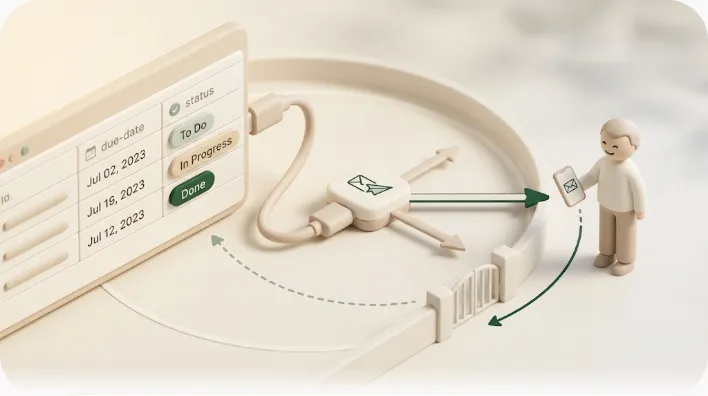
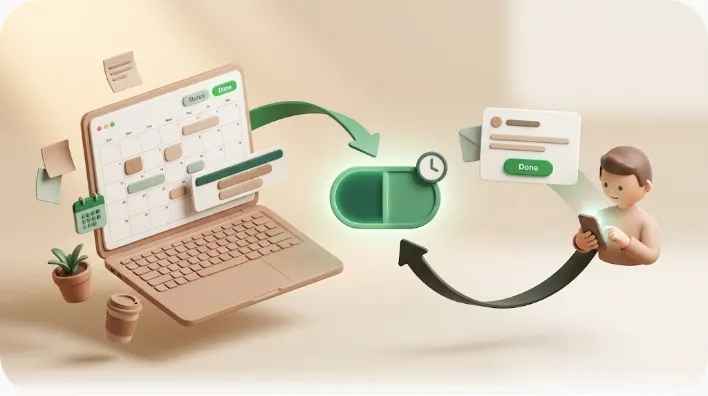
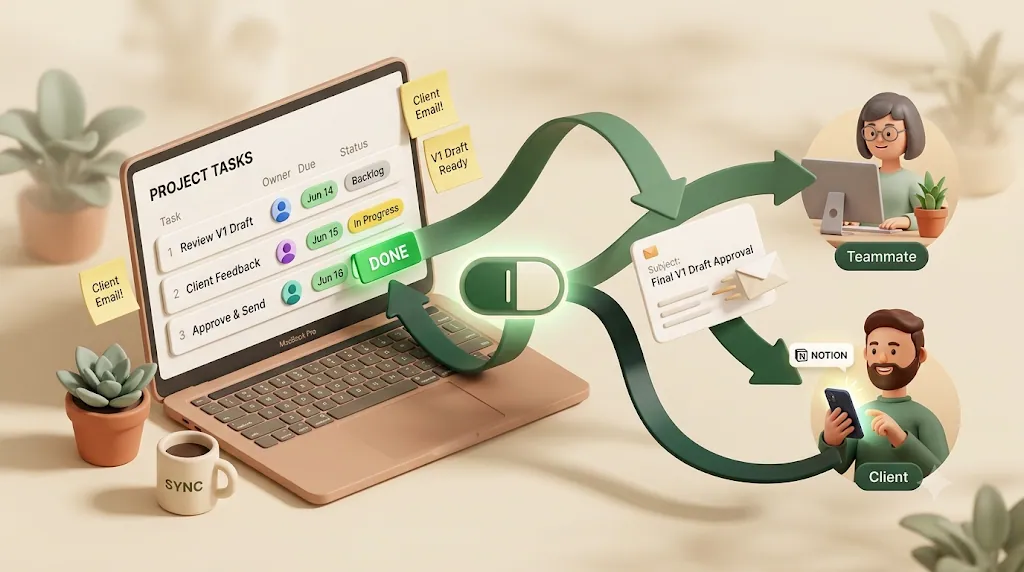
Kapsel is a Notion notification tool that watches your database's due date, assignee, and status and automatically sends email reminders to the right person — including someone who has no Notion account and never logs in. When that person clicks the one-click link in the email, their response writes the status back into Notion. It's an independent, solo-built product focused on this single job, not an all-in-one platform.
Mapped directly onto the gap above:
- The account-holder wall → Kapsel emails recipients with no Notion (or Slack) login. No seats, no invites, no "make an account first."
- The one-way problem → the recipient's one click writes back to your Notion status, so you don't build a webhook.
- The accident nobody plans for → Kapsel never sends to items already marked Completed or Paid, so a client who already delivered or paid doesn't get chased.
Kapsel also handles the everyday jobs a DIY setup leaves to you: overdue chasing, audience filtering, recurring sends, send logs, and merge fields. Pricing is Free ($0), Standard ($12/mo), and Pro ($29/mo), where Pro adds multiple Notion workspaces and sender branding. Confirm current figures on the official pricing page.
💡 Kapsel isn't a replacement for these integrations. Keep Slack for your team, calendar sync for your dates, Zapier for multi-app plumbing, and the API for custom builds. Add Kapsel only for the one job none of them do: two-way reminders to people outside Notion, without code.
FAQ
What are the main Notion integrations, and which should I use?
The main ones are Slack (internal channel broadcast), Google Calendar (lining up dates), Zapier/Make (multi-app workflows), and the Notion API (custom code). Pick by goal, not popularity — see the comparison table above. If your goal is reaching people who don't use Notion, none of these is built for it; an email delivery layer is.
Can any Notion integration notify someone who doesn't have a Notion account?
Not natively. Slack needs a Slack seat, calendar layers assume a logged-in user, and the API and native automations can only notify workspace members. Reaching a true non-user requires an outward email channel — either one you build on a connector/API, or a tool like Kapsel that emails them directly.
Does replying to a Notion notification update the task automatically?
Not through the built-in integrations. A Slack thread reply changes nothing in Notion, and a Zapier/API email is fire-and-forget unless you build an inbound webhook. A one-click write-back from an external recipient is the specific gap Kapsel is designed to close.
Are Notion integrations free?
It depends. Personal Slack mentions are free, but the Slack channel automation needs a paid Notion plan. Calendar embeds are free, but true two-way sync usually needs a paid connector tier. The API has no fee but costs developer time and hosting. Zapier bills per task run, so multi-step reminders require a paid plan.
Why do my Notion integrations quietly stop working?
Common causes are a rate-limit (429) response a no-code tool swallowed, an expired or revoked integration token, or a renamed/deleted property that broke a field mapping. Because these often don't surface an error, the workflow looks like it's running while writes or sends have quietly stopped.
Notes & sources
Published 2026-09-26. The integration behaviors described here — Notion's two Slack paths and their plan/permission gating, the Notion Calendar app and connector sync methods, Zapier's polling triggers and task-based billing, and the Notion API's rate and payload limits — reflect the products as of the publish date and can change; confirm current details against each provider's own documentation. Kapsel's features and pricing (Free $0, Standard $12/mo, Pro $29/mo) are stated as of the publish date; see the official pricing page for the latest figures.