How to Send Notion Updates to Slack (And What to Do When Slack Isn't Enough)

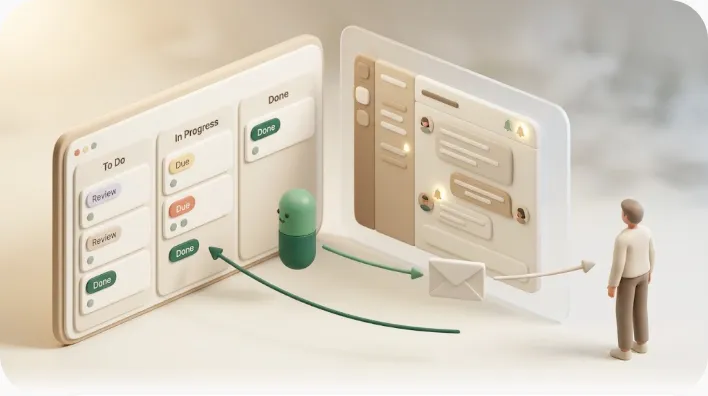
If your Notion database includes anyone outside your own team — a client, a vendor, a freelancer — you've probably already hit the wall this guide is about: Slack notifications only reach people who have a Slack seat, and everyone else never sees the update at all. This guide walks through both native Notion-to-Slack setup paths step by step, covers the reverse direction, and flags the pitfalls that trip people up in production. Then it tackles the part most guides skip: how to reach the people Slack structurally can't, without giving up the Slack setup you already rely on.
TL;DR
- There are two native paths: personal Slack notifications (your own @mentions and comment mentions, under Settings → My notifications → Slack) and a database automation with a "Send Slack notification" action, triggered by a page being added or a property changing.
- The reverse direction works too — you can create a Notion database item from a Slack message and get link previews both ways — but replying in a Slack thread does not update a Notion task's status, assignee, or due date.
- Plan for a few-minutes delay, avoid over-broad triggers that flood a channel, and expect Full Access + paid-plan and admin permissions to be required for the automation path.
- Every Slack path assumes the recipient has a Slack seat and can open Notion. It structurally cannot reach external clients, vendors, freelancers, or students with no Slack account — that reach gap is where email tools like Kapsel fit.
Slack is excellent at internal, real-time sharing, and for a team that already lives in it, routing Notion activity into a channel is the right move. The goal of this article is to get that working cleanly — and to be honest about where that setup runs out, so you can add the right complement instead of fighting the tool. If you're still weighing whether to anchor deadlines in Notion or Slack in the first place, the Notion notifications vs Slack notifications comparison breaks down which one should be your source of truth.
The two ways to get Notion into Slack
Notion offers two distinct paths, and they solve different problems: one is a personal setting for your own mentions, the other is a database-level rule that broadcasts activity to a channel. Set up whichever matches your need, or both.
| Path | What it sends | Best for |
|---|---|---|
| Personal Slack notifications | Your own @mentions and comment mentions | Not missing pings meant for you when Notion is closed |
| Database automation | Page-added / property-change events on one database | Broadcasting project activity to a shared channel |
Picking the right one up front matters: set up the wrong one and you'll either keep missing your own mentions or flood a shared channel with a rule built for someone else's need.
Personal Slack notifications (your own @mentions and comment replies)
This path forwards your Notion notifications to Slack as direct messages from the Notion app. It is a personal setting — it only affects your account, not your teammates — and it is aimed at mentions and comment activity directed at you.
Database Automations ('Send Slack notification' on a trigger)
This path is a database-level rule: when something happens in a specific database (a page is added, a property changes), Notion posts a message to a Slack channel you choose. It is a team broadcast, so everyone watching that channel sees the update, regardless of whether they were mentioned.
Set up personal Slack notifications for @mentions
Personal Slack notifications live under your account settings and take about a minute to connect. Once enabled, when someone @mentions you on a page or in a comment, Notion sends that notification to Slack as well.
Step-by-step: Settings → My notifications → Slack
Follow these steps from any Notion page:
- Open Settings (click your workspace name in the top-left sidebar, then Settings).
- Go to My notifications & settings (sometimes shown as Settings & members → My notifications).
- Find the Slack notifications section.
- Click to connect and choose the Slack workspace you want notifications delivered to.
- Approve the connection on the Slack side when prompted.
- Toggle which notifications forward to Slack — typically mentions and comments, or all of your workspace activity.
💡 These arrive as a DM from the Notion app in Slack, not in a shared channel. They are for you, so this is the right tool when you keep Notion closed and don't want to miss a mention — not for broadcasting to a team.
What you'll actually get notified about (mentions vs. full activity)
The toggle here controls volume, and it is worth understanding before you flip it. The narrow setting sends only the things directed at you; the broad one can turn into noise.
- Mentions only — you're pinged when you're @mentioned on a page or in a comment, and when someone replies to a thread you're in. This is the sustainable default.
- All workspace activity — a much wider firehose that can quickly become the kind of channel people mute. Turn this on only if you genuinely want everything.
- Watched pages and assigned-property changes — Notion can also personally notify you when a property changes on a page you're watching or assigned to (for example, a Status update on your task), and that forwards to Slack the same way as a mention.
Set up a database Automation that posts to Slack
The automation path is how you get Notion activity into a shared channel automatically. You define a trigger (what happens) and an action (post to Slack), and Notion runs it for you whenever the trigger fires. The setup is nearly identical across every guide you'll find.
Step-by-step: Automations → Add trigger → Send Slack notification to...
Open the database you want to broadcast, then:
- Click the ••• menu in the top-right corner (or the lightning-bolt icon) and open Automations.
- Choose Add trigger and give the automation a name.
- Pick a trigger — for example Page added or Property edited (you can scope this to a specific property).
- If you chose a property trigger, set the condition (for example, Status is changed to "In review").
- Choose Add action → Send Slack notification to...
- Select the destination channel and authorize the Slack connection if you haven't already.
- Customize the message — add mentions and variables (property values) so the alert is actually useful.
- Click Create.
Once it's live, the whole channel sees the update the moment the trigger fires — nobody has to remember to go check the database.
Choosing a trigger: Page added vs. Property edited (e.g., Status changes)
The trigger you pick determines how noisy the automation is, so choose deliberately rather than defaulting to "any change." A specific condition is almost always better than a broad one.
| Trigger | Fires when | Watch out for |
|---|---|---|
| Page added | A new item is created in the database | Clean, low-volume; good for "new request" alerts |
| Property edited (specific) | A chosen property changes (e.g., Status → Done) | Precise; the recommended default for status flows |
| Any property edited | Any field changes on any row | Fires on every micro-edit — a common cause of channel flooding |
⚠️ "Any property edited" is the single biggest source of Slack notification overload. Every typo fix, tag change, and stray edit posts a message. Scope your trigger to the one property that actually matters (usually Status).
Picking the target channel and writing a useful message (mentions, variables)
The destination must be a public channel or a private channel the integration has been authorized in — you cannot target a private Slack DM as the destination. A bare "a page was updated" message is nearly useless, so use variables to carry the context.
- Insert property variables (task name, status, assignee, due date) so the message is self-explanatory in the channel.
- Add @mentions sparingly — mention the owner, not the whole channel, or you re-create the overload problem by another route.
- Keep it to one line of signal: what changed, on which item, and who owns it now.
A message built that way lets whoever reads it act straight from Slack, without opening Notion just to find out what happened.
Who can do this (Full Access + plan requirements)
The automation path has real gating, and this is why a teammate's "Send Slack notification" option can appear grayed out. Two things must be true.
- Full Access to the database. Editing automations requires Full Access permission on that database. View or Comment access is not enough — you won't see the option, or it will be disabled.
- A paid plan. Per Notion's plan availability, the Slack automation action is offered on paid tiers (Plus/Business/Enterprise) rather than the free plan; exact availability can change, so check your workspace's current plan.
💡 If the option is missing for one person but present for another, it's almost always a permission difference (they have Full Access, you don't) — not a bug. Ask a workspace owner to grant Full Access on that database.
The reverse direction: Slack to Notion
Slack can push into Notion as well as receive from it, but the reverse direction is narrower than most people assume: it's built for creating items and previewing links, not for updating existing task properties. Knowing that boundary up front saves a lot of confusion.
Creating a Notion item from a Slack message (/notion create, /notion task)
From Slack, you can turn a message or a quick command into a new Notion database item without leaving Slack.
- Use the
/notion createor/notion taskslash commands to create a new page or task, filling in title, assignee, status, and due date. - Or open a message's ••• menu and choose Send to Notion / Create task in Notion to capture that message as a new database item.
Link previews both ways (Notion unfurls in Slack, Slack pastes as a preview in Notion)
Link unfurling works in both directions and needs no setup beyond connecting the integration. It's the low-effort win that makes the two tools feel connected.
- Paste a Notion page URL into Slack and it unfurls into a preview card with the title and summary.
- Paste a Slack message link into Notion and it renders as a preview card rather than a raw URL.
The real limit — replying in a Slack thread does not update Notion's status, assignee, or due date
This is the limitation almost no guide states plainly, and it causes genuine surprise. Slack is a messaging layer; it does not write back to Notion's structured properties.
- Replying in the Slack thread for a Notion alert changes nothing in Notion — not the status, not the assignee, not the due date.
- Comment-style replies, where supported, land as Notion comments, not property updates.
- The only way Slack creates structured data in Notion is the explicit "Create task / Send to Notion" flow — and that makes a new item, it doesn't advance an existing one.
⚠️ Don't design a workflow that assumes "the team will just reply in Slack to close the task." Someone still has to open Notion and change the Status property by hand. The Slack thread is a conversation, not a state change.
Common gotchas before you rely on this
Before you build a process on top of Notion-to-Slack notifications, three practical issues are worth planning around: latency, overload, and permissions. Each has a straightforward mitigation.
Notifications aren't instant — plan for a few minutes' delay
Automation-triggered Slack messages are not real-time. There's typically a lag of a few minutes between the change in Notion and the message landing in Slack, and it isn't documented with a firm number.
- Treat it as "a few minutes, not instant," and don't rely on it for anything time-critical.
- For same-day, deadline-driven nudges where seconds matter, don't rely on this automation path at all — use a channel that isn't sitting behind a queued delay.
⚠️ This delay is fine for async awareness and terrible for last-minute dunning. If "did they get it right now" matters, a delayed Slack post is the wrong mechanism.
Notification overload when triggers are too broad, and how teams filter it (Make, Google Apps Script)
The failure mode here is predictable: broad triggers flood the channel, people mute it, and then the alert nobody reads defeats the entire purpose. Notion's native filtering is limited to the trigger condition, so heavy users add a layer in between.
- First, tighten the trigger — scope to one property and one condition (this fixes most cases for free).
- For batching or conditional suppression, teams route through Make or a scheduled Google Apps Script to collapse many events into a digest or drop the ones that don't matter.
- A scheduled digest (one summary message per day/week) often beats a stream of individual pings for anything that isn't urgent.
For a fuller comparison of these approaches, see Notion reminder automation tools.
Permission walls: Full Access required, and enterprise admin approval
Two permission layers can block setup, and neither is obvious the first time. Knowing them saves you from re-clicking the same menu expecting a different result.
- Full Access on the database is required to create or edit the automation (covered above).
- Enterprise admin approval — on larger workspaces, admins can restrict who is allowed to install or use the Slack integration, so you may need an admin to authorize the connection before it works at all.
The gap Slack notifications can't close: people who aren't in Slack

Here is the structural ceiling almost no guide names: every Notion-to-Slack path assumes the recipient is a teammate who is in Slack and can also open Notion to act. When that assumption breaks, the notification simply has nowhere to land.
Why Notion-to-Slack assumes a teammate who's already in Slack and can open Notion
Both native paths quietly require three things of the recipient, and all three have to be true at once. Miss any one and the alert never reaches them.
- They have a Slack seat in your workspace.
- They're in the right channel (or have personal mentions turned on).
- They can open Notion to actually act on the item.
Who falls through: external clients, vendors, freelancers, students, occasional collaborators
Plenty of the people you most need to notify meet none of those conditions. For them, a perfectly configured Slack automation is invisible.
- External clients approving deliverables or paying invoices.
- Vendors and contractors who work with several companies and won't join your Slack.
- Freelancers hired for one project and students or course members with no Slack account at all.
- Occasional collaborators who technically have access but never open Slack or Notion.
No amount of tuning your Slack automation reaches anyone on that list — they need a channel that doesn't assume a Slack seat in the first place.
How Kapsel covers the reach Slack can't

For the audience that falls outside Slack, the practical answer is to deliver by email — a channel almost anyone can receive without installing or joining anything — while still writing results back into Notion. This is the narrow job Kapsel is built for, and it sits alongside your Slack setup rather than replacing it.
Kapsel is a Notion notification tool that watches your database's due dates, assignees, and statuses and emails the right person — including someone with no Slack or Notion account — with a one-click confirm that writes the update back to Notion. It's an independent, solo-built product focused on getting Notion deadlines in front of people your internal channels can't reach.
Watches due date, assignee, and status — emails the person directly, no Slack or Notion account needed
Kapsel monitors the due date, assignee, and status on your database and sends an email reminder to the person responsible. Because it's plain email, the recipient needs no Slack seat and no Notion account — which is exactly the reach a Slack automation can't provide.
One-click confirm writes the status back to Notion
Where a Slack thread reply changes nothing in Notion, Kapsel's reminder emails include a one-click confirm link. When the recipient clicks it, their confirmation writes the status back to Notion — a real two-way update from someone who never logged in.
Never sends to completed or paid items (the accident a Slack blast doesn't catch)
Because a Slack automation broadcasts on a trigger, it doesn't check downstream state — so a digest or blast can happily fire on a task that's already done or an invoice that's already paid. Kapsel reads the status and never sends to completed or paid items, which prevents the classic dunning accident of chasing someone who has already delivered or already paid.
💡 Emailing a client to pay an invoice they settled last week is the fastest way to lose trust. A pure trigger-based broadcast doesn't guard against it; a status-aware one does.
Filtering who gets notified, plus overdue follow-ups and recurring digests
Beyond a single alert, Kapsel handles the cadences a manual Slack setup leaves to you: target filtering to narrow who gets notified by assignee or property, overdue follow-ups that keep nudging while an item sits past its due date, and recurring digests as periodic summaries. A send log records what went out and to whom, and merge fields personalize each message. Pricing is Free ($0), Standard ($12/mo), and Pro ($29/mo); Pro adds multiple Notion workspaces and sender branding. See the pricing page for details.
Slack vs. email reminders: use both, for different audiences
These are complements, not competitors — the right choice depends entirely on who needs to hear about the update. Slack owns internal real-time sharing; email owns external and non-Slack reach.
| Audience / need | Best fit | Why |
|---|---|---|
| Teammates already in Slack | Notion → Slack automation | They're watching the channel in real time |
| Async internal awareness | Slack digest / scoped automation | One summary beats a flood of pings |
| External clients, vendors, students | Email (Kapsel) | No Slack or Notion account required |
| Overdue chasing that must skip done/paid | Status-aware email | Broadcasts don't check downstream state |
| A recipient who must confirm back | Email with one-click confirm | Slack thread replies don't update Notion |
If your team uses Microsoft Teams instead of Slack, the same pattern applies — and Teams is actually harder, because Notion has no native "Send Teams notification" action at all; see Notion Microsoft Teams notifications for the setup routes and the identical reach gap.
For the broader picture of reminders in Notion, see the pillar guide, how to set reminders in Notion. If your Slack alerts aren't arriving at all, start with why Notion notifications aren't working; and for sharing progress with people outside your workspace, see Notion external share notifications.
FAQ
How do I get Slack notifications from Notion?
There are two ways. For your own @mentions and comment mentions, open Settings → My notifications → Slack and connect your Slack workspace. To broadcast a database's activity to a channel, open the database, go to •••/lightning-bolt → Automations, add a trigger, then add the Send Slack notification action and pick a channel.
Can Notion send automatic notifications to a Slack channel?
Yes. A database automation with a "Send Slack notification to..." action posts to a channel automatically whenever its trigger fires — for example, when a page is added or a Status property changes. This requires Full Access to the database and is available on Notion's paid plans.
Why am I not getting Notion notifications in Slack?
Common causes are: the personal Slack connection under My notifications isn't set up, the automation's trigger condition wasn't actually met, or the built-in delay of a few minutes. Also check permissions — you need Full Access to edit automations, and on enterprise workspaces an admin may have to approve the Slack integration first.
How do I stop getting too many Notion notifications in Slack?
Tighten the trigger first: replace "Any property edited" with a specific property and condition (like Status changed to Done). If that's still too much, route events through Make or a scheduled Google Apps Script to batch them into a digest, or post a single scheduled summary instead of per-event pings.
Can you create a Notion task from a Slack message?
Yes. Use the /notion create or /notion task slash commands, or open a message's ••• menu and choose Send to Notion / Create task in Notion. This creates a new database item with fields like title, assignee, status, and due date.
Does replying in Slack update the status of a Notion task?
No. Replying in a Slack thread does not change Notion's status, assignee, or due-date properties. Comment-style replies become Notion comments at most, and only the explicit "Create task / Send to Notion" flow writes structured data — and that creates a new item rather than updating an existing one.
Is the Notion Slack integration free?
Personal Slack notifications for your mentions are available without a paid plan. The database automation with a Slack action is offered on Notion's paid plans (Plus/Business/Enterprise), so a free workspace may not have it. Plan availability can change, so check your current workspace plan.
Why can't I set up a Slack notification automation in Notion?
Almost always a permission issue. Editing automations requires Full Access to the database — View or Comment access hides or disables the option. On larger workspaces, an admin may also need to approve the Slack integration before anyone can use it.
How long does it take for Notion automations to post to Slack?
It isn't instant. Expect a delay of a few minutes between the change in Notion and the message appearing in Slack. There's no published exact figure, so plan for latency and don't rely on it for time-sensitive, same-day reminders.
How do I notify someone who doesn't use Slack about a Notion update?
Slack notifications can't reach anyone without a Slack seat, so use email instead. A tool like Kapsel watches the due date, assignee, and status and emails the person directly — no Slack or Notion account needed — with a one-click confirm that writes the update back to Notion, and it never sends to completed or paid items.
Notes
Published 2026-08-09. The Notion and Slack behavior described here — the two native notification paths, the automation trigger/action steps, the Slack-to-Notion flows, notification latency, and the Full Access and plan/admin requirements — reflects the products as of the publish date and may change as either service updates. Kapsel's features and pricing (Free $0, Standard $12/month, Pro $29/month) are current as of writing; see getkapsel.com for the latest.