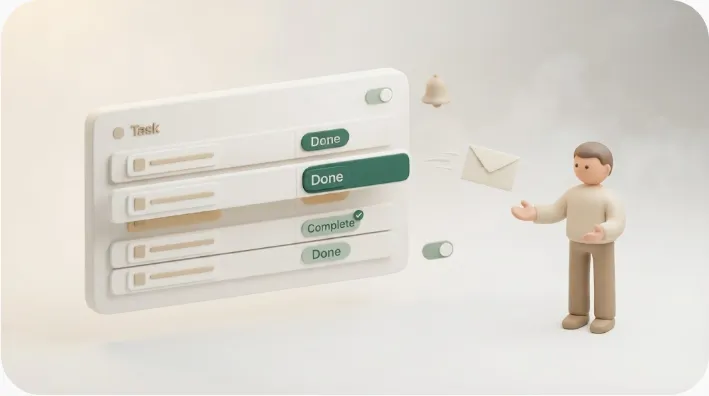
How to Track Bills You Owe in Notion (and Get Reminded Before Each One Is Due)
If you pay vendor invoices, rent, retainers, or software subscriptions out of a Notion database, the goal is simple: nothing gets paid late, and nothing gets paid twice. This guide is for the person on the paying side of the ledger — not someone chasing a customer for an invoice — and it covers the database structure, an approval-aware status pipeline, recurring bills, and how to get reminded before a due date rather than on the day the money is already overdue.
TL;DR
- A payables tracker runs on four fields: Bill/Vendor, Amount, Due date, and Status. Add an Owner/approver and a reminder (lead-time) date and you have the whole system.
- A bills-to-pay tracker is not a renewal tracker (deciding whether to keep a subscription) and not a receivables tracker (collecting money customers owe you). Same database shape, three different jobs.
- Notion's reminders fire inside the workspace only — for whoever set them, if they have Notion open. They don't reach a co-founder, bookkeeper, or accountant who has no Notion login.
- Mark it Paid and reminders must stop. The safeguard that prevents double payments and awkward "did you already send this?" follow-ups.
A bill that gets paid late usually isn't a money problem — it's a reminder reaching the wrong place problem. The due date sat in Notion, but the person who had to approve or release the payment never saw it in time. This article fixes that gap.
This is the payer side, not the collections side
Three jobs look alike in a Notion database but behave differently, and conflating them is why guides (and search engines) blur them together:
| Job | What you're tracking | Trigger that matters |
|---|---|---|
| Bills to pay (this article) | Money you owe — vendors, rent, SaaS, retainers | Due date, so you pay on time |
| Renewals | Subscriptions/contracts that auto-renew | Notice period before the renewal commits — see tracking renewals in Notion |
| Receivables | Money customers owe you | Overdue, so you can chase — see overdue invoice reminders |
If your question is "did my client pay me?", you're on the collections side and the receivables guide above fits better. The rest of this page assumes you're the one with bills to settle.
Build a payables (bills-to-pay) database in Notion
Start with a single database. One row per bill. If you've never built a Notion database, the database basics guide covers the mechanics; here we focus on the schema that makes a payables tracker work.
Core properties
Every well-built bills tracker converges on roughly the same columns. These are the ones that earn their place:
| Property | Type | Why it's there |
|---|---|---|
| Bill / Vendor | Title | What you're paying and to whom |
| Category | Select | Fixed cost / software subscription / one-off — drives spend-by-category rollups |
| Amount | Number (currency) | The figure; also feeds monthly/yearly totals |
| Due date | Date | The hard deadline the payment must clear by |
| Frequency | Select | One-off / weekly / monthly / yearly — flags which bills repeat and feeds the recurring-template setup below |
| Reminder date | Date or Formula | Lead time — N days before Due date (see below) |
| Owner / approver | Person or Text | Who signs off and who actually pays |
| Payment method | Select | Card, bank transfer, direct debit |
| Status | Select | Where the bill is in the pipeline |
| Notes | Text | Account numbers, reference, context |
💡 For a business with many vendors, split this into two linked databases — a Vendors list and a Bills/Invoices list related to it — so a vendor's contact details and terms live in one place and each bill just points to them. For a handful of personal bills, one flat database is enough; don't over-engineer it.
A status pipeline that prevents late or duplicate payment
Most templates stop at Paid / Upcoming / Overdue — a model that assumes one person both decides and pays. Real small-business and freelance workflows usually have a gap in the middle: someone logs the bill, but an owner or manager has to approve it before money moves.
A three-stage pipeline closes that gap:
- Unpaid — logged, not yet approved or paid.
- Awaiting approval — the owner/approver needs to sign off before release.
- Paid — settled. This stage must hard-stop every reminder (more on why below).
That middle stage is the difference between "a bill got paid" and "the right person approved it and then it got paid." If you want to formalize who approves what, the Notion approval workflow guide walks through the status-gate pattern in depth.
Views that make it usable day to day
A flat table is where bills go to be forgotten. Build filtered views so the right bills surface at the right time:
- This week's due bills — Due date within 7 days and Status is not Paid. Your daily working list.
- Overdue — Due date is before today and Status is not Paid. The red flags.
- Awaiting my approval — Status is Awaiting approval and Owner is Me (use the "Me" person filter). Each approver sees only their queue.
- By vendor / category — a board or grouped view for totals and spotting duplicate subscriptions.
- Kanban by Status — a board view grouped on the Status property, so Unpaid, Awaiting approval, and Paid each show as a column and a bill's progress is visible at a glance.
💡 A calendar view keyed to Due date turns the whole month of outflows into a glance — useful for cash-flow timing, not just individual reminders.
Advanced: rollups for totals, once the basics are in place
Once the database and views are working, a Rollup property on Amount (grouped by month or by Category) gives you total monthly or per-category spend without a separate spreadsheet. The same pattern — a rollup filtered to Status = Overdue — surfaces your total overdue amount at a glance. Treat this as a second-pass addition: get the core properties and the status pipeline right first, then layer rollups on top once you know which totals you actually check.
Recurring bills without re-creating the record every month
Rent, SaaS seats, and retainers repeat on a schedule. You don't want to retype them.
Notion's native recurring templates
Notion lets a database template repeat on a schedule — daily, weekly, monthly — automatically creating a fresh row (a new bill instance) each cycle. Set up one template per recurring line item ("Monthly — [SaaS name]", "Monthly — Rent") and Notion spawns the next instance for you. The mechanics are the same as any recurring reminder setup in Notion; the benefit here is that next month's rent bill already exists before you'd have thought to add it.
Why each new instance still needs its own due-date reminder
Here's the pitfall most people hit: the recurring template creates the row, but the reminder has to be attached to that new instance's own Due date — not to the template rule. A template that spawns a blank or stale date produces a bill nobody is reminded about. So confirm that each generated instance carries a real Due date (and therefore a real reminder date), not an empty field. The convenience of auto-creation is only worth it if the alert rides along with it.
Why a due-date reminder set in Notion still doesn't reach the payer
You can set a reminder in Notion. The problem is who it reaches and when.
Notion reminders live inside the workspace
Notion's @remind and date reminders are in-workspace notifications. In practical terms:
- They notify the person who set them, not necessarily the person who has to pay.
- They surface reliably only when that person has Notion open; email arrives only if the app was closed.
- They reach workspace members — not a spouse, co-founder, bookkeeper, or outside accountant who has no Notion login.
So if the person who approves or releases payment isn't glued to Notion, the reminder effectively didn't happen. The full detail on these limits is in the guide to Notion reminders.
"Remind me 3 days before," not "on the due date"
A reminder that fires on the due date is already too late for money. Bank transfers take a day or two to clear, approvers aren't always at their desk, and some vendors treat the due date as the last acceptable day. Separate the reminder (lead-time) date from the Due date so you're nudged with enough runway to act — typically 3 to 7 days out. Treating the two as one field is a common reason a bill is "tracked" and still paid late.
Database automations help — but still only notify inside
Notion's database automations (on paid plans) can change a property or send an in-app notification on a schedule, and the Notion automation guide covers what they can do. But they share the same ceiling: the notification stays inside the workspace. They don't solve the case where the person who must approve or pay isn't a Notion user. That's the specific gap the next section addresses.
Closing the loop: reminder → approval → paid, without manual bookkeeping
Native Notion gets you a tidy database and an internal nudge. The missing piece is reaching the actual payer or approver — and recording their response back in Notion without you retyping it.
How Kapsel fits this gap
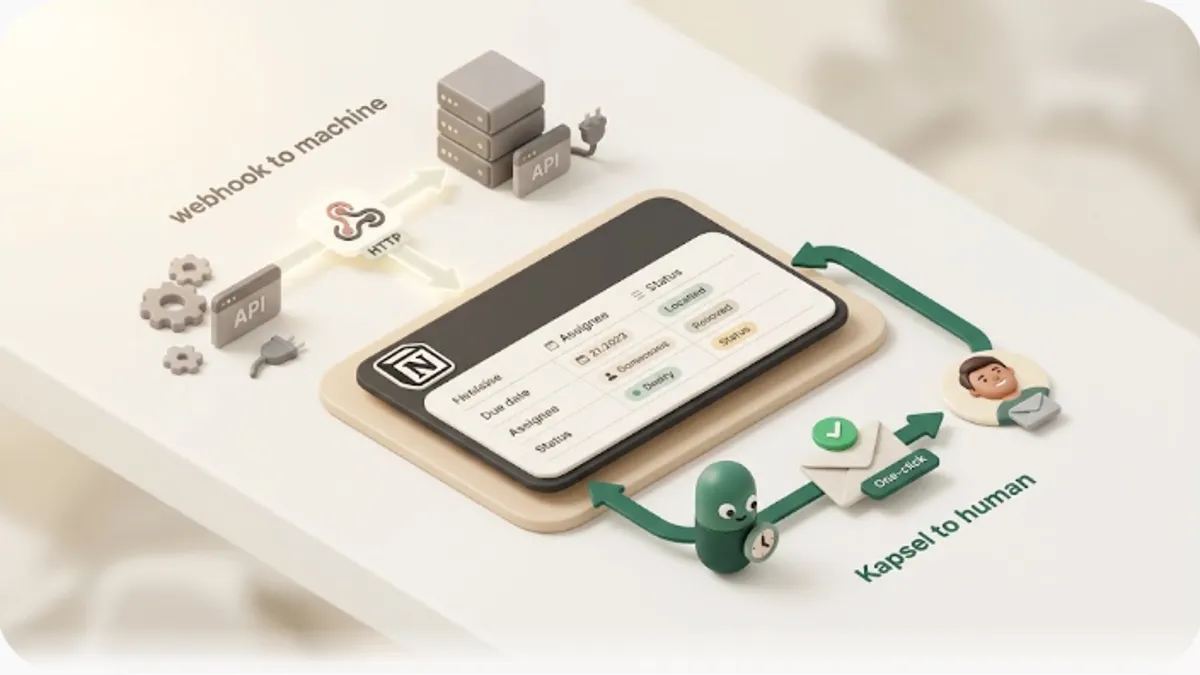
Kapsel is a tool that watches a Notion database's due dates, assignees, and status and sends automatic email reminders — including to people who have no Notion account. For a payables tracker, that means the bill's owner or approver gets an email a set number of days before the due date, clicks once to confirm, and that click writes the status back to Notion.
- Reaches non-Notion payers. A co-founder, bookkeeper, or outside accountant who must approve a bill gets the email directly — no login, no workspace seat. So the person who actually releases money sees the deadline instead of a reminder sitting in a workspace they never open.
- Fires on your lead time. It sends before the due date based on your reminder date, so there's runway to approve and let the transfer clear.
- Two-way, so no manual bookkeeping. The one-click response updates the Notion row — "Approved," "Paid" — and you don't re-enter anything. The database stays current on its own.
This maps cleanly onto the three-stage pipeline: a bill in Unpaid or Awaiting approval triggers the reminder; the recipient's click moves it forward.
The safeguard that matters most for money: stop after Paid
Kapsel never sends to a bill already marked Paid. The same guardrail Kapsel applies to chasing customers on the receivables side matters just as much for payables: once a bill is settled, no further reminder goes out. That prevents two specific, costly mistakes — paying the same bill twice because a second reminder prompted it, and firing off an awkward "did we already pay this?" to a vendor or approver after the money has already moved.
⚠️ A reminder system without a hard stop on Paid is worse than no system, because it trains people to ignore it. The "stop at Paid" rule is what keeps the reminders trustworthy enough to act on.
Pricing is Free ¥0 / $0, Standard ¥1,980 / $12, Pro ¥4,980 / $29 (tax incl., JP). Pro adds multiple Notion workspaces and sender branding (your company name, signature, and logo on the email). Check the official pricing page for current figures.
Common mistakes that cause a bill to be paid late anyway
Even a well-built tracker fails in a few predictable ways:
- Treating Due date and Reminder date as the same field. You get alerted the day it's due, with no time for approval or clearing. Keep them separate.
- No approval stage, so bills get paid by whoever remembers first — or not at all. Without an Awaiting approval step, responsibility is ambiguous; a bill falls between two people. The status pipeline assigns it.
- Letting the recurring template run unchecked. A template that spawns instances with empty or wrong Due dates produces bills no reminder ever fires on. Verify each new instance carries a real date.
Frequently Asked Questions
How do I track bills I need to pay in Notion? Create one database with a row per bill and the properties Bill/Vendor, Category, Amount, Due date, Owner/approver, and Status. Add filtered views for "due this week," "overdue," and "awaiting my approval." For businesses with many vendors, split it into linked Vendors and Bills databases.
Can Notion remind me before a bill is due, not just on the due date? Yes — store a separate reminder (lead-time) date that is a few days before the Due date, and set the reminder against that. Notion's native reminder will then fire early, though it only notifies you inside the workspace when you have Notion open.
What's the difference between a bills-to-pay tracker and a subscription/renewal tracker? A bills-to-pay tracker is about paying something by a due date. A renewal tracker is about deciding whether to keep or cancel a subscription before it auto-renews, so its key field is the notice period, not the payment due date. The database shape is similar but the trigger is different — see the renewal tracking guide.
Does Notion have a built-in accounts payable template? Notion offers community and gallery templates for expense and bill tracking, but there's no single official AP template, and most go only as far as Paid/Upcoming/Overdue. You'll typically build your own schema or adapt a template — and add an approval stage yourself, since few include one.
How do I set up recurring bill reminders without re-adding each one manually? Use a Notion database template set to repeat on a schedule, so a new bill instance is created each cycle automatically. Then make sure each generated instance carries its own Due date and reminder date — the repeat rule creates the row, but the reminder must attach to the new instance.
Can Notion send an email reminder to someone who doesn't have a Notion account? Not on its own — Notion's reminders stay inside the workspace and require a login. To reach a co-founder, bookkeeper, or accountant who must approve a bill but doesn't use Notion, you need an external layer. Kapsel sends the reminder by email to people with no Notion account, and their one-click response writes the status back to Notion.
How do I stop getting reminded about a bill after it's been paid? Mark the bill's Status as Paid and ensure your reminder logic excludes Paid items. With Notion's native reminders you have to manage this manually. Kapsel never sends to a bill already marked Paid, which prevents double payments and redundant follow-ups.
What properties should a Notion payables/bills database have? At minimum: Bill/Vendor, Amount, Due date, and Status. Add Category, Owner/approver, Payment method, Notes, and a separate Reminder (lead-time) date to make it operational. Rollups on Amount give you monthly and per-category spend, and a rollup filtered to Overdue bills surfaces your total overdue amount.
Can I add an approval step before a bill gets marked as paid? Yes — add an Awaiting approval stage to your Status property between Unpaid and Paid, and a view filtered to "awaiting my approval" so each approver sees their queue. The approval workflow guide covers the status-gate pattern, and Kapsel's write-back-on-click lets a non-Notion approver sign off by email.
Notes & sources
Published 2026-10-06. Primary references: Notion's official help documentation on databases, database templates (recurring), reminders, and database automations. Common payables schema and status models were compared against widely used bills/expense and accounts-payable tracker guides and templates. Kapsel's features and pricing are described as of the publish date; see the official pricing page for current figures. For related Notion workflows, see task management, recurring tasks, and — if you're framing the reminder copy for customers rather than paying bills — payment reminder email templates (a different, collections-side use case).