A due date passes, nobody chases it, and you find out three days later when you happen to open the page. If that sounds familiar, the problem usually isn't discipline — it's that you picked the wrong notification method for the job, or you're relying on just one.
Notion actually gives you several ways to get reminded, from built-in mentions to desktop push to calendar sync. Each one fires under a different condition, and each one has a gap. This is a roundup of all of them, so you can pick the combination that fits how you and your team actually work.

TL;DR
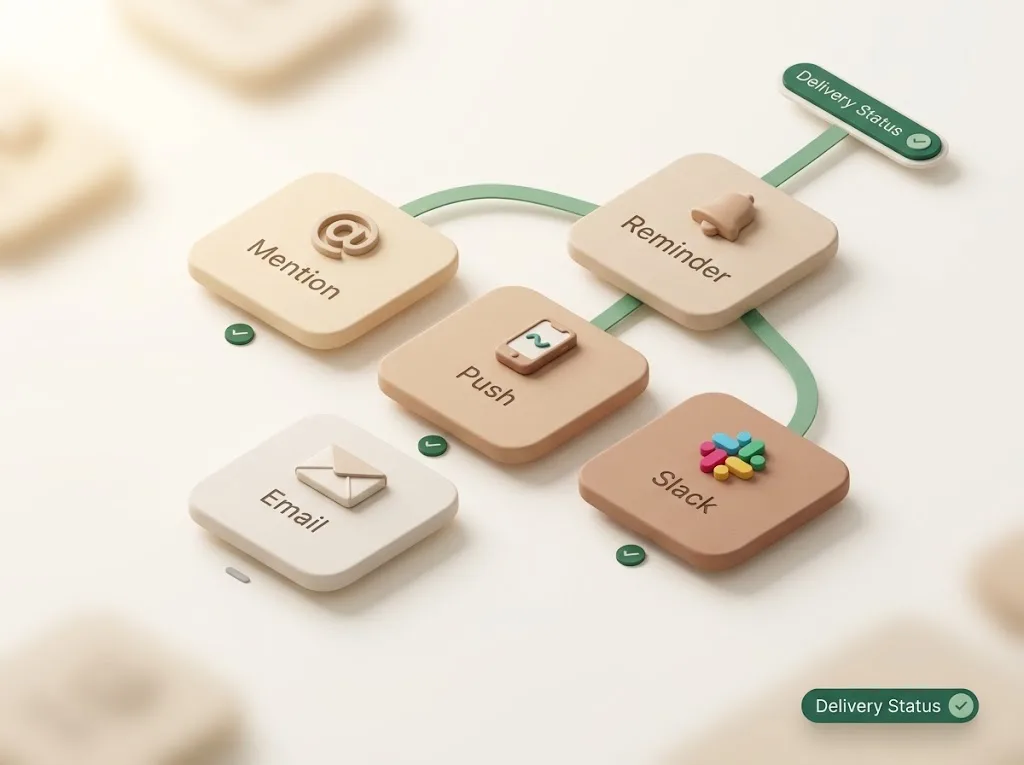
- Notion has native notifications (mentions, @remind, date reminders), desktop push, mobile push, and email — plus Slack and Google Calendar integrations.
- Native methods are great inside Notion but share one limit: you still have to open Notion to act, and they don't reach people who don't use Notion.
- Immediacy, miss-resistance, and setup effort differ per method — the comparison table below sorts them out.
- For deadlines you can't afford to miss, layer an outbound method (calendar, Slack, or email that lands in an inbox you already watch).
- For reminders that reach clients or partners without a Notion account, you need a channel that leaves Notion entirely.
1. Mention and comment notifications
Delivery condition: Someone @mentions you, comments on a page you follow, or replies to your comment.
Mentions are the most immediate signal Notion offers. When a teammate types @YourName, you get a notification in the bell menu, and — depending on your settings — a push and an email too. Comment notifications work the same way for any page you're subscribed to.
Immediacy: High (fires the moment someone acts). Reaches external / non-Notion users? No — only workspace members. Best fit: Real-time collaboration, handoffs, and "can you look at this?" moments.
Benefit: A mention pulls a specific person into a specific spot on a page, right away.
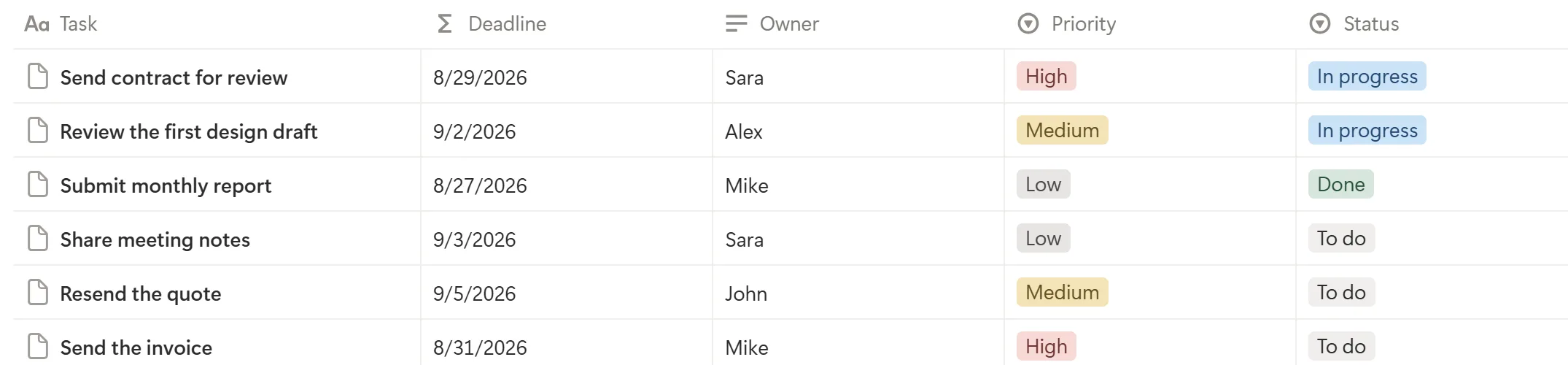
The catch: mentions depend on a human remembering to mention you. They don't fire on their own when a deadline arrives.
2. @remind and date-property reminders
Delivery condition: You (or a date property with a reminder) set a specific time, and Notion notifies you then.
There are two flavors. Inline @remind inside a page or comment lets you type something like @remind tomorrow at 9am. Separately, a date property on a database item can carry a reminder — "notify 1 day before," for example — so the whole row nudges you as the date approaches.
Immediacy: Scheduled (fires at the time you chose). Reaches external / non-Notion users? No. Best fit: Personal deadlines, "don't forget this on Friday," and database items with real due dates.
Benefit: This is the closest Notion gets to a true deadline reminder — it fires on time, without anyone mentioning you.
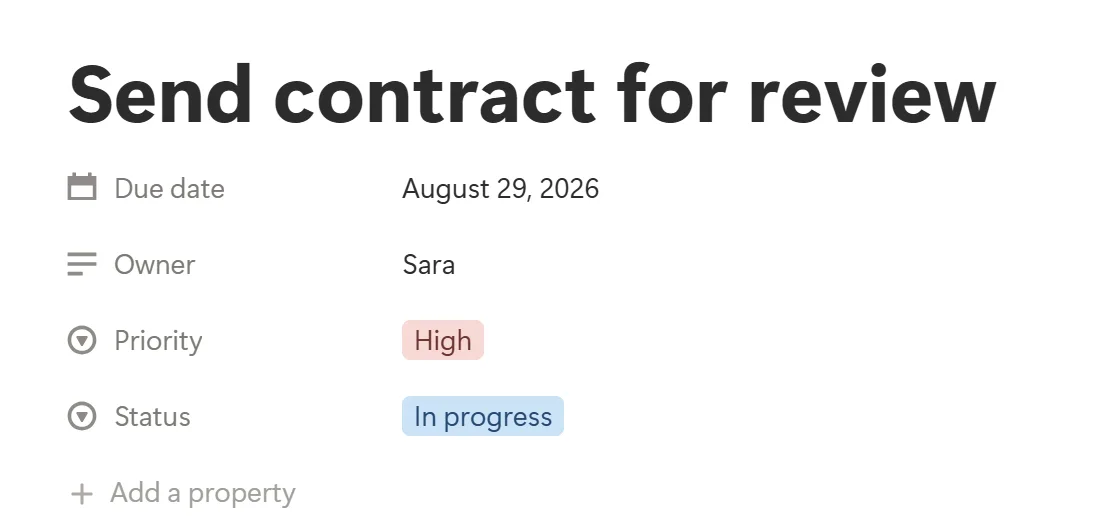
The catch: the reminder lands in Notion's own notification stream. If you're not looking at Notion (or your push/email settings are off), it can pass by unnoticed. For a walkthrough, see how to set reminders in Notion.
3. Desktop push notifications
Delivery condition: You have the Notion desktop app open (or the browser tab active) with push enabled in settings.
Desktop push surfaces mentions, comments, and reminders as system notifications on your computer, so you don't have to keep the bell menu open.
Immediacy: High — but only while the app is running. Reaches external / non-Notion users? No. Best fit: Heads-down work where Notion is already part of your day.
Benefit: You catch activity without context-switching into Notion every few minutes.
The catch: close the app and the pushes stop. Desktop push assumes Notion is always open, which isn't true for everyone.
4. Mobile push notifications
Delivery condition: The Notion mobile app is installed, you're logged in, and notifications are allowed at the OS level.
Mobile push follows you off your desk. The same mentions and reminders arrive on your phone, which helps for anything time-sensitive when you're away from your computer.
Immediacy: High. Reaches external / non-Notion users? No. Best fit: People who need to know about changes even when they're not at a laptop.
Benefit: A deadline reminder reaches you on your phone, not just on a screen you've walked away from.
The catch: mobile OS settings and battery-saver modes can quietly suppress notifications, and — again — it only works for people who have the Notion app.
5. Email notifications
Delivery condition: Enabled in your Notion settings; Notion emails you about activity, and can send a digest for things you haven't seen.
Email is the one native channel that lands somewhere you probably check anyway. Notion can email you about mentions and comments, and send follow-up emails for notifications you didn't open in the app.
Immediacy: Medium (email isn't instant, and digests are batched). Reaches external / non-Notion users? No — the email still goes to your own Notion account address. Best fit: People who live in their inbox more than in Notion.
Benefit: Reminders show up in a place you already watch, instead of behind a bell icon you have to remember to click.
The catch: these emails go to you as a workspace member. They won't notify a client or contractor who isn't in your workspace. If email is your main channel, it's worth reading Notion email reminders to see exactly what it does and doesn't cover.
6. Slack integration
Delivery condition: You connect Notion to a Slack workspace and configure which updates post to which channel.
If your team already lives in Slack, routing Notion activity there means reminders land where conversation already happens — no extra app to check.
Immediacy: Medium to high, depending on how it's configured. Reaches external / non-Notion users? Partially — anyone in the Slack channel sees it, even if they rarely open Notion, as long as they're in your Slack. Best fit: Teams whose center of gravity is Slack, not Notion.
Benefit: People who never open Notion still see the update, because it comes to them in Slack.
The catch: it only reaches people inside your Slack. Clients and partners outside it are still out of the loop. See Notion Slack reminders for setup details.
7. Google Calendar sync and external automation
Delivery condition: You sync Notion dates to Google Calendar, or wire Notion to an automation tool (Zapier, Make, and similar) that pushes reminders elsewhere.
Calendar sync turns Notion due dates into calendar events, so your existing calendar reminders do the nudging. Automation tools go further, letting you route Notion changes to almost any channel on a schedule or trigger.
Immediacy: Scheduled or event-driven. Reaches external / non-Notion users? Sometimes — depends entirely on what you build. Best fit: People who plan their day in a calendar, and teams comfortable building their own pipes.
Benefit: Your Notion deadlines show up in the calendar you already plan around.
The catch: sync and automations need setup and upkeep, and calendar events don't confirm whether the task actually got done. For the calendar route specifically, see Notion Google Calendar sync.
Notion notification methods compared
| Method | Immediacy | Miss-resistance | Setup effort | Reaches external / non-Notion users |
|---|---|---|---|---|
| Mentions & comments | High | Low (needs a human to mention) | None | No |
| @remind & date reminders | Scheduled | Medium | Low | No |
| Desktop push | High | Low (app must be open) | Low | No |
| Mobile push | High | Medium | Low | No |
| Email notifications | Medium | Medium | Low | No |
| Slack integration | Medium–High | Medium | Medium | Partial (your Slack only) |
| Calendar sync / automation | Scheduled | Medium | Medium–High | Depends on setup |
Read the table by column, not by row. If you're worried about missing things, the "miss-resistance" column matters most — and it argues for pairing an in-Notion reminder with an outbound one. If you're worried about reaching people, the last column is the honest answer: almost every native method says "No."
The one limit they all share
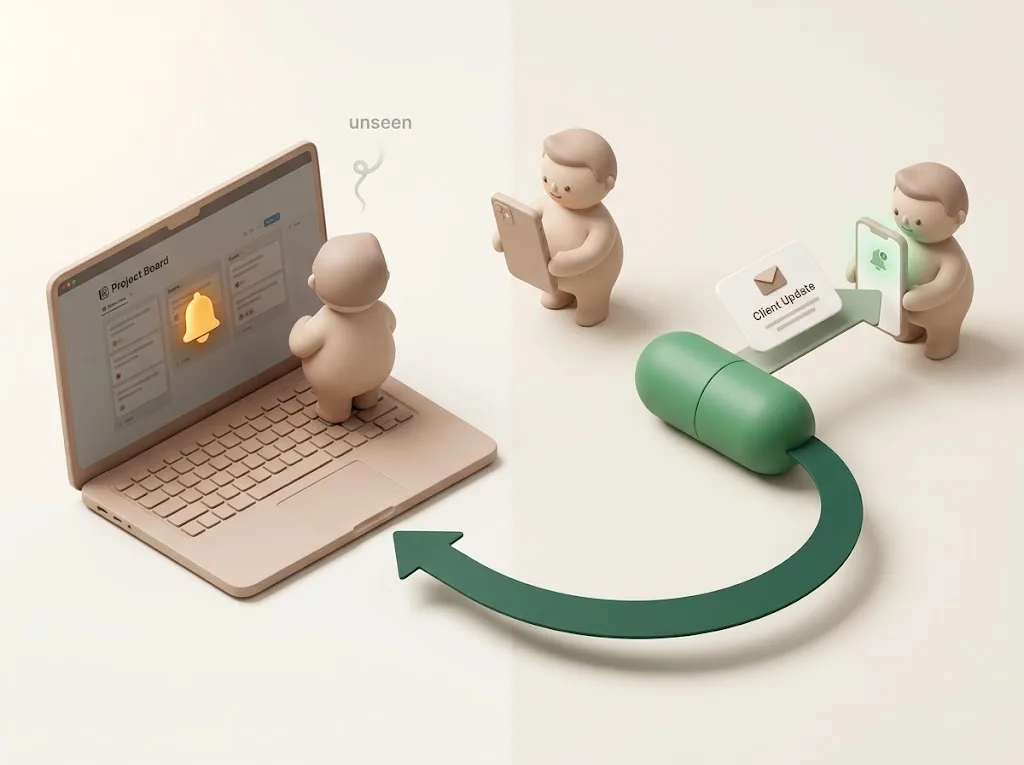
Line the seven methods up and a pattern appears. Most of them notify you inside Notion's own surface — the bell menu, a push tied to the app, an email addressed to your workspace account. They're excellent at telling members what changed. But two structural gaps remain no matter how you configure them:
- You still have to be paying attention to Notion. A reminder that fires while your attention is elsewhere is easy to miss, which is exactly how a due date slips by until you next open the page. If your notifications feel unreliable, why Notion notifications aren't working covers the common causes, and the free Notion notification cause diagnosis narrows it down in a few questions.
- They don't reach people who aren't in your Notion workspace. A client, a freelancer, a supplier — if they don't have a Notion account, none of the native channels can nudge them. Even the external share notification settings have limits here.
Slack and calendar sync stretch the boundary a little, but only to people already inside your tools. The moment a task depends on someone outside, the native menu runs out.
Notion 3.7 (September 15, 2026) lets Notion Agent group and summarize your Inbox notifications with AI, but that is organizing on the recipient's side, inside the workspace — the conditions for a notification to actually reach someone (they open Notion; they are a Notion user) don't change.
Covering the gap with an outbound layer
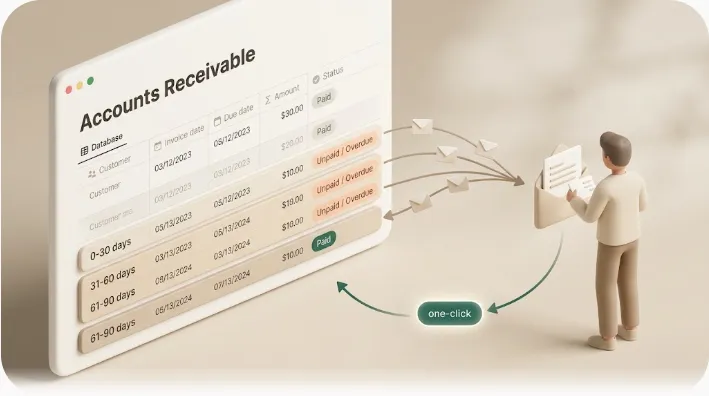
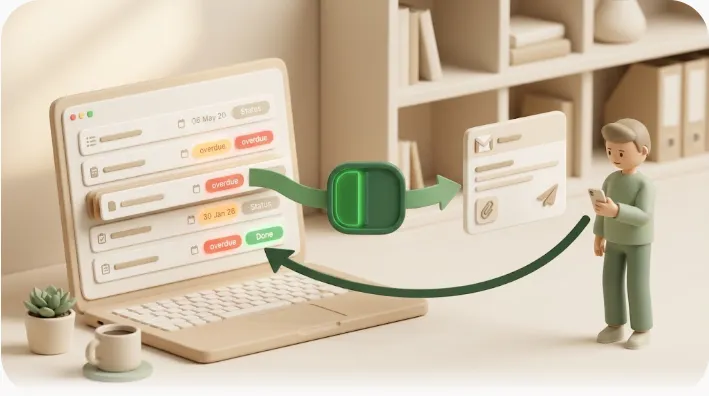
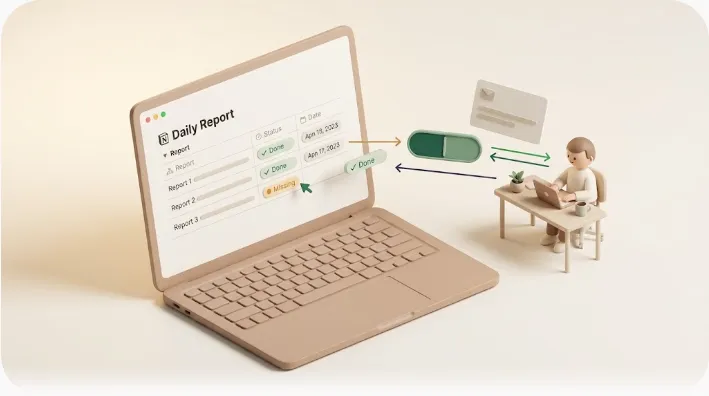
This is the specific gap Kapsel fills. Kapsel watches your Notion due dates, assignees, and statuses, then sends the reminder by email — including to external recipients who don't have Notion and don't need to log in. Because the recipient can update the status with one click and have it write back into Notion, the nudge and the reply live in one loop instead of scattered across channels.
The benefit is simple: the reminder leaves Notion and lands in an inbox the person already checks, so a deadline doesn't wait for someone to open a page. It never sends for items already marked done or paid, so you're not nagging people who've finished. Kapsel is an indie product with a Free plan (¥0), so you can try the outbound layer alongside your existing native notifications and see if it closes the gap for your workflow.
If your reminders are mainly for teammates rather than outsiders, Notion team task reminders walks through that setup; for anything that repeats, see Notion recurring reminders. For why this outbound layer matters more now that Notion is retiring its own mail client, see Notion Mail is shutting down on September 22, 2026.
Frequently asked questions
Which Notion notification method is best?
There isn't a single best one — each fires under a different condition. For collaboration, mentions win; for personal deadlines, date-property reminders; for teams, Slack; for calendar planners, calendar sync. Most people combine two or three so a missed signal in one channel is caught by another.
Why do I miss Notion reminders even with notifications on?
Usually because the reminder lands somewhere you weren't looking — the bell menu when the app was closed, or a push suppressed by OS settings. Pairing an in-Notion reminder with an outbound one (email or calendar) makes deadlines harder to miss. See why Notion notifications aren't working.
Can Notion notify someone who doesn't have a Notion account?
Not through native notifications. Mentions, reminders, push, and email all target workspace members. To reach a client or contractor without an account, you need a method that sends outside Notion — such as an email-based reminder tool like Kapsel.
Does Notion send reminders automatically on a due date?
Yes, if a date property has a reminder configured, it fires at the time you set. The limitation is that the reminder stays inside Notion's notification stream, so you still need to be watching Notion (or have push/email enabled) to see it.
Can I get Notion reminders in Slack?
Yes — connect Notion to Slack and route updates to a channel. Everyone in that channel sees them, even people who rarely open Notion, as long as they're in your Slack workspace. Details are in Notion Slack reminders.
How do I choose a combination of methods?
Start with the comparison table above. Pick one immediate channel (push or mentions) for real-time work, one scheduled channel (date reminders or calendar) for deadlines, and — if any task involves people outside your workspace — one outbound channel that reaches them by email.
Reminders that never leave Notion can only nudge the people already inside it. If you need deadline reminders to reach clients and partners by email — with a one-click status update that writes back to Notion — you can start free at getkapsel.com.