How to Find and Clear Overdue Tasks in Notion (Filters, Flags, and a Recovery Routine)

If overdue tasks keep regenerating in Notion no matter how often you clean them up, the problem usually isn't your filter — it's that "clearing" a pile has two halves, and most setups only do the first. This guide covers both: the exact filter and formula that surface every overdue item, and a numbered recovery routine that actually empties the pile instead of letting it rebuild next week.
TL;DR
- Find overdue tasks with one saved view: Due Date is before Today AND Status is not Done/Paid, sorted ascending so the oldest surfaces first.
- Keep Due Today and Due This Week as separate views, and add a
now()/dateBetween()/style()formula so overdue rows turn red in every view.- Clear the backlog with a 3-bucket triage — reschedule / close as no-longer-relevant / escalate — plus bulk edits and a weekly checkpoint so it stops rebuilding.
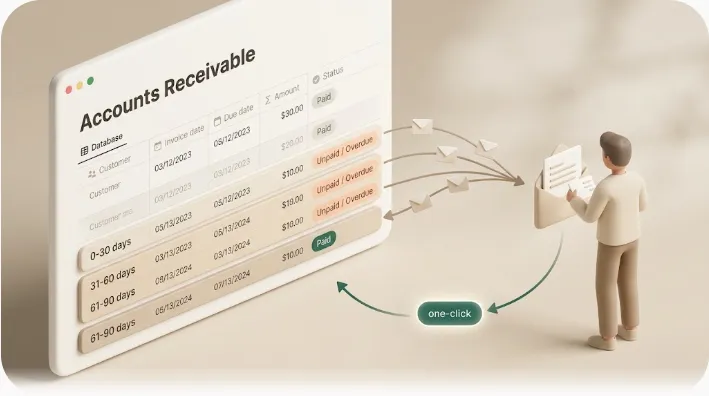
- A filtered view only helps the person who opens Notion. When the holdout is a client, vendor, or teammate who never logs in, the item just re-enters next week's Overdue view unchanged.
- Kapsel closes that gap by emailing overdue items outward — including to people with no Notion account — with one-click status write-back.
Build the 'Overdue' filtered view (the exact filter)
An overdue view is a saved, filtered view on your task database that isolates items that are both past due and still open. It needs exactly two conditions joined with AND:
- Due Date
is beforeToday — the relative-date operator that self-updates every day. - Status
is notDone (andis notPaid, if you track billing in the same database).
Both conditions matter. Filtering on the date alone would list completed work that happened to finish late; filtering on status alone would list every open task, overdue or not. Together they isolate the one set you need to act on.
Then sort by Due Date, ascending. The oldest, most-overdue item sits at the top — which is exactly the order you want to work in, because the task that has been slipping for three weeks is more urgent than the one that slipped yesterday.
💡 Use
is beforeToday, notis on or beforeToday. A task due today has not slipped yet — it still has the day to get done.is on or beforewould pull today's items into the Overdue view and flag them as late at 12:01 a.m., creating false urgency.is beforekeeps today's work where it belongs: in the Due Today view (next section).
This article assumes you already have the Due Date, Assignee, and Status properties in place. If you don't, build that foundation first — the full property setup and the four core view types are covered in Notion deadline tracking — then come back here for the overdue-specific workflow.
Add 'Due Today' and 'Due This Week' views next to it
The Overdue view answers "what has already slipped?" It should not also try to answer "what's coming up?" — mixing the two is what makes a task list feel like a wall of red. Keep three distinct relative-date views and pin them as tabs on one dashboard:
| View | Filter | Answers |
|---|---|---|
| Overdue | Due Date is before Today AND Status not Done/Paid |
"What has already slipped?" |
| Due Today | Due Date is Today AND Status not Done/Paid |
"What has to happen now?" |
| Due This Week | Due Date is within the next 7 days AND Status not Done/Paid |
"What's coming so it doesn't become overdue?" |
Keeping these separate avoids false urgency: today's and this week's work isn't a backlog to recover, it's a plan to execute. The benefit is a two-second morning glance — triage the red Overdue tab first, then work Today, then scan This Week — instead of re-scanning one giant list and re-deciding what matters every day.
💡 Relative-date filters ("Today", "within the next week") recalculate themselves. You build these three views once and they stay accurate forever — no manual date editing. If you also want to see the week's clustering visually, mirror the same filters onto a Notion calendar view.
Make overdue items impossible to miss (a visual flag formula)
A filtered Overdue view hides non-overdue rows. A formula flag does the opposite: it leaves every task visible but paints the overdue ones red, so the signal shows up inside your normal Table and Board views without switching tabs. A Kanban board grouped by Status is a secondary way to spot the same problem from a different angle: a column like "In Progress" or "Waiting" that keeps growing, rather than emptying into "Done," is a visual sign that tasks are getting stuck at that stage — even before you check who's overdue specifically.
Add a Formula property that compares the Due Date to the current time and styles the output. In Notion's Formula 2.0 syntax it looks roughly like this:
if(
  and(prop("Due Date") < now(), prop("Status") != "Done"),
  style("⚠ Overdue", "red", "b"),
  format(dateBetween(prop("Due Date"), now(), "days") + "d left")
)
The pieces: now() is the current moment, dateBetween() counts the days between it and the due date, and style() applies color and bold weight ("red", "b"). Overdue rows render as a bold red "⚠ Overdue" badge; everything else shows a quiet "N d left" countdown. (Treat the exact syntax as a starting point — adjust property and status names to your database.)
When a formula flag is enough vs. when you still need the filter:
| Situation | Formula flag alone | Also use the Overdue filter |
|---|---|---|
| A small board (< ~30 tasks) you scan daily | ✓ Red badges are enough | Optional |
| A large database or shared dashboard | Badges get lost in the scroll | ✓ Isolate with the filter |
| You want to count or batch-edit overdue items | — | ✓ The filter gives you the exact set |
⚠️ A formula only changes what's displayed inside Notion. It recalculates when someone opens the page — it never sends a notification or email. An overdue flag is a signal for whoever is already looking at the board, not an outbound message. For the deeper
dateBetween()/style()/ branching patterns, see the formula section of the deadline-tracking guide.
The recovery routine for a pile of overdue tasks
Finding overdue tasks is the easy half. The reason a pile persists is that "clearing" usually means staring at the list and feeling bad — not making a decision on each row. Here is a concrete, numbered routine that empties a backlog that has already built up.
- Open the Overdue view and sort oldest-first. You already built this. Start at the top: the longest-overdue item is where the most damage is hiding.
- Triage every row into exactly one of three buckets. Do not skip rows — an untriaged row is why the pile came back last time.
- Bucket 1 — Reschedule. The task is still real; it just needs a new, honest due date. Don't push it to "tomorrow" reflexively — pick a date you'll actually hit.
- Bucket 2 — Close as no-longer-relevant. Some overdue tasks are overdue because they stopped mattering. Archive or delete them. A backlog full of dead tasks hides the ones that count.
- Bucket 3 — Escalate / chase. The task is blocked on someone else — an approval, a deliverable, a payment. You can't complete it yourself; it needs an outward nudge. (Hold this bucket — it's the one a filtered view can't solve, covered in the next two sections.)
- Use bulk actions for the obvious groups. Select multiple rows (hover to reveal the checkboxes, or Shift-click a range) and edit in one move: set a new Due Date for a batch of reschedules, flip a batch of dead tasks to Archived, or reassign a group at once. Bulk editing turns a 40-row cleanup from an afternoon into a few minutes.
- Set a recurring weekly checkpoint. Block 10 minutes on a fixed day to run this same routine on whatever re-entered the Overdue view. A pile rebuilds when triage is occasional; a standing checkpoint keeps it at or near zero. If many of your overdue items are genuinely repeating work, reset them with a pattern instead of a one-off reschedule — see recurring tasks in Notion.
💡 The discipline that keeps the pile empty isn't a better filter — it's the rule "every overdue row leaves the view this week, one way or another." Reschedule it, close it, or escalate it, but don't let it sit untouched, because an untriaged row is next week's backlog. (For why tasks get neglected in the first place, the companion piece why Notion tasks get neglected covers the structural causes; this article is the concrete fix.)
The view only helps the person who opens Notion
Buckets 1 and 2 are things you can finish yourself. Bucket 3 is where a perfect overdue view quietly fails — and it's usually the fullest bucket.
⚠️ A filtered view, a red formula, and a pinned dashboard all share one hard ceiling: they only reach the person who opens Notion that day. The task that's overdue because a client hasn't approved, a vendor hasn't delivered, or a teammate hasn't checked in doesn't get solved by making it redder on your screen.
Two cases slip through every native setup:
- Your own teammates who didn't open Notion this week. The red flag is sitting in a workspace they aren't looking at. (Nudging internal owners is its own task — see team task reminders in Notion.)
- Clients, vendors, and customers with no Notion account at all. They can't see the board, the badge, or the filter — there is no native way to put an overdue item in front of them.
So the Escalate bucket doesn't clear. The item sits, next week's checkpoint runs, and it re-enters the Overdue view unchanged. The filtered view isn't broken — it's just a visibility tool being asked to do a delivery job it was never built for.
Closing the loop — automatic email for overdue items, with write-back
The fix for Bucket 3 is to turn "overdue" into an outbound message, not a redder tag. That's the specific job of Kapsel.
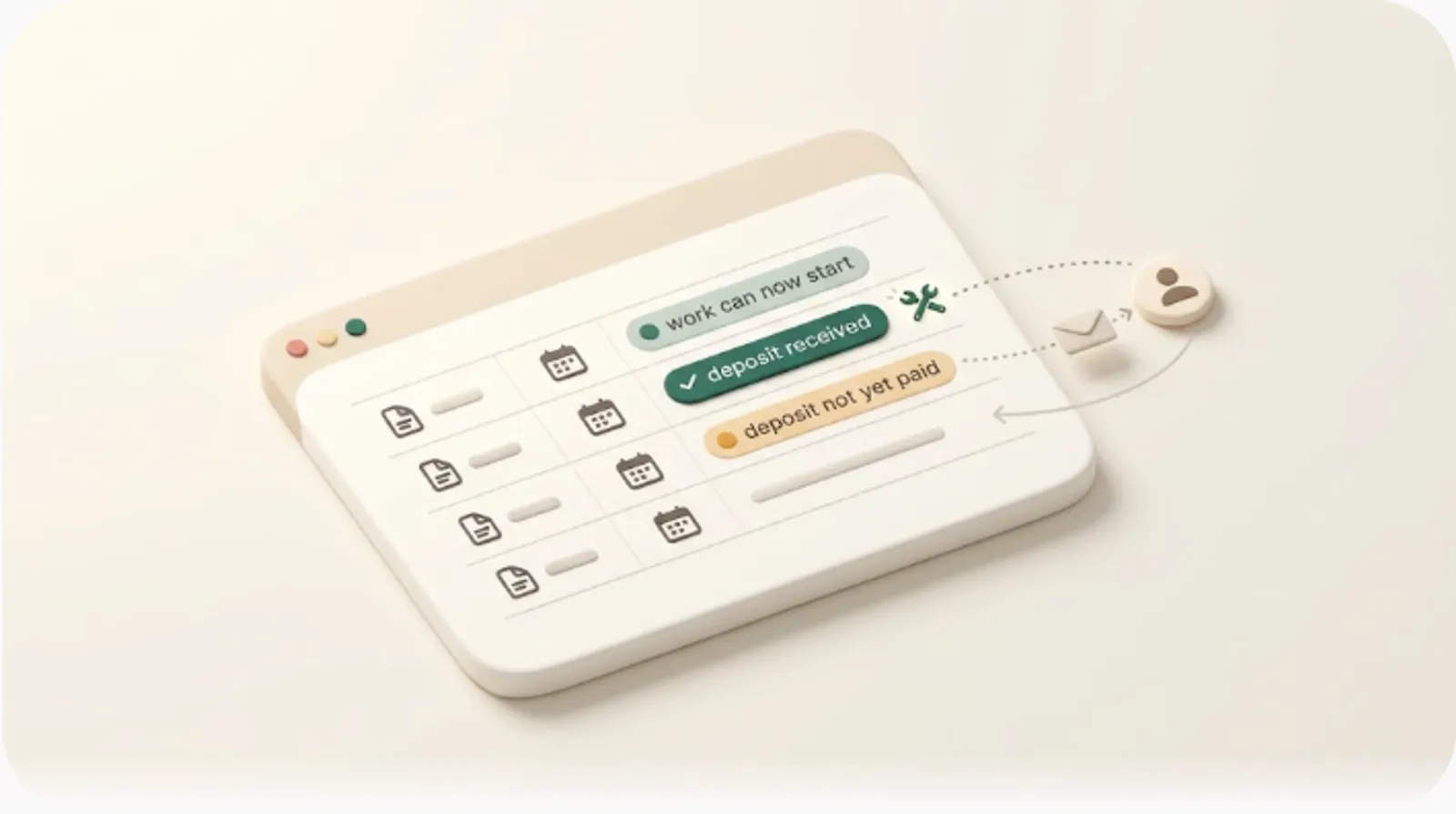
Kapsel is a tool that watches your Notion due date, assignee, and status properties and sends automatic email reminders — including to people who don't have a Notion account — with a one-click confirm that writes the updated status back into Notion.
Applied to an overdue backlog, that means:
- Overdue follow-ups go out as email. When a due date passes without a response, Kapsel emails the responsible person — internal or external — so the item in your Escalate bucket gets chased automatically instead of waiting for you to copy-paste a nudge.
- One-click write-back actually empties the view. The recipient confirms from the email, the status updates in Notion, and the task drops out of the Overdue view for real — rather than silently regenerating next week.
- It never sends to Done or Paid items. Because Kapsel reads the status continuously, a task leaves the queue the moment it's closed — no risk of chasing someone who already delivered or paid.
- A send log records who was reminded and when — useful before you escalate further, or if a deadline is ever disputed.
Reaching the external holdouts specifically — the clients and vendors who are the most common Bucket 3 residents — is covered in external share notifications. For the full property-and-view setup underneath all of this, the deadline-tracking guide has the depth.
Notion native vs. Kapsel — scoped to overdue
| Job (overdue items only) | Notion native | Kapsel |
|---|---|---|
| Isolate overdue with a filtered view | Yes | — (Notion's strength) |
| Flag overdue rows red in-board | Yes (formula) | — |
| Keep Today / This Week / Overdue separate | Yes | — |
| Email an overdue item to its owner | No (visual only) | Yes |
| Reach someone with no Notion account | No | Yes (email, no login) |
| Repeat the chase until it's resolved | No | Yes (overdue follow-ups) |
| One-click status write-back from the nudge | No | Yes |
| Skip items already Done / Paid | Manual | Yes, built in |
| Record of who was reminded | No | Yes (send log) |
FAQ
How do I filter overdue tasks in Notion?
Create a saved view with two conditions joined by AND: Due Date is before Today, and Status is not Done (add is not Paid if you track billing there). Sort ascending by Due Date so the oldest overdue item is at the top. Use is before rather than is on or before so items due today aren't counted as overdue yet.
How do I show tasks due today in Notion?
Add a separate saved view filtered to Due Date is Today, combined with Status is not Done. Keep it distinct from your Overdue view so today's work (still actionable) doesn't get mixed in with the backlog (already slipped). Both filters use relative dates, so they stay accurate every day without editing.
Can Notion automatically flag overdue tasks?
Yes — a Formula property can display an overdue badge on every row automatically. It compares the Due Date to now() and uses style() to color the text red when the date has passed and the task isn't Done. Note this only displays a flag inside Notion; it does not send any notification.
What formula shows overdue tasks in Notion?
A common pattern is if(and(prop("Due Date") < now(), prop("Status") != "Done"), style("⚠ Overdue", "red", "b"), format(dateBetween(prop("Due Date"), now(), "days") + "d left")). now() gives the current time, the comparison detects a passed date, and style() renders a bold red badge. Adjust the property and status names to match your database, and treat the syntax as a starting point.
How do I deal with a backlog of overdue tasks in Notion?
Sort your Overdue view oldest-first, then triage every row into one of three buckets — reschedule (still real), close (no longer relevant), or escalate (blocked on someone else). Use bulk selection to batch-edit due dates or statuses for whole groups at once, then set a recurring weekly checkpoint so the pile doesn't rebuild. The key rule is that every overdue row must leave the view each week, not sit untouched.
Why do overdue tasks keep piling up even with a filtered view?
Because a filtered view only shows overdue items to whoever opens Notion — it can't make anyone act. When a task is blocked on a client, vendor, or teammate who never logs in, your red flag is invisible to them, so the item stays open and re-enters next week's Overdue view. Clearing it requires reaching that person where they actually are, usually email.
Can Notion send a reminder automatically when a task becomes overdue?
Notion's native Date-property reminders fire on presets (on the day, a day before, and so on) and land in Notion's own notification inbox, with push and email as optional channels depending on each person's notification settings — but they only reach people who already have a Notion account inside your workspace, not anyone outside it. For a dependable overdue email to any recipient, a dedicated tool like Kapsel watches the status and sends the follow-up automatically, skipping anything already Done or Paid.
How do I notify a client or vendor about an overdue task if they don't use Notion?
Native Notion reminders and @mentions require a workspace account, so they can't reach outside parties. Kapsel sends the reminder as plain email — no Notion account or login needed — and includes a one-click confirm that writes the status back into Notion, so the overdue item actually closes without the recipient ever opening your workspace.
Notes & sources
Published October 28, 2026. Notion feature behavior (relative-date filters, saved views, Formula 2.0 functions such as now(), dateBetween(), and style(), bulk row editing, and Date-property reminders) is described per Notion's official help documentation as of the publish date. Kapsel's features and pricing — Free $0 / Standard $12 / Pro $29 per month, with multiple workspaces and sender branding on Pro — reflect the product as of writing and may change over time; the pricing page holds the current figures.