Track Who Hasn't Submitted a Document in Notion — and Remind Only Them Automatically
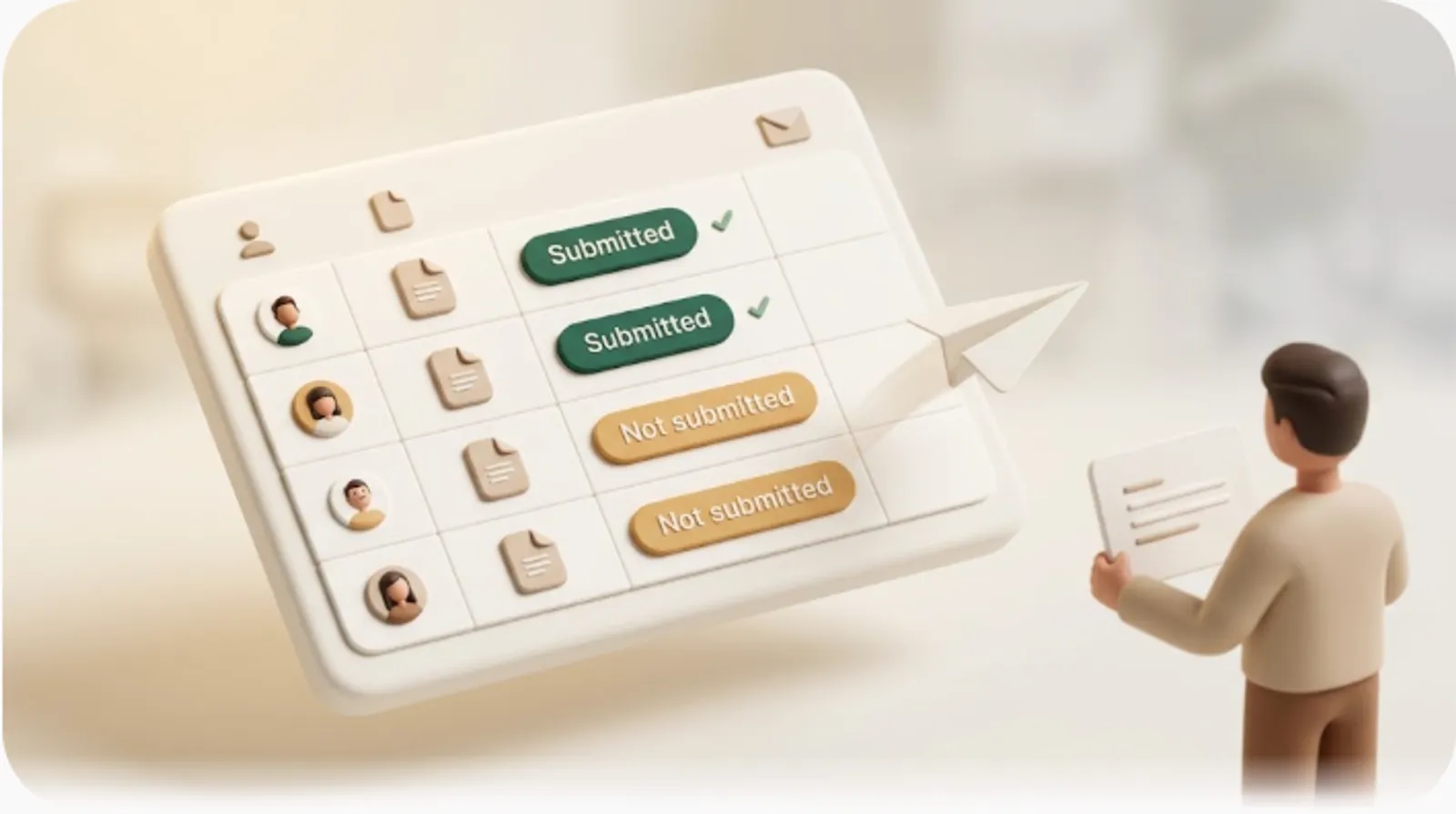
If you collect paperwork from clients, students, suppliers, or event attendees, the hard part isn't tracking who submitted — it's chasing the people who haven't, without pestering the ones who already did. Notion is excellent at storing who's missing a document. On its own, it never tells those people. This guide shows how to build a submission tracker in Notion and then close that last gap: automatic email reminders that reach only the non-submitters, including people who don't use Notion at all. (Running an event with external speakers and vendors? See how to plan and run an event in Notion.)
TL;DR
- Build one database of submitters (contact, status, due date, owner) plus a Documents sub-database with a Requested → Submitted → Approved flow.
- A filtered view (
Status is not Submitted/ApprovedANDDue date on or before today) isolates exactly who still owes something.- Notion's own reminders only reach people logged into Notion — so a filtered view still needs someone to email each person by hand.
- Kapsel watches those same due-date and status fields and emails only the non-submitters; one click in the email writes the status back to Notion, and it never sends to anyone already marked Submitted or Approved.
Why a Notion submission tracker alone doesn't close the loop
A Notion database is a near-perfect record of a submission process. You can see, at a glance, every person who owes a form and every item that's still outstanding. The problem is that a record is passive: Notion knows who is missing a document, but it has no built-in way to tell that person, on its own, politely and on schedule.
Notion's native notifications — @mentions, date reminders, and database automations — are designed for people who are already inside your Notion workspace. They surface in the recipient's Notion inbox or their Notion-linked email. A freelance client, a parent returning a permission slip, or a supplier sending compliance paperwork almost never has a seat in your workspace, so those notifications reach no one.
This is widely acknowledged. Onboarding and intake guides that recommend Notion for document collection openly state that Notion cannot automatically and politely remind an outside client, and their usual fix is to buy a separate onboarding product and demote Notion to a back-office record. That's a large jump in cost and complexity for what is, at its core, a reminder problem.
The forms problem — submissions pile up, but non-submitters are never chased
Feeding submissions in through a form (Notion Forms, Tally, or Typeform) is the right first move: a new database row is created and timestamped the moment someone submits, so your tracker updates itself. But a form is inherently one-directional. It records the people who did respond and stays completely silent about the people who didn't.
⚠️ A form captures submitters, not non-submitters. The people you most need to reach are, by definition, the ones who never opened it — so no form-based tool will chase them for you.
That silence is the actual work. Someone still has to open the tracker, spot the empty rows, and send a nudge — repeatedly, to a moving target, while being careful not to nudge anyone who already finished.
Build the submission tracker database (the fields that matter)
Start with two linked databases: a Submitters database (one row per client/person) and a Documents sub-database (one row per required item). The relation between them is what later lets each person see only their own rows, and lets reminders target a single outstanding item rather than a whole person.
Core fields — Who, What's due, Due date, Status, Submitted date, Contact email
Keep the Documents sub-database lean. These six fields carry the whole workflow:
| Field | Type | Why it matters |
|---|---|---|
| Submitter | Relation (→ Submitters) | Links each document back to one person; drives per-person views and targeting |
| Document | Title | What exactly is due (e.g. "Signed NDA", "W-9", "Permission slip") |
| Due date | Date | The deadline the reminder logic keys off |
| Status | Select / Status | Where this item is in the flow (see below) |
| Submitted date | Date | Auto-stamped on submit; your proof of when it arrived |
| Contact email | Email (rolled up from Submitter) | Where an external reminder is sent — the field Notion itself can't act on |
💡 Put Contact email on the record even though Notion can't email it. It's the one field an external reminder layer needs, and having it on the row keeps everything in one system of record.
A benefit worth stating plainly: with these six fields, the database doubles as an audit trail — you can always answer "who submitted what, and when" without digging through an inbox.
Status flow — Requested → Reminded → Submitted → Approved
Give every document row a short, linear status so the tracker knows the difference between "waiting" and "done":
- Requested — the item has been asked for; nothing received yet.
- Reminded — a nudge has gone out (useful for seeing who's been contacted already).
- Submitted — the person sent it in; the form or a manual update stamps Submitted date.
- Approved — you've reviewed and accepted it. Terminal state.
The crucial rule for later: anything in Submitted or Approved is done and must never be chased again. Encoding "done" as an explicit status — rather than a mental note — is what makes safe, automatic reminders possible.
The view that matters — isolate only the people who haven't submitted yet
Most guides stop at "add an is empty filter." That's too blunt for submission tracking, because an empty field doesn't distinguish someone who's genuinely overdue from someone whose deadline is next week. You want the people who are both unfinished and due.
Filter recipe: Status is not Submitted/Approved AND Due date is on/before today
Create a new view (Table or Board) on the Documents sub-database and apply this exact filter:
Filter group (match ALL):
  • Status   is not   Submitted
  • Status   is not   Approved
  • Due date   is on or before   Today
| Rule | What it removes | What's left |
|---|---|---|
Status is not Submitted |
Items already received | Still-open items |
Status is not Approved |
Items already accepted | Not-yet-done items |
Due date is on or before Today |
Items not due yet | Only overdue / due-now items |
The result is a single list containing only the people who still owe you something and are already due — no future deadlines, no finished rows. Sort it by Due date ascending so the most overdue sit at the top.
💡 Want a gentle pre-deadline nudge too? Duplicate the view and change the last rule to
Due date is within the next 3 days. One view chases the overdue, the other warns the almost-due.
Why a filtered view alone isn't enough
The view is correct, but it's still a display. Someone has to open Notion, read the list, copy each person's email, write a message, send it, and then come back and change their status to Reminded. Do that across a dozen submitters every few days and you're back to manual chasing — the exact failure mode a tracker was supposed to remove. The filter tells you who; it doesn't tell them.
Closing the loop — automatic email reminders that reach people with no Notion account
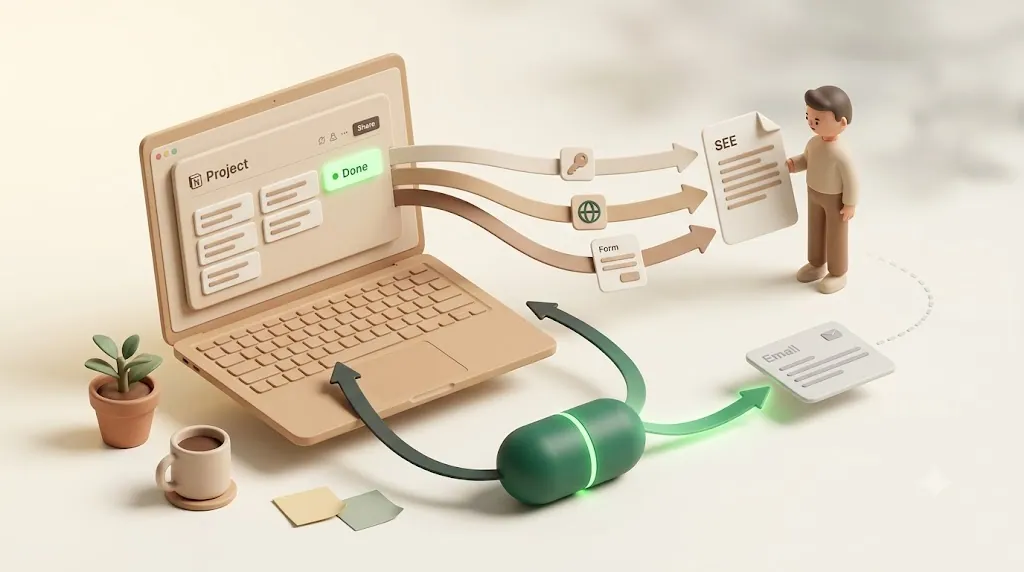
Kapsel is a tool that watches your Notion database's due-date and status fields — the same Due date and Status columns in the Documents sub-database above — and automatically emails the people whose rows still match (using the Contact email on the record), including recipients who don't use Notion at all. Their one-click response then writes back into Notion.
That last part is what the filtered view can't do by itself. Instead of a human reading the "not submitted yet" list and emailing everyone on it, Kapsel reads the same fields and does the sending.
How Kapsel watches the same due-date/status fields and emails only non-submitters
Kapsel evaluates the same conditions your filtered view uses — status is not in a done state, and the due date has arrived — and emails only the rows that match. The reminder goes to the Contact email on the record, so it reaches the submitter directly in their own inbox, with no Notion login or account required. Audience filtering and overdue chasing are built in, so you can scope exactly who gets chased and let the nudges repeat on a schedule rather than sending them by hand each round.
The benefit: the people who owe you a document actually get told — on time, every cycle — while you stop acting as a human mail-merge.
One click on that email writes "Submitted" back into Notion
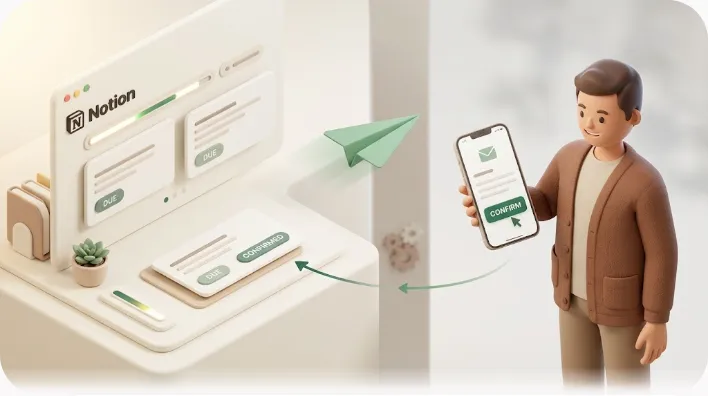
The reminder email carries a one-click action. When the recipient confirms, that response writes back to the Notion record — moving the item along its status flow — so you don't maintain a separate approval step in an email thread or another platform's dashboard. The tracker stays the single source of truth, updated by the submitter's own action.
| Filtered Notion view only | Notion forms / native reminders | Kapsel on top of Notion | |
|---|---|---|---|
| Shows who hasn't submitted | ✅ | ⚠️ form shows submitters only | ✅ |
| Emails non-submitters automatically | ❌ manual | ❌ in-workspace only | ✅ |
| Reaches people with no Notion account | ❌ | ❌ | ✅ |
| Response writes status back to Notion | ❌ | ❌ separate step | ✅ one click |
| Keeps Notion as the system of record | ✅ | ✅ | ✅ |
Not re-nagging people who are already done
The most common complaint about manual chasing is the embarrassing mis-send: an email that goes to someone who already submitted. Kapsel is built so that the moment a row is marked Submitted or Approved, it drops out of the reminder set — the same "done means done" rule your status flow encodes. It never sends to an item in a completed state.
⚠️ This is the difference between a reminder tool that helps and one that backfires. Chasing someone who already paid, signed, or submitted damages the relationship. Kapsel's send logic excludes completed items by design, so the "already done" column is never contacted.
Because responses write back to Notion automatically, a person who submits via a Kapsel reminder is marked done in the same loop — so the next reminder cycle already excludes them, with no manual cleanup on your side.
The same mechanism beyond client onboarding
Document chasing gets framed almost everywhere as "agency client onboarding," which quietly implies it's only for agencies. The underlying pattern — a required item, a deadline, a status, and an external person who needs reminding — is identical across many situations:
| Use case | Required item | External submitter |
|---|---|---|
| Permission slips / waivers | Signed consent form | Parents, participants |
| Supplier compliance | Insurance cert, W-9, safety docs | Vendors, contractors |
| Event / registration | Registration materials, headshots, bios | Attendees, speakers |
| Vendor paperwork | Onboarding forms, bank details | New suppliers |
| Recurring compliance renewals | Annually re-collected certificates | Ongoing partners |
| Freelance / client intake | Brief, assets, contract | Clients |
In every row, the person who owes the document is outside your Notion workspace, and the job is the same: remind only those who haven't submitted, stop the moment they do. The recurring-renewal case is where repeating sends matter most — compliance certificates that must be re-collected every year can be chased on a schedule instead of re-discovered manually. For broader patterns, see external share notifications in Notion and keeping clients updated from Notion.
Setting it up in Notion (short walkthrough)
- Create the Submitters database with Name, Contact email, Owner, and a Status roll-up. New to databases? Start with how Notion databases work.
- Create the Documents sub-database with the six core fields above, related back to Submitters.
- Make a checklist template for the standard set of required items and save it as a template button, so every new submitter gets the identical list instead of a hand-rebuilt one. See reusable Notion templates.
- Connect an intake form (Notion Forms, Tally, or Typeform) so submissions create and timestamp rows automatically.
- Build the per-person view using the relation so each submitter sees only their own rows, plus the "not submitted yet" filter view for yourself.
- Layer reminders on top — connect Kapsel to the Documents database, point it at the Due date and Status fields, and let it email the non-submitters. For the general approach, see Notion automation and approval reminders.
For exact plan limits and figures, check the official Kapsel pricing page. The free plan is ¥0 / $0 and lets you try external sends before committing; Standard (¥1,980 / $12) covers regular operation, and Pro (¥4,980 / $29) adds multiple Notion workspaces and sender branding (your company name, signature, and logo) if you're running collection across more than one workspace under your own brand.
If your submissions are tied to money owed, the same loop applies to invoices — see freelance payment reminders and how to chase late payments.
Frequently Asked Questions
How do I track who hasn't submitted a form or document in Notion?
Build a Documents database with a Status field and a Due date, then create a filtered view where Status is not Submitted and Status is not Approved. That view lists everyone still outstanding. Add Due date is on or before Today to narrow it to people who are actually overdue.
Can Notion automatically remind people to submit documents?
Notion can send reminders through date-property reminders, @mentions, and database automations (automations on a schedule are a paid-plan feature). However, these reach only people who have access to your Notion workspace — they don't email an outside client or submitter who isn't in Notion.
How do I send a reminder email to someone who doesn't have a Notion account?
Notion itself can't do this. You either email the person manually, or use a tool like Kapsel that reads your Notion due-date and status fields and sends the reminder to the contact email on the record — no Notion account needed on the recipient's side. The recipient's one-click response writes back to Notion.
Do Notion Forms send automatic reminders to people who haven't responded?
No. A form records the people who submit and timestamps their rows, but it has no way to identify or chase the people who never responded. Tracking non-submitters and reminding them is a separate step layered on top of the form.
How do I filter a Notion database to show only missing submissions?
Create a view and add a filter group matching ALL of: Status is not Submitted, Status is not Approved, and (optionally) Due date is on or before Today. This removes finished items and future deadlines, leaving only the submissions that are missing and due. Sort by Due date to see the most overdue first.
How do I stop reminders once someone has already submitted?
Mark the row Submitted or Approved. Any reminder logic keyed to "status is not done" will automatically exclude it. Kapsel follows this rule by design — it never sends to an item marked Submitted, Approved, or otherwise completed, so no one who's already finished gets chased.
What's the best Notion setup for tracking document or file submissions from clients?
A Submitters database plus a related Documents sub-database (Requested → Submitted → Approved flow), fed by an intake form, with a per-person filtered view via the relation. For the chasing itself, layer an external reminder tool on top rather than migrating to standalone onboarding software — it keeps Notion as your system of record while closing the reminder gap.
Notes & sources
- Published 2026-10-19.
- Primary sources referenced: Notion's official help documentation on databases, filters, reminders, and database automations; Notion Forms documentation. Readers should confirm current behavior against Notion's official help, as platform features change over time.
- Kapsel's features and pricing described here are accurate as of the publish date; for exact current figures, see the official Kapsel pricing page. Plan availability (for example, scheduled database automations requiring a paid Notion plan) is subject to each vendor's own terms.