How to Share Notion Project Status with Clients and Get Their Confirmation (Even If They Don't Use Notion)
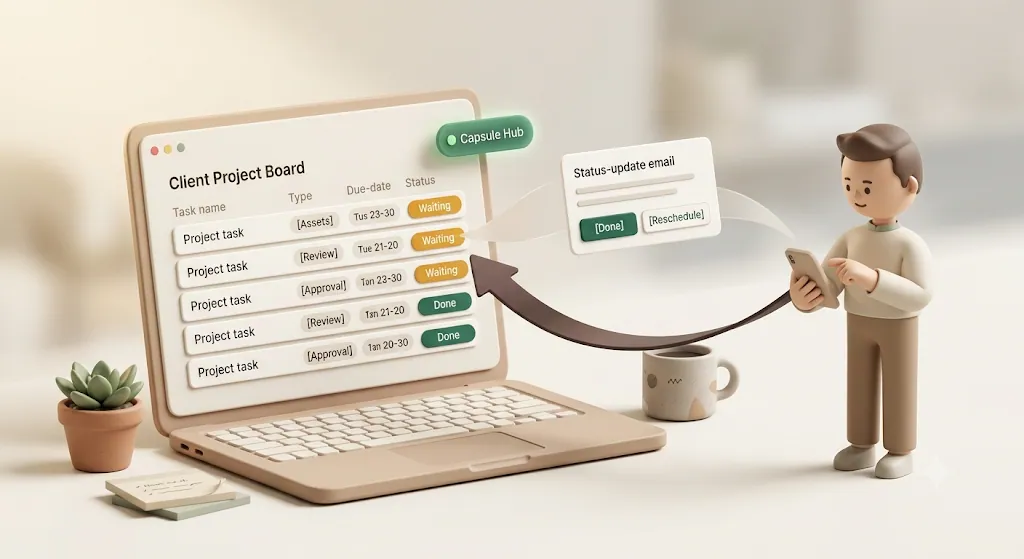
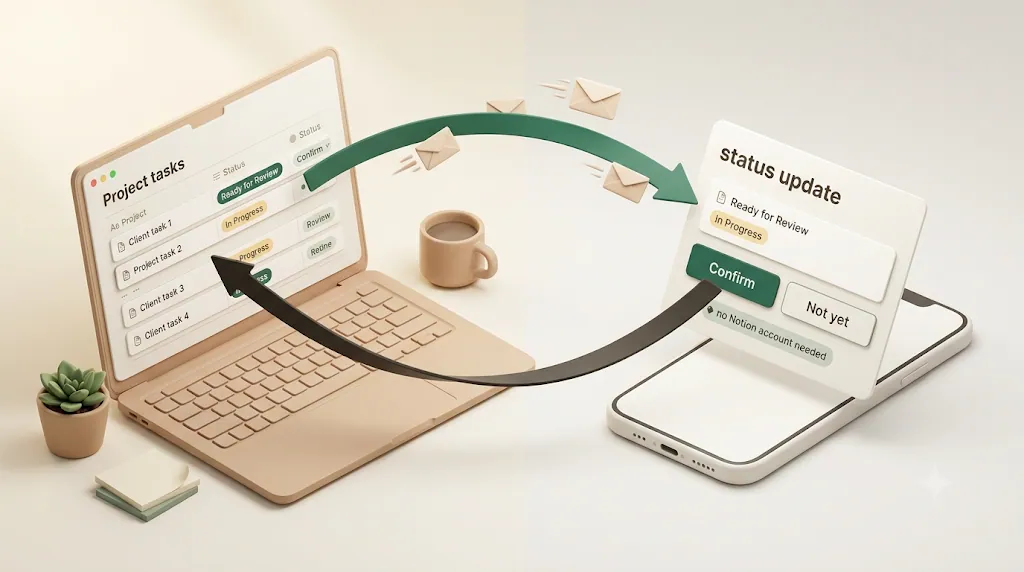
If you run client work in Notion, the status was never the problem — getting the client to actually look at it and reply is. This is for freelancers and agencies whose clients don't have (or want) a Notion login: it covers how to turn "the client could see it" into "the client responded," by pushing the update to their inbox by email and pulling their one-click confirmation straight back into Notion. A shared link is passive: it sits there until someone remembers to open it. Most agency and freelance workflows don't fail because the status is missing; they stall because nobody confirmed it.
TL;DR
- A shared Notion page is pull: the client has to remember to open a link. Nothing reaches them when a due date, assignee, or status changes.
- Notion page permissions inherit from parent pages, so it's easy to accidentally expose more than the one project you meant to share.
- Portal tools (Softr, Sotion, ShareBridge, Assembly, Portalwith, Stacker, and similar) rebrand the view, but approvals still run through external forms or comments—not back into Notion.
- Kapsel takes a different job: it pushes status updates by email to people who don't use Notion, and a one-click confirm in that email writes the status back into your Notion database.
Kapsel is a Notion notification tool that watches a database's due dates, assignees, and status and emails reminders to anyone—including clients who have no Notion account—then writes their one-click confirmation back into Notion. That two-way loop is the difference between "the client could see it" and "the client responded."
Why sharing Notion directly with clients gets complicated
Notion is built for teams working inside Notion. The moment your audience is outside—a client, a contractor, a stakeholder who lives in email—the native sharing model starts to fight you.
Clients need a Notion account (or at least an invite) just to look
Notion gives you two ways to share externally:
| Method | What the client experiences | Trade-off |
|---|---|---|
| Share to Web | A public link, no account needed | Anyone with the URL can view; hard to keep private |
| Invite by email | Client gets guest access with view / comment / edit rights | Client must sign in to a Notion account to interact |
With an email invite, "view-only" lets them read, "comment" lets them leave notes, and "edit" lets them change your data. Each step up is more access than most client relationships need—and even "comment" requires the client to log in and find the right page. Either way, you end up granting some level of Notion access just to keep someone in the loop—the trade-off the rest of this guide shows you how to avoid.
Filtering so each client only sees their own records
If you're sharing a Notion database directly rather than individual pages, you don't want every client seeing every other client's rows. The native approach is a filtered, linked-database view scoped to just that client's records—usually driven by a relation property (a "Client" relation, for example) so the filter keeps working as new items get added. You then share that specific view instead of the source database. It works, but it means building and maintaining one view per client, and re-checking the filter whenever your database structure changes.
Shared-page permissions inherit from parent pages — easy to overshare
⚠️ In Notion, sub-pages inherit sharing settings from their parent. If a client project lives under a workspace hub that's already shared, the client may quietly inherit access to sibling pages, internal notes, or other clients' records. Always check the actual share scope on the exact page, not just the one you clicked "Share" on.
This is one of the most common oversharing mistakes in Notion client work: you intend to share one project and instead expose a branch of your workspace.
A portal shows status, but doesn't get you an answer
Even a beautifully filtered, branded view solves only half the problem. It displays status. It doesn't ask a question and record the reply. Approvals still happen somewhere else—an email thread, a comment, a separate form—and you're back to manually reconciling who said yes.
Branding the client-facing view with a portal builder
Third-party portal builders—Softr, Sotion, ShareBridge, Assembly, Portalwith, Stacker, and similar tools—exist specifically to work around Notion's native sharing limits. They typically let you put your Notion database behind a custom domain, your own logo, and a branded welcome page, so the client lands on something that looks like it was built for them instead of a bare notion.so URL. That solves the "this doesn't feel like it's from you" problem, but the underlying data and workflow are still just Notion underneath.
Getting feedback still means leaving Notion's native workflow
None of these portal builders give a client a native way to approve or reject something inside Notion itself. In practice, teams bolt on an embedded form—Tally and Jotform are common choices—or ask the client to leave a Notion comment. Either way, the response lands as a form submission or a comment thread outside the database, and someone still has to read it and manually update the actual status property.
Two different jobs: showing status vs. getting a response
It helps to separate the two things people lump together as "client updates."
Option A — a live shared Notion page (free, but it's pull, not push)
A shared page or filtered view is genuinely useful for a client who wants to check in on their own schedule. But it is pull: nothing happens until the client decides to open the link. Deadlines slip precisely because "check the board" is an easy task to postpone.
Option B — automatic email updates that don't require any account
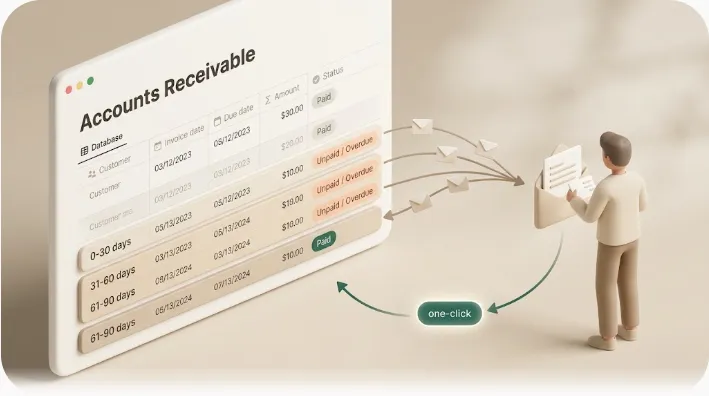
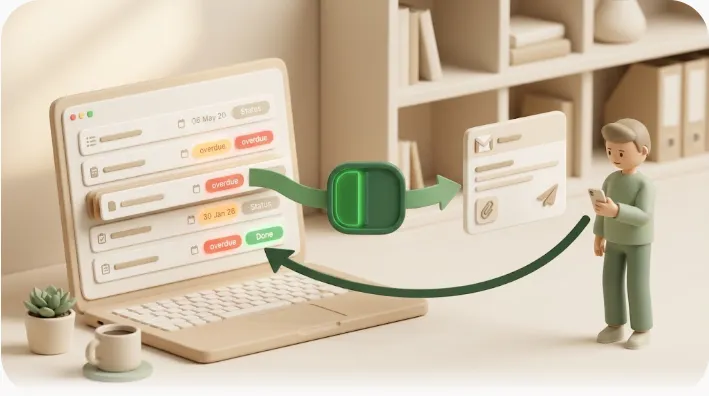
The alternative is push: the client gets an email when something relevant changes, reads it wherever they already work, and confirms in one click. No account, no login, no bookmark to remember. This is the job Kapsel does—and it can sit on top of the same Notion database you're already maintaining.
| Shared Notion page / portal | Kapsel email + confirm | |
|---|---|---|
| Client needs a Notion account | Sometimes (invite) / public link | No |
| How the client finds out about changes | They check the link | Emailed automatically |
| Direction | Mostly one-way (view) | Two-way (confirm writes back) |
| Records who responded | No | Send log |
| Ongoing nudges | Client checks when they want | Overdue follow-ups + digests |
The practical difference shows up fast: a page nobody remembers to open doesn't move a project forward, while an email with a one-click answer usually does—and that gap is what actually keeps client work on schedule.
How Kapsel sends Notion status updates to clients by email
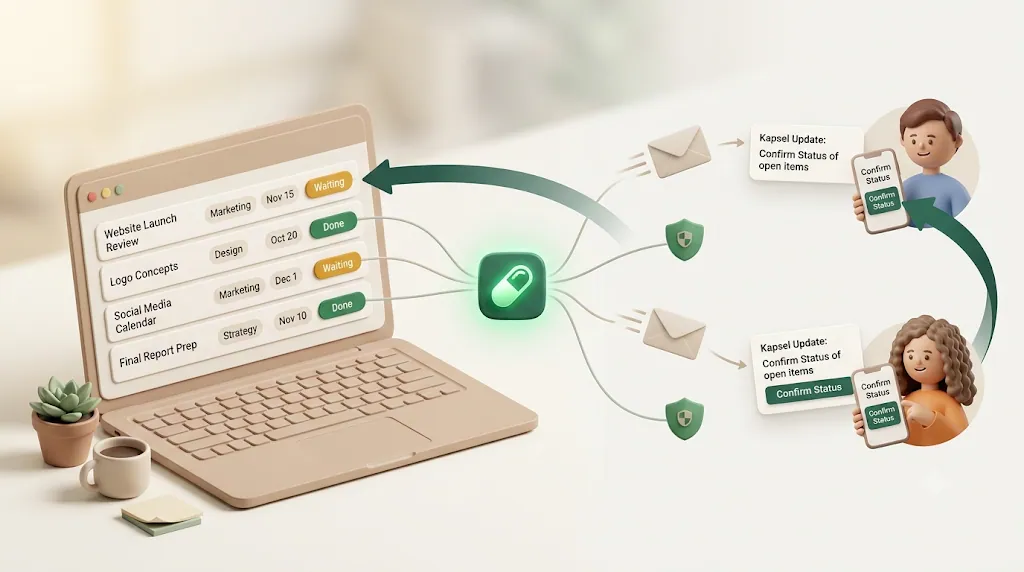
Kapsel connects to a Notion database you choose and turns its property changes into plain, readable emails.
It watches due date, assignee, and status on the database you choose
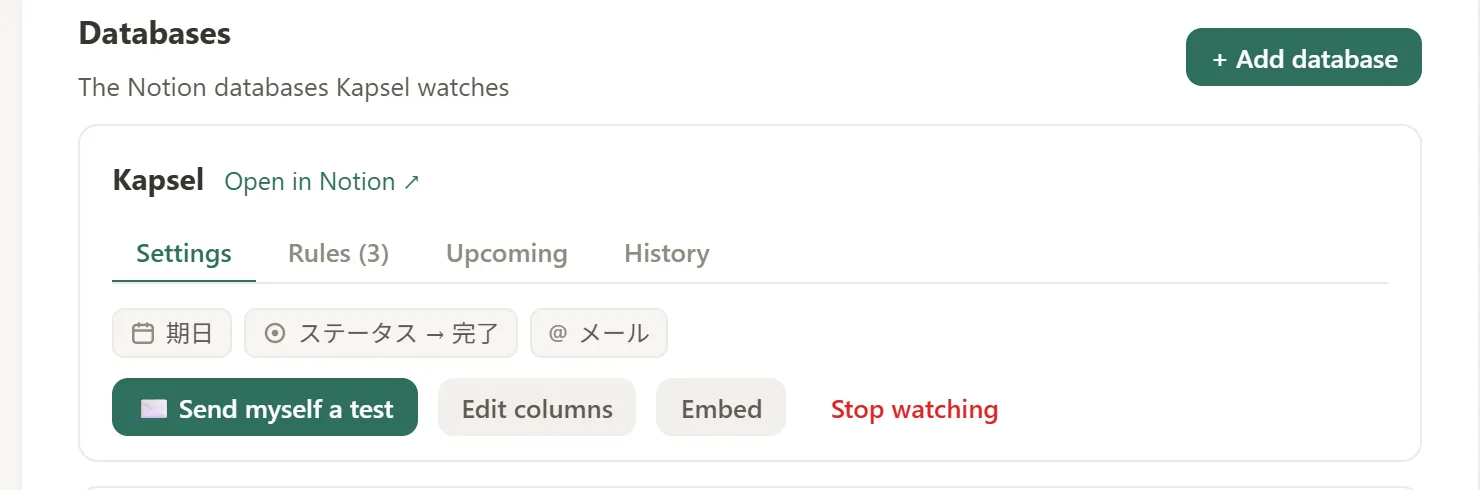
You point Kapsel at a database, and it monitors the due date, assignee, and status properties—whether that database is a project board or a customer-support tracker. When something crosses a threshold—an item comes due, moves to a new status—Kapsel can send the relevant person an email. Nothing to rebuild; it reads the database you already use.
Target filtering — a client only gets emailed about their own items
💡 Target filtering means you don't have to spin up a separate view per client just to control who hears about what. Kapsel filters which records trigger emails, so Client A is only ever contacted about Client A's items.
This sidesteps the oversharing risk entirely: the client never sees a page, filtered or not—they only receive email about the specific records that concern them.
Merge fields make each email look personal, not like a bulk blast
Kapsel supports merge fields, so an email can pull in the client's name, the task title, the due date, and other property values. Each message reads like you wrote it, not like a mail-merge blast. Portal tools personalize by access control (what you can see); Kapsel personalizes the actual message.
Getting a real confirmation back, not just a view
This is where Kapsel diverges most sharply from the portal approach.
One click in the email writes the status back to Notion
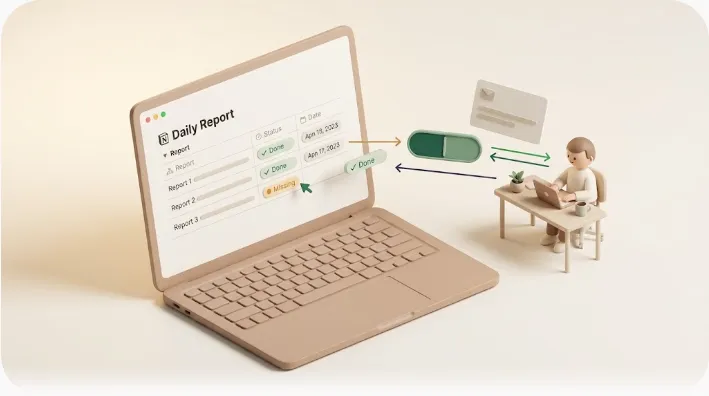
Each email can include a confirmation button. When the client clicks it, Kapsel writes that outcome straight back to the Notion database—updating the status property on the record. The loop closes inside Notion, where the rest of your work already lives.
No login, no hunting through comment threads
The client doesn't sign in, doesn't open Notion, and doesn't leave a comment you'll have to transcribe later. One click, and the answer is recorded. Unlike routing approvals through an external form or a Notion comment thread, there's nothing to reconcile by hand.
A send log shows who was emailed, when, and whether they confirmed
💡 A shared Notion page can't tell you who actually opened it or acted on it. Kapsel keeps a send log—who was emailed, when, and whether they confirmed—so you have a simple audit trail of client communication.
The one rule that avoids the awkward moment: never emailing done or paid items
⚠️ One of the most uncomfortable automation failures is chasing someone about something already finished—or worse, an invoice they already paid. Kapsel does not send to items marked completed or paid. The safety net is built in, not something you have to remember to switch off.
Most client-portal and sharing guides warn about oversharing internal data. Very few address this second risk: the reputational cost of a badly timed nudge. If you automate client contact, this rule matters as much as the notifications themselves. If invoicing and payment status are your specific pain point, see Notion overdue invoice reminders.
Keeping a project moving without chasing people yourself
Push isn't only about the first email. It's about a cadence that keeps things moving so you're not the one following up. The same push cadence powers sales follow-up reminders when the person you're nudging is a prospect rather than an active client.
Overdue follow-ups for clients who go quiet
If a client doesn't respond, Kapsel can send an overdue follow-up automatically. The portal approach has no equivalent—if the client never opens the link, nothing happens and you're back to manual chasing. The same mechanism applies to internal assignments too; see Notion team task reminders for that side of it. If you're running many client projects at once at an agency or studio, the full workflow—approval stages plus automated review requests—is covered in Notion for agencies: client project management.
Recurring digest emails for ongoing projects
For longer engagements, Kapsel can send recurring digest emails summarizing current status on a schedule you set—so clients get a predictable rhythm of updates instead of having to check a board they'll forget about.
Setting it up in Notion (high-level steps)
- Prepare the database. Use (or add) properties for due date, assignee/contact email, and status in the Notion database you want clients updated on.
- Connect Kapsel to that database. Grant access to the specific database rather than your whole workspace.
- Set target filtering. Define which records trigger emails for which recipient, so each client only hears about their own items.
- Compose the message with merge fields. Add the client's name, task title, and due date so each email reads personally.
- Turn on confirmation. Include the one-click confirm button that writes the chosen status back to Notion.
- Configure cadence and safeguards. Enable overdue follow-ups and any recurring digest; confirm that completed and paid items are excluded.
Run through these once and the update-and-confirm loop keeps working in the background—no more manually emailing clients for a status check or chasing a reply yourself.
The full walkthrough with screenshots is in the setup guide.
Kapsel vs. a full Notion client portal — different jobs
These aren't really competitors; they solve different problems. A portal is the right call when clients genuinely need a place to browse their project. Kapsel is the right call when what you actually need is for the client to hear about a change and respond.
| Notion client portal (Softr, Sotion, Stacker, etc.) | Kapsel | |
|---|---|---|
| Primary job | A branded place clients visit to view records | Proactive email updates + confirmation back to Notion |
| Client action model | Pull (client visits) | Push (Kapsel emails) |
| Approvals / confirmation | External forms or comments; no native write-back | One-click confirm writes status into Notion |
| Setup effort | Custom domain, theming, embedded forms, portal subscription | A notification layer on an existing database |
| "Don't chase paid/done items" safeguard | Not addressed | Built in |
| Record of who responded | Typically none | Send log |
Some teams use both: a portal for browsing, Kapsel for the nudge-and-confirm loop.
Plans and pricing (Free / Standard / Pro)
| Plan | Price (USD / month) | Who it fits |
|---|---|---|
| Free | $0 | Trying it out on a single workspace |
| Standard | $12 | Freelancers and small teams running regular client updates |
| Pro | $29 | Multiple Notion workspaces + sender branding (company name, signature, logo) |
Pro adds support for multiple Notion workspaces and sender branding, which is useful if you run several client accounts or want emails to carry your own name and logo. See the full breakdown on the pricing page.
Try Kapsel free. Kapsel watches your Notion due dates, assignees, and status, then sends automatic email reminders — including to people without a Notion account — with one-click write-back. Free plan, no credit card required. → Start with Kapsel
FAQ
Can a client see Notion updates without creating a Notion account?
Yes. With Kapsel, the client receives updates by email and never needs a Notion account or login. Natively, Notion can also expose a page via a public "Share to Web" link, but that's a passive view the client has to open themselves, whereas Kapsel emails the update to them directly. For the trade-offs between guest invite, public link, and actively notifying someone, see sharing a Notion page externally vs. notifying people.
How do I share only specific tasks in a Notion database with one client?
Inside Notion you'd typically build a filtered or linked-database view showing only that client's records, and share that view carefully. With Kapsel you use target filtering instead: you define which records trigger emails for which recipient, so a client is only ever contacted about their own items—no separate shared view required.
Can someone confirm or approve a Notion task without logging into Notion?
Yes, with Kapsel. Each email can include a one-click confirmation button, and clicking it writes the outcome back to the status property in your Notion database. The client never signs in to Notion.
Does Notion have a built-in client portal or approval workflow?
Notion has no dedicated client-portal or approval-tracking feature. You can approximate a portal with filtered public pages or third-party builders, and record approvals via comments or embedded forms, but those live outside your Notion data. For a full setup, see how to build a Notion approval workflow that reminds the approver and writes the decision back. Kapsel adds the missing piece—a confirmation that writes directly back into the database.
How do I stop a shared Notion page from exposing more than I intended?
Check the actual share scope on the exact page you're sharing, since Notion sub-pages inherit permissions from their parents and can expose siblings or internal notes. To avoid the risk entirely, you can skip page sharing and use email updates (as Kapsel does), so the client only receives the specific records that concern them and never lands on a page at all.
What happens if a client doesn't respond to a status update?
With a shared page, nothing happens automatically—you're left to chase manually. Kapsel can send overdue follow-ups when a client goes quiet, and the send log shows you who was emailed and who has confirmed, so you have a clear picture of where things stand.
Will Kapsel email clients about tasks that are already done or invoices already paid?
No. Kapsel does not send to items marked completed or paid. That safeguard is built in, so you avoid the awkwardness of nudging someone about something they've already finished or settled.
Is Kapsel a replacement for a Notion client portal tool like Softr or Sotion?
Not exactly—they do different jobs. Portal tools give clients a branded place to visit and browse. Kapsel pushes email updates and collects a confirmation that writes back to Notion. Some teams use a portal for browsing and Kapsel for the nudge-and-confirm loop.
How much does Kapsel cost?
Kapsel has a Free plan at $0, a Standard plan at $12/month for freelancers and small teams, and a Pro plan at $29/month that adds multiple Notion workspaces and sender branding. See the pricing page for full details.
Can a client edit my Notion database through Kapsel?
No. The one-click confirmation button in a Kapsel email only writes back the specific status value tied to that button—it doesn't give the client broader edit access to your Notion database. That's different from inviting a client into Notion with "edit" permissions, which does let them change your data directly.
Notes
Published 2026-08-03. Feature descriptions and pricing (Free $0 / Standard $12 / Pro $29 per month, USD) are current as of writing and may change; check the pricing page for the latest details.