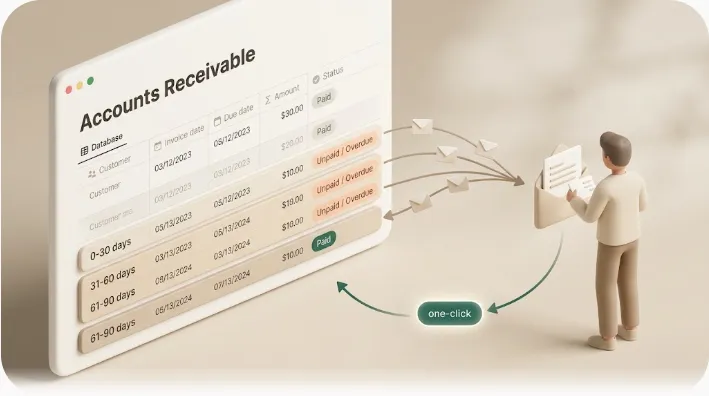
Notion Approval Workflow Reminders: Build an Approval Tracker That Nudges the Right Person
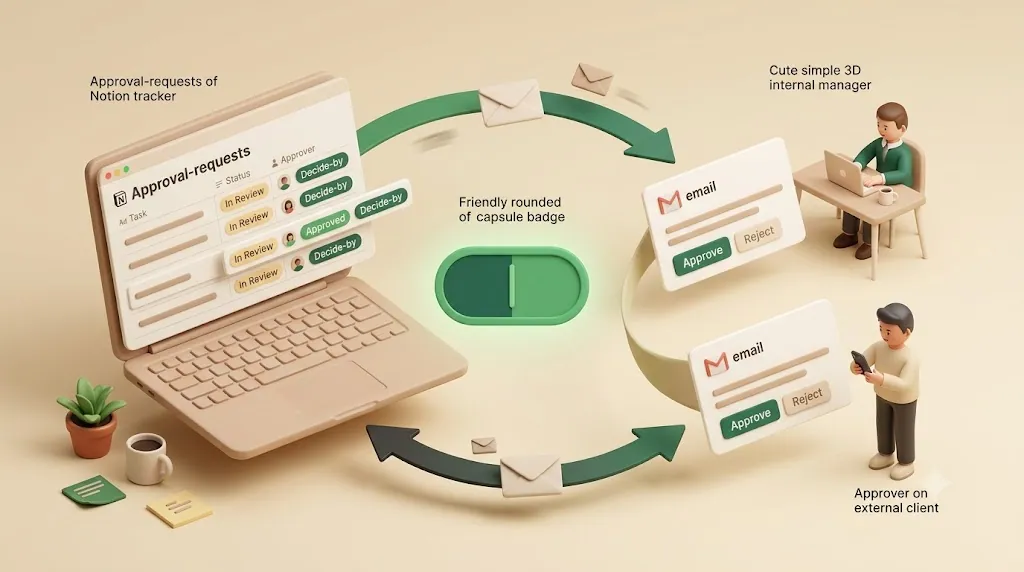
Approval requests don't stall because the work isn't done. They stall because the one person who has to say "yes" — a manager, a client, a finance lead — never gets a timely nudge, and the request sits in "Waiting for approval" until someone chases it down manually. Notion is a good place to track that request. Getting the approver to actually act on it, on time, is a separate problem.
This guide walks through the whole loop end to end: build an approval tracker in Notion, set reminders that fire before and after the decide-by date, reach an approver who may not even use Notion, escalate when a request goes overdue, let the approver decide with one click, and stop nudging the moment a decision lands.
TL;DR
- Build a dedicated approval-request database (Item, Approver, Status, Submitted date, Decide-by date, link to the item) rather than bolting approvals onto a general task list.
- Reminders should be a two-sided cadence: a nudge shortly after the request goes out, another before the deadline, and escalation after the decide-by date passes — "remind before the deadline, never after" is the naive default that lets requests rot.
- External approvers (clients, vendors) are the hard case: they can't casually join your workspace, so most teams end up building a portal or buying a separate approval SaaS. An email-based reminder that needs no account sidesteps that entirely.
- The cleanest close is when the approver's one click writes the decision straight back to the Notion status — no second system of record — and reminders auto-stop once the item is Approved or Rejected.
Why approval requests stall in Notion (and why "waiting for approval" becomes a black hole)
Most approval breakdowns are not process failures. The status is set correctly, the request is linked, the due date is filled in. The request simply waits — because nothing actively reaches the person who has to move it forward.
The core problem: the one person who has to act often isn't in Notion checking it
A task reminder assumes the assignee lives in the tool and will see a red date or an inbox badge. Approvals break that assumption. The approver is frequently someone who opens Notion rarely, or never: a busy manager who works out of email and Slack, or an outside client who has no reason to log in at all. A status of "In Review" is only visible to people who go looking at the board. If the decision-maker isn't looking, the request is invisible to exactly the person it depends on.
Internal manager vs. external client approver — two different failure modes
These are two distinct problems, and a single reminder rule rarely solves both.
| Approver type | Why the request stalls | What actually reaches them |
|---|---|---|
| Internal manager / lead | Has a Notion account but ignores in-app notifications; buried in other work | A direct email or message that names the item and the deadline |
| External client / vendor / contractor | Has no Notion account and can't be casually added to the workspace | An email with a decision link that needs no login or portal |
The internal case is a visibility problem. The external case is a reach problem — the approver isn't in your system at all. Keep both in mind as you build, because the reminder setup differs for each. (If the external approver you're chasing is a client who owes you UAT and delivery sign-off on development work, there's a dedicated walkthrough in Notion client sign-off reminders for freelance developers.)
Step 1 — Build an approval tracker database in Notion
Goal: a single source of truth for every pending decision, so that "what's waiting on whom, and by when" is answerable at a glance.
Prerequisites: a Notion workspace where you can create a database, and a rough idea of the item types you route for approval (creative, documents, expenses, contracts).
Fields you need
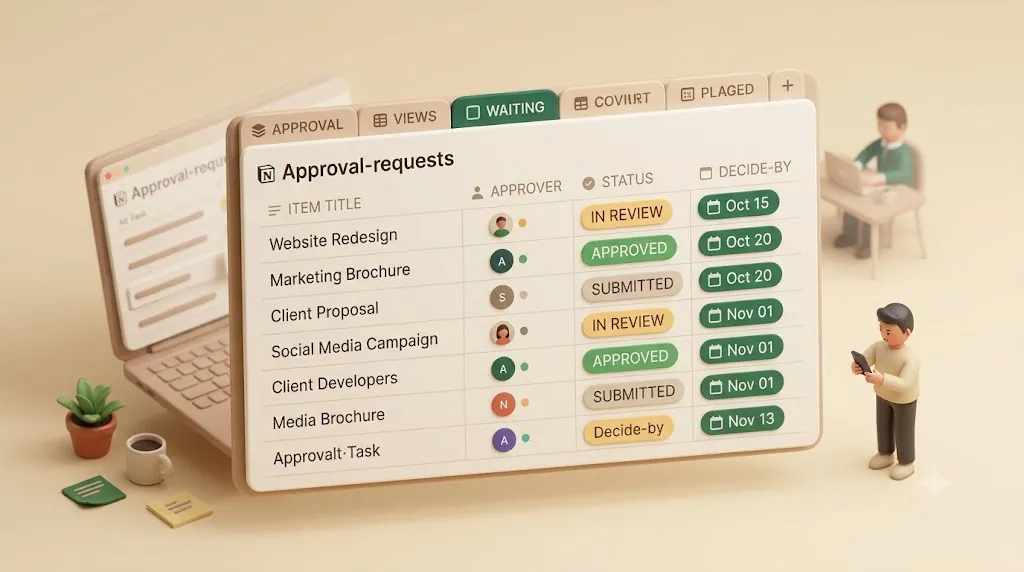
Create a new database — call it Approval Requests — with these properties:
| Property | Type | Purpose |
|---|---|---|
| Item / Title | Title | What's being approved (e.g., "Q3 landing page draft") |
| Approver | Person or Email/Text | Who must decide. Use Person for internal approvers; a plain email field for external ones |
| Status | Select / Status | Where the request sits (see taxonomy below) |
| Submitted date | Date | When the request went out — anchors the "just submitted" nudge |
| Decide-by date | Date | The deadline for a decision — anchors before/after reminders |
| Link to item | URL or Relation | A direct link to the file, page, or record under review |
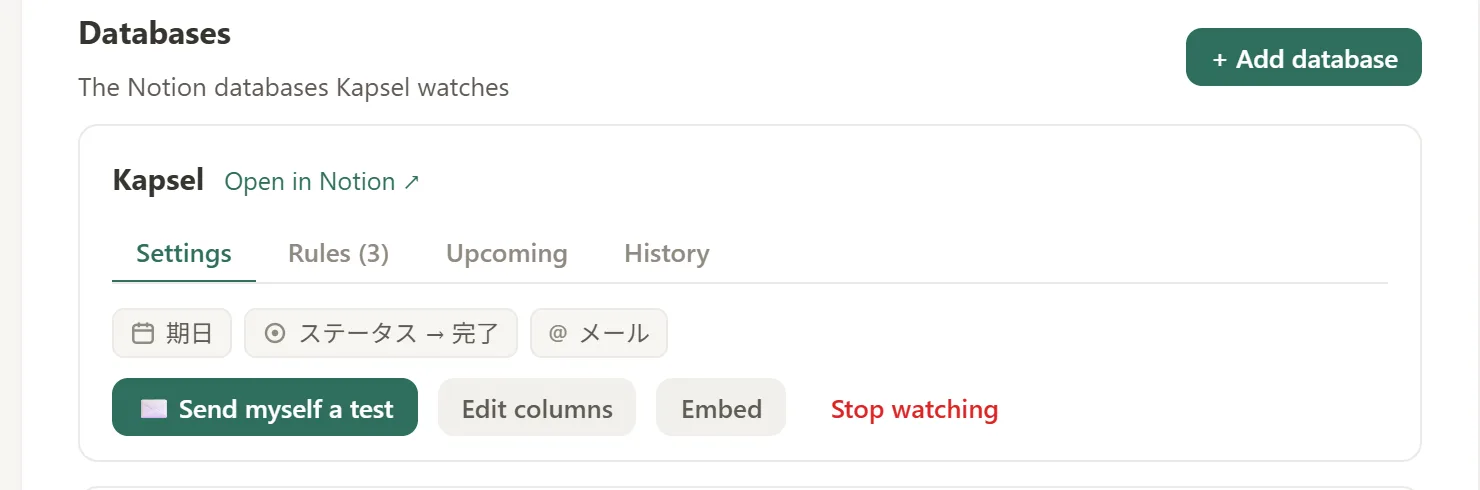
💡 For heavier processes you can split this into two linked databases — a Requests database and an Approval Steps database — so a single request can carry multiple sequential sign-offs (e.g., legal, then finance, then exec). Start with one flat database; only add the second when a real multi-step chain exists. Kapsel and native reminders both work against a single status/date/person field, so the simpler schema is easier to automate.
This guide assumes the tracker above already exists and focuses on the reminder cadence around it. For the build itself — Status stages, Approve/Reject buttons that stamp the decision, and automations that move stages on their own — see how to build an approval workflow in Notion.
A status taxonomy that actually works
Vague statuses are why requests get stuck. Give every status a clear entry and exit rule so it's never ambiguous who owns the next move.
| Status | Entry criteria | Exit criteria (next move) |
|---|---|---|
| Draft | Requester is still preparing | Requester submits → Submitted |
| Submitted | Sent to the approver, not yet opened | Approver begins review → In Review |
| In Review | Approver is actively evaluating | A decision is made → Approved / Rejected / Changes Requested |
| Approved | Decision: yes (terminal) | — |
| Rejected | Decision: no (terminal) | — |
| Changes Requested | Approver wants edits before deciding | Requester revises and resubmits → Submitted |
The two terminal states — Approved and Rejected — matter for more than reporting. They're the signal that tells your reminder system to stop. Design them in from the start.
Why a single dedicated database beats bolting approvals onto your general task list
It's tempting to add an "Approve?" checkbox to your existing task board. Resist it. Approvals have their own lifecycle (submitted → reviewed → decided), their own owner (the approver, not the assignee), and their own deadline (decide-by, not do-by). Mixing them into a task list muddies filtering, makes "waiting on me to approve" impossible to isolate, and blurs the line between doing work and signing off on it. Keeping it separate means you can see exactly what's waiting on someone else's decision at a glance, instead of digging through a mixed task list every time you need to check.
⚠️ If what you actually need is reminding assignees to finish their own tasks, that's a different pattern — see Notion task reminders for teams. This guide is specifically about routing a decision to an approver.
Step 2 — Set reminders that fire before AND after the due date
Goal: the approver hears about the request early, again as the deadline nears, and keeps hearing about it if it goes past due — without anyone chasing manually.
The common mistake is to treat "remind before the deadline" as the whole job. In practice a request is most likely to die after the decide-by date, when everyone assumes someone else is handling it. A robust cadence is two-sided.
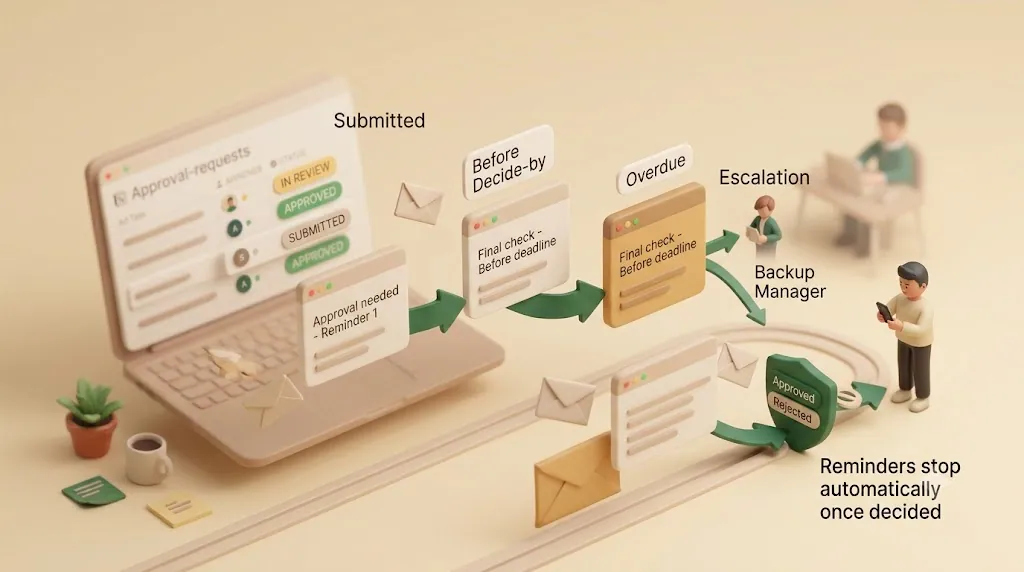
| Timing | Reminder | Tone |
|---|---|---|
| ~24–48h after Submitted | "This is waiting for your review" | Friendly heads-up |
| ~24h before Decide-by | "Decision needed by [date]" | Clear, deadline-forward |
| Decide-by date passes | Overdue follow-up #1 | Firmer, names the delay |
| 24–72h+ overdue | Overdue follow-up #2 / escalation | Escalates to a backup or manager |
Reminding the approver ahead of the deadline
Native Notion gives you a couple of starting points. A Date property reminder on the Decide-by field can notify people who can see the page a day before. A database automation can email the person in the Approver property when Status changes to Submitted — including when it moves back to Submitted after Changes Requested, i.e., a resubmission. Both are genuinely useful for the pre-deadline nudge — as long as the approver is an active Notion user who reads their notifications.
Overdue follow-ups: what happens once the decide-by date passes
This is where native Notion hits its limit. Notion's built-in "overdue" signal is visual — the date tag turns red. That's a cue for whoever is looking at the board, not an active nudge, and it doesn't escalate on its own. To get an actual "you're now past due, please decide" email — and a second, firmer one if it keeps sitting — you need something that watches the date and re-sends on a schedule. General automation tools (Zapier, Make, n8n) can build this with a scheduled check against the Decide-by date; purpose-built reminder layers do it without you wiring the logic.
Escalation logic when a request sits past due
An overdue request often means the approver is unavailable, not just slow. Good escalation has a fallback:
- Repeat with a firmer tone after 24–30+ hours overdue (the item name and how many days late go in the subject line).
- Loop in a backup approver or the requester's manager once a threshold passes, so the decision isn't blocked by one unavailable person.
- Keep the requester informed so they know the ball isn't in their court.
That way an overdue decision gets resolved through an automatic escalation, not through you personally hunting down whoever's sitting on it.
Writing reminder emails that actually get opened
The cadence only works if the emails themselves get read and acted on fast. A few rules keep them effective instead of becoming noise the approver learns to ignore:
- Keep it short. One or two sentences on what's waiting and why it matters — not a recap of the whole request.
- One clear call to action. A single "Review now" or "Approve / Reject" link, not a list of options to weigh.
- Put the deadline and item name in the subject line. "Decision needed by Fri: Q3 landing page draft" gets opened faster than a generic "Action required."
- Escalate the tone across the sequence, not the length. The first nudge is a friendly heads-up, the before-deadline reminder is matter-of-fact, and the overdue follow-up is direct about the delay — but every email in the sequence stays just as short. Only the urgency changes.
Status-aware suppression — why reminders must stop the moment something is Approved or Rejected
The fastest way to destroy trust in an automated system is to email a client "you still need to approve this" the day after they already approved it. Any reminder tied to an approval must read the Status field continuously and drop the item the instant it hits a terminal state.
⚠️ Native Notion automations don't do this for you — if you build overdue reminders in Zapier/Make, you have to add the "only if Status is not Approved/Rejected" condition yourself, on every branch, or you will nag people about decided items. Treat suppression as a hard requirement, not a nice-to-have.
Step 3 — Reach approvers who don't live in Notion
Goal: the reminder lands somewhere the approver actually looks — which, for most approvers, is email.
Internal managers who ignore Notion notifications but read email
Plenty of internal approvers have accounts but never check Notion's in-app inbox. For them, an email reminder that names the item and the deadline is far more likely to get a response than a badge they never see. Notion's database automations can send that email to a Person property, which covers this case reasonably well. That one email is often enough to get a decision moving, instead of you following up over Slack or walking over to ask.
External clients and stakeholders with no Notion account at all
This is the genuinely hard one, and it's where most guides quietly give up. An external approver can't be @mentioned and isn't in any Person property because they were never added to the workspace. The usual workarounds all have friction:
| Workaround | The catch |
|---|---|
| Share a limited-access Notion page | Still assumes some Notion familiarity; they have to go find it |
| Build a separate "client portal" | Real effort to build and maintain, usually in Zapier/Make or a no-code tool |
| Adopt a dedicated approval SaaS platform | A second paid platform, and the decision lives there, not in Notion |
Every one of these means the external approver has to log in or learn something new — or means you have to build the workaround yourself. The simpler path is an email with a decision link that needs no account and no portal — the approver just reads the email and clicks. That "reaches people who don't use Notion" capability is exactly what makes external approvals tractable; there's a fuller treatment in reaching people who don't use Notion by email.
Step 4 — Close the loop: one-click Approve/Reject that writes back to Notion
Goal: the approver's decision updates the Notion status directly, so Notion stays the single source of truth and nobody re-keys the result by hand.
How a recipient's single click updates the Status property automatically
Getting the reminder out is only half the loop. The other half is capturing the decision back in Notion. Most setups leak here: the approver replies "looks good" in an email, and someone on the team manually flips the status — or forgets to. The clean version puts Approve and Reject buttons in the reminder email itself, and the recipient's click writes the decision straight to the Notion Status property.
This is a real gap in the alternatives. Approve-by-email exists in some dedicated approval platforms, but the decision is recorded inside that platform — Notion becomes a stale copy. The tighter model is when the one click is the Notion status update, with no second system of record to reconcile. Kapsel is a Notion reminder tool that watches your due date, assignee, and status properties, emails the approver (even with no Notion account), and turns their one-click Approve/Reject into a direct write-back to the Notion status.
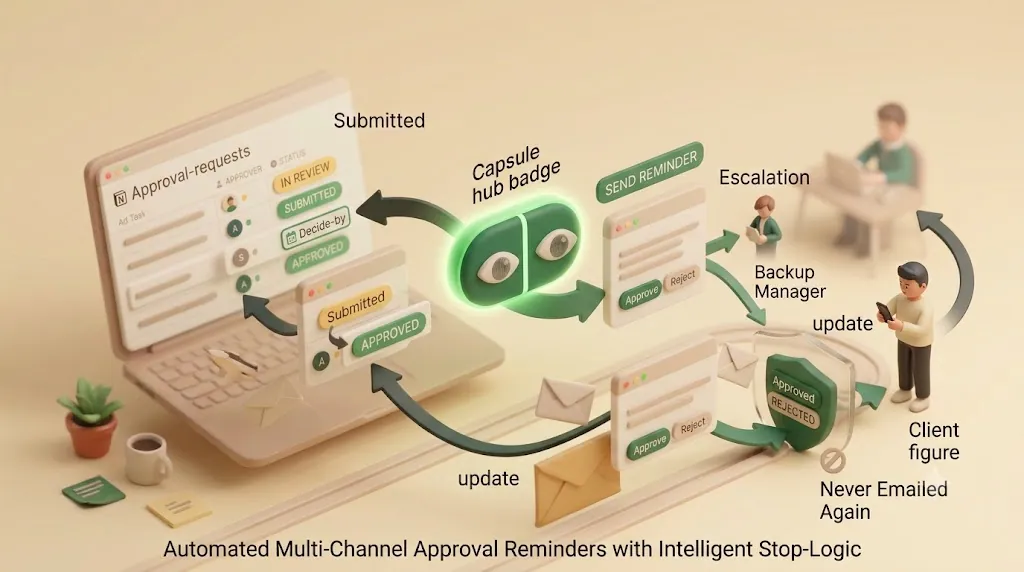
💡 Because the decision lands in Notion, your audit trail — who approved what, and when — lives alongside the item itself. A send log of which reminders went out, plus the status change captured on the click, gives you the "who signed off and when" accountability that approval workflows are supposed to provide.
Why this matters for client-facing approvals specifically
For client work, the write-back is the difference between a smooth sign-off and an awkward one. The client clicks "Approve" in an email; your Notion board updates; your team sees it move to Approved without a status meeting or a "did the client ever get back to us?" thread. It keeps the client in the loop without asking them to adopt your tools — more on that pattern in keeping clients updated.
Step 5 — Give approvers a recurring digest instead of a flood of one-off emails
An approver who owns many decisions doesn't want ten separate emails a day. Nor should they have to remember to open a "Waiting on Me" view in Notion — a role-based filtered view helps, but only if the person goes and checks it.
A better fit for a busy approver is a recurring digest: one scheduled email (say, every morning or every Monday) listing everything still waiting on them, with a decision link per item. It's proactive rather than something they have to remember to look at, and it collapses a pile of nudges into a single scannable list.
💡 Build a "Waiting on Me" filtered view (Approver = Me, Status is In Review or Submitted) and an "Overdue" view (Decide-by is before today, Status not terminal) inside Notion regardless — they're useful for anyone who does open the board. Just don't rely on them as the only channel for someone who lives in email.
Setting this up with Kapsel (what's actually built today)
The pieces above — before/after-due reminders, external reach, overdue escalation, one-click write-back, suppression, and a recurring digest — can be assembled from multiple tools (Notion automations for the internal email, Zapier/Make for the overdue logic, a portal or a separate SaaS for external reach). The trade-off is that you're stacking and maintaining several systems.
Kapsel packages that same set against the status, date, and person fields you already maintain in Notion, without rebuilding your database:
- Connect Kapsel to your Approval Requests database.
- Point it at the Approver, Status, and Decide-by date properties.
- Set the pre-deadline nudge and the overdue follow-ups cadence.
- Confirm suppression: it never sends to items marked Approved / Rejected (or paid/completed), because it reads the status continuously.
- Turn on a recurring digest for approvers who own many decisions.
Step-by-step instructions are in the setup guide, and there's a full overview at Kapsel.
Free vs. Standard vs. Pro — what each plan covers for an approval workflow
| Plan | Price (USD / mo) | Best for an approval workflow |
|---|---|---|
| Free | $0 | Trying it on one approval database |
| Standard | $12 | A team running approval reminders on a single workspace |
| Pro | $29 | Multiple Notion workspaces, plus sender branding (company name, signature, logo) — useful for client-facing approvals |
Sender branding on Pro matters specifically for external approvals: the client sees an email that looks like it's from your company, not a generic tool. Full details are on the pricing page.
A note on scope: approvals vs. general deadlines vs. team task reminders
An approval reminder is a narrow, specific thing — routing a decision to a decision-maker by a decide-by date. It's easy to conflate with two neighbors:
- General due-date tracking — making sure any dated item gets attention as its deadline nears — is covered in Notion deadline tracking.
- Team task reminders — nudging the assignee who has to do the work — is covered in Notion task reminders for teams.
Use this guide for the approval vertical; link out for the other two rather than forcing one system to do all three.
Try Kapsel free. Kapsel watches your Notion due dates, assignees, and status, then sends automatic email reminders — including to people without a Notion account — and lets recipients confirm in one click, writing the status back to Notion. Free plan, no credit card required. → Start with Kapsel
FAQ
How do I get Notion to remind someone to approve something?
Give the request a Decide-by date and an Approver property, then use a Date-property reminder or a database automation that emails the Approver when the status changes to Submitted. Native Notion handles the pre-deadline nudge for active Notion users, but it doesn't send overdue follow-ups or reach people without an account — for that you'd add a scheduled automation (Zapier/Make/n8n) or a reminder tool like Kapsel.
Can I send a Notion approval reminder to someone who doesn't have a Notion account?
Not with Notion's native tools — @mention and Person properties both require the person to be in your workspace. To reach an external approver you either build a shared page or portal, adopt a separate approval platform, or use an email-based reminder layer (such as Kapsel) that sends the request to any email address with no login required.
How do I stop Notion reminders once a request has been approved or rejected?
The reminder system has to read the Status property and drop the item once it hits a terminal state (Approved or Rejected). With native automations or a Zapier/Make workflow you must add that "only if not decided" condition yourself on every reminder. Kapsel does this automatically — it never sends to items marked Approved, Rejected, completed, or paid.
What status properties should an approval tracker in Notion have?
A workable set is Draft, Submitted, In Review, Approved, Rejected, and Changes Requested. Give each one clear entry and exit criteria so it's always obvious who owns the next move, and treat Approved and Rejected as terminal states that stop all reminders.
How do I escalate a Notion approval request that's overdue?
Once the Decide-by date passes, send a firmer follow-up that names the item and how many days late it is, and after a threshold (say 24–72 hours) loop in a backup approver or the requester's manager. Notion's native red date tag is only a visual cue; an active escalating email requires a scheduled automation or a reminder tool that sends overdue follow-ups.
Can someone approve or reject a Notion item by email without logging in?
Yes, if you use a tool that puts decision buttons in the email and writes the result back to Notion. Kapsel's reminder emails include one-click Approve/Reject that updates the Notion Status property directly, so the approver never logs in or opens Notion. Some standalone approval platforms also offer approve-by-email, but there the decision is recorded in that platform rather than natively in Notion.
What's the difference between a Notion approval workflow and a task reminder?
A task reminder nudges an assignee to finish work they own by a do-by date. An approval workflow routes a decision to an approver by a decide-by date, then captures their yes/no back into the status. They have different owners, lifecycles, and stop conditions — which is why an approval tracker works better as its own database than as a flag on a task list.
How do I track client approvals in Notion when the client doesn't use Notion?
Keep the approval record in your Notion database, but reach the client by email rather than expecting them to open Notion. An email-based reminder with a one-click Approve/Reject link (like Kapsel's) lets the client decide without an account, and the click writes their decision back to your Notion status so your board stays current.
Can Notion automatically notify me before and after a due date?
Notion can notify before a due date via a Date-property reminder, but it has no native "after the due date" email escalation — the overdue signal is just the date tag turning red. To get an active nudge both before and after the decide-by date, use a scheduled automation or a reminder tool that supports overdue follow-ups.
How do I get a daily or weekly summary of everything I still need to approve in Notion?
Inside Notion, build a "Waiting on Me" filtered view (Approver = Me, Status not terminal) that you open on a schedule. If you'd rather have it pushed to you, a recurring digest email — such as Kapsel's — lists everything still pending against you on a daily or weekly cadence, so you don't have to remember to check the board.
Notes
Published August 5, 2026 (updated 2026-08-27). The features and pricing described here reflect Kapsel as of the publish date; product details and plan pricing may change over time, so the pricing page and product overview hold the current specifics.