How to Plan and Run an Event in Notion (Webinar, Internal Event, Small Conference, or Workshop)
Most Notion event guides stop at the exact moment the work gets hard: a speaker hasn't sent slides, a vendor missed a deliverable date, and a dozen guests still haven't RSVP'd — and none of them use Notion. This guide shows how to build the planning system and close that external-reminder gap.
TL;DR
- Build one "Event Tasks" database (not five separate trackers) with Date, Status, Owner, and a Stakeholder Type (Internal/External) property, then add views on top of it.
- Relate three sub-databases — Speakers, Vendors, Attendees — so slots, deliverables, and RSVPs roll up to the main timeline.
- Set deadlines by working backward from event day with buffer per task type (printed materials need 2+ weeks).
- Notion's own reminders and @mentions only reach people who have a Notion account and open the app. External speakers, vendors, and guests need email, no login.
- Kapsel watches your Notion due dates/status and emails external people automatically; their one click writes "RSVP'd" or "slides submitted" back into Notion, and it never re-pings rows already marked done.
What You're Building: One Database, Several Views — Not Five Separate Trackers
The most common mistake in Notion event planning is building four disconnected trackers — a task list, a calendar, a guest sheet, and a vendor sheet — that never talk to each other. You end up updating a date in one place and forgetting the other three.
The durable pattern is one core database with multiple views on top of it. A single "Event Tasks" database holds every actionable item; a Calendar view, a "run of show" table, and per-stakeholder filtered views are just different lenses on the same rows. Change a due date once and every view updates. Stakeholder lists (speakers, vendors, attendees) live in their own related databases because they describe people, not tasks — but they link back to the core database so nothing drifts out of sync.
💡 Rule of thumb: if two things share the same deadlines and status, they belong in one database as different views. If they describe fundamentally different objects (a task vs. a person), use separate databases joined by a relation.
Step 1 — Build the Core Event Database
Properties that matter
Create a new database called Event Tasks. These properties carry the whole system:
| Property | Type | Why it matters |
|---|---|---|
| Title | Title | The task or milestone ("Send speaker confirmation") |
| Date / Timeline | Date | Drives calendar + "work backward" scheduling |
| Status | Status/Select | Not started → In progress → Done (or Confirmed) |
| Priority | Select | High / Medium / Low — sorts the event-day run of show |
| Owner | Person | Who on your team is accountable |
| Stakeholder Type | Select | Internal or External — the single most useful column most guides omit |
The Stakeholder Type column is what makes the external-reminder step possible later: it lets you filter instantly to "everything an outside person owes us" versus "internal team work." If you build nothing else differently from a standard template, add this one. For the underlying database mechanics, see how to set up task management in Notion.
⚠️ Keep "Done" and "Confirmed" meaningful. Later, your reminder layer uses status to decide who not to email. A sloppy status column means speakers who already sent slides still get nagged.
Relations to Speakers, Vendors, and Attendees sub-databases
Add a Relation property on Event Tasks pointing to each of three sub-databases you'll create in Step 3. Now a task like "Collect keynote slides" links directly to the speaker who owes them, and a payment task links to the vendor. This relation is also how deliverable dates and RSVP statuses roll up into one timeline instead of living in scattered sheets.
Step 2 — Add the Views You'll Actually Use
All three views below read from the same Event Tasks database. You're not duplicating data — you're re-slicing it.
Calendar view for milestones and deadlines
Add a Calendar view keyed to the Date property. This is where deposit dates, RSVP cutoffs, and material-due dates become visible at a glance, so nothing sneaks up on you. For deeper calendar setup (including month vs. week layouts), see Notion calendar basics.
'Run of show' table/board view for event day
Add a Table or Board view filtered to Date is Today and sorted by Priority descending. On event day, this becomes your minute-to-minute checklist — only what's live right now, in order of importance, so the team isn't scrolling past next month's tasks. If you prefer a column-per-stage layout, a Kanban board view works for the same run of show.
A filtered view per stakeholder group
Create three saved views filtered by Stakeholder Type is External plus the relevant relation:
- What speakers owe — tasks related to the Speakers database that aren't Done.
- What vendors owe — deliverables and payments not yet Confirmed.
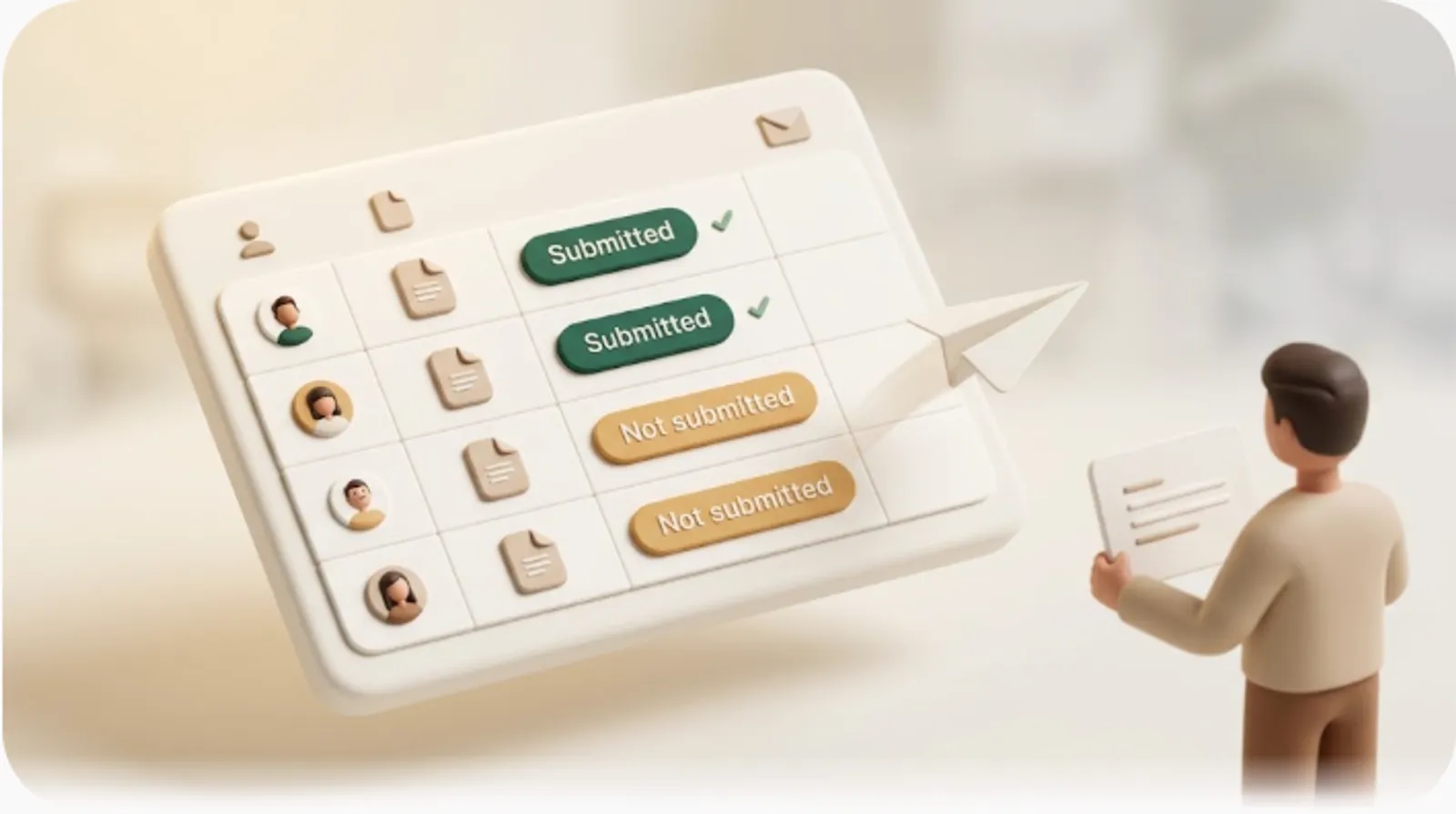
- Who hasn't RSVP'd — attendee rows where RSVP Status is empty or "Maybe."
Each view answers one chase-worthy question in one click, which is exactly the list your reminder layer will act on. For rolling status up across people and tasks, see progress tracking in Notion.
Step 3 — Track Stakeholders: Speakers, Vendors, and Participants
Speaker/host tracker
A Speakers database (a common pattern in Notion's own event/webinar template gallery) holds: Name, Bio, Session slot, Tech requirements, Materials-due date, Submission status. The payoff: one place to see which speaker is confirmed, who still owes slides, and whether their A/V check is done.
Vendor/supplier tracker
A Vendors database holds: Company, Contact, Contract status, Payment status, Deliverable, Delivery date. Relate it to a secondary Budget/Expenses database so each cost line ties back to the vendor it came from — giving you a running total and an at-a-glance view of what's paid versus outstanding.
Attendee/guest list with RSVP status
An Attendees database holds: Name, Email, RSVP Status (Attending / Not Attending / Maybe), Ticket type, Dietary/notes. Connect a Notion form, Google Form, or Typeform to this database so registrations create rows automatically — no manual data entry. For the deeper reminder pattern around confirmations, see the appointment reminder checklist.
💡 Forms only write into Notion (registration → new row). They don't write back out to the person later. Keeping that limitation in mind is what the reminder layer below solves.
Step 4 — Set Deadlines by Working Backward from Event Day
Pick the event date first, then subtract. Working backward prevents the classic failure where "we'll print the programs later" collides with a printer's lead time.
| Phase | Typical buffer before event | Example task |
|---|---|---|
| Printed materials | 2–3 weeks | Final program to printer |
| Speaker slides / content | 1–2 weeks | Slides due for A/V check |
| Vendor final headcount | 1 week | Confirm catering numbers |
| RSVP cutoff | 1 week | Close registration |
| Final reminders | 1–2 days | "See you tomorrow" to confirmed guests |
Enter each as a dated row in Event Tasks and the Calendar view draws the whole countdown for you. To visualize dependencies and the critical path across phases, a Gantt/timeline view makes the backward schedule obvious. Internal teams can optionally push event milestones to their personal calendars via Notion–Google Calendar sync.
The Step Every Guide Skips: Reminding People Who Don't Use Notion
Here's the honest gap in every event-planning template: once the database is built, guides say "remind your guests" or "share the page" — and leave the mechanism entirely unspecified. In practice, the people you most need to chase are the ones least able to see Notion.
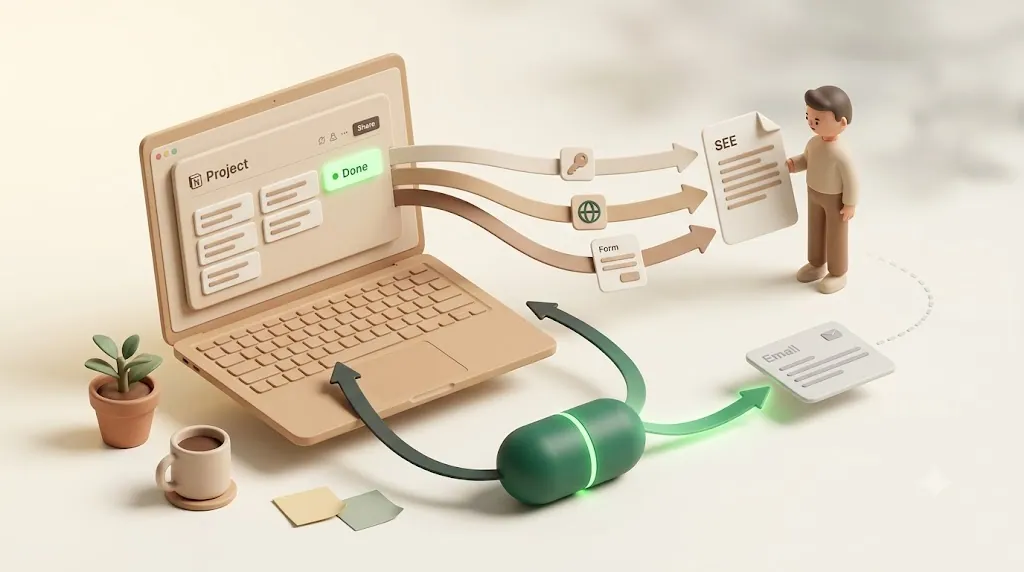
Internal and external stakeholders need completely different notification channels. For internal team members who already have a Notion account, standard collaboration — assigning tasks via the Owner property, sharing pages, @mentions, and comments — works exactly as intended; this gap is only about people outside that circle. The diagram below shows what actually reaches whom.
Why Notion's own reminders and @mentions don't reach them
Notion's in-app notifications and @-mentions only reach people who (1) have a Notion account, (2) have been granted access to the page, and (3) actually open Notion. An external speaker or a catering vendor has none of those three. Sharing a page gives someone read access if they log in — it does not push a message to them. That distinction is the root of the problem, and it's covered in depth in external share notifications in Notion.
What actually needs to leave Notion
For a real event, the messages that must travel outside Notion to a plain inbox are:
- "Submit your slides by Friday" — to a speaker who owes materials.
- "Please confirm your attendance" — to a guest who hasn't RSVP'd.
- "Vendor deliverable is overdue" — a chase when a delivery date has passed.
These are triggered by your Notion data (a due date, an empty RSVP, a status), but their destination is an email inbox, not the Notion app. You can wire this up yourself with Zapier or Make, but that means building and maintaining the automation — a real cost for a one-off event.
Closing the Loop: Automatic Email Reminders + One-Click, Two-Way Confirmation (Kapsel)
Kapsel is a tool that watches your Notion due dates, assignees, and statuses and sends automatic email reminders to people who don't use Notion — then writes their one-click responses back into your database. It's an independent, solo-built product focused on this one job.
How it watches due date / assignee / status and emails directly, no login
Kapsel connects to your Event Tasks and stakeholder databases and watches the fields you choose. When a speaker's materials-due date arrives or an attendee row still has no RSVP, it emails that person directly at the address in your Notion row. The recipient never needs a Notion account, a login, or the app — the reminder lands in their normal inbox. The benefit: the external chase that used to be manual copy-paste now happens on its own.
One click writes the status back into Notion
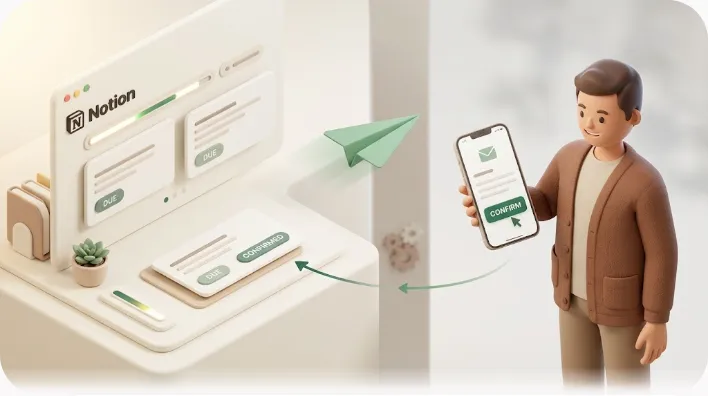
The reminder email carries action buttons. A speaker clicks "Slides submitted"; a guest clicks "I'll attend" — and that choice writes straight back to the matching Notion property. You watch RSVP Status and submission fields update in your views without emailing anyone or transcribing replies. This two-way loop — Notion out to email, one click back into Notion — is the piece no standard template provides.
Built-in safety: never re-sends to rows already done
Kapsel does not send to rows already marked Completed, Confirmed, or Paid. A speaker who already submitted, or a guest who already RSVP'd "yes," drops out of the chase automatically — so you never send a duplicate nag to someone who already did the thing. For the stragglers, overdue chasing and recurring sends keep a gentle cadence going until the item is resolved, and you can filter the audience so only the right group is contacted. (Confirmation-at-signup and ongoing-chase are distinct: send once when someone registers, then chase only those who haven't acted.)
💡 The practical difference from Notion forms: a form captures a registration once. Kapsel keeps the relationship going afterward — following up only with the people who still owe something, and stopping the moment they respond.
Where this fits Free vs. Standard
Volume and database count are what to size here. The Free plan ($0) is enough to try this on one small event: one watched database and 20 combined self + external sends a month, which suits the core Event Tasks database on its own. Once you add the Speakers, Vendors, and Attendees sub-databases and want overdue chasing, audience filtering, merge variables with one-click confirmation, recurring sends, and send logs, that's the Standard plan ($12/month), which also raises the ceiling to 5 watched databases and 500 sends a month. Running multiple events across separate Notion workspaces, with your own sender branding, is a Pro ($29/month) feature, with 2,000 sends a month and no database limit. For exact current figures, see the official pricing page.
Putting It Together: A Sample Event Timeline Showing Which Reminders Go to Whom
This is the whole system in motion — which reminder fires, and whether it reaches an internal or external audience.
| Timing | Reminder | Audience | Channel |
|---|---|---|---|
| T-30 | "Confirm your session slot" | Speakers (external) | Email, one-click confirm → Notion |
| T-30 | "Assign venue + A/V owner" | Team (internal) | Notion @mention |
| T-14 | "Slides due for A/V check" | Speakers (external) | Email; recurring until submitted |
| T-14 | "Final program to printer" | Vendor (external) | Email; overdue chase if missed |
| T-7 | "RSVP closes — please confirm" | Attendees (external) | Email, one-click RSVP → Notion |
| T-7 | "Confirm catering headcount" | Vendor (external) | |
| T-1 | "See you tomorrow" | Confirmed attendees only | Email (skips no-shows/declines) |
| Day-of | Run-of-show checklist | Team (internal) | Notion "Today" view |
Notice the split: internal rows resolve inside Notion; every external row leaves Notion as email and, where a response is needed, comes back as a one-click status update. Already-confirmed people are quietly excluded from later nags.
Frequently Asked Questions
How do I create an event planning database in Notion? Create one database called "Event Tasks" with Title, Date, Status, Priority, Owner, and a Stakeholder Type (Internal/External) property. Add Calendar and Table views on top of it, then relate separate Speakers, Vendors, and Attendees databases. One source of truth beats several disconnected trackers.
What's the best Notion template for planning a webinar or conference? Notion's template gallery includes several event- and webinar-planning templates, which are a reasonable starting point. Whichever one you pick, any template works as long as you can add a Stakeholder Type property and relations to your people databases — that's what makes external reminders possible later.
How do I track RSVPs in Notion? Add an Attendees database with an RSVP Status select (Attending / Not Attending / Maybe) and connect a form (Notion, Google, or Typeform) so registrations create rows automatically. To update RSVPs after signup, you need a tool that emails the guest and writes their reply back — forms only capture the first response.
Can Notion send automatic reminder emails to people outside my workspace? Not on its own — Notion's notifications and @mentions only reach people with an account who open the app. To email an external person automatically, add a layer like Kapsel that watches your Notion data and sends email without requiring the recipient to log in.
How do I remind speakers or vendors who don't have a Notion account? Use an email-based reminder layer that reads their email from your Notion row. Kapsel watches the materials-due date or deliverable status and emails the speaker or vendor directly; their one click (e.g., "submitted") updates Notion, so no account is needed on their end.
What's the difference between sharing a Notion page and notifying someone in Notion? Sharing grants access if the person logs in and opens the page — it's passive. Notifying (@mention, in-app alert) actively pushes a message, but only to people with an account who open Notion. Neither delivers to an external inbox, which is why event reminders to outsiders need email.
How far in advance should I set deadlines when planning an event? Work backward from event day with buffers per task type: 2–3 weeks for printed materials, 1–2 weeks for speaker content, about a week for final vendor headcount and the RSVP cutoff, and 1–2 days for "see you tomorrow" reminders. Enter each as a dated row so your calendar view draws the countdown.
Can I automate confirmation emails for event registrations in Notion? Yes. A form sends an immediate confirmation at signup, and a watch-and-remind tool handles the ongoing follow-ups. Kapsel connects directly to your Notion database and reads it as the source of truth, so you don't build or maintain a separate Zapier/Make flow to chase people who haven't responded.
How do I track vendor deliverables and payment status in Notion? Create a Vendors database with Contract status, Payment status, Deliverable, and Delivery date, and relate it to a Budget/Expenses database for running totals. Pair it with reminders on the delivery date so an overdue deliverable triggers a chase to the vendor automatically.
Does Notion have a built-in way to follow up with people who haven't responded? Notion can show you who hasn't responded (a filtered view where RSVP Status is empty), but it won't contact them for you. For automatic, recurring follow-up that stops once someone responds — and never re-pings those who already did — you need an external reminder layer such as Kapsel.
Internal links / further reading
- Task management in Notion — the core database that feeds Step 1.
- Notion calendar and Gantt/timeline views — the views behind Steps 2 and 4.
- Kanban boards — an alternative run-of-show layout.
- External share notifications — why sharing a page isn't notifying.
- Appointment reminder checklist and progress tracking — the reminder and status-rollup patterns applied here.
Notes & sources
Published 2026-10-24. Primary references: Notion's official Help Center and its template gallery for database and view mechanics, and general event-planning best practice for backward-scheduling buffers. Kapsel's features and pricing (Free $0, Standard $12/month, Pro $29/month) are described as of the publish date; see the official pricing page for current figures. This article is objective and informational; always confirm current Notion and Kapsel functionality against their official documentation before relying on it for a live event.