A No-Show Checklist: Audit Your Appointment Reminder Setup (Salons, Clinics, Tutors, Restaurants)
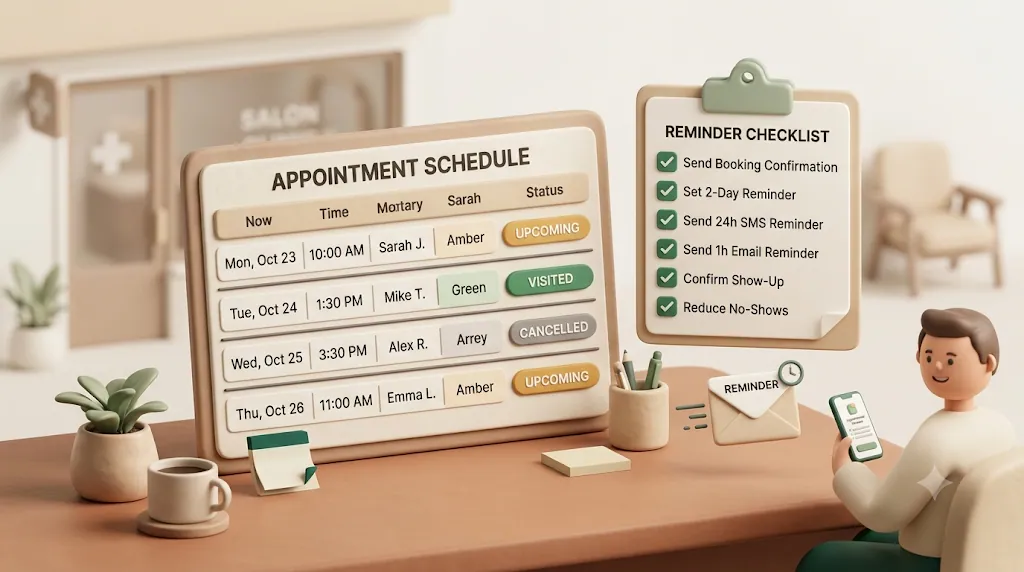
You send reminders. The no-show still happens. If you run a salon, a dental office, a tutoring studio, or a restaurant, you almost certainly already send some kind of reminder — a text the day before, an automated email from your booking tool, a phone call from the front desk — and the empty chair still shows up anyway. Most no-show advice assumes you're starting from zero, but the real problem is usually a specific, fixable gap, like a reminder that still goes out to someone who already canceled, or no way to prove a reminder was sent when a client swears it wasn't. This article is a self-audit you can run against your current setup in about ten minutes to find which gap is yours.
TL;DR
- This is a self-audit checklist, not a from-scratch how-to: run it against the reminders you already send and look for the gaps.
- Audit five things: timing (enough touches, at the right moments), message content (every essential field present), targeting (only reminding people who still need it), send log (proof of what went out), and follow-up (what happens after a miss or a non-response).
- The most common blind spots are status-based suppression (still reminding people about appointments they already canceled or completed) and no send log (no way to prove a reminder went out when a client says it didn't).
- If your bookings live in a Notion database, Kapsel can drive reminders from it by email — no login required for the client — and write a one-click confirmation back into Notion automatically.
Why Audit an Existing Reminder Setup Instead of Starting Over
If you already send reminders, the problem usually isn't the idea of reminding people — it's a specific, fixable gap. An audit finds the gap without asking you to rip out a system that mostly works.
Rebuilding from scratch is expensive and risky: you migrate data, retrain staff, and often trade one set of gaps for another. Auditing keeps what works and targets what doesn't. In practice, most no-show leaks come from a handful of predictable holes — a reminder that lands too late to matter, a message missing the address, or reminders still going out to people who canceled last week.
💡 The goal of this audit is not "do you send reminders?" It's "do your reminders do all five jobs — timing, content, targeting, logging, and follow-up — reliably, even on your busiest day?"
The 5-Point Self-Audit (Run This in 10 Minutes)
Pull up the last two weeks of reminders you actually sent and check them against these five points. Each one below has its own section with what "passing" looks like and an example.
| # | Audit point | The question it answers | Common gap |
|---|---|---|---|
| 1 | Timing | Are reminders landing at the right moments? | Only one reminder, sent too late |
| 2 | Message content | Does every reminder include the essentials? | Missing location, policy, or a clear action |
| 3 | Targeting | Are you only reminding people who still need it? | Still messaging canceled/completed bookings |
| 4 | Send log | Can you prove what went out, and when? | No record; "I never got a reminder" is unanswerable |
| 5 | Follow-up | What happens after a miss or a non-response? | Nothing — a no-show just disappears |
1. Timing — Are Reminders Landing at the Right Moments?
A single reminder is better than none, but the businesses that keep no-shows low almost always use more than one touch. The audit here is about cadence, not just whether a reminder exists.
The three checkpoints: booking confirmation, mid-range reminder, final reminder
Check whether each appointment gets these three moments — or a deliberate subset:
| Touch | When | Its job |
|---|---|---|
| Booking confirmation | Immediately at booking | Confirm the details are right; set expectations |
| Mid-range reminder | 48–72 hours out (or ~1 week for long lead times) | Give the client time to reschedule before the slot is wasted |
| Final reminder | 24 hours before, and/or 1–2 hours same-day | Beat day-of forgetting |
Example: A dental cleaning booked three months out gets a confirmation at booking, a reminder one week ahead (enough runway to reschedule), then a 24-hour reminder. A same-day haircut only needs a confirmation and a short 1–2 hour nudge.
The mid-range reminder is the one most setups skip — and it's the most valuable, because it lands while there's still time to fill the slot if the client can't make it.
Adjusting cadence by lead time
The right cadence depends on how far ahead the appointment was booked. Match the touches to the runway:
- Short lead time (walk-in-style salon slot, same-week booking): confirmation + one final reminder. A week-out reminder makes no sense for something booked yesterday.
- Long lead time (a dental cleaning or specialist visit booked months out): add the mid-range touch. People forget appointments they made a long time ago; a ~1-week reminder gives them room to move it.
- Recurring sessions (weekly tutoring, standing training slots): a light, predictable reminder each cycle works better than heavy messaging — clients already expect the appointment, so the reminder is a confirmation, not a surprise.
⚠️ More reminders isn't automatically better. Three well-timed touches help, but six identical ones train clients to ignore you and start to feel like spam.
2. Message Content — Does Every Reminder Include the Essentials?
Open one of your actual reminders and check it against the list below. A reminder that makes the client hunt for the address, the time, or how to cancel is a reminder that leaks no-shows.
The non-negotiable fields
Every reminder should be self-contained. Confirm all of these are present:
- Client name — so it reads as personal, not bulk mail
- Date and exact time (include the time zone if you serve remote clients)
- Service, class, or reservation type booked
- Provider / staff name (stylist, clinician, tutor)
- Business name
- Location — full address, room, or a video link
- A clear call-to-action — confirm, reschedule, or cancel, with how to do each
Example of a self-contained line: "Hi Maria — this is a reminder of your color appointment with Dana at Bloom Studio, Thu Aug 7 at 2:00 PM, 14 Oak St. Reply to confirm, or call (555) 010-1234 to reschedule."
Personalization with merge fields instead of generic blasts
A reminder that says "You have an appointment tomorrow" gets ignored; one that says "Your 2 PM color with Dana" gets read. Merge fields pull values straight from your booking record — name, service, staff, date — so each message is tailored without you writing it by hand. Check whether your current reminders use merge fields or send the same generic text to everyone. Get this right and you stop retyping the same details for every booking, while clients get a message specific enough to actually act on.
Where to mention cancellation policy or deposit terms
The reminder is the natural place to restate your cancellation window or deposit terms, because it reaches the client while there's still time to act. Keep it brief and neutral:
Example: "Please give us 24 hours' notice to cancel or reschedule so we can offer the slot to someone else."
Keep policy language generic to your own business (your cancellation window, your deposit terms). Whether and how you can charge a fee or hold a deposit depends on local rules and what your client agreed to, so state your policy rather than citing any rule as universal.
3. Targeting — Are You Only Reminding People Who Still Need It?
This is the audit point almost no guide covers, and it's where automated setups quietly embarrass you. Sending a "see you tomorrow!" reminder to someone who canceled last week — or who already came in — erodes trust fast.
Suppressing reminders for completed, canceled, or already-paid appointments
Check what your system does when a booking's status changes. The rule you want is simple: never remind on completed, canceled, or already-paid appointments.
| Status | Should a reminder go out? |
|---|---|
| Booked / confirmed | Yes |
| Completed / visited | No — the appointment already happened |
| Canceled | No — the client already told you |
| Paid / settled (e.g., prepaid class) | No, unless attendance is still open |
If your reminders run off a static list or a fixed schedule, they probably don't check status — which means every cancellation or reschedule you don't manually clean up becomes an awkward message. Status-aware suppression is the fix, and it's the difference between clients trusting your messages and clients rolling their eyes at one more "reminder" about something they already told you.
⚠️ Suppression only works if your status field is current. If confirmations and cancellations live in a text thread or a staffer's head instead of your booking record, the "skip resolved items" rule has nothing reliable to read.
Filtering by service, staff, or location so reminders stay relevant
Beyond status, good targeting means the right reminder goes to the right people. Check whether you can narrow by:
- Service or class type — a deposit reminder for high-value services only
- Staff / provider — different wording or cadence per stylist or clinician
- Location — separate directions or parking notes per branch
If you can only send one blanket reminder to everyone, that's a gap worth closing.
4. Send Log — Can You Prove What Went Out, and When?
This is the pillar most setups fold vaguely into "track your metrics" — but it's really about proof of individual sends, not aggregate stats. Ask yourself: if a client calls saying "I never got a reminder," can you check?
Why a send log matters
A send log is a record of each message: who it went to, what it said, and when it was sent. It earns its keep in two situations:
- Disputes. "I never got a reminder" is unanswerable without a log. With one, you can see exactly what was sent and when — and often spot that it went to an old email or a typo'd number.
- Catching failed sends. Reminders bounce, hit spam, or silently fail. A log surfaces the ones that didn't land, so a broken email address doesn't turn into a no-show you never saw coming.
💡 A send log is different from a metrics dashboard. Metrics tell you your no-show rate; a send log tells you what happened to one specific client's reminder. You want both, but the log is the one most setups are missing.
Alongside the log, track a few numbers over time so you know whether changes are working: no-show rate, confirmation rate (how many clients actively confirm), and response/reschedule rate. If your no-show rate drops after you add a mid-range reminder, that's your audit paying off.
5. Follow-Up — What Happens After a Miss or a Non-Response?
Most reminder setups stop at "we reminded them." But the two situations that cost you the most — a no-show, and a client who never responded — happen after the reminder. Audit what your system does next.
Same-day no-show follow-up and a rebooking link
When someone misses an appointment, a warm, non-judgmental follow-up recovers more revenue than silence or a scolding. The goal is to make rebooking easy, not to make the client feel bad.
Example: "Hi Sam, sorry we missed you today! Things come up. Whenever you're ready, you can grab a new time here: [rebooking link]."
Check whether missed appointments trigger anything right now. If a no-show just quietly disappears from the calendar, you're leaving rebookings on the table.
Recurring digests for staff on unconfirmed or upcoming appointments
The other half of follow-up is internal. A recurring digest — a periodic summary emailed to you or your front desk, like "tomorrow's bookings" or "these three haven't confirmed" — lets staff catch problems while there's still time to call. This operational half is missing from almost every reminder setup, since most focus only on messaging clients and never surface the unconfirmed ones to the team.
💡 A daily "unconfirmed for tomorrow" digest turns the no-response clients (the ones most likely to no-show) into a short call list instead of a surprise.
Copy-Paste Reminder Templates by Business Type
Use these as a starting point. Text in {{curly braces}} is a merge field — replace it with a value pulled from your booking record. Keep your own cancellation window and policy wording.
Salons & Spas
Confirmation (at booking): Hi {{name}}, you're booked for {{service}} with {{staff}} at {{business}} on {{date}} at {{time}}. Reply YES to confirm. Need to change it? Call {{phone}}.
Final reminder (24h before): Reminder: {{service}} with {{staff}} tomorrow at {{time}}, {{location}}. Reply YES to confirm or RESCHEDULE if you need a new time (or call {{phone}}). Please give 24 hours' notice to cancel.
Clinics, Dental & Therapy Practices
Mid-range reminder (~1 week out): Hi {{name}}, this is {{business}} confirming your {{service}} with {{provider}} on {{date}} at {{time}}. If you need to reschedule, please let us know at least 48 hours ahead: {{phone}}.
Final reminder (24h before): Reminder: your appointment with {{provider}} is tomorrow at {{time}}, {{location}}. Please arrive 10 minutes early. Reply CONFIRM, or call {{phone}} to reschedule.
Tutors & Class-Based Businesses
Recurring session reminder: Hi {{name}}, reminder that {{student}}'s {{subject}} session with {{tutor}} is on {{date}} at {{time}}. Reply YES to confirm. If something's come up, let me know by {{cutoff}} so I can offer the slot to another student.
No-show follow-up: Hi {{name}}, we missed {{student}} at today's {{subject}} session. No problem — grab a make-up time here: {{rebooking_link}}.
Restaurants (Reservations)
Confirmation (at booking): {{business}}: your table for {{party_size}} is booked for {{date}} at {{time}}. Reply YES to confirm or CANCEL if plans change — it helps us seat other guests.
Same-day reminder: See you tonight at {{time}} for your table of {{party_size}}, {{business}} ({{location}}). Reply YES to confirm or call {{phone}} if you're running late or need to cancel.
Home Services (Cleaners, Contractors, Repair Techs)
Confirmation (at booking): Hi {{name}}, you're booked for {{service}} at {{address}} on {{date}}, arriving between {{time_window}}. Reply YES to confirm or call {{phone}} to reschedule.
Final reminder (day before or morning-of): Reminder: {{business}} is scheduled for {{service}} at {{address}} {{date_relative}}, arriving {{time_window}}. Please make sure someone's available to let us in, or that the area's ready. Reply YES to confirm or call {{phone}} to reschedule.
Professional Services (Consultants, Accountants, Advisors)
Confirmation (at booking): Hi {{name}}, your {{service}} appointment with {{staff}} at {{business}} is confirmed for {{date}} at {{time}} ({{location_or_link}}). Reply YES to confirm.
Final reminder (24h before): Reminder: your {{service}} session with {{staff}} is tomorrow at {{time}}, {{location_or_link}}. Please have {{documents}} ready ahead of time. Reply YES to confirm or call {{phone}} to reschedule.
Comparing the Tools That Can Send These Reminders
Before you decide anything is broken, it's worth knowing what each common approach handles well — and where it stops. No single tool wins on everything.
| Approach | Good at | Where it stops |
|---|---|---|
| Dedicated scheduling/SMS software (booking platforms, SMS reminder apps) | Public self-booking, SMS at scale, built-in cadences, payments/deposits | You adopt a whole platform; clients often need to be in its system |
| Notion's native automation | A one-off confirmation email when a booking row is created | No true due-date trigger; no recurring or overdue logic; no status-based suppression |
| Zapier / Make / n8n | Wiring a Notion (or spreadsheet) trigger to an email/SMS step | You build and maintain the logic yourself; suppression and follow-up are DIY |
| Google Apps Script (GAS) | Free, fully custom reminders off a Google Sheet | Requires coding and ongoing maintenance; no UI for non-developers |
| Slack / Google Calendar | Reminding your own team, calendar-based nudges | Built for internal use; not designed to reach and get confirmations from clients |
Each of these can be the right answer. A busy salon with self-serve online booking is well served by a dedicated platform; a developer comfortable with GAS can build something free. The gaps to watch for are the audit points above — especially status-based suppression, a per-send log, and automatic follow-up — which several of these leave to you to build.
If You Already Track Appointments in a Notion Database
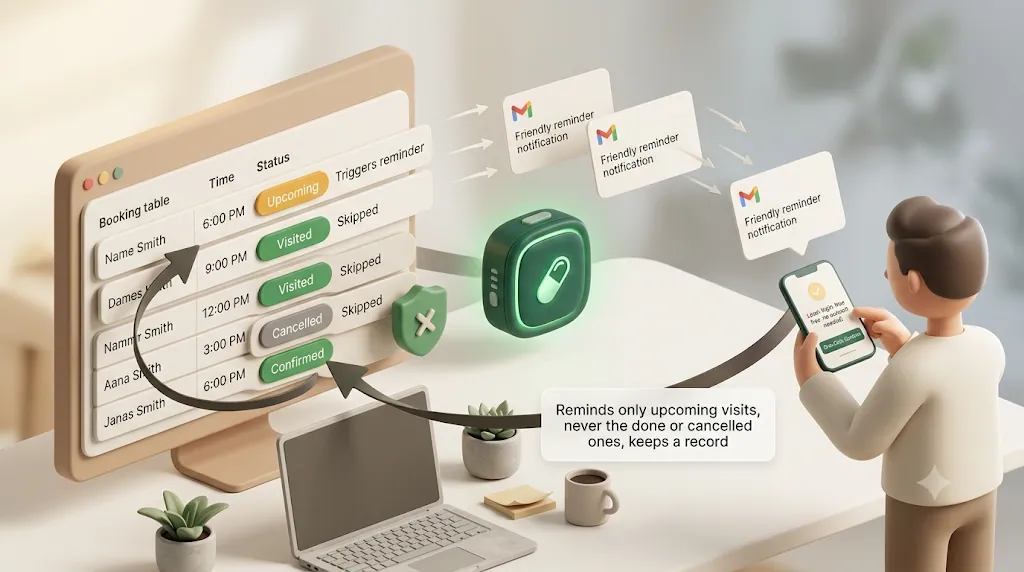
Plenty of solo operators and small teams don't use dedicated scheduling software at all — they run their client list and bookings in a Notion database and book people by DM, phone, or a form. If that's you, the audit above still applies, and there's a lightweight way to close the gaps without migrating anywhere.
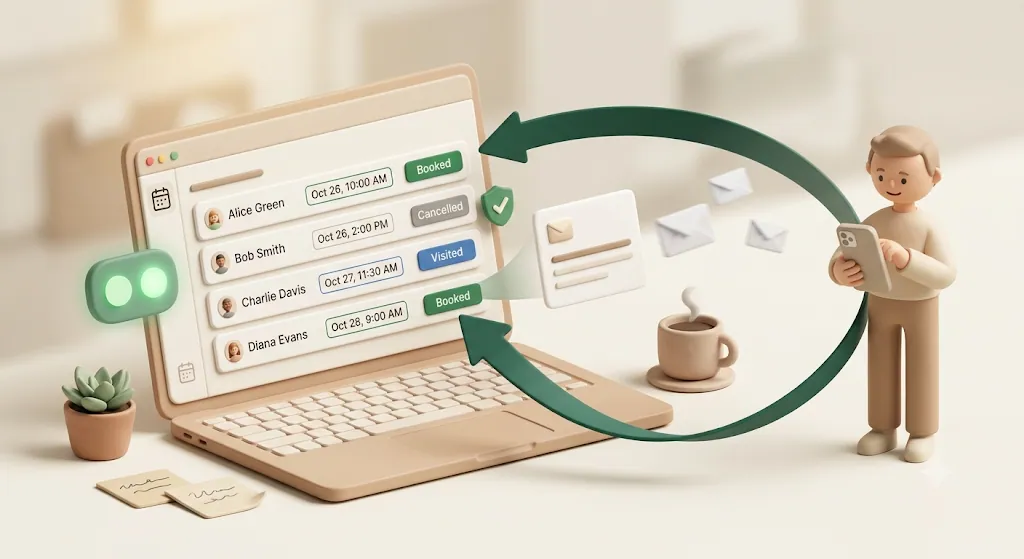
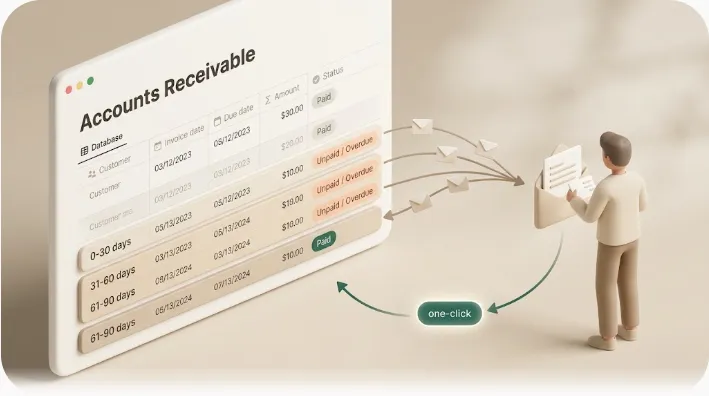
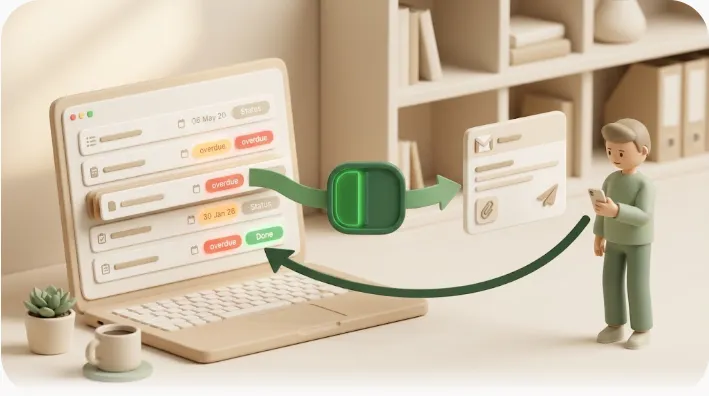
Kapsel is a Notion notification tool that watches your database's due dates, assignees, and statuses and automatically sends email reminders — including to clients who don't use Notion — with a one-click link that writes their confirmation back to Notion. It's an independent, solo-built product that adds a reminder layer on top of the database you already keep.
How Kapsel maps to the 5-point audit
| Audit point | How Kapsel handles it |
|---|---|
| 1. Timing | Watches the appointment date field to time reminders; overdue follow-ups nudge bookings that sit unconfirmed |
| 2. Message content | Merge fields pull name, service, staff, date straight from the Notion row |
| 3. Targeting | Never sends to completed or paid items; target filtering narrows by assignee, service, or property values |
| 4. Send log | Keeps a send log of what went out, to whom, and when |
| 5. Follow-up | Overdue follow-ups for no-responses; recurring digests summarize upcoming or unconfirmed bookings for staff |
Once these run off your existing Notion database, closing an audit gap stops being a project — it's one rule you set up once instead of a habit you have to police every week.
Reaching clients who don't use Notion, and writing their confirmation back automatically
Two gaps are hard to close with a general-purpose Notion setup, and they're the ones Kapsel is built for. First, your clients don't have (or want) a Notion login — Kapsel sends reminders as plain email to any address, no account or app required. Second, two-way confirmation usually means re-typing: a client replies "yes," and someone updates the record by hand. With Kapsel, the recipient's one-click confirm writes the status straight back into your Notion database, so the "is this confirmed?" field stays current on its own — which is also what makes the "never remind completed or canceled bookings" rule reliable.
For a fuller walkthrough of running bookings this way, see how to automate appointment confirmation and reminder emails from Notion. For the mechanics of reaching people who don't have a Notion account, see automatic email reminders from Notion. Setup steps are on the product page and the setup guide.
💡 Kapsel's Free plan is $0 and isn't a time-limited trial, so you can test whether an email reminder layer closes your audit gaps before paying for anything. See the pricing page for what each plan includes.
FAQ
How many appointment reminders should I send before a visit?
For most businesses, two to three well-timed touches work best: a confirmation at booking, an optional mid-range reminder (48–72 hours or about a week out for long lead times), and a final reminder 24 hours before or same-day. Short-notice bookings may only need the confirmation and one final nudge. More than three identical reminders tends to train clients to ignore them.
What should an appointment reminder text or email include?
The client's name, the exact date and time, the service or class, the staff member, your business name, and the location or link. Add a clear call-to-action — how to confirm, reschedule, or cancel — and restate your cancellation window. Keep it self-contained so the client never has to look anything up.
How do you politely remind a client about an appointment without sounding pushy?
Keep the tone warm and matter-of-fact: state the details, offer an easy way to confirm or reschedule, and frame the cancellation notice as helping you offer the slot to someone else. Avoid guilt or urgency language. A reminder that makes rescheduling easy reads as a courtesy, not pressure.
Do appointment reminders actually reduce no-shows?
Reminders address the most common causes of no-shows — forgetting, unclear policies, and unconfirmed intent — so a consistent reminder system generally cuts the no-show rate. The size of the effect depends on your business, your cadence, and whether clients can confirm easily. The way to know is to track your no-show rate before and after changing your setup rather than assuming a fixed number.
What's the best time of day to send an appointment reminder?
There's no universal best time, but common practice is to send the final reminder the morning of or the day before, when the client is planning their schedule, rather than late at night. For same-day slots, a reminder 1–2 hours ahead helps. The reliable approach is to test a couple of send times and compare confirmation and no-show rates for your own clients.
How do you follow up with a client after they no-show?
Send a warm, non-judgmental message the same day that assumes the best ("Sorry we missed you — things come up!") and makes rebooking easy with a direct link or a quick way to reach you. Skip any scolding. The goal is to recover the relationship and the booking, not to assign blame.
Should reminders still go out after an appointment is canceled or already completed?
No. Reminding someone about an appointment they canceled or already attended erodes trust and looks careless. Your setup should suppress reminders for completed, canceled, and already-paid bookings automatically, which requires reminders to check the booking's current status rather than run off a static list.
How do you know if a reminder was actually sent (and not lost)?
You need a send log — a record of each message showing who it went to, what it said, and when. Without one, a client's "I never got a reminder" is impossible to verify. A log also surfaces failed or bounced sends, so a bad email address or number gets caught before it becomes a no-show.
Can you send appointment reminders by email only, without SMS?
Yes. Email carries the full details — service, location, policy, personalization, and a confirm link — and costs nothing per send, which suits confirmations and reminders where the client needs specifics. SMS is faster to open and good for short day-of nudges, but it has per-message costs and requires opt-in consent from the client along with an easy way to opt out. Phone calls work well for high-value bookings or a last-minute recovery attempt, but they don't scale once your daily call volume grows. Many small businesses run reliably on email alone.
Do I need dedicated scheduling software to send automated reminders, or can I run this from a spreadsheet or Notion tracker?
You don't necessarily need dedicated software. If you already track bookings in a spreadsheet or a Notion database, you can add a reminder layer on top instead of adopting a full platform. Tools like Zapier, Make, n8n, or Google Apps Script can wire this up with some setup, and Kapsel does it specifically for Notion — driving email reminders from your database, with a one-click confirm that writes back automatically. Dedicated platforms make more sense when you need public self-serve booking, integrated payments, and SMS at scale.
Quick-Scan Recap Checklist
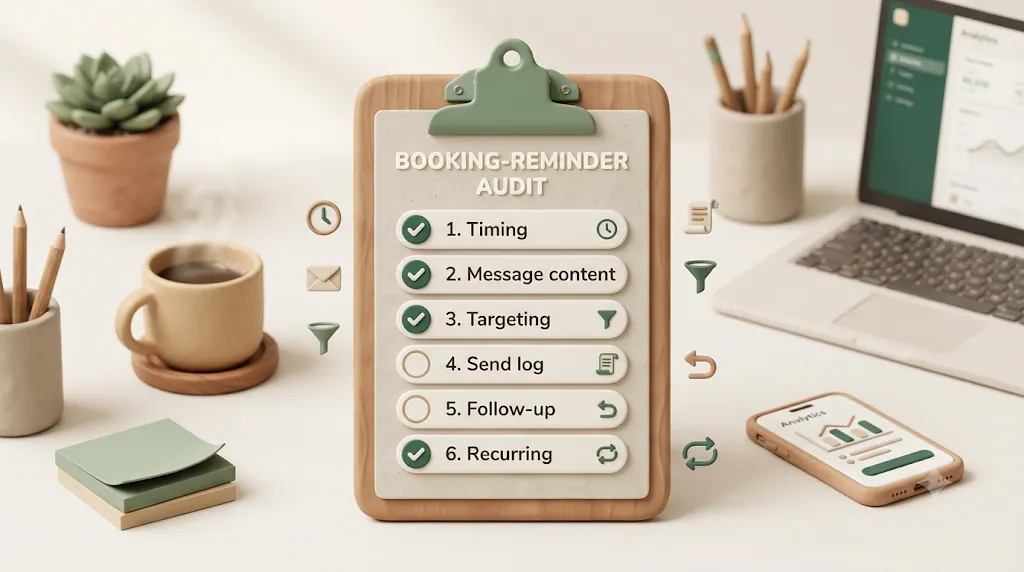
Run down this list against your current setup. Every "no" is a gap worth closing.
- Timing: confirmation at booking, plus at least one reminder timed to the lead time
- Timing: a mid-range touch for long-lead bookings (so there's time to reschedule)
- Content: name, date/time, service, staff, business name, and location/link in every message
- Content: merge fields personalize each reminder instead of a generic blast
- Content: cancellation window or deposit terms stated clearly
- Targeting: reminders are suppressed for completed, canceled, and paid bookings
- Targeting: you can filter by service, staff, or location when it matters
- Send log: you can prove what went out, to whom, and when — and catch failed sends
- Metrics: you track no-show rate, confirmation rate, and response rate over time
- Follow-up: no-shows get a warm, non-judgmental message with a rebooking link
- Follow-up: staff get a recurring digest of upcoming or unconfirmed appointments
- Consent: for SMS, you have opt-in consent and honor opt-outs
Notes
Published 2026-08-04. The features and pricing described here — including Kapsel's Free ($0), Standard ($12/month), and Pro ($29/month) plans — are current as of the publish date and may change over time. Third-party tools and platforms are named only for comparison, and their capabilities reflect general market positioning as of writing.