How to Build a Content Calendar in Notion (And Actually Get Submissions on Time)
A content calendar fails on the day a writer misses a draft and nobody notices until the publish slot is empty. If you run an editorial pipeline with freelancers, clients, or guest contributors, the database is the easy part — the hard part is making deadlines land with people who were never invited into your workspace. This guide covers both: a clean Notion build, and the one gap almost every tutorial ignores.
TL;DR
- Build a dedicated database for content (not a reused task DB) with five core properties: Title, Status, Publish date, Owner/Writer, Channel.
- Add three views on the same data: Calendar (spot gaps), Board (daily execution by status), Table (bulk edits and backlog).
- Plan backward from the publish date → review deadline → draft-due → brief/assignment date. This is the step most guides skip.
- Notion's built-in reminders (
@remind, the date "Remind" toggle) only reach logged-in workspace members — they cannot notify an external writer or client. That is the structural gap covered below.
What a Notion content calendar needs to do — the quick reality check before you build
A content calendar is not a wall of ideas. It is an operational system that answers four questions at a glance: what ships, when, who owns it, and what stage it is in right now. If your setup cannot answer all four in under five seconds, it will drift back into a spreadsheet or someone's head.
Before touching Notion, decide what you actually need the system to do:
| The job | What it requires in Notion |
|---|---|
| See what publishes and when | A date property + a Calendar view |
| Know the current stage of every piece | A Status (select) property with clear stages |
| Know who is responsible | An Owner/Writer (person) property |
| Triage the backlog quickly | A Table view with filters and sorting |
| Hit deadlines with external people | Reminders that reach non-members (this is where native Notion stops — see the gap section) |
💡 Keep the first version deliberately small. The most common reason a content calendar gets abandoned is over-engineering it on day one with ten properties and six views nobody maintains. Start with five properties and three views; add only what you miss.
Step 1 — Create the database and core properties
Create a dedicated database for your content calendar — a full-page database if it will be its own workspace area, or an inline database if it lives inside a team hub page. Do not reuse a generic "Tasks" database. Content has its own lifecycle (idea → published) and its own metadata (channel, publish date, draft link) that pollute a general task list and make both harder to read.
Set up these five core properties first:
| Property | Type | Why it earns its place |
|---|---|---|
| Title | Title | The working headline of the piece. |
| Status | Select (or Status) | The single most important field — it drives your Board view and filters. |
| Publish date | Date | The anchor for the Calendar view and all backward planning. |
| Owner / Writer | Person | Assigns accountability; enables "my items" filters. |
| Channel / Platform | Multi-select | Blog, newsletter, LinkedIn, YouTube — lets one view serve every channel. |
Add one more that pays for itself immediately: a Draft link (URL or relation) pointing to the Google Doc, Notion page, or file where the actual content lives. It turns the calendar into the single front door for every piece.
💡 Use the Status property type (not a plain Select) if you want Notion to group stages into "To-do / In progress / Complete" buckets automatically. A plain Select works fine too and is simpler to recolor.
Optional-but-useful properties: content pillar/type, CTA/draft link, review notes
Once the core five are working, these three add structure without clutter:
- Content pillar / type (multi-select): e.g. How-to, Case study, Product, SEO. Lets you check whether your mix is balanced instead of accidentally shipping six how-tos in a row.
- CTA / target keyword (text): keeps the goal of each piece visible so writers brief themselves.
- Review notes (text): a lightweight place for editor feedback, so comments don't get lost in chat.
Resist adding more. Every property is a field someone has to fill or ignore — and ignored fields train the whole team to stop trusting the database.
Once the properties are settled, save a page template for the database (the "New" button menu → set up a template) that pre-fills Status to Idea and includes a short checklist — brief approved, draft linked, images ready, FAQ drafted. Every new content item then starts from the same fields and the same checklist instead of an inconsistent blank page, which is what keeps the database usable as more contributors add entries.
Step 2 — Design your Status workflow
Status is the backbone. Most editorial teams use some variant of this chain:
Idea → Brief → Drafting → Submitted → In review → Approved → Scheduled → Published
Each stage should mean one unambiguous thing and map to one owner:
| Status | What it means | Who owns the next move |
|---|---|---|
| Idea | Captured, not committed | Editor (decide go / no-go) |
| Brief | Approved; brief being written | Editor |
| Drafting | Assigned; writer is working | Writer |
| Submitted | Draft delivered, awaiting review | Editor |
| In review | Editing / approval in progress | Editor / approver |
| Approved | Signed off, ready to schedule | Editor |
| Scheduled | Slotted on a publish date | System / publisher |
| Published | Live | — |
⚠️ More statuses feel thorough but slow everyone down. If two stages always have the same owner and the same next action, merge them. Many small teams collapse this to five: Idea → Drafting → In review → Scheduled → Published. Fewer stages means fewer "which column is this in?" moments.
For the review and approval stages specifically, a defined sign-off step prevents the "I thought you approved it" scramble. If approvals are a recurring friction point with clients or stakeholders, see how to run an approval workflow in Notion.
Step 3 — Calendar view vs. Board view: when to use each
The quiet power of Notion is that one database can be shown as many views. You never duplicate data — you just change the lens. For a content calendar, three views cover almost every need.
| View | Best for | Group / sort by | Who uses it most |
|---|---|---|---|
| Calendar | Seeing cadence and gaps | Publish date | Editor / planner |
| Board (Kanban) | Daily execution | Status | Everyone, daily |
| Table | Bulk edits, backlog triage | Due date (sorted) | Editor, weekly |
Calendar view: spot publish-date gaps at a glance
Set the Calendar view to use the Publish date property. Now empty days are visible as empty days — you can see a thin week two weeks out and fix it before it becomes a scramble. The benefit is simple: you plan proactively instead of discovering gaps the morning they happen.
Board view: daily execution grouped by status
Group a Board view by Status. Each piece becomes a card you drag from Drafting to Submitted to In review. This is the view your team lives in day to day because it answers "what's moving and what's stuck" instantly. For the broader pattern of running work this way, see Notion task management.
Table view: bulk edits, filters, and sorting by due date
The Table view is your backlog workhorse. Filter out published items (Status is not Published) so the working view shows only live work, and sort ascending by Publish date so the most urgent piece sits at the top. Table view also lets you edit many rows at once — reassign a writer, shift three dates — far faster than opening cards one by one.
💡 Create a filtered "This week" Table view (Publish date is within the next 7 days, Status is not Published). It becomes the agenda for your weekly review (see the last section).
Step 4 — Plan backward from the publish date (the step most guides skip)
Here is the discipline that separates a calendar that ships from one that slips: the publish date is not a field you fill in — it is the anchor you plan backward from. Almost every tutorial treats the publish date as just one more property. In practice, a publish date with no derived upstream deadlines is a wish, not a plan.
Working backward: publish date → review deadline → draft due date → assignment/brief date
Start from the date the piece must go live and subtract the time each stage realistically needs. A typical blog post chain:
Read as deadlines, that chain becomes:
- Publish date — the fixed target (e.g. the 20th).
- Review deadline — 2 days before publish (the 18th), so there's time to edit.
- Draft due date — 5 days before publish (the 15th), giving review a buffer.
- Brief / assignment date — 10 days before publish (the 10th), when the writer gets the go-ahead.
The benefit is that a missed draft on the 15th is now visibly a problem five days early — not a surprise on the 20th.
Simple ways to set the offset dates (manual per-entry vs. a consistent cadence)
You have two workable options:
- Manual per entry: add a Draft due date property (and optionally a Brief date) and fill them by hand when you set the publish date. Best when lead times vary a lot by piece.
- Consistent cadence: fix a standard offset (e.g. "draft always due 5 days before publish") and apply it every time, or encode it with a Notion formula that computes draft-due from the publish date. Best when your pieces are similar in size. For deeper patterns on due-date fields and relative dates, see deadline tracking in Notion.
⚠️ Whichever you choose, the derived dates are only useful if the responsible person sees them before they lapse. For internal members that's a Notion reminder; for external writers and clients it is not — which is the gap below.
The gap: your calendar can't chase people who aren't in Notion
You can build a carefully backward-planned calendar and still miss publish dates, because the people who cause slips — freelance writers, guest contributors, clients who approve — usually aren't in your Notion workspace at all.
Why Notion's @remind and in-app notifications don't reach freelance writers or clients
This is a mechanical limitation, not a settings problem. Notion's native reminders — the @remind inline command and the date property's "Remind" toggle — deliver to Notion's own notification channels (the in-app inbox, and email/mobile for members who enabled them). They only notify people who are logged-in members of your workspace.
| Reminder method | Reaches internal members | Reaches an external writer / client who was never invited |
|---|---|---|
@remind mention |
Yes | No |
| Date property "Remind" toggle | Yes | No |
| Sharing the page as a guest | Guest sees it if they log in | No proactive deadline nudge |
A freelancer who was never invited into the workspace has no inbox to notify. Sharing a page as a guest does not solve it either: it assumes the person already logs into Notion to check it, and nothing proactively pushes a deadline to them. So the deadline you carefully planned backward from the publish date simply never reaches the one person who needs it.
How Kapsel sends automatic email reminders for submission/review deadlines to people outside Notion
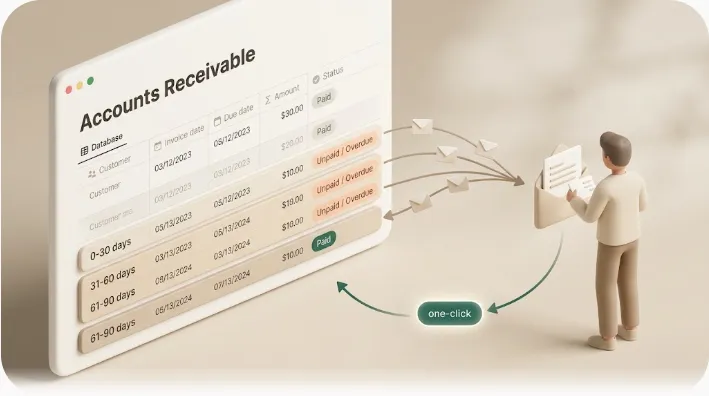
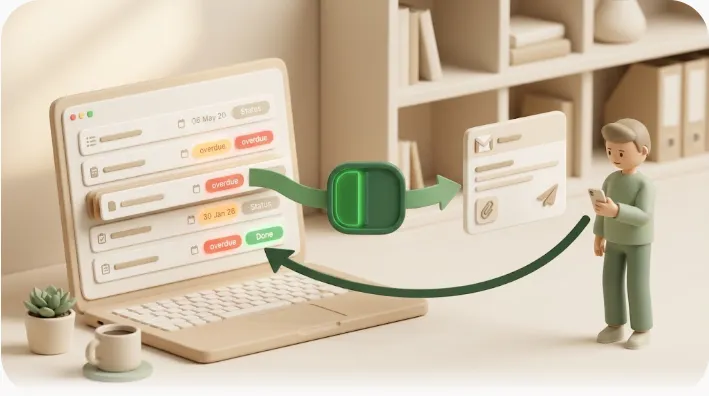
Kapsel is a tool that watches your Notion due dates, assignees, and status, and sends automatic email reminders to people outside your workspace — recipients who do not use Notion and never log in. For a content calendar, that means the Draft-due and Review deadlines you derived in Step 4 can actually land in a freelancer's or client's inbox.
A few shipped behaviors make it fit an editorial pipeline:
- It reaches non-Notion recipients by email. A guest writer gets the deadline without an account or login. The benefit: the deadline you planned backward from is the deadline they actually see. (This is the same "notify people outside your workspace" capability covered in external share notifications.)
- One click writes the response back to the database. The writer or client acts from the email, and the status updates in Notion — so your Board view reflects reality without manual chasing. (For the client-facing side of this, see sending client updates from Notion.)
- Overdue chasing, with a safety rail. If a submission date passes, Kapsel can follow up on overdue items — and it never sends to an item already marked Published, Completed, or Paid. The benefit: late writers get nudged, but a contributor who already delivered never gets an awkward "you're late" email.
- Merge variables personalize each reminder. The email can name the specific post, its deadline, and a one-click action, so it reads as a real request rather than a generic blast.
Pricing is Free $0 / Standard $12 / Pro $29 per month (Free ¥0 / Standard ¥1,980 / Pro ¥4,980, tax included for JP); Pro adds multiple workspaces and sender branding (your name, signature, and logo on the emails). Check the official pricing page for exact figures.
Keep the system low-maintenance: a short weekly review ritual
A content calendar stays alive only if someone looks at it on a schedule. The build is one-time; the habit is forever. Keep it to one recurring 15-minute session:
- Open the "This week" Table view (publish date within 7 days, not yet Published).
- Confirm every piece has an owner and a draft-due date.
- Move any stuck cards and flag anything with no draft two days before its draft-due date.
- Scan the Calendar view two to three weeks out and fill the thinnest week.
💡 Put the weekly review itself on a recurring cadence so it never depends on memory. For building that habit into Notion, see recurring reminders in Notion.
That's the whole system: a small database, three views, backward-planned dates, reminders that reach everyone involved, and a 15-minute weekly check. Once the content ships and you're invoicing external clients for it, the same "reach people outside Notion" pattern applies to freelance payment reminders.
Frequently Asked Questions
What properties should a Notion content calendar database have? Start with five: Title, Status (select), Publish date (date), Owner/Writer (person), and Channel/Platform (multi-select). Add a Draft link property so the calendar points to where the content actually lives. Keep it lean — extra properties that nobody fills erode trust in the whole system.
Should I use Calendar view or Board view for content planning in Notion? Use both, on the same database. Calendar view (grouped by publish date) is best for spotting cadence and gaps; Board view (grouped by status) is best for daily execution and seeing what's stuck. Add a Table view for bulk edits and backlog triage.
How do I plan a content calendar backward from the publish date? Treat the publish date as the anchor, then subtract the time each stage needs: review deadline ~2 days before publish, draft due ~5 days before, and the brief/assignment ~10 days before. Store those as date properties (manually, or with a fixed cadence) so an upstream slip shows up days early instead of on publish day.
Does Notion send automatic email reminders?
Notion can email reminders to workspace members who have email notifications enabled, via the date property's "Remind" option or @remind. It does not send reminders to people who aren't members of your workspace — so external writers and clients won't receive them. Reaching outside recipients requires a tool built for that, such as Kapsel.
How do I remind freelance writers who don't use Notion about a deadline? Because native Notion reminders only reach logged-in members, you need email that goes to people outside the workspace. Kapsel watches your Notion due dates and status and sends automatic email reminders to external recipients; their one-click response writes the status back into your database.
What's the best Status workflow for an editorial calendar in Notion? A common chain is Idea → Brief → Drafting → Submitted → In review → Approved → Scheduled → Published. Smaller teams often collapse it to five stages (Idea → Drafting → In review → Scheduled → Published). The rule: each status should mean one clear thing and map to one owner.
Can Notion notify someone who isn't a member of my workspace?
Not with built-in reminders — @remind and the date "Remind" toggle only notify logged-in members. Sharing a page as a guest still requires the person to log in to see anything; it doesn't proactively push a deadline to them. Proactively notifying a non-member requires an external email layer like Kapsel.
How far in advance should a content calendar be planned? Enough lead time to cover your full backward-planned chain comfortably — for many blog pipelines that's roughly two weeks per piece (brief ~10 days out, draft ~5 days out, review ~2 days out). Keep a rolling 2–4 week horizon visible in the Calendar view so you can fill thin weeks before they arrive.
Notes & sources
- Published 2026-10-22.
- Primary references: Notion's official help documentation on databases, database views, date properties, and reminders (notion.so/help), consulted for how native
@remindand the date "Remind" toggle deliver notifications. - Kapsel's features and pricing described here are accurate as of the publish date; for exact, current figures see the official pricing page at getkapsel.com. Native Notion behavior is subject to change by Notion Labs — verify against current official documentation before relying on it.