How to Manage Recurring Invoices in Notion (Monthly Retainers & Subscription Billing) Without Missing a Payment
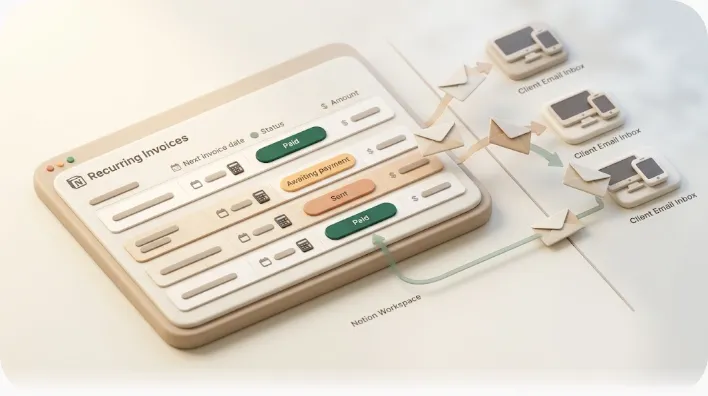
A perfect dateAdd() formula will tell you a retainer invoice is due on the 1st — and then do nothing about it, because the person who needs that reminder is your client, and your client never opens your Notion. This guide is for freelancers, agencies, and small studios who already run billing in Notion and keep re-creating and re-chasing the same monthly invoices by hand.
TL;DR
- A recurring-invoice tracker in Notion needs three parts: a Frequency select, a next-due formula (
dateAdd()+if()), and an auto-status formula that flips rows to Overdue.- That database is read-only to your client — Notion reminders and @mentions only reach people with a Notion account, so the formula tells you an invoice is due, not the payer.
- To close the loop you need an outbound layer that emails the client on the due date, nudges again when overdue, writes their response back to Notion, and never sends once the row is marked Paid.
- Below: the full database, the actual formulas, the views, and where the reminder gap starts.
Why recurring invoices break down in Notion (even with a "good" database)
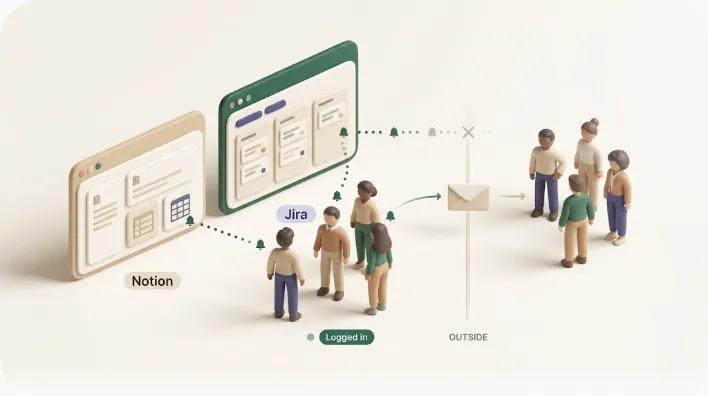
Most Notion billing setups fail at the same point, and it is not the formula. The formula is usually fine. The breakdown is that a Notion database is a place you look, not a thing that reaches out. It surfaces "due today" only to whoever opens the workspace — and for retainer or subscription billing, that person is you, not the client who owes the money.
Every template roundup and tutorial stops at the same line: "now the Next Invoice Date field shows the right date." That is necessary but not sufficient. A correct date sitting in a database nobody outside your team can see does not collect a payment. The three things that actually go wrong:
- The nudge points the wrong way. Your Kanban or Calendar reminds you an invoice is due. The client — the one who pays — gets nothing, because they have no Notion account.
- Paid invoices keep getting chased. When Status changes to Paid manually, nothing automatically stops an overdue reminder that was already queued. Clients get dunned after they've paid.
- The next cycle doesn't exist yet. A formula computes the next date, but it doesn't create next month's row. Someone has to remember to duplicate it.
The rest of this guide builds the database properly, then addresses the part the formula can't: turning a due date into something the client actually receives.
Step 1 — Build the recurring billing database (core properties)
Start with one database — call it Invoices or Billing — where each row is a single invoice for a single billing cycle. These properties are the backbone:
| Property | Type | Purpose |
|---|---|---|
| Client | Relation (→ Clients DB) | Who is billed; enables rollups for totals |
| Invoice # | Unique ID or Text | Reference number for the invoice |
| Amount | Number (currency) | What's owed this cycle |
| Frequency | Select | Monthly / Quarterly / Yearly / One-time — the backbone |
| Start Date | Date | Anchor date the cycle counts from |
| Status | Select | Draft / Sent / Paid / Overdue |
| Date Issued | Date | When the invoice was sent |
| Due Date | Date or Formula | Payment deadline |
| Date Paid | Date | When payment landed |
| Payment Method | Select | Bank transfer / card / PayPal, etc. |
The Frequency select is what makes the tracker "recurring" rather than a flat invoice list — it drives the next-due formula in Step 2 and lets you filter "all monthly retainers" in one click. Building it this way costs nothing beyond the Notion workspace you already have — a free alternative to tracking retainers in a spreadsheet or paying for a dedicated subscription-billing app just to see who owes what this month.
💡 Keep Client as a relation to a separate Clients (or Projects) database, not a plain text field. A relation lets you roll up "total billed this year per client" and reuse one client record across every invoice — plain text can't do either.
If you are new to how properties, relations, and rollups fit together, the Notion database overview covers the fundamentals so this guide can stay focused on billing.
Step 2 — The formula that calculates the next invoice date automatically
This is the formula every tutorial centers on. It reads the Start Date and the Frequency select, then returns the next billing date using dateAdd(). A plain version:
if(
  prop("Frequency") == "Monthly", dateAdd(prop("Start Date"), 1, "months"),
if(
  prop("Frequency") == "Quarterly", dateAdd(prop("Start Date"), 3, "months"),
if(
  prop("Frequency") == "Yearly", dateAdd(prop("Start Date"), 1, "years"),
  prop("Start Date")
)))
How it reads: dateAdd(date, amount, unit) takes a date and pushes it forward. The nested if() picks the amount and unit based on the Frequency select — Monthly adds 1 month, Quarterly adds 3 months, Yearly adds 1 year, and anything else (One-time) just returns the original date. The benefit: change one Start Date or Frequency value and the next invoice date recalculates itself — no manual date math per client.
If you want the formula to keep rolling the date forward each cycle (so it always shows the upcoming due date rather than one fixed next date), combine dateAdd() with dateBetween() to count how many whole periods have elapsed since the start, then add that many periods back on. That is the more advanced variant; the version above is enough for a tracker where you spawn a fresh row each cycle (see Step 4).
⚠️ Formula properties are read-only — you can't type into them or set a reminder on a formula date the way you can on a plain Date property. If you need Notion's native date reminder bell, copy the computed value into an editable Due Date field (or compute Due Date directly). Keep this in mind; it matters again in the reminder section.
A 'days until due / overdue' helper formula + auto-status flip
Two more formulas make the tracker self-updating. First, days remaining:
dateBetween(prop("Due Date"), now(), "days")
A positive number means days until due; zero or negative means it's due today or overdue. The benefit: one glance tells you urgency without mental date arithmetic.
Then an auto-status formula that flips a record to Overdue once the due date passes — but only if it isn't already paid:
if(prop("Status") == "Paid", "Paid",
if(dateBetween(prop("Due Date"), now(), "days") < 0, "Overdue",
  prop("Status")))
The guard prop("Status") == "Paid" first is deliberate: it stops a settled invoice from being re-labeled Overdue. That guard is also the conceptual seed of the biggest problem later — "don't act on something already paid" is easy to express in a formula, and much harder to enforce on an actual reminder that's already been scheduled to send.
Step 3 — Views that keep billing visible
One database, several saved views, each answering a different question:
| View | Type | Shows | Use it to… |
|---|---|---|---|
| Billing calendar | Calendar (by Due Date) | Every invoice on its due day | See the month's cash-flow at a glance |
| By status | Board / Kanban (by Status) | Draft → Sent → Paid / Overdue columns | Drag an invoice as it progresses |
| Due this week (Upcoming) | Table (filter: Due Date within next 7 days, Status ≠ Paid) | Imminent invoices | Know what to send/collect now |
| Overdue | Table (filter: Status is Overdue) | Everything late | Prioritize chasing |
| This month's bills | Table (filter: Due Date is this month) | The current cycle | Reconcile at month-end |
The benefit of saved views is that filtering is done once and reused — you never rebuild "show me overdue invoices" by hand. Views, filters, and the calendar layout are standard Notion; if you want the broader picture of automating a Notion workspace, see Notion automation.
The gap: this database only works if someone remembers to look at it
Here is the structural problem no template addresses. Everything in Steps 1–3 is inward-facing. The calendar, the Overdue filter, the color-coded Kanban — all of it reaches exactly one audience: whoever opens your Notion workspace. For internal task tracking that's fine. For billing a client, the audience you most need to reach is the one person guaranteed not to be in that workspace: the payer.
Why Notion's own reminders and @mentions can't reach a client who has no Notion account
Notion's date reminders and @mentions are in-app notifications: they appear in the Notion inbox, desktop, or mobile app of a user who has access to that workspace. A freelance or agency client who simply pays your invoices has no account and no access — so there is no inbox for Notion to notify. This isn't a settings problem you can fix; it's the boundary of what a workspace-internal tool does. The due date is correct and completely invisible to the person who owes it.
Closing the loop — connect the database to Kapsel
Kapsel is a solo-built tool that watches your Notion database's due dates, assignees, and status, and automatically sends email reminders — including to external recipients who do not use Notion and never have to log in. That is the layer that turns a computed due date into something the client actually receives.
Point Kapsel at the Invoices database from Step 1 and it reads the same Due Date and Status you already maintain. From there:
- It emails the client on the due date. The person who owes the money gets the nudge in their own inbox — no Notion account, no login. Benefit: the reminder reaches the payer, not just your Kanban.
- It chases overdue invoices automatically. When a due date passes and the row isn't settled, Kapsel can send a follow-up — a second, firmer nudge after the first is ignored — instead of leaving "Overdue" as a label nobody outside Notion sees. Benefit: escalation happens without you re-typing a chase email each time.
- It never sends to anything marked Paid or Completed. This is the enforcement the Step 2 formula only hinted at: once Status is Paid, Kapsel stops. Benefit: no client ever gets dunned for money they already paid.
- Merge variables personalize each send — client name, invoice number, amount, due date pulled from the row — so one recurring rule covers every client. Benefit: no per-client email drafting.
That is one to two sections' worth of what Kapsel does; the point is narrow — it supplies the outbound reach the database structurally lacks. For the chasing side specifically, see overdue invoice reminders in Notion and practical payment reminder email templates.
One-click, two-way: how the client's action writes back to Notion
The missing half of every "Notion billing" tutorial is the return trip. In the setups above, Notion shows status and a human changes it — read-only. Kapsel's reminder email carries a one-click action; when the client confirms payment, that response writes back to the Notion row's status automatically, no manual re-entry. The benefit is a genuine two-way loop: the client's single click updates your database, which in turn stops further reminders. You stop transcribing "they said they paid" into Notion by hand.
Common mistakes when running recurring billing in Notion
- Forgetting to spawn the next cycle's row. A
dateAdd()formula computes the next date; it doesn't create next month's record. Either duplicate a template row when you mark one Paid, or use a recurring-template pattern so the next invoice exists before it's due. (For the reminder side of repeating work, see recurring reminders in Notion.) - Overdue reminders firing after payment. If reminders are decoupled from status, a client who just paid can still get a chase. Any outbound setup must key off a live Paid/Completed check — not a static list queued days earlier.
- Treating a subscription-expense tracker like a client invoicing system. A tracker of subscriptions you pay (Netflix, SaaS seats) is personal-finance flavored and read-only by design — nobody needs to be emailed. A retainer-invoice system sends money requests outward and must reach a paying client. They look similar in Notion and behave completely differently.
- Relying on native reminders for client-facing deadlines. They only reach Notion users; a client never sees them.
For the collections workflow end to end, how to chase late payments and freelance payment reminders go deeper than this build guide can.
Frequently Asked Questions
How do I set up recurring payments/invoices in Notion?
Build one database where each row is an invoice, add a Frequency select (Monthly/Quarterly/Yearly/One-time), and use a dateAdd() formula to compute the next due date from a Start Date. Add a Status property and saved views for Overdue and "due this week." Notion itself won't send the invoice or the reminder — it tracks; an outbound layer sends.
What formula calculates the next payment or invoice date in Notion?
A nested if() around dateAdd(): pick the interval by Frequency, e.g. dateAdd(prop("Start Date"), 1, "months") for Monthly, 3, "months" for Quarterly, 1, "years" for Yearly. To always show the upcoming cycle, combine dateAdd() with dateBetween() to count elapsed periods and roll forward.
How do I track monthly retainer invoices in Notion? Set Frequency to Monthly, record Amount, Date Issued, Due Date, and Status per cycle, and relate each row to a Clients database for per-client rollups. A "This month's bills" filtered view plus a Calendar-by-due-date view keeps the retainer cycle visible at a glance.
Does Notion have a built-in recurring invoice or billing automation feature? No. Notion offers recurring templates and date properties, but it has no native feature that issues invoices on a schedule or emails clients to collect payment. You model the recurrence with a formula and add an external tool for the sending.
How do I know if an invoice is overdue in Notion automatically?
Use dateBetween(prop("Due Date"), now(), "days") to get days remaining, then a formula that returns "Overdue" when that value is negative and Status isn't already Paid. The row re-evaluates itself as dates pass, so the Overdue view stays current without manual edits.
Can Notion send automatic reminders to clients who don't use Notion? Not on its own — Notion's reminders and @mentions are in-app and only reach people with workspace access. Kapsel adds that capability: it reads your database and emails external recipients directly, with no account or login required on their end.
How do I stop reminders from going out after an invoice is paid? The reminder logic has to check live status at send time. Kapsel never sends to rows marked Paid or Completed, so marking an invoice Paid in Notion stops its reminders automatically — including any overdue chase that would otherwise fire.
What's the difference between a subscription tracker and an invoice tracker in Notion? A subscription tracker logs recurring costs you pay and is read-only — nothing is sent. An invoice tracker manages money you bill others, so it needs outbound reminders to clients and a way to mark payments received. The properties overlap, but the invoice tracker has an external, two-way dimension the expense tracker doesn't.
Is there a free Notion template for recurring invoices or retainer billing?
Many free and paid templates (Gumroad, template galleries) ship a finished duplicate with the Frequency select and dateAdd() formula pre-built — convenient, but they stop at the date and rarely explain the reminder gap. Building it yourself from Steps 1–3 costs nothing and teaches you why the formula works.
Try it with your own billing database
If your Invoices database already has Due Date and Status, the outbound layer is a short connection away. Kapsel has a Free plan at ¥0 / $0 you can keep using at no cost, with Standard at ¥1,980 / $12 and Pro at ¥4,980 / $29 (Pro adds multiple Notion workspaces and sender branding). For exact, current figures, check the pricing page. Point it at the database you just built and the due dates you already track start reaching the clients who owe them — and stop the moment an invoice is marked Paid.
Notes & sources
- Published 2026-10-11.
- Primary references: Notion's official help documentation for formula functions (
dateAdd,dateBetween,now), database properties, relations and rollups, and date reminders. - Formula syntax shown is illustrative; adapt property names to your own database. Notion's formula editor is the authority on exact syntax.
- Kapsel's features and pricing described here are as of the publish date and may change; the official pricing page carries the current figures.